
okulaku KIDS710
okulaku Kids Tablet KIDS710 User Manual
Model: KIDS710 | Brand: okulaku
1. Introduction
Welcome to the user manual for your new okulaku Kids Tablet KIDS710. This 7-inch Android tablet is designed to provide a safe and engaging learning and entertainment experience for children aged 3-14. Please read this manual carefully to ensure proper use and maintenance of the device.
WARNING: Choking hazard -- Contains small parts. Not for children under 3 years.
2. What's in the Box
Upon unboxing your okulaku Kids Tablet, you should find the following items:
- 1x Kids Tablet (KIDS710)
- 1x Charger Head
- 1x USB Cable
- 1x User Guide (this document)
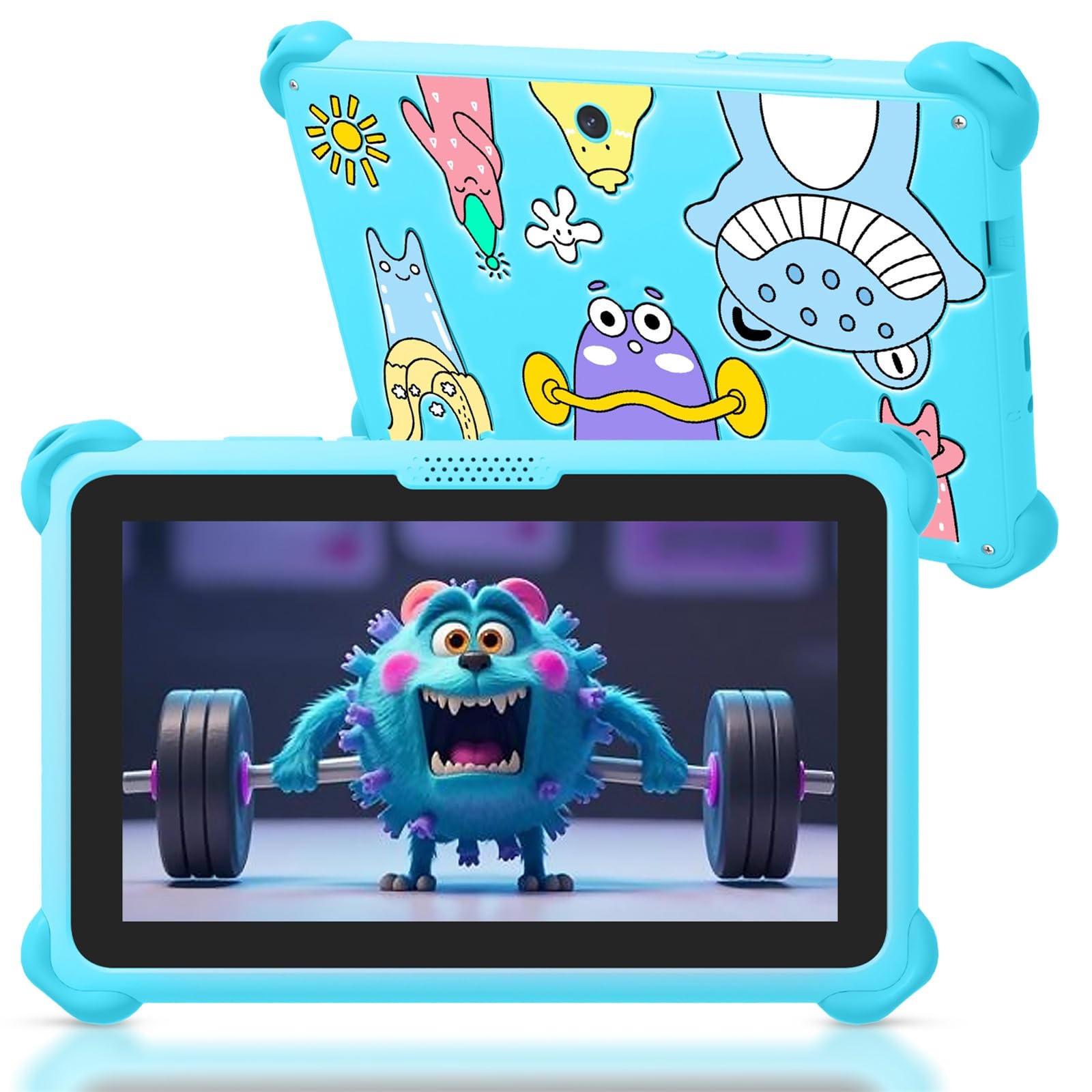
Image: The blue okulaku Kids Tablet KIDS710 with its protective case.
3. Product Overview
The okulaku Kids Tablet KIDS710 is a powerful and kid-friendly device featuring:
- Operating System: Android 11.0 for a safer, faster, and ad-free experience.
- Processor: High-performance octa-core processor.
- Memory & Storage: 2GB RAM and 32GB internal storage, expandable up to 1TB with a MicroSD card (sold separately).
- Display: 7-inch 1024x600 IPS HD Touch Screen with low blue light technology for eye protection.
- Connectivity: WiFi and Bluetooth capabilities.
- Audio: Dual high-quality stereo speakers.
- Battery: 3500mAh high-capacity battery for extended use.
- Case: Slim, kid-friendly case designed to protect against drops and bumps, including an adjustable stand.

Image: The okulaku Kids Tablet KIDS710, highlighting its design.
4. Setup
4.1 Initial Charging
Before first use, fully charge the tablet using the provided charger head and USB cable. The charging port is located on the side of the tablet. A full charge ensures optimal performance and battery life.
4.2 Power On/Off
- To Power On: Press and hold the power button (located on the top edge) until the screen lights up.
- To Power Off: Press and hold the power button, then select 'Power Off' from the on-screen options.
- To Restart: Press and hold the power button, then select 'Restart' from the on-screen options.
4.3 Wi-Fi Connection
To connect to a Wi-Fi network:
- Go to Settings.
- Tap on Network & Internet.
- Select Wi-Fi and turn it on.
- Choose your desired network from the list and enter the password if prompted.

Image: A parent and child interacting with the tablet, illustrating parental control features.
5. Operating Instructions
5.1 Basic Navigation
The tablet uses a touch-sensitive screen for navigation:
- Tap: To select an item or open an app.
- Swipe: To scroll through pages or lists.
- Pinch: To zoom in or out on images and web pages.
5.2 Parental Controls & Child Mode
The okulaku Kids Tablet features advanced parental controls to create a secure digital space for your child. You can customize profiles, block unsuitable apps/websites, and set daily screen time limits.
- Access the parental control settings to manage your child's profile.
- Set time limits for tablet usage and specific applications.
- Approve or block applications and websites.
- Monitor your child's activity.
The tablet comes with the Yu babe app, providing thousands of free learning apps that work without Wi-Fi. It is also GMS certified, allowing access to trusted apps like YouTube Kids, Netflix, and Disney+ via Google Play. When entering these applications, you can activate child mode through parental control settings.
Video: An overview of the educational features and child-friendly interface of the okulaku Kids Tablet.
5.3 App Management
- Downloading Apps: Use the Google Play Store (GMS certified) to download new applications.
- Uninstalling Apps: Go to Settings > Apps > See all apps, select the app, and tap Uninstall.

Image: The tablet screen displaying popular streaming and app icons, indicating entertainment options.
6. Maintenance
6.1 Cleaning
Use a soft, lint-free cloth to clean the screen and body of the tablet. Avoid using harsh chemicals or abrasive materials that could damage the device.
6.2 Battery Care
- Avoid fully discharging the battery frequently.
- Do not expose the tablet to extreme temperatures.
- Use only the provided charger or a certified compatible charger.
6.3 Storage
Store the tablet in a cool, dry place away from direct sunlight and moisture when not in use.
7. Troubleshooting
| Problem | Possible Solution |
|---|---|
| Tablet won't turn on | Ensure the battery is charged. Connect the charger and try again. If still unresponsive, perform a hard reset by holding the power button for 10-15 seconds. |
| Screen is unresponsive | Restart the tablet. Ensure the screen is clean and free of debris. |
| Apps are crashing | Clear the app's cache (Settings > Apps > [App Name] > Storage > Clear cache). If the issue persists, uninstall and reinstall the app. |
| Poor Wi-Fi connection | Move closer to the Wi-Fi router. Restart the router and the tablet. Check Wi-Fi settings for correct password. |
8. Specifications
| Feature | Detail |
|---|---|
| Brand | okulaku |
| Model Name | KIDS710 |
| Operating System | Android 11.0 |
| Screen Size | 7 Inches |
| Display Resolution | 1024x600 Pixels (IPS HD Touch Screen) |
| Processor | Octa-core (Allwinner) |
| RAM | 2 GB |
| Internal Storage | 32 GB (expandable up to 1 TB via MicroSD) |
| Connectivity | WiFi, Bluetooth |
| Battery Capacity | 3500mAh |
| Product Dimensions | 7.8 x 5.2 x 0.6 inches |
| Item Weight | 0.634 ounces |
| Color | Blue |
9. Warranty and Support
For warranty information and customer support, please refer to the documentation included with your purchase or visit the official okulaku website. If you have any questions or require assistance, our customer service team is available to help.
Email: service@okulaku.net
Related documentsKIDS710


Ask a question about this manual
Ask about setup, troubleshooting, compatibility, parts, safety, or missing instructions. Manuals+ will review the question and use this page’s manual context to help answer it.