
1. Introduction
This manual provides instructions for the installation, operation, and maintenance of your SIXWIN Android 13 Car Stereo, Model A7311A4117. This unit is specifically designed for Subaru Outback and Legacy models manufactured between 2010 and 2014.
The system features a 9.7-inch touch screen, Android 13 operating system, 6GB RAM, 128GB internal storage, Wireless CarPlay, Android Auto, Bluetooth 5.0, GPS navigation, WiFi connectivity, network radio, 32-band equalizer, weather forecast display, 59 customizable UI themes, split-screen functionality, intelligent voice control, and mirror link capabilities.
Important Compatibility Note: This car radio is intended for vehicles with the basic audio system. It is not compatible with vehicles equipped with the Harman Kardon sound system.

Figure 1.1: SIXWIN Android 13 Car Stereo and included accessories.
2. Packing List
Please verify that all items listed below are included in your package:
- 1 x SIXWIN Android 13 Car Stereo Unit
- 1 x Power Cable
- 1 x RCA Input/Output Cable Set
- 1 x Reversing Camera Input Cable
- 1 x USB Cable (multiple)
- 1 x GPS Antenna
- 1 x Radio Antenna
- 1 x External Microphone
- 1 x AHD Backup Camera
- 1 x User Manual (this document)
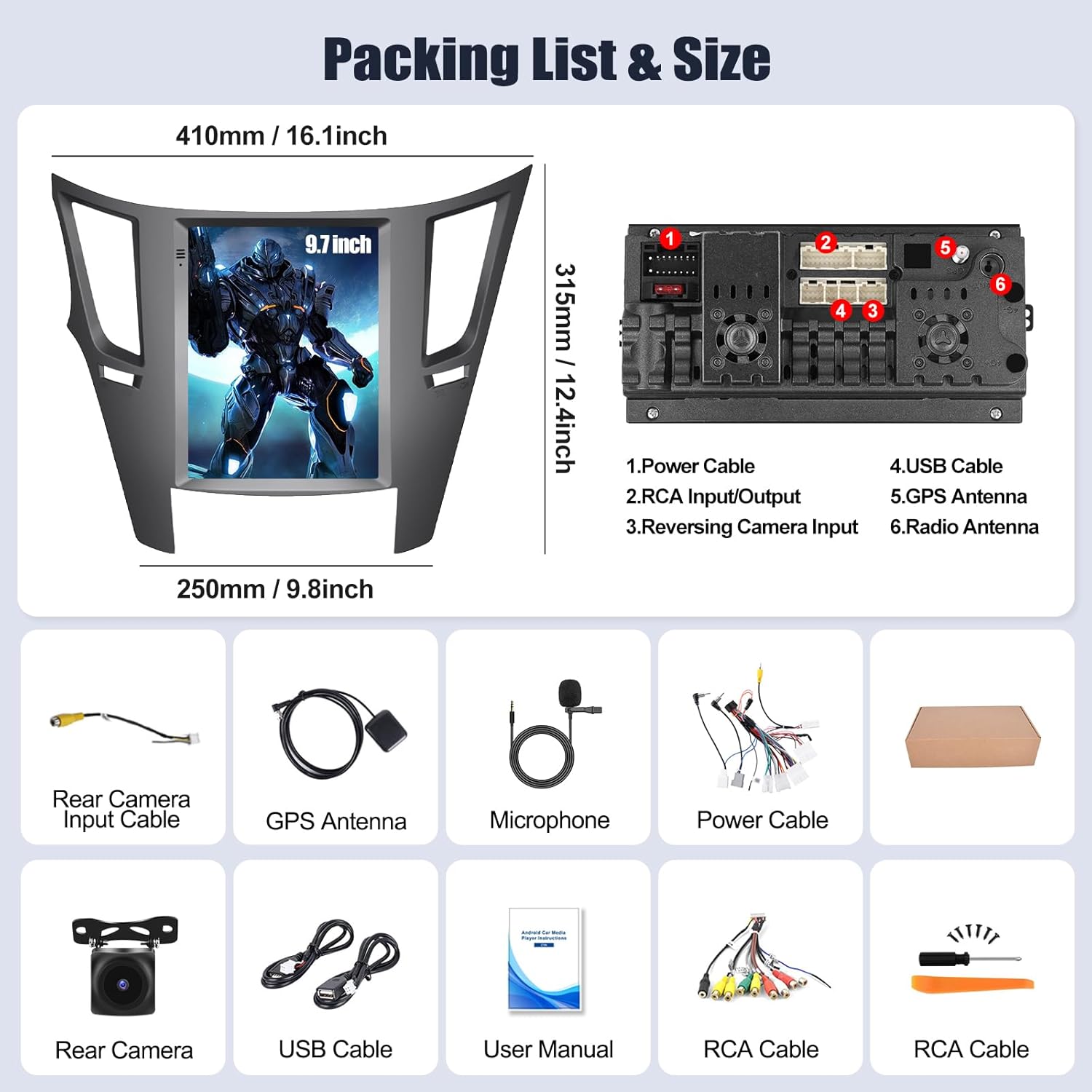
Figure 2.1: Visual representation of the packing list and unit dimensions.
3. Installation
Installation of the SIXWIN Android 13 Car Stereo requires technical knowledge and experience with car audio systems. Professional installation is recommended to ensure proper functionality and to avoid damage to your vehicle or the unit.
3.1 Pre-Installation Check
Before permanent installation, connect all cables and test the unit's basic functions (power on/off, audio, touch screen response) to confirm proper operation.
3.2 General Installation Steps
- Carefully remove the original car stereo and trim panels.
- Connect the provided power cable, RCA cables, USB cables, GPS antenna, and radio antenna to the corresponding ports on the new SIXWIN unit.
- Connect the reversing camera input cable and the backup camera if applicable.
- Secure the new stereo unit into the dashboard opening.
- Reinstall all trim panels.
3.3 Important Considerations for Subaru Outback/Legacy (2010-2014)
- Antenna Connection: The car antenna connection in some Subaru models may be located deep within the dash. An antenna extension cable may be required (not included) to reach the unit.
- Power Issues: If the unit powers off when the ignition is turned on, and then back on, check the wiring. Some users have resolved this by disconnecting specific orange and pink connections, though this may vary by vehicle and should be done with caution or professional guidance.
- Harman Kardon Systems: As noted in the introduction, this unit is not compatible with vehicles equipped with the Harman Kardon sound system. Ensure your vehicle has the basic audio system.

Figure 3.1: Installation effect and compatibility check for Subaru Outback/Legacy.
4. Initial Setup
After successful installation, follow these steps for initial setup:
- Power On: Start your vehicle to power on the stereo unit. The system will boot up, which may take a moment.
- Language Selection: Follow the on-screen prompts to select your preferred language.
- Date and Time: Set the correct date and time. This can often be synchronized automatically via GPS or network connection.
- WiFi Connection: Navigate to the settings menu and connect to an available WiFi network. This is essential for online features, app downloads, and system updates.
- GPS Configuration: Ensure the GPS antenna is properly connected and the system can acquire a satellite signal for accurate navigation.
5. Operating Features
5.1 Wireless CarPlay & Android Auto
The unit supports both wireless and wired CarPlay and Android Auto, allowing seamless integration with your smartphone for navigation, music, calls, and more.
- For CarPlay: Connect your iPhone via Bluetooth to the car stereo. Open the 'Zlink5' application on the stereo. Follow the prompts to establish a wireless CarPlay connection.
- For Android Auto: Download the Android Auto app on your phone. Connect your Android phone via Bluetooth to the car stereo. Open the 'Zlink5' application on the stereo. Follow the prompts to establish a wireless Android Auto connection. Note: Android Auto may not support all Samsung phone models.
Once connected, you can use voice commands (Siri or Google Assistant) to control various functions.
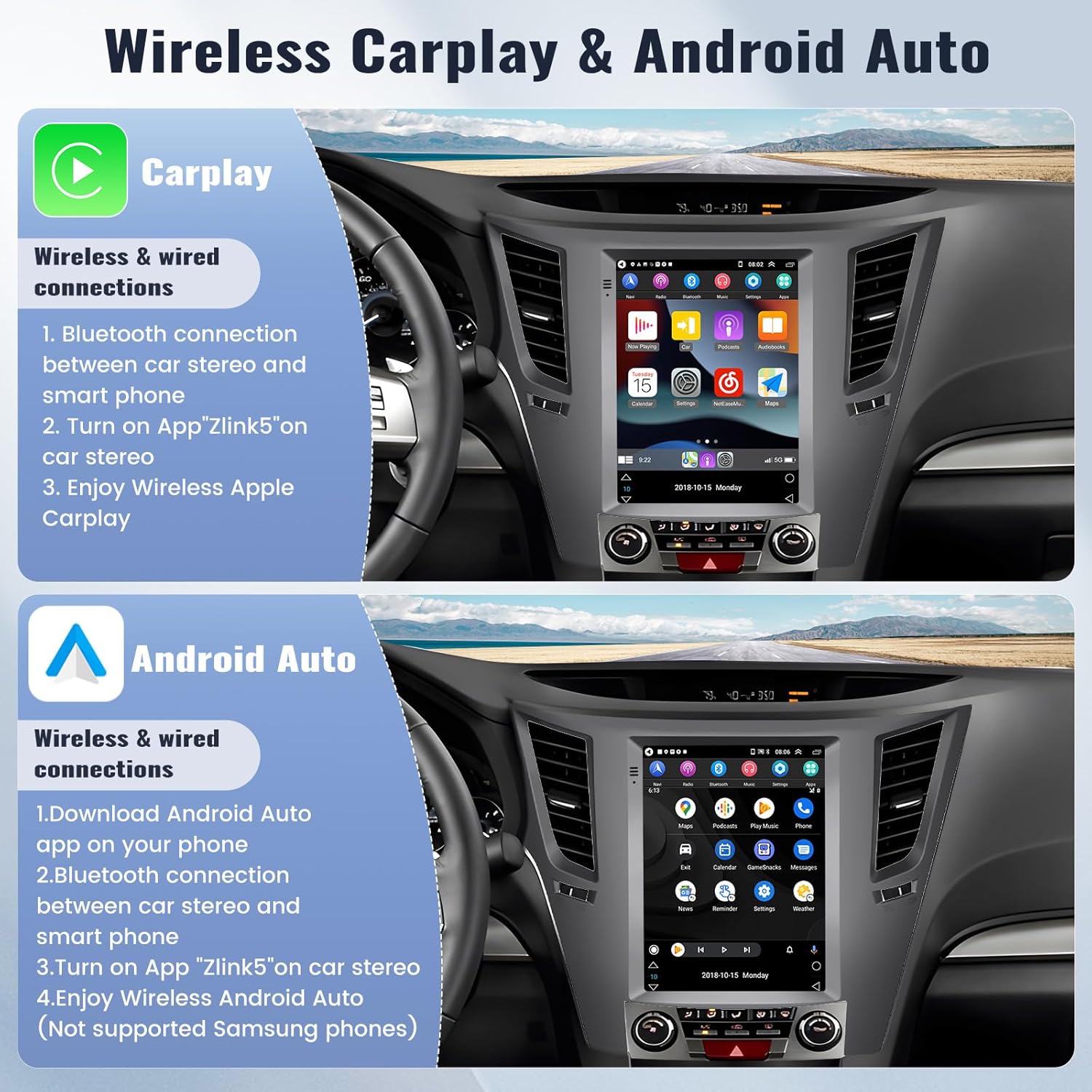
Figure 5.1: Wireless CarPlay and Android Auto functionality.

Figure 5.2: CarPlay, Android Auto, and 59UI desktop themes.
5.2 Bluetooth 5.0
Bluetooth 5.0 enables hands-free calling, wireless music streaming, and phonebook synchronization. Connect your phone to the stereo via Bluetooth in the settings menu.
- Hands-Free Calling: Make and receive calls directly from the stereo screen. The external microphone ensures clear audio transmission.
- Bluetooth Music: Stream audio from your phone to the car stereo.
- Phonebook Sync: Access your phone's contacts directly on the stereo.

Figure 5.3: Bluetooth functions and FM Radio interface.
5.3 GPS Navigation & WiFi Connectivity
The unit features built-in GPS navigation and WiFi for enhanced connectivity.
- GPS Navigation: Supports both online and offline navigation. The pre-installed 'Here We Go' app allows you to download offline map data for navigation without an internet connection.
- WiFi Connection: Connect to a WiFi hotspot to access online navigation, download applications from the app store, stream media, and browse the internet.

Figure 5.4: GPS Navigation and WiFi connectivity for app access.
5.4 Network Radio & FM Radio
Access a wide range of radio stations:
- Network Radio: With an internet connection, you can listen to mainstream radio stations from various countries.
- FM Radio: Tune into local FM radio frequencies.
5.5 Steering Wheel Control (SWC)
The unit supports steering wheel controls, allowing you to manage audio and calls without taking your hands off the wheel.
- Learning Function: To configure SWC, navigate to the settings menu. The password for SWC learning is 1234. Follow the on-screen instructions to assign functions to your vehicle's steering wheel buttons.
5.6 Backup Camera
The included AHD backup camera automatically displays a clear image on the stereo screen when your vehicle is in reverse, aiding in safer parking and maneuvering.
- Automatic Display: The camera feed activates automatically when the vehicle is shifted into reverse gear.
- Features: The camera provides an AHD image, is waterproof, offers a 170-degree wide-angle view, and includes night vision capabilities.

Figure 5.5: Steering Wheel Control setup and Backup Camera view.
5.7 Other Features
- Weather Forecast: The unit can display a weekly weather forecast.
- 59 UI Desktop Themes: Customize the appearance of your stereo interface with a variety of themes.
- 32-Band Equalizer (32EQ): Fine-tune audio output for optimal sound quality.
- Split Screen Function: Run two applications simultaneously on the screen.
- Intelligent Voice: Utilize voice commands for various system functions.
- Mirror Link: Mirror your smartphone screen onto the stereo display.
6. Maintenance
To ensure the longevity and optimal performance of your SIXWIN Android 13 Car Stereo, follow these maintenance guidelines:
- Cleaning the Screen: Use a soft, lint-free cloth to gently wipe the touch screen. For stubborn smudges, slightly dampen the cloth with water or a screen-cleaning solution designed for electronics. Avoid harsh chemicals or abrasive materials.
- Software Updates: Periodically check for system software updates via the WiFi connection in the settings menu. Updates can improve performance, add new features, and fix bugs.
- Avoid Extreme Temperatures: Do not expose the unit to extreme heat or cold for extended periods, as this can affect its electronic components.
- Cable Connections: Ensure all cables remain securely connected. Loose connections can lead to intermittent issues.
7. Troubleshooting
If you encounter issues with your SIXWIN Android 13 Car Stereo, refer to the following common problems and solutions:
| Problem | Possible Cause / Solution |
|---|---|
| Unit does not power on or powers on intermittently. | Check power cable connections. Ensure the ignition wire is correctly connected. Verify vehicle's fuse for the stereo. If the issue persists after ignition, check specific wiring (e.g., orange and pink connections as mentioned in installation). |
| Bluetooth connection is unstable or fails. | Ensure Bluetooth is enabled on both the stereo and your phone. Delete previous pairings and re-pair. Restart both devices. Ensure no other devices are interfering. |
| CarPlay/Android Auto not connecting or glitching. | Ensure 'Zlink5' app is running. Check phone compatibility (e.g., some Samsung phones may not be fully supported for Android Auto). Restart phone and stereo. Verify USB cable if using wired connection. |
| GPS signal is weak or inaccurate. | Ensure the GPS antenna is properly installed and has a clear view of the sky. Check antenna connection to the unit. |
| Unit is slow, freezes, or restarts unexpectedly. | Close unnecessary background applications. Clear cache. Perform a factory reset (note: this will erase all user data). Ensure sufficient ventilation around the unit. |
| Steering Wheel Controls do not work. | Ensure SWC wires are correctly connected. Perform the SWC learning process in the settings menu (password 1234). |
| No sound or poor sound quality. | Check speaker wiring. Verify volume levels on both the stereo and connected devices. Ensure the vehicle does not have a Harman Kardon system, which is incompatible. |
If these solutions do not resolve the issue, please contact customer support.
8. Specifications
| Feature | Detail |
|---|---|
| Model Number | A7311A4117 |
| Operating System | Android 13 |
| RAM | 6GB |
| Internal Storage (ROM) | 128GB |
| Display Size | 9.7 Inches |
| Connectivity | Wireless (Bluetooth 5.0, WiFi), USB |
| Special Features | Wireless CarPlay, Android Auto, GPS Navigation, Rear View Camera Input, Network Radio, 32EQ, Weather Forecast, 59UI Themes, Split Screen, Intelligent Voice, Mirror Link |
| Audio Output Mode | Stereo |
| Map Type | Worldwide (via Here We Go app) |
| Item Weight | 4.16 pounds |
| Product Dimensions | 1 x 1 x 1 inches (Unit only, without frame) |
9. Warranty and Support
9.1 Product Warranty
The SIXWIN Android 13 Car Stereo comes with a 1-year warranty from the date of purchase, covering manufacturing defects and malfunctions under normal use. Please retain your proof of purchase for warranty claims.
9.2 Customer Support
For online assistance, technical support, or any questions regarding your product, please contact SIXWIN customer service:
Email: sixwin_vip@163.com

Figure 9.1: SIXWIN Customer Support Contact Information.
