
GIGABYTE B840M A ELT WF6E
GIGABYTE B840M AORUS ELITE WIFI6E Motherboard User Manual
Model: B840M A ELT WF6E
1. Introduction
This manual provides detailed instructions for the installation, operation, and maintenance of your GIGABYTE B840M AORUS ELITE WIFI6E Motherboard. This motherboard is designed to support AMD Ryzen 9000/8000/7000 Series Processors, offering advanced features for high-performance computing. Please read this manual thoroughly before proceeding with installation to ensure correct setup and optimal performance.
2. Safety Information
Always observe the following safety precautions during installation and operation:
- Disconnect the power cord from the wall outlet before touching any components.
- Wear an anti-static wrist strap to prevent electrostatic discharge (ESD) damage to components.
- Handle components by their edges to avoid touching sensitive parts.
- Ensure proper ventilation within your PC case to prevent overheating.
- Keep the motherboard away from moisture and extreme temperatures.
3. Product Overview
The GIGABYTE B840M AORUS ELITE WIFI6E Motherboard is engineered for performance and reliability. Key features include:
- AMD Socket AM5: Supports AMD Ryzen 9000/8000/7000 Series Processors.
- DDR5 Memory: Dual Channel DDR5 with 4x DIMMs, supporting up to 8200MT/s (O.C) and AMD EXPO Memory Module Support.
- Robust Power Design: Digital Twin 10+2+2 Phases VRM Solution.
- Advanced Thermal Solution: VRM Thermal Armor Advanced & M.2 Thermal Guard Ext for effective heat dissipation.
- Storage: 2x PCIe 4.0 M.2 slots with EZ-Latch Plus and EZ-Latch Click screwless design for easy installation.
- Connectivity: 2.5GbE LAN and Wi-Fi 6E with a directional ultra-high gain antenna, featuring WIFI EZ Plug for quick antenna installation.
- PCIe Slots: EZ-Latch Plus for PCIe slots with quick release and screwless design.
- USB: USB 3.2 Gen 2 support.
3.1. Motherboard Components
Below are images illustrating the motherboard and its key components.

Figure 1: GIGABYTE B840M AORUS ELITE WIFI6E Motherboard, including its retail packaging and the external Wi-Fi antenna. This image provides a general view of the product and its accessories.
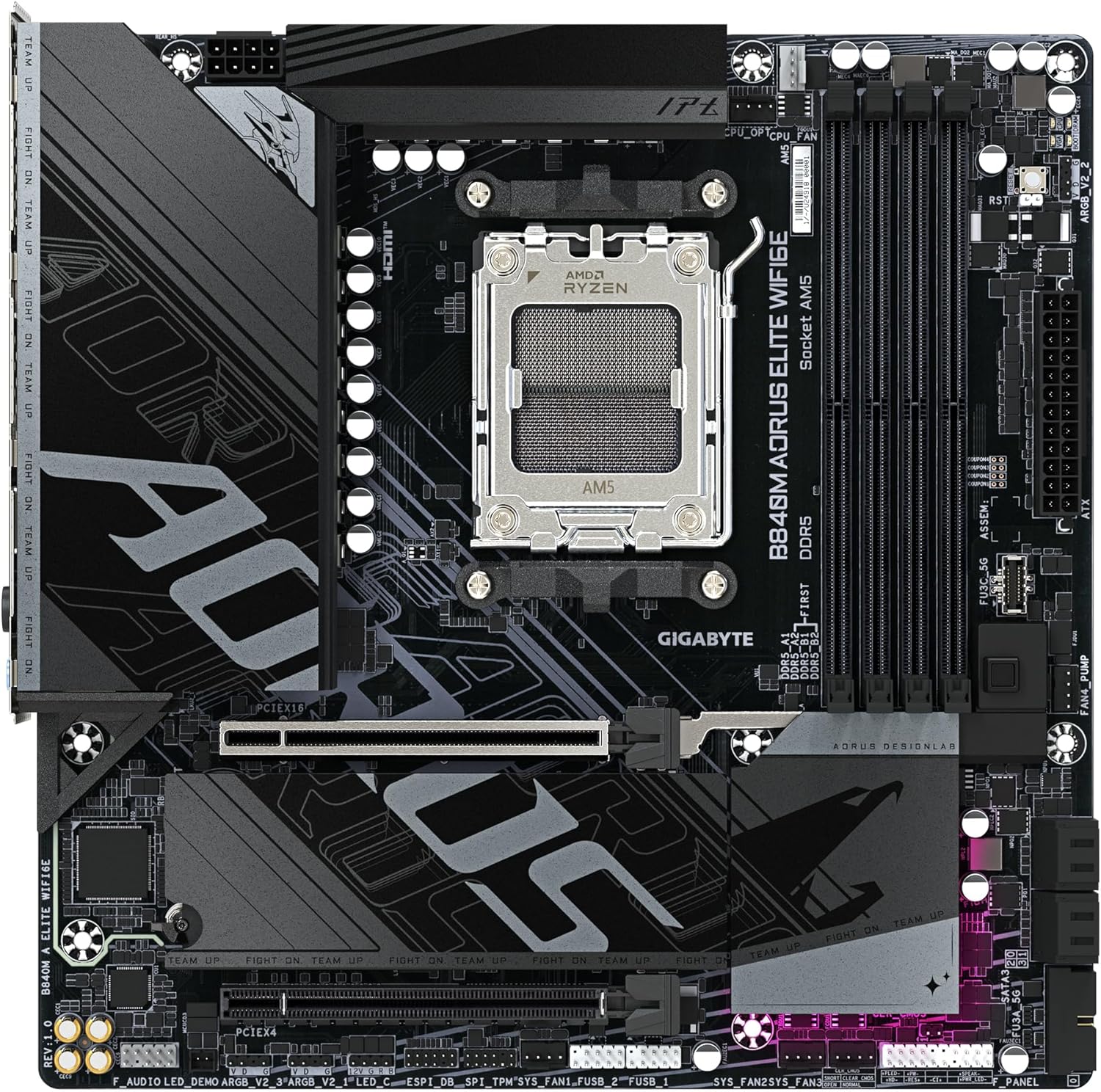
Figure 2: A top-down perspective of the GIGABYTE B840M AORUS ELITE WIFI6E Motherboard, highlighting the CPU socket (AM5), DDR5 DIMM slots, PCIe slots, and M.2 slots. This view is useful for identifying component placement.

Figure 3: An angled view of the motherboard, showcasing the VRM heatsinks, the CPU socket, and the primary PCIe slot. This angle emphasizes the cooling solutions and main expansion slot.

Figure 4: A different angled perspective of the motherboard, providing a clearer view of the power delivery components and additional headers.

Figure 5: The rear input/output (I/O) panel of the motherboard. This image displays the various ports available for external connections, including USB, Ethernet, Wi-Fi antenna connectors, and audio jacks.

Figure 6: The included Wi-Fi 6E directional ultra-high gain antenna. This accessory is designed to enhance wireless connectivity and can be easily installed using the WIFI EZ Plug feature.
4. Setup and Installation
This section guides you through the physical installation of the motherboard and its components.
4.1. CPU Installation
- Locate the AMD Socket AM5 on the motherboard.
- Open the CPU socket retention arm.
- Carefully align the CPU with the socket, ensuring the triangular mark on the CPU matches the mark on the socket.
- Gently place the CPU into the socket without applying force.
- Close the retention arm to secure the CPU.
- Install the CPU cooler according to its manufacturer's instructions.
4.2. Memory (RAM) Installation
- Identify the four DDR5 DIMM slots. For dual-channel operation, refer to the motherboard's silkscreen for recommended slot pairing.
- Open the clips at both ends of the DIMM slot.
- Align the notch on the DDR5 memory module with the key in the DIMM slot.
- Press down firmly on both ends of the memory module until the clips snap into place.
4.3. M.2 SSD Installation
This motherboard features 2x PCIe 4.0 M.2 slots with EZ-Latch Plus and EZ-Latch Click for tool-less installation.
- Locate the M.2 slots and remove any protective film or covers.
- If applicable, remove the M.2 heatsink (EZ-Latch Click design allows for screwless removal).
- Insert the M.2 SSD into the slot at an angle.
- Gently push down the M.2 SSD until it is flat. Secure it using the EZ-Latch mechanism (no screws required).
- Reinstall the M.2 heatsink, ensuring proper contact for thermal dissipation.
4.4. PCIe Expansion Card Installation
The PCIe slots feature EZ-Latch Plus for quick release.
- Open the retention clip at the end of the desired PCIe slot.
- Align your expansion card with the slot and press down firmly until it is fully seated and the retention clip snaps into place.
- Secure the card to your PC case with a screw.
4.5. Power Connections
- Connect the 24-pin ATX main power connector from your power supply to the corresponding header on the motherboard.
- Connect the 8-pin (or 4+4 pin) ATX 12V CPU power connector to the CPU power header.
- Ensure all power connections are firmly seated.
4.6. Wi-Fi Antenna Installation
The motherboard includes a Wi-Fi 6E directional ultra-high gain antenna with WIFI EZ Plug.
- Locate the two Wi-Fi antenna connectors on the rear I/O panel (refer to Figure 5).
- Screw the antenna cables onto the connectors until finger-tight.
- Position the directional antenna for optimal signal reception.
5. Operating Instructions
5.1. Initial Boot and BIOS Setup
- After assembling all components, connect your monitor, keyboard, and mouse.
- Power on your system. During the boot process, repeatedly press the DEL key to enter the BIOS setup utility.
- In the BIOS, you can configure system settings, boot order, and enable features like AMD EXPO for memory optimization.
- Save changes and exit the BIOS to continue with operating system installation.
5.2. Driver Installation
After installing your operating system (Windows 10 or Windows 11 recommended), install the necessary drivers for optimal performance.
- Insert the driver CD/DVD included with your motherboard, or download the latest drivers from the official GIGABYTE website.
- Install chipset drivers, LAN drivers, Wi-Fi drivers, audio drivers, and any other relevant utilities.
- Ensure your graphics card drivers are also up to date.
6. Maintenance
Regular maintenance helps ensure the longevity and stable operation of your motherboard and PC system.
- Dust Removal: Periodically clean dust from inside your PC case, especially from heatsinks and fans, using compressed air.
- BIOS Updates: Check the GIGABYTE website for the latest BIOS updates. BIOS updates can improve compatibility, stability, and performance. Follow update instructions carefully.
- Driver Updates: Keep your drivers updated to ensure compatibility and optimal performance with new software and hardware.
- Environmental Control: Operate your PC in a clean, dry environment with stable temperatures.
7. Troubleshooting
If you encounter issues, consider the following common troubleshooting steps:
- No Power: Ensure all power cables (24-pin ATX, 8-pin CPU) are securely connected. Check your power supply unit (PSU) and wall outlet.
- No Display: Verify that your monitor is connected to the graphics card (or integrated graphics if applicable) and powered on. Reseat your graphics card and RAM modules.
- System Instability/Crashes: Check for proper CPU cooler installation and thermal paste application. Ensure RAM modules are correctly seated. Update BIOS and drivers.
- Component Not Detected: Reseat the component (e.g., M.2 SSD, PCIe card). Check BIOS settings to ensure the component is enabled.
- Network Issues: Ensure LAN cable is connected or Wi-Fi antenna is properly installed. Update LAN/Wi-Fi drivers.
For more advanced troubleshooting, consult the GIGABYTE support website or contact their technical support.
8. Specifications
Detailed technical specifications for the GIGABYTE B840M AORUS ELITE WIFI6E Motherboard:
| Feature | Detail |
|---|---|
| Brand | GIGABYTE |
| Model Name | B840M A ELT WF6E |
| CPU Socket | Socket AM5 |
| Compatible Processors | AMD Ryzen 7000 Series, AMD Ryzen 8000 Series, AMD Ryzen 9000 Series |
| RAM Memory Technology | DDR5 |
| RAM Memory Maximum Size | 256 GB |
| Memory Clock Speed | 8200 MHz (O.C) |
| Main Power Connector Type | 24-Pin |
| Platform | Windows 10, Windows 11 |
| Product Dimensions | 9.61 x 9.61 x 1.38 inches |
| Item Weight | 3.3 pounds |
| LAN | 2.5GbE LAN |
| Wireless Connectivity | Wi-Fi 6E |
| M.2 Slots | 2x PCIe 4.0 M.2 |
| USB | USB 3.2 Gen 2 |
9. Warranty and Support
For detailed warranty information, please refer to the warranty card included with your product or visit the official GIGABYTE website.
GIGABYTE Support: For technical assistance, driver downloads, BIOS updates, and FAQs, please visit the official GIGABYTE support portal.
https://www.gigabyte.com/support
Related documentsB840M A ELT WF6E


Ask a question about this manual
Ask about setup, troubleshooting, compatibility, parts, safety, or missing instructions. Manuals+ will review the question and use this page’s manual context to help answer it.