
1. Introduction
Thank you for choosing the TWSYOXPR 8MP 4K 90X Optical Zoom WiFi PTZ IP Security Camera. This manual provides essential information for the proper installation, operation, and maintenance of your security camera. Please read this manual thoroughly before using the product to ensure optimal performance and safety.
This camera is designed for both indoor and outdoor surveillance, offering advanced features such as 8MP 4K resolution, 90x hybrid zoom, AI human body tracking, and full-color night vision.
2. Product Overview
The TWSYOXPR 90X 4K IP Security Camera is a high-performance surveillance device equipped with an IMX415 sensor and Mstar338Q chip, delivering 8 million pixels at 3840×2160 resolution. Its 90x hybrid zoom (optical and digital) covers a 4.7-94mm focal length with autofocus, allowing clear recognition of objects up to 400 meters away. The camera supports 360° horizontal rotation and 90° vertical rotation for comprehensive monitoring.
Key Features:
- 8MP 4K UHD Resolution: Captures detailed video at 3840×2160 pixels.
- 90x Hybrid Zoom: Combines optical and digital zoom for long-range detail capture.
- AI Human Body Tracking: Intelligent detection and automatic tracking of human figures.
- Intelligent Alarms: Sound and light alarm linkage with customizable sounds and flashing modes.
- Full-Color Night Vision: Enhanced night vision with laser supplemental light, effective up to 400 meters.
- IP66 Weatherproof: All-metal body designed for outdoor use in extreme temperatures (-50°C to 60°C).
- Dual-Band WiFi & RJ45: Supports 2.4GHz/5GHz WiFi and wired network connections.
- ONVIF Protocol: Compatible with third-party NVRs.
- Local Storage: Supports 128GB-256GB TF card for loop recording.
Component Identification:

Figure 2.1: Diagram illustrating the components of the 90X model TWSYOXPR IP Security Camera, including the metal aluminum case, IP66 waterproof rating, daylight sensor, microphone, engineering plastic housing, auto zoom lens, warm LEDs, and laser infrared LEDs. It also indicates day and night vision ranges.

Figure 2.2: Diagram illustrating the components of the 36X/54X model TWSYOXPR IP Security Camera, including the metal aluminum case, IP66 waterproof rating, HD optical zoom lens, engineering plastic housing, warm LED light, and laser infrared LED lights. It also indicates day and night vision ranges for these models.

Figure 2.3: Rear view of the TWSYOXPR IP Security Camera showing external connections and features. This includes the DC12V power input, RJ45 network port, reset button, speaker, and SD card slot.
3. Setup
3.1 Unboxing and Inspection
Carefully unpack the camera and all accessories. Verify that all components are present and undamaged. If any items are missing or damaged, contact customer support immediately.
3.2 Mounting the Camera
Choose a suitable location for mounting the camera, ensuring it has a clear field of view and is within range of your power source and network connection. Use the provided mounting hardware to securely attach the camera to a wall or ceiling. Ensure the mounting surface can support the camera's weight.
3.3 Power Connection
Connect the provided 12V power adapter to the camera's DC12V input port (refer to Figure 2.3). Plug the adapter into a power outlet. The camera will power on and initiate its startup sequence.
3.4 Network Connection
The camera supports both WiFi and wired (RJ45) connections.
- WiFi Connection: Download the recommended mobile application (refer to the quick start guide or packaging for app details). Follow the in-app instructions to connect the camera to your 2.4GHz or 5GHz WiFi network.
- Wired Connection: Connect an Ethernet cable from your router or network switch to the camera's RJ45 port (refer to Figure 2.3). The camera will automatically establish a wired network connection.
3.5 SD Card Installation (Optional)
If you plan to use local storage, insert a compatible TF card (128GB-256GB) into the SD card slot (refer to Figure 2.3). Ensure the camera is powered off before inserting or removing the SD card. Format the SD card through the camera's settings in the mobile application after installation.
4. Operating Instructions
4.1 Accessing the Camera
Access your camera's live feed and settings through the dedicated mobile application or a compatible NVR system. Ensure your device is connected to the same network as the camera or has internet access if viewing remotely.
4.2 Pan, Tilt, and Zoom (PTZ) Control
Use the controls within the mobile application or NVR interface to remotely adjust the camera's viewing angle and zoom level.
- Pan: Rotate the camera horizontally up to 360°.
- Tilt: Adjust the camera vertically up to 90°.
- Zoom: Utilize the 90x hybrid zoom to magnify or reduce the view. The autofocus feature will automatically adjust for clarity.
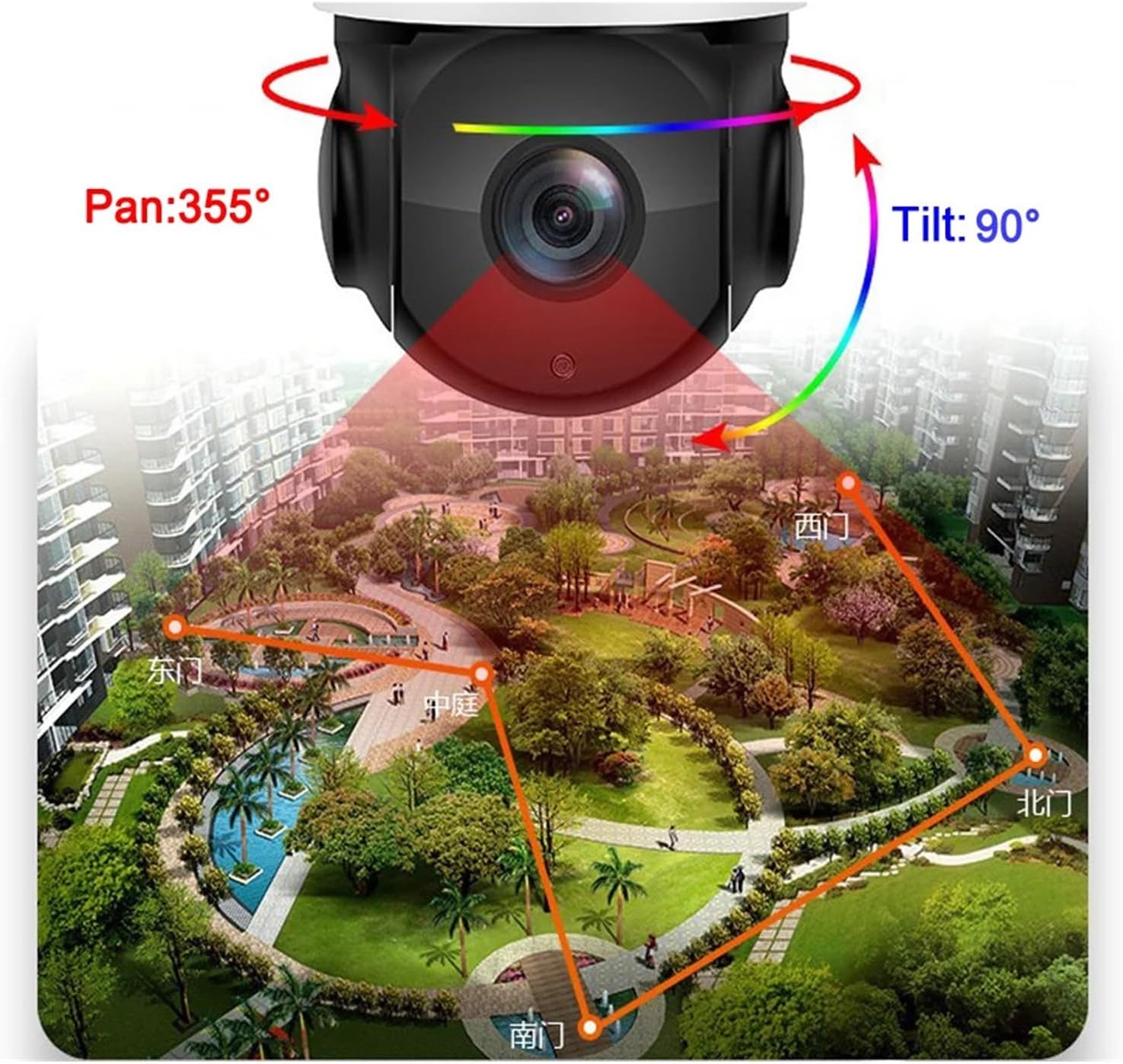
Figure 4.1: Illustration demonstrating the pan (355°) and tilt (90°) rotation capabilities of the TWSYOXPR IP Security Camera, showing its wide coverage area over a landscape.
4.3 Night Vision Modes
The camera offers advanced night vision capabilities:
- Infrared Night Vision: Provides clear black and white images in low-light or no-light conditions.
- Full-Color Night Vision: Utilizes warm light array lights and laser supplemental light to provide color images even in darkness. This mode can be manually switched or set to activate automatically based on light conditions.
4.4 AI Human Body Tracking and Alarms
The built-in AI algorithm enables intelligent monitoring:
- Humanoid Detection: The camera can distinguish human shapes from other moving objects, reducing false alarms.
- Automatic Tracking: When a human is detected, the camera will automatically pan and tilt to follow their movement.
- Alarm Linkage: Upon detection, the camera can trigger sound alarms (customizable, e.g., sirens, dog barking) and flashing lights.
- Notifications: Receive instant notifications with 10-second video clips on your mobile phone when an alarm is triggered.
- Filtering: Configure settings to filter out pets and vehicles from triggering alarms in specific lines or areas.
4.5 Recording and Storage
The camera supports various recording options:
- Continuous Recording: Records 24/7 to the installed TF card or connected NVR.
- Event-Based Recording: Records only when motion or AI events are detected.
- Cloud Storage: Encrypted cloud storage options may be available through the mobile application (subscription may be required).
5. Maintenance
5.1 Cleaning
Regularly clean the camera lens and housing to ensure clear image quality. Use a soft, damp cloth to wipe away dust and dirt. Avoid using harsh chemicals or abrasive materials that could damage the lens or finish.
5.2 Firmware Updates
Check the mobile application periodically for available firmware updates. Keeping your camera's firmware up-to-date ensures optimal performance, security, and access to new features.
5.3 Connection Checks
Periodically inspect all power and network connections to ensure they are secure and free from damage, especially for outdoor installations.
6. Troubleshooting
6.1 No Power
- Ensure the power adapter is securely connected to the camera and a working power outlet.
- Verify the power outlet is functional by plugging in another device.
- Check the power cable for any visible damage.
6.2 No Network Connection
- WiFi: Ensure the camera is within range of your WiFi router. Check if the WiFi password entered in the app is correct. Try restarting your router and the camera.
- Wired: Verify the Ethernet cable is securely connected to both the camera and the router/switch. Check the cable for damage. Ensure your router's network settings are configured correctly.
- General: If using an NVR, ensure the NVR is properly configured and connected to the network.
6.3 Poor Image Quality
- Clean the camera lens with a soft cloth.
- Ensure there are no obstructions in the camera's field of view.
- Check your network speed; a slow connection can affect streaming quality.
- Adjust resolution settings in the mobile application if necessary.
6.4 Alarms Not Triggering or False Alarms
- Verify that motion detection and AI human body detection are enabled in the app settings.
- Adjust sensitivity levels for motion detection.
- Configure detection zones and line-crossing settings to minimize false alarms from non-human movements.
- Ensure alarm notifications are enabled on your mobile device.
6.5 PTZ Not Responding
- Ensure the camera has a stable network connection.
- Restart the camera and try again.
- Check for any physical obstructions preventing movement.
6.6 Resetting the Camera
If issues persist, you may need to reset the camera to its factory default settings. Locate the reset button (refer to Figure 2.3), press and hold it for approximately 5-10 seconds until you hear a prompt or see an indicator light change. This will erase all custom settings, and you will need to reconfigure the camera.
7. Specifications
| Feature | Specification |
|---|---|
| Model Name | dongguanshijianyingbaihuoshanghang |
| Resolution | 8 Million Pixels (3840×2160) |
| Sensor | IMX415 |
| Optical Zoom | 90x Hybrid Zoom (4.7-94mm focal length) |
| Pan Range | 360° Horizontal |
| Tilt Range | 90° Vertical |
| Night Vision | Full-Color, Infrared (up to 400m) |
| Video Compression | H.265 |
| Connectivity | 2.4GHz/5GHz Dual-Band WiFi, RJ45 Ethernet |
| Storage | TF Card (128GB-256GB), Encrypted Cloud Storage |
| Audio | Bidirectional Audio |
| IP Rating | IP66 Weatherproof |
| Operating Temperature | -50°C to 60°C |
| Power Supply | DC 12V |
| Item Weight | 50 Grams (1.76 ounces) |
| ASIN | B0F676KCRT |
8. Warranty and Support
This product comes with technical support. For any questions, issues, or assistance with your TWSYOXPR 90X 4K IP Security Camera, please refer to the contact information provided with your purchase or visit the manufacturer's official website for support resources.