
1. Introduction
This manual provides detailed instructions for the installation, operation, maintenance, and troubleshooting of your TWSYOXPR 8MP 4K PTZ IP Security Camera. Please read this manual thoroughly before using the product to ensure proper function and safety. Keep this manual for future reference.
2. Product Overview
2.1 Key Features
- 8MP 4K UHD Resolution: Equipped with an IMX415 sensor, providing 3840×2160 resolution for clear imaging.
- 90X Hybrid Zoom: Features 90x hybrid zoom (optical and digital) with a 4.7-94mm focal length and autofocus, capable of identifying objects up to 400 meters away.
- AI Human Body Tracking: Built-in AI algorithm for humanoid detection, automatic tracking, and alarm linkage. Supports filtering for pets and vehicles.
- Intelligent Alarms: Triggers sound and light alarms, sends 10-second video notifications to mobile phones, and allows customization of alarm sounds and flashing modes.
- Advanced Night Vision: Both 54X and 90X models offer full-color and black-and-white night vision. The 90X model features an upgraded fill light for up to 400 meters night vision distance, with IR-Cut dual filters and 2D/3D noise reduction.
- Wide Pan/Tilt Rotation: 90X model supports 360° horizontal rotation and 90° vertical rotation. 54X model supports 355° horizontal rotation and 90° vertical rotation.
- Two-Way Audio: Integrated microphone and speaker for bidirectional audio communication.
- Robust Design: All-metal body with IP66 waterproof and dustproof rating, operating in temperatures from -50°C to 60°C. Includes professional lightning protection.
- Flexible Storage: Supports 128GB-256GB SD card for loop recording and encrypted cloud storage.
- Dual-Band WiFi & RJ45: Supports 2.4GHz/5GHz dual-band WiFi and RJ45 network port connection, compatible with ONVIF protocol for third-party NVRs.
2.2 Camera Components (90X Model)
The image below illustrates the main components of the 90X model camera.

Image 1: TWSYOXPR 90X PTZ IP Security Camera Components. Labels include Metal Aluminum Case, IP66 Waterproof, Daylight Sensor, Microphone, Engineering Plastic, Auto Zoom Lens, Warm LEDs, and Laser Infrared LEDs. The image also indicates day and night vision ranges for the 90X model.
2.3 Camera Components (54X Model)
The image below illustrates the main components of the 54X model camera.

Image 2: TWSYOXPR 54X PTZ IP Security Camera Components. Labels include Metal Aluminum Case, IP66 Waterproof, HD Optical Zoom Lens, Engineering Plastic, Warm LED Light, and Laser Infrared LED Lights. The image also indicates day and night vision ranges for the 36X and 54X models.
3. Setup
3.1 Unpacking and Inspection
Carefully unpack the camera and all accessories. Verify that all components are present and undamaged. If any items are missing or damaged, contact customer support.
3.2 Physical Installation
- Mounting Location: Choose a suitable location for installation. The camera is designed for side mounting and is IP66 rated for both indoor and outdoor use. Ensure the mounting surface is sturdy enough to support the camera's weight.
- Secure Mounting: Use appropriate screws and anchors to securely mount the camera bracket to the chosen surface.
- Adjust Angle: Once mounted, adjust the camera's initial viewing angle as needed.
3.3 Connecting the Camera
The camera features several ports for power and network connectivity, as shown in the image below.

Image 3: Rear view of the camera showing DC12V power input, RJ45 Ethernet port, Reset button, and SD card slot.
- Power Connection: Connect the provided 12V power adapter to the DC12V input port on the camera. Use the 3m extension cable if necessary. Plug the adapter into a power outlet.
- Network Connection (Choose one):
- WiFi Connection: The camera supports 2.4GHz/5GHz dual-band WiFi. Follow the instructions in the accompanying mobile application (if applicable) to connect the camera to your wireless network.
- Ethernet Connection: For a wired connection, connect an Ethernet cable from your router or network switch to the RJ45 port on the camera.
- AP Hotspot Mode: In emergencies or without a network, the camera supports direct connection via AP hotspot mode. Refer to the mobile application for details on how to activate and connect to this mode.
- SD Card Installation: If using local storage, insert a compatible 128GB-256GB SD card into the SD card slot. Ensure the camera is powered off before inserting or removing the SD card.
4. Operating Instructions
4.1 Initial Setup via Mobile Application
Download the official mobile application for your TWSYOXPR camera (refer to the product packaging or included quick start guide for app name and download links). Follow the in-app instructions to add your camera, configure network settings, and set up initial preferences.
4.2 Pan, Tilt, and Zoom Control
The camera offers extensive pan and tilt capabilities for comprehensive area coverage.
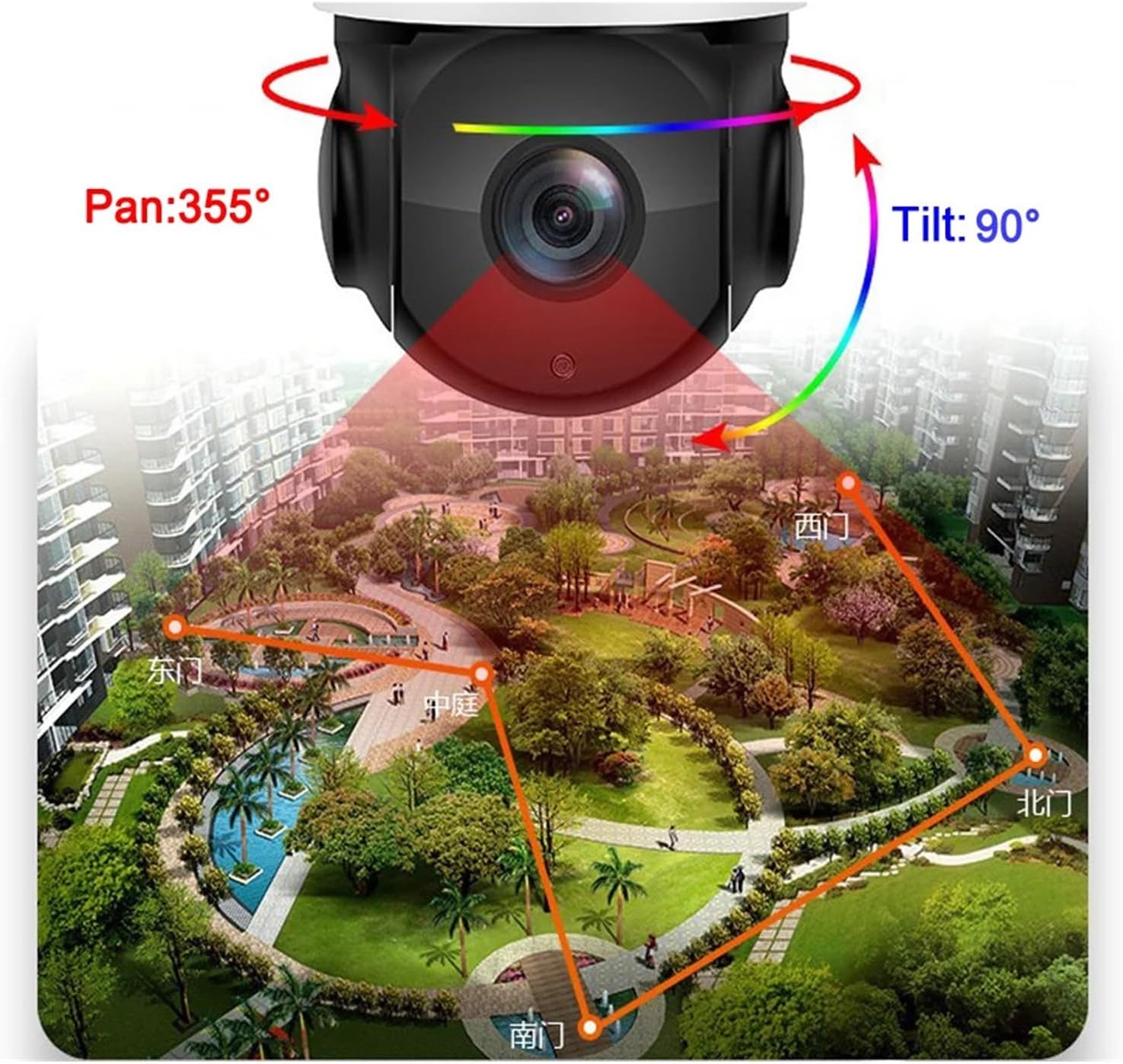
Image 4: Pan and Tilt Movement Range. The image shows a camera overlooking a park, with arrows indicating 355° horizontal pan and 90° vertical tilt.
- Remote Control: Use the mobile application or compatible NVR interface to remotely control the camera's pan (horizontal), tilt (vertical), and zoom functions.
- Pan Range: 90X model: 360° horizontal; 54X model: 355° horizontal.
- Tilt Range: Both models: 90° vertical.
- Zoom: Utilize the optical and digital zoom features to focus on specific details within the surveillance area.
4.3 AI Human Tracking and Alarms
- Enable AI Tracking: In the camera settings within the mobile application, enable the AI human body detection and automatic tracking features.
- Configure Alarm Zones: Define specific areas or lines within the camera's view where you want to detect motion or human presence.
- Customize Alarm Actions: Set up desired alarm actions, such as:
- Receiving push notifications with 10-second video clips on your mobile phone.
- Activating the camera's built-in sound and light alarms.
- Customizing alarm sounds (e.g., sirens, dog barking) and flashing light patterns.
- FTP photo taking.
4.4 Night Vision Modes
The camera supports multiple night vision modes:
- Infrared Night Vision (Black and White): Provides clear black and white images in low-light or no-light conditions.
- Full-Color Night Vision: Utilizes warm LED lights to provide color images even in dark environments.
You can switch between these modes via the mobile application settings based on your monitoring requirements.
4.5 Two-Way Audio
Use the mobile application to access the two-way audio feature. This allows you to listen to the camera's surroundings and speak through the camera's speaker.
4.6 Recording and Storage
- SD Card Recording: The camera supports continuous loop recording to an installed SD card (128GB-256GB). Oldest footage will be overwritten when the card is full.
- Cloud Storage: Optional encrypted cloud storage services may be available through the mobile application for off-site backup of recordings.
5. Maintenance
5.1 Cleaning
Regularly clean the camera lens and housing with a soft, damp cloth. Avoid using harsh chemicals or abrasive materials that could damage the camera's finish or lens coating.
5.2 Environmental Protection
The camera is designed with an IP66 rating for waterproof and dustproof protection and can operate in extreme temperatures (-50°C to 60°C). While robust, avoid direct exposure to high-pressure water jets or prolonged submersion.
5.3 Firmware Updates
Periodically check the mobile application for available firmware updates. Keeping your camera's firmware up-to-date ensures optimal performance, security, and access to new features.
5.4 SD Card Management
If using an SD card for storage, consider formatting it periodically through the camera's settings in the mobile application to maintain performance and prevent data corruption. Back up any important recordings before formatting.
6. Troubleshooting
If you encounter issues with your camera, refer to the following common troubleshooting steps:
- No Power: Ensure the 12V power adapter is securely connected to the camera and a working power outlet. Check the power indicator light on the camera (if available).
- No Network Connection:
- For WiFi, ensure the camera is within range of your router and the WiFi password entered is correct.
- For Ethernet, verify the cable is properly connected to both the camera and your router/switch.
- Try restarting your router and the camera.
- Poor Video Quality:
- Check your internet connection speed.
- Clean the camera lens for any obstructions or dirt.
- Ensure sufficient lighting for optimal image quality, especially at night.
- AI Tracking Not Working:
- Verify that AI human detection and tracking are enabled in the app settings.
- Ensure the detection zones are correctly configured.
- Check for any physical obstructions in the camera's field of view.
- SD Card Not Recording:
- Ensure the SD card is correctly inserted and recognized by the camera (check app status).
- Format the SD card through the app.
- Check if the SD card has reached its capacity or is faulty.
- Camera Unresponsive: If the camera becomes unresponsive, locate the reset button (refer to Image 3) and press and hold it for approximately 5-10 seconds until the camera restarts. This will restore factory default settings.
If the issue persists after attempting these steps, please contact technical support.
7. Specifications
| Feature | Specification |
|---|---|
| Model Numbers | TP-WZ08W-90XF, TP-WZ08W-54XF |
| Resolution | 8 Million Pixels (3840×2160) |
| Sensor | CMOS (IMX415) |
| Video Compression | H.265 |
| Optical Zoom | 90x Hybrid Zoom (4.7-94mm focal length) |
| Pan Range (90X Model) | 360° Horizontal |
| Pan Range (54X Model) | 355° Horizontal |
| Tilt Range (Both Models) | 90° Vertical |
| Night Vision | Full Color, Black and White (IR up to 400m for 90X, 200m for 54X) |
| Minimum Illumination | 0.0001 Lux |
| Audio | Bidirectional Audio |
| AI Functions | Intelligent Tracking, Humanoid Detection, Alarm Linkage |
| Storage Options | SD Card (128GB-256GB), Encrypted Cloud Storage |
| Connectivity | 2.4GHz/5GHz Dual-Band WiFi, RJ45 Ethernet, AP Hotspot |
| Power Supply | DC 12V |
| Operating Temperature | -50°C to 60°C (-58°F to 140°F) |
| IP Rating | IP66 (Waterproof/Dustproof) |
| Shell Material | Metal |
| Installation | Side Mounting |
8. Warranty and Support
Your TWSYOXPR security camera comes with technical support. If you have any questions, require assistance with installation, or encounter any issues not covered in this manual, please contact our customer support team. Details for contacting support are typically found on the product packaging or the official website.
We offer 24-hour technical support to ensure your peace of mind.