
1. Introduction
This manual provides detailed instructions for the installation, operation, maintenance, and troubleshooting of your SwitchBot Video Doorbell Camera with Monitor. Please read this manual thoroughly before using the product to ensure proper function and safety.
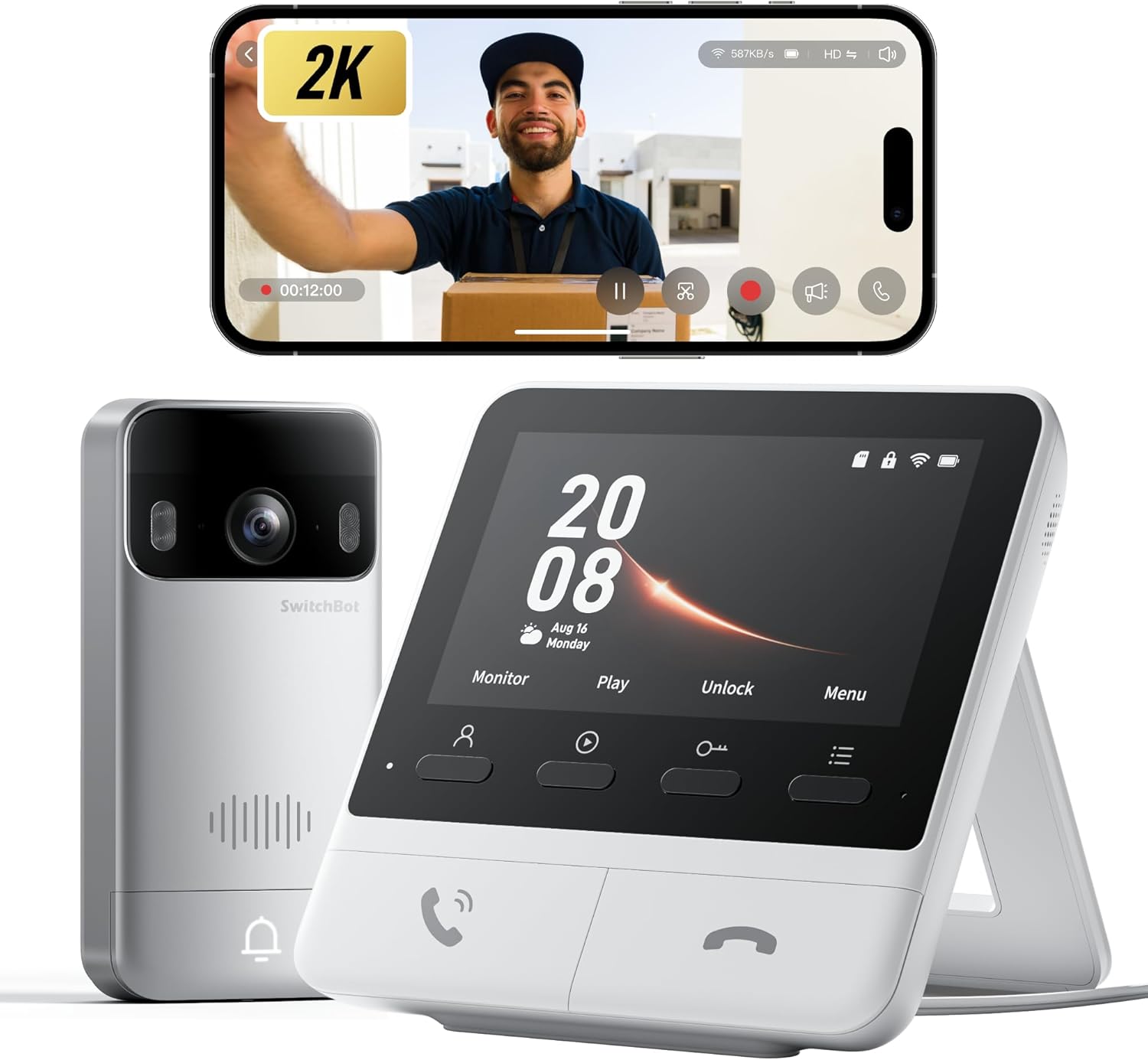
Image 1.1: The SwitchBot Video Doorbell Camera and its accompanying 4.3-inch indoor monitor.
2. Package Contents
Verify that all items are present in the package:
- Video Doorbell Unit
- Indoor Monitor Unit
- Charging Cable
- Mounting Kit & Adjustable Viewing Angle Kit
- Instruction Manual (this document)
- 4GB Micro SD Card (pre-installed or included separately)
3. Setup and Installation
3.1. Installation Precautions
- For optimal communication stability, place the monitor near your Wi-Fi router.
- Avoid placing the monitor on metal surfaces, as this can interfere with wireless signals.
- Ensure both the Video Doorbell and Monitor are installed on the same floor.
- For detached houses, install the doorbell within 10 meters of the door, minimizing obstructions.
- For apartments, install the doorbell within 5 meters of the door, minimizing wall obstructions.

Image 3.1: Diagrams illustrating recommended installation distances for the doorbell and monitor in different housing types.
3.2. Doorbell Installation
The Video Doorbell can be installed using either the included 3M adhesive tape or screws.
- Adhesive Installation: Clean the mounting surface thoroughly. Apply the 3M adhesive to the back of the mounting bracket and firmly press it onto the desired location.
- Screw Installation: Use the provided template to mark drill holes. Drill pilot holes, then secure the mounting bracket to the wall or door using the screws.
- Attach the Video Doorbell unit to the installed mounting bracket.
3.3. Monitor Placement
Place the indoor monitor unit in a central location within your home, adhering to the distance guidelines mentioned in Section 3.1. Ensure it is plugged into a power outlet using the provided charging cable.

Image 3.2: Visual guide for doorbell installation using adhesive or screws, and monitor placement.
3.4. Initial Setup and App Pairing
- Download the SwitchBot app from your device's app store.
- Create an account or log in.
- Follow the in-app instructions to add the Video Doorbell and Monitor to your account. This typically involves powering on both devices and following pairing prompts.
4. Operation
4.1. Live View and Two-Way Audio
When a visitor presses the doorbell, the indoor monitor will display a live video feed, and your smartphone will receive a notification. You can:
- Answer Calls: Press the answer button on the monitor or within the app to initiate two-way audio communication.
- Speak to Visitors: Use the built-in microphone and speaker on both the doorbell and monitor/app to communicate.
- Quick Replies: If busy, select from preset quick replies via the monitor or app to respond instantly.

Image 4.1: Demonstrates real-time communication with visitors using the indoor monitor and the mobile application.
4.2. Video Quality and Night Vision
The doorbell features 2K Full HD video resolution and a 165° ultra-wide-angle lens, providing a clear and comprehensive view. It also includes full-color night vision for enhanced visibility in low-light conditions.

Image 4.2: Illustrates the clarity of 2K Full HD video and the effectiveness of full-color night vision.
4.3. Motion Detection and Alerts
The doorbell is equipped with motion detection capabilities. When motion is detected, you will receive instant alerts on your smartphone and the monitor will activate. The system records these events for later review.

Image 4.3: Example of a real-time notification for detected human motion.
4.4. Local Storage and Cloud Options
The indoor monitor includes a slot for a Micro SD card (4GB card included) for local storage of video recordings. This allows for recording without a subscription. The device supports up to 512GB SD cards. Optional cloud storage with a 30-day trial is also available for new users.

Image 4.4: The indoor monitor showing video playback and indicating local storage via an SD card.
4.5. Smart Home Integration
The SwitchBot Video Doorbell is compatible with Alexa, Google Home, and Home Assistant. This allows for voice-controlled video feeds and integration into your smart home ecosystem. It also pairs seamlessly with the SwitchBot Smart Lock for enhanced security and convenience, enabling one-touch unlocking from the monitor.
5. Maintenance
5.1. Battery Charging
The Video Doorbell is powered by a 5000mAh rechargeable battery. To charge, remove the doorbell unit from its mounting bracket and connect it via a USB-C cable. An optional SwitchBot Solar Panel can provide continuous power, eliminating the need for manual charging.

Image 5.1: Shows the doorbell being charged via USB-C and an example of solar panel integration for extended battery life.
5.2. Cleaning
Wipe the doorbell and monitor units with a soft, dry cloth. Avoid using abrasive cleaners or solvents that could damage the surfaces or electronic components. The doorbell unit is IP65 dustproof and waterproof, suitable for outdoor use, but should not be submerged.
6. Troubleshooting
| Issue | Possible Cause | Solution |
|---|---|---|
| No video feed on monitor/app | Poor Wi-Fi signal, low doorbell battery, device not paired. | Ensure monitor is near router. Charge doorbell. Re-pair devices via the SwitchBot app. |
| Motion alerts are inconsistent | Incorrect sensitivity settings, obstructions in view. | Adjust motion detection sensitivity in the app. Clear any objects blocking the doorbell's view. |
| Two-way audio is unclear | Weak Wi-Fi signal, environmental noise. | Improve Wi-Fi signal strength. Reduce background noise if possible. |
| Doorbell not charging | Faulty cable, power adapter, or USB-C port. | Try a different USB-C cable and power adapter. Ensure the port is clean. |
| Tamper alarm triggered unexpectedly | Doorbell unit was moved or dislodged. | Re-secure the doorbell unit to its mounting bracket. Check mounting for stability. |
7. Specifications
| Feature | Detail |
|---|---|
| Model Number | W6802000 |
| Indoor/Outdoor Usage | Outdoor |
| Video Capture Resolution | 1920p (2K FHD) |
| Viewing Angle | 165 Degrees |
| Night Vision Range | 7.5 Meters (Color Night Vision) |
| Power Source | Battery (5000mAh) / Hardwired Powered |
| Connectivity Protocol | Bluetooth, Wi-Fi (2.4GHz) |
| Compatible Devices | Smartphone, Amazon Alexa, Google Home, Home Assistant |
| Storage | Micro SD (4GB included, supports up to 512GB) |
| Water Resistance Level | IP65 Waterproof |
| Material | Plastic |
| Product Dimensions | 2.56 x 1.18 x 5.16 inches |
| Item Weight | 1.94 pounds |
8. Warranty and Support
8.1. Warranty Information
For detailed warranty information, please refer to the warranty card included with your product or visit the official SwitchBot website. Keep your proof of purchase for warranty claims.
8.2. Customer Support
If you encounter any issues or have questions not covered in this manual, please contact SwitchBot customer support through their official website or the SwitchBot app. Support resources, including FAQs and video tutorials, are also available online.


