
Introduction
This manual provides detailed instructions for the installation, operation, maintenance, and troubleshooting of your TWSYOXPR 8MP 4K PTZ IP Security Camera. Please read this manual thoroughly before using the product to ensure proper function and safety. This camera features 90X hybrid optical zoom, 8MP 4K resolution, AI human body tracking, full-color night vision, and an IP66 waterproof rating, making it suitable for various indoor and outdoor surveillance applications.
Setup Instructions
1. Package Contents
Verify that all components are present in the package:
- TWSYOXPR 8MP 4K PTZ IP Security Camera
- Power Adapter (US Plug)
- Mounting Hardware
- User Manual
2. Camera Components Overview

Figure 1: Overview of the 90X PTZ camera's external components. Key features include the metal aluminum case, IP66 waterproof rating, daylight sensor, built-in microphone, durable engineering plastic housing, auto zoom lens, warm LEDs for full-color night vision, and laser infrared LEDs for extended night vision range.

Figure 2: Overview of a similar PTZ camera variant (54X model) showing its external components. This variant also features a metal aluminum case, IP66 waterproof rating, HD optical zoom lens, engineering plastic housing, warm LED lights, and laser infrared LED lights.

Figure 3: Rear view of the camera detailing the connectivity ports and features. This includes the speaker for two-way audio, the SD card slot for local storage, the DC12V power input, the RJ45 network port for wired connection, and the reset button for factory settings.
3. Physical Installation
- Choose a Location: Select a mounting location that provides the desired viewing angle and is within range of a power source and Wi-Fi signal or Ethernet cable. Ensure the location is stable and can support the camera's weight. The camera is IP66 rated for outdoor use.
- Mount the Camera: Use the provided mounting hardware to securely attach the camera to a wall or ceiling. Ensure the camera is firmly fixed to prevent movement.
- Connect Power: Connect the DC12V power adapter to the camera's power input port (refer to Figure 3). Plug the adapter into a power outlet.
- Network Connection:
- Wi-Fi: The camera supports 2.4GHz/5GHz dual-band Wi-Fi. Follow the instructions in the mobile application to connect the camera to your wireless network.
- Ethernet: For a wired connection, connect an Ethernet cable to the RJ45 port on the camera (refer to Figure 3) and to your network router or switch.
- Insert SD Card (Optional): If local storage is desired, insert a compatible Micro SD card (up to 256GB) into the SD card slot (refer to Figure 3). Ensure the camera is powered off before inserting or removing the SD card.
Operating Instructions
1. Mobile Application Setup
Download the recommended mobile application (check packaging or product documentation for app name) from your device's app store. Follow the in-app instructions to add your camera. This typically involves scanning a QR code on the camera or manually entering its device ID.
2. Pan, Tilt, and Zoom (PTZ) Control
The camera supports 360° horizontal rotation (Pan) and 90° vertical rotation (Tilt). The 90X hybrid zoom allows for detailed observation.
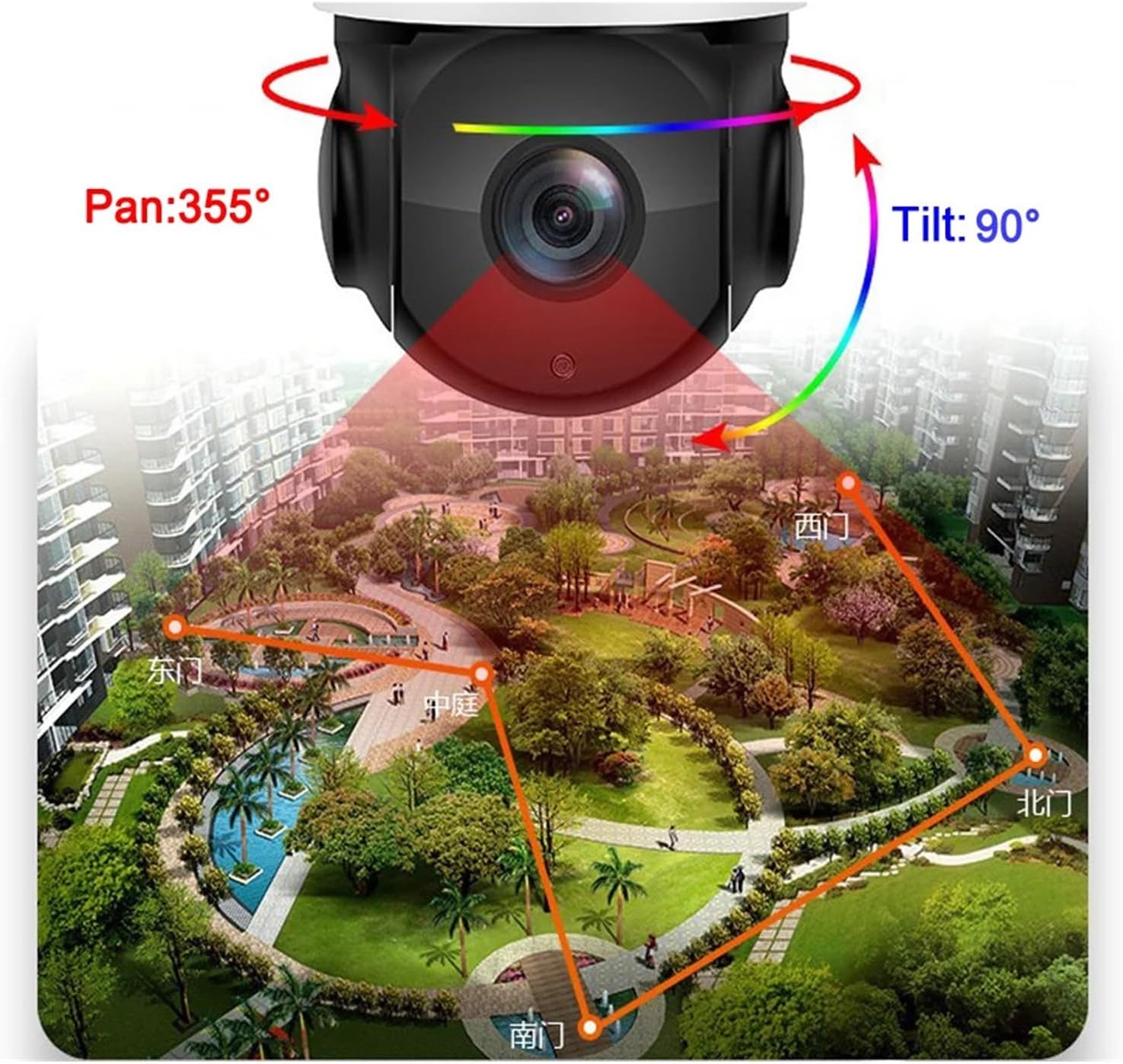
Figure 4: Illustration of the camera's Pan and Tilt capabilities. The camera can pan horizontally up to 360 degrees and tilt vertically up to 90 degrees, providing extensive coverage without blind spots.
- Pan/Tilt: Use the controls within the mobile application to remotely adjust the camera's viewing direction.
- Zoom: Utilize the zoom function in the app to optically and digitally magnify the view. The 90X hybrid zoom allows for clear recognition of objects at significant distances.
3. AI Human Body Tracking and Alarms
The camera features an integrated AI algorithm for intelligent human body detection and automatic tracking.
- Humanoid Detection: The camera can distinguish human shapes from other moving objects, reducing false alarms.
- Automatic Tracking: When a human is detected, the camera will automatically pan and tilt to follow their movement within its field of view.
- Alarm Linkage: Configure alarm actions in the app, such as sound and light alarms, and push notifications with 10-second video clips to your mobile phone.
- Custom Alarms: Customize alarm sounds (e.g., sirens, dog barking) and flashing modes for increased deterrence.
- Filtering: Set up line/area/two-way stream filtering to ignore pets or vehicles, focusing only on human activity.
4. Night Vision Modes
The camera offers advanced night vision capabilities:
- Full-Color Night Vision: Utilizes warm LEDs to provide color images in low-light conditions.
- Infrared Night Vision: Uses laser infrared LEDs for black and white surveillance in complete darkness, with a range of up to 400 meters.
- Automatic Switching: The camera can automatically switch between day and night modes, or you can manually select the desired mode via the app.
5. Two-Way Audio
The built-in microphone and speaker (refer to Figure 3) enable two-way audio communication, allowing you to listen and speak through the camera via the mobile application.
Maintenance
1. Cleaning
- Regularly clean the camera lens with a soft, dry cloth to ensure clear image quality.
- Wipe the camera body with a damp cloth if necessary. Avoid using harsh chemicals or abrasive cleaners.
2. Firmware Updates
Periodically check the mobile application for available firmware updates. Keeping the camera's firmware updated ensures optimal performance, security, and access to new features.
3. SD Card Management
If using an SD card for storage, ensure it is formatted periodically through the camera's settings in the app to maintain performance. The camera supports loop recording, automatically overwriting the oldest footage when the card is full.
Troubleshooting
| Problem | Possible Cause | Solution |
|---|---|---|
| Camera not powering on | No power supply; Faulty adapter | Check power connection; Ensure outlet is working; Try a different 12V power adapter. |
| Unable to connect to Wi-Fi | Incorrect Wi-Fi password; Weak signal; Router issues | Verify Wi-Fi password; Move camera closer to router; Restart router; Ensure camera is within 2.4GHz/5GHz range. |
| No image/video in app | Network disconnection; App error; Camera offline | Check network connection; Restart app; Restart camera; Re-add camera to app if necessary. |
| False alarms | Sensitivity too high; Environmental factors (e.g., moving branches, pets) | Adjust detection sensitivity in the app; Configure activity zones or filtering to exclude irrelevant areas/objects. |
| PTZ control unresponsive | Network lag; Camera motor issue | Check network stability; Restart camera; If problem persists, contact support. |
| SD card not recording | Card full; Card corrupted; Incorrect settings | Format SD card in app; Replace SD card; Check recording settings in app. |
Specifications
- Model: dongguanshijianyingbaihuoshanghang
- Resolution: 8 Million Pixels (3840×2160)
- Sensor: IMX415
- Video Compression: H.265
- Optical Zoom: 90X Hybrid Zoom (4.7-94mm focal length)
- Pan Range: 360° Horizontal
- Tilt Range: 90° Vertical
- Night Vision: Full Color, Black & White (up to 400m with IR-Cut dual filters)
- AI Functions: Humanoid Detection, Auto Tracking, AI Alarm Linkage
- Audio: Two-way audio (Built-in Microphone and Speaker)
- Storage: Supports Micro SD Card up to 256GB (loop recording), Encrypted Cloud Storage
- Connectivity: 2.4GHz/5GHz Dual-band Wi-Fi, RJ45 Ethernet Port, ONVIF Protocol
- Power Supply: DC 12V
- Operating Temperature: -50°C to 60°C (-58°F to 140°F)
- IP Rating: IP66 (Waterproof/Weatherproof)
- Shell Material: Metal
- Minimum Illumination: 0.0001 lux
- Item Weight: 1.76 ounces (50 Grams)
Warranty Information
Please refer to the warranty card included with your product or contact the manufacturer directly for specific warranty terms and conditions. Typically, products are covered against manufacturing defects for a specified period from the date of purchase.
Customer Support
For technical assistance, troubleshooting, or any product-related inquiries, please contact TWSYOXPR customer support. Contact information can usually be found on the product packaging, the manufacturer's official website, or within the mobile application's 'About Us' section. Please have your product model and purchase details ready when contacting support.