
Introduction
The KiiBoom Jade75 is a 75% layout mechanical keyboard featuring a unique resin molding and CNC+UV crafted case. It offers versatile connectivity options including Bluetooth 5.0, 2.4GHz wireless, and USB-C wired modes. Designed for customization, it supports QMK/VIA programming and hot-swappable switches, alongside dynamic RGB backlighting. This manual provides detailed instructions for setting up, operating, and maintaining your KiiBoom Jade75 keyboard.
Package Contents
Upon unboxing your KiiBoom Jade75 keyboard, please verify that all the following items are included:
- KiiBoom Jade75 Mechanical Keyboard
- USB-C Cable
- Keycap Puller
- Switch Puller
- User Manual
- Additional Switches (if included in specific package)
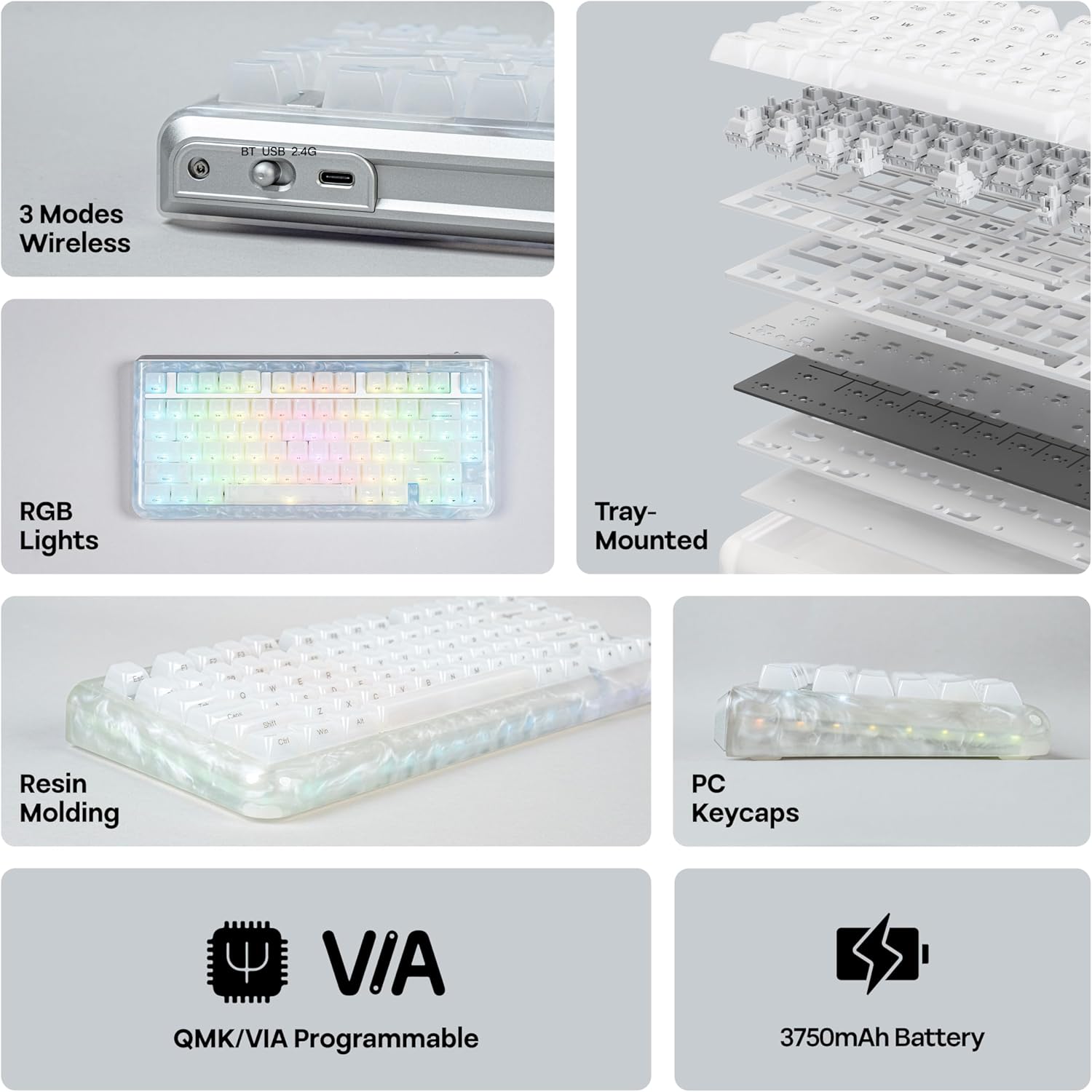
Image: KiiBoom Jade75 keyboard with its accessories, including a USB-C cable, keycap puller, and switch puller.
Video: An unboxing of the KiiBoom Jade75 keyboard, showcasing the packaging, included accessories, and a demonstration of the typing sound and RGB lighting.
Product Overview
The KiiBoom Jade75 features a compact 75% layout, combining essential keys with a space-saving design. Its resin molding provides a durable and aesthetically pleasing translucent case, complemented by a tray-mounted design for a stable typing experience. The keyboard is equipped with south-facing RGB backlighting for vibrant illumination.
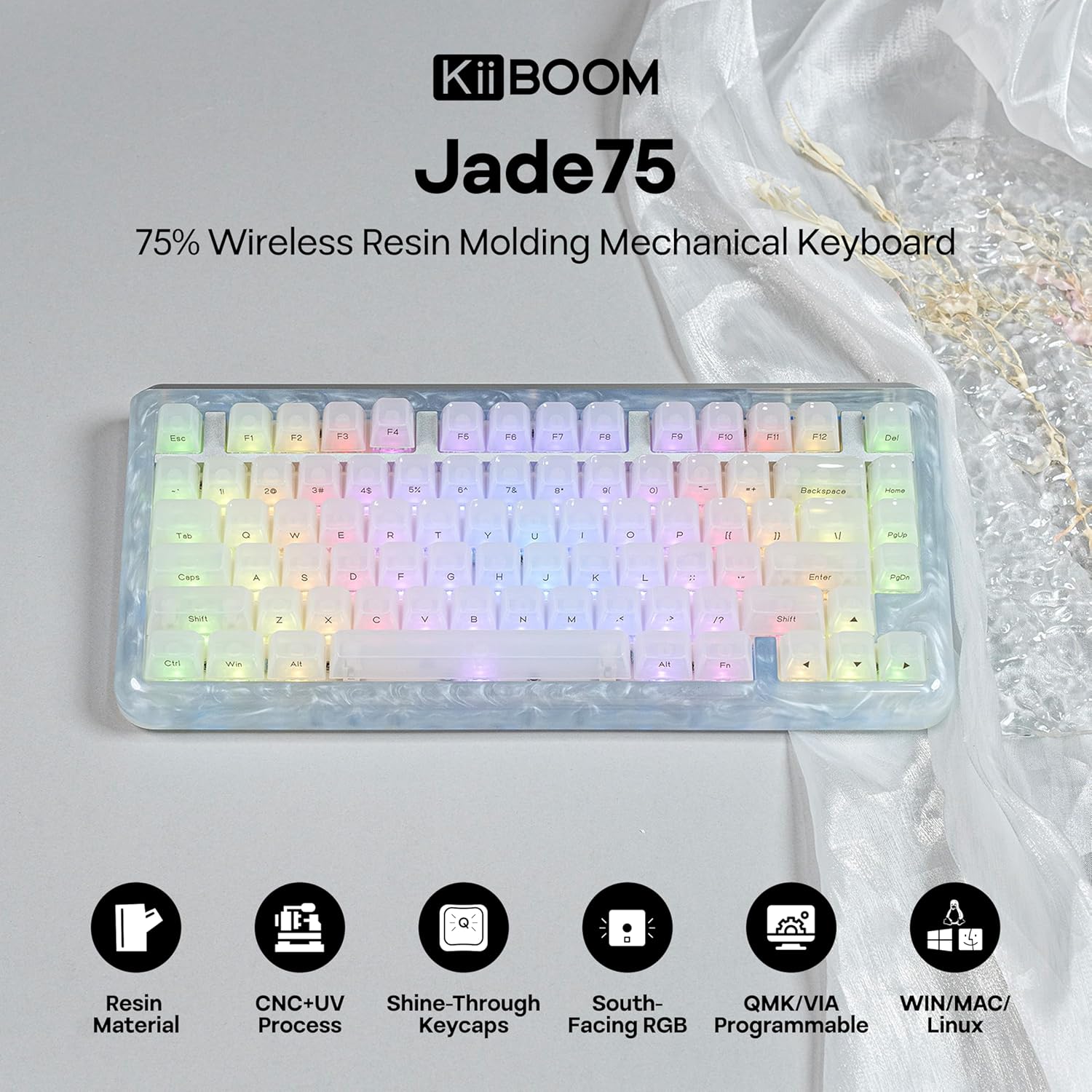
Image: A top-down view of the KiiBoom Jade75 keyboard, showcasing its 75% layout, translucent resin case, and keycap design.
Setup and Connectivity
The KiiBoom Jade75 offers three connectivity modes: 2.4GHz wireless, Bluetooth 5.0, and USB-C wired. Choose the mode that best suits your device and usage.
1. USB-C Wired Mode
- Connect the provided USB-C cable to the keyboard's USB-C port.
- Plug the other end of the cable into an available USB port on your computer.
- The keyboard will be automatically recognized and ready for use.
2. 2.4GHz Wireless Mode
- Locate the 2.4GHz USB receiver (usually stored in a compartment on the keyboard).
- Plug the 2.4GHz receiver into an available USB port on your computer.
- On the keyboard, switch the mode selector to 2.4G.
- The keyboard should automatically connect to the receiver. If not, press Fn + R to initiate pairing.
3. Bluetooth 5.0 Mode
The keyboard supports up to three Bluetooth devices.
- On the keyboard, switch the mode selector to BT.
- Press and hold Fn + Q, Fn + W, or Fn + E for 3-5 seconds until the corresponding key flashes, indicating pairing mode.
- On your device (computer, tablet, smartphone), enable Bluetooth and search for "KiiBoom Jade75".
- Select the keyboard to pair. The key will stop flashing once connected.
- To switch between paired Bluetooth devices, press Fn + Q, Fn + W, or Fn + E briefly.

Image: Visual representation of the KiiBoom Jade75's three connectivity modes: Bluetooth, 2.4GHz wireless, and USB-C, showing compatibility with laptops, PCs, tablets, and gaming consoles.
QMK/VIA Customization
The KiiBoom Jade75 is QMK/VIA programmable, allowing for extensive customization of key assignments, macros, and lighting effects. This feature is ideal for users who require a personalized keyboard layout and functionality.
- Download the VIA software from the official KiiBoom website or the VIA GitHub repository.
- Connect your keyboard to your computer via USB-C cable.
- Launch the VIA software. The software should automatically detect your Jade75 keyboard.
- Use the VIA interface to remap keys, create custom macros, adjust lighting settings, and define different layers for various functions.
- Changes are applied in real-time to the keyboard.
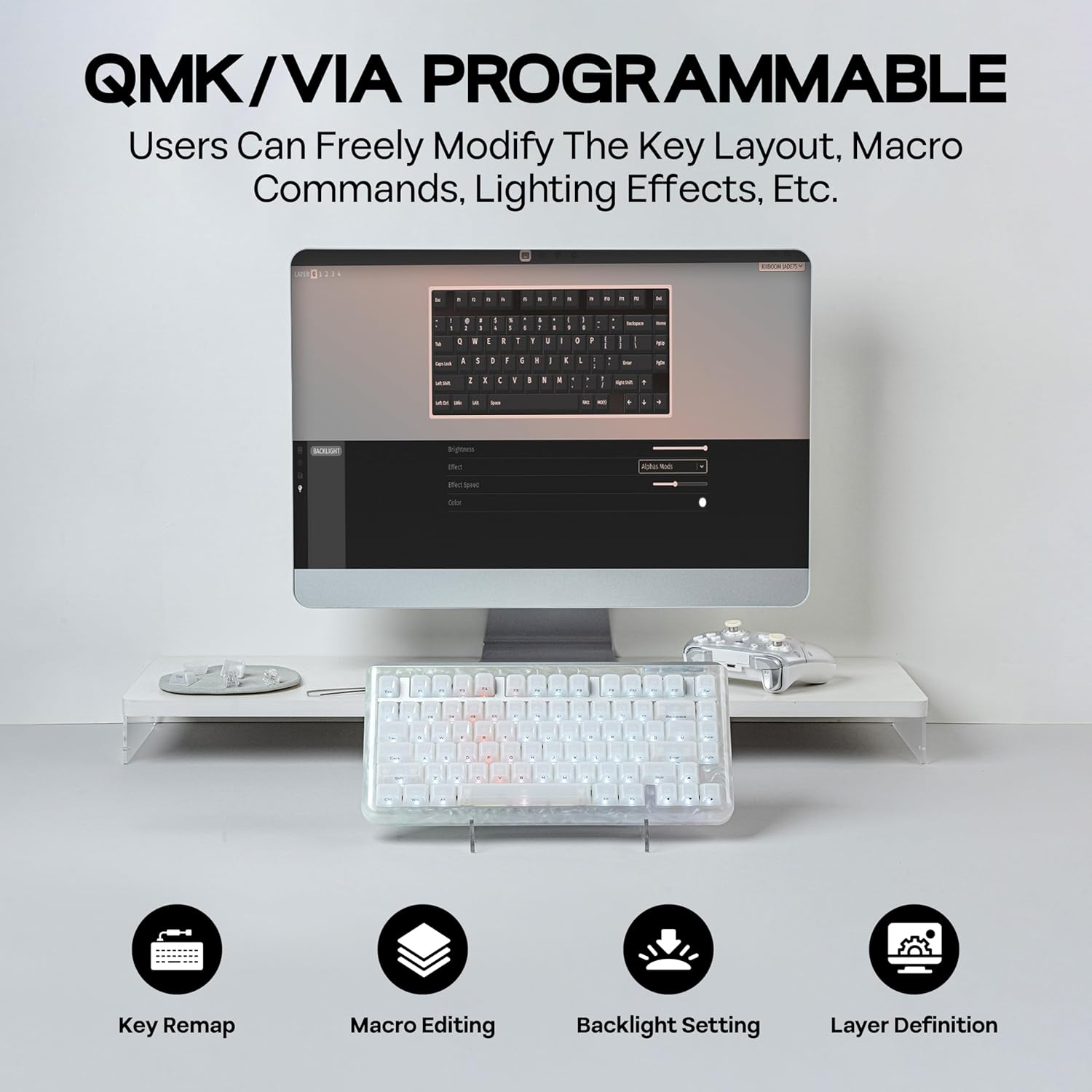
Image: A computer screen displaying the QMK/VIA software interface, illustrating options for key remapping, macro editing, backlight settings, and layer definition for the KiiBoom Jade75 keyboard.
RGB Lighting Control
The KiiBoom Jade75 features dynamic RGB backlighting with 16.8 million color options and various customizable modes. The south-facing RGB LEDs enhance the visual appeal, especially with the translucent resin case.
- Toggle Backlight Effects: Press Fn + \| to cycle through different backlight modes.
- Toggle Sidelight Effects: Press Fn + Z to change the sidelight effects.
- Turn Lights On/Off: Press Fn + Backspace to toggle the keyboard lighting on or off.
- Adjust Brightness/Speed: Use the VIA software for fine-tuning brightness, speed, and specific color settings.

Image: The KiiBoom Jade75 keyboard illuminated with colorful RGB backlighting, demonstrating various lighting effects and key combinations for control.
Hot-Swappable Switches
The KiiBoom Jade75 features a hot-swappable PCB, allowing you to change mechanical switches without soldering. This enables easy customization of your typing feel and sound.
- Remove Keycap: Use the keycap puller to gently remove the desired keycap.
- Remove Switch: Use the switch puller to carefully grip the top and bottom clips of the switch and pull it straight up.
- Insert New Switch: Align the pins of the new switch with the holes on the PCB. Gently push the switch down until it clicks into place. Ensure the pins are not bent.
- Replace Keycap: Place the keycap back onto the new switch.
Note: Ensure the keyboard is disconnected or powered off before changing switches to prevent accidental key presses or damage.

Image: A detailed view of the KiiBoom Jade75's hot-swappable PCB, demonstrating the process of removing and inserting switches, along with a close-up of a KiiBoom Linear Switch and plate-mount stabilizer.
Maintenance
Proper maintenance ensures the longevity and performance of your KiiBoom Jade75 keyboard.
- Cleaning Keycaps: Use the keycap puller to remove keycaps. Clean them with mild soap and water, then dry thoroughly before reattaching.
- Cleaning the Case: Wipe the resin case with a soft, damp cloth. Avoid harsh chemicals that may damage the finish.
- Dust Removal: Use compressed air to remove dust and debris from between the keycaps and switches.
- Battery Care: For optimal battery life, avoid fully discharging the keyboard frequently. Charge it regularly using the provided USB-C cable.
Troubleshooting
If you encounter issues with your KiiBoom Jade75, refer to the following common solutions:
- Keyboard Not Responding:
- Ensure the keyboard is charged or connected via USB-C.
- Check the mode switch (2.4G, BT, USB-C) is set correctly.
- For wireless modes, ensure the receiver is plugged in (2.4G) or Bluetooth is enabled and paired (BT).
- Try restarting your computer or device.
- Keys Not Registering:
- Remove the keycap and switch for the affected key. Re-insert the switch firmly, ensuring pins are straight.
- Test with a different switch if available.
- RGB Lighting Not Working:
- Ensure lighting is turned on (Fn + Backspace).
- Check lighting settings in the VIA software.
- Bluetooth Disconnection:
- Ensure the keyboard is within range of your device.
- Re-pair the keyboard with your device.
- Check for interference from other wireless devices.
If issues persist, please contact KiiBoom customer support for further assistance.
Specifications
| Feature | Detail |
|---|---|
| Brand | KiiBoom |
| Model | Jade75 |
| Layout | 75% |
| Connectivity | 2.4GHz Wireless, Bluetooth 5.0, USB-C Wired |
| Case Material | Resin Molding & CNC+UV Crafted |
| Keycap Material | PC (Polycarbonate) |
| Switches | Hot-Swappable (KiiBoom Linear Switch) |
| Backlighting | RGB (South-facing) |
| Programmability | QMK/VIA Compatible |
| Compatible Devices | Gaming Console, Laptop, PC, Smartphone, Tablet |
| Operating Systems | Windows, Mac, Linux |
| Product Dimensions | 12.99"L x 12.99"W x 1.77"H |
Warranty and Support
KiiBoom products are designed for quality and durability. For warranty information, product support, or technical assistance, please visit the official KiiBoom website or contact their customer service directly. Keep your proof of purchase for warranty claims.
Official KiiBoom Store: KiiBoom Store on Amazon