
Introduction
This manual provides detailed instructions for the SGIN Android Tablet SGIN-T12. It covers setup, operation, maintenance, and troubleshooting to ensure optimal use of your device. The SGIN-T12 features a 10.51-inch Full HD IPS display, an Octa-Core processor, 6GB RAM, 128GB internal storage, and runs on Android 13. It supports 5G WiFi, Bluetooth 5.0, and GPS functionality.
1. Setup
1.1 Package Contents
Verify that all items are present in the package:
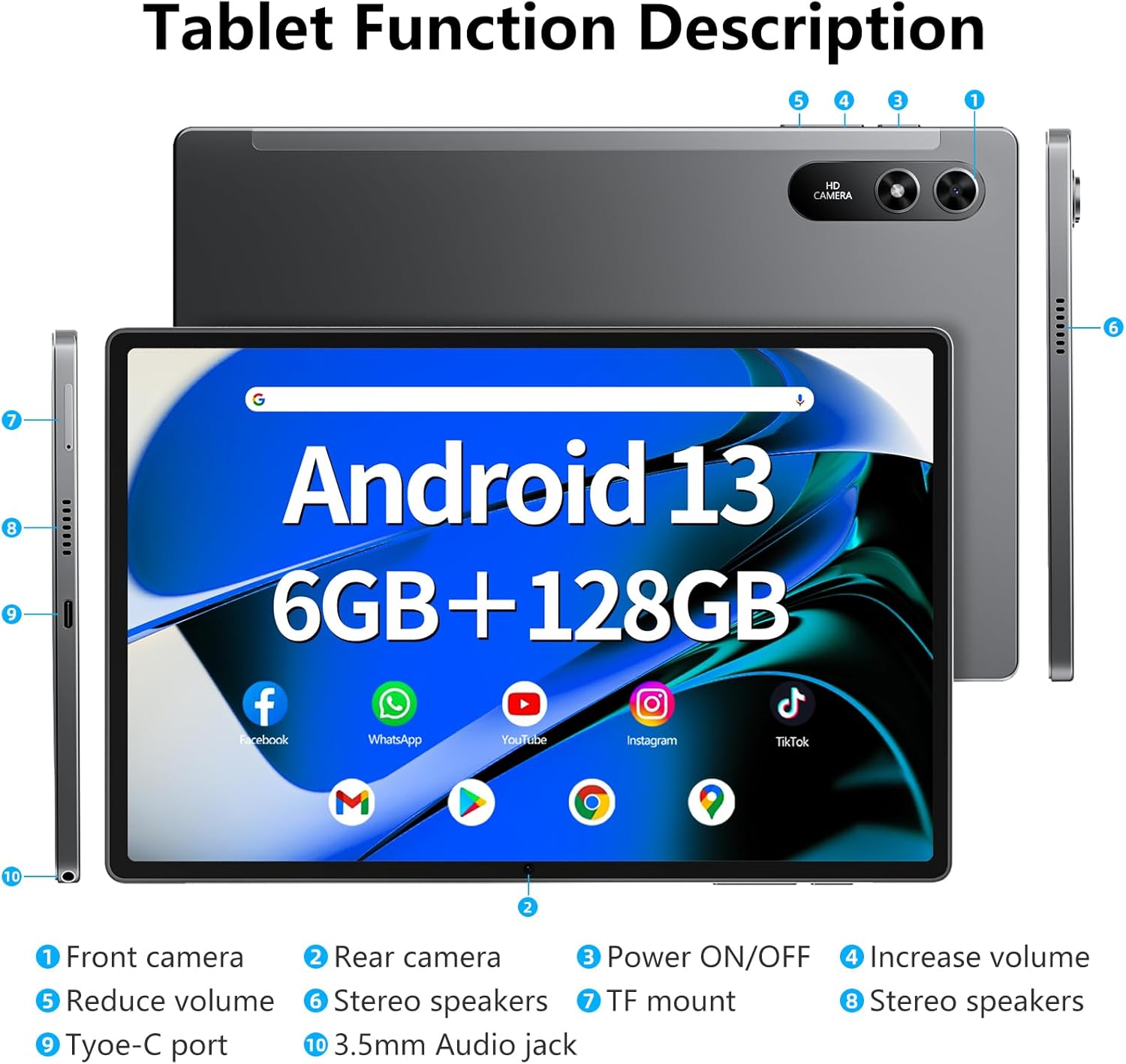
Image: The SGIN-T12 tablet, power adapter, USB-C charging cable, SIM ejector tool, and user manual.
- SGIN Android Tablet SGIN-T12
- Power Adapter
- USB-C Charging Cable
- SIM Ejector Tool
- User Manual
1.2 Device Layout
Familiarize yourself with the physical components and ports of your tablet.

Image: Labeled diagram of the SGIN-T12 tablet indicating the location of the front camera, rear camera, power ON/OFF button, volume increase/decrease buttons, stereo speakers, TF card slot, Type-C charging port, and 3.5mm audio jack.
- Front camera
- Rear camera
- Power ON/OFF button
- Increase volume button
- Reduce volume button
- Stereo speakers
- TF mount (MicroSD card slot)
- Stereo speakers
- Type-C port
- 3.5mm Audio jack
1.3 Initial Charging
Before first use, fully charge the tablet. Connect the USB-C charging cable to the tablet's Type-C port and the power adapter to a wall outlet. The charging indicator will show the charging status.
1.4 Power On/Off
- To Power On: Press and hold the Power ON/OFF button until the SGIN logo appears.
- To Power Off: Press and hold the Power ON/OFF button until the power options appear on the screen. Select "Power off" and confirm.
- To Restart: From the power options, select "Restart."
1.5 Initial Setup Wizard
Upon first power-on, the tablet will guide you through the initial setup process:
- Select your preferred language.
- Connect to a Wi-Fi network.
- Review and accept the terms and conditions.
- Sign in with your Google account or create a new one. This is necessary for accessing the Google Play Store and other Google services.
- Set up screen lock (PIN, pattern, or password).
- Configure other settings as prompted.
2. Operating Instructions
2.1 Basic Navigation
- Tap: Touch the screen once to select an item or open an application.
- Tap and Hold: Touch and hold an item to access contextual menus or move icons.
- Swipe: Drag your finger across the screen to scroll through pages or lists.
- Pinch: Use two fingers to zoom in or out on images and web pages.
2.2 Wi-Fi Connection
To connect to a wireless network:
- Go to Settings > Network & internet > Wi-Fi.
- Toggle Wi-Fi On.
- Select your desired network from the list.
- Enter the password if prompted and tap Connect.
2.3 Bluetooth Pairing
To pair with a Bluetooth device (e.g., headphones, keyboard):
- Go to Settings > Connected devices > Bluetooth.
- Toggle Bluetooth On.
- Ensure your Bluetooth device is in pairing mode.
- Select the device from the "Available devices" list and follow any on-screen prompts to complete pairing.
2.4 Camera Operation
The tablet features a 5MP front camera and a 13MP rear camera.

Image: The SGIN-T12 tablet showcasing its front camera for video calls and rear camera for capturing images.
- Open the Camera application.
- Tap the camera switch icon to alternate between the front and rear cameras.
- Tap the shutter button to take a photo or start/stop video recording.
- Access various camera modes and settings within the app.
2.5 Storage Management
The tablet comes with 128GB of internal storage and supports expansion up to 256GB via a TF (MicroSD) card.
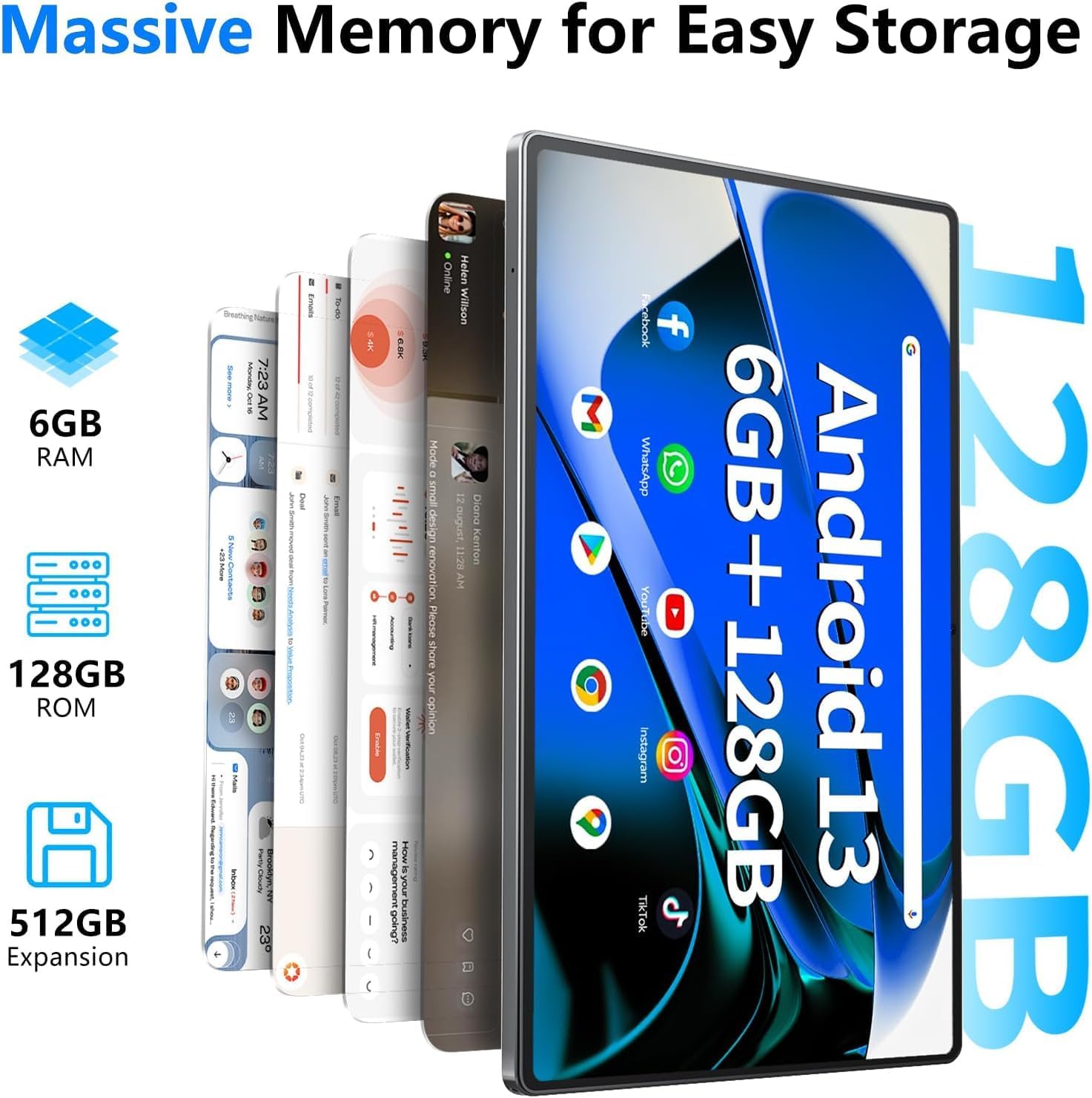
Image: Visual representation of the tablet's memory specifications, highlighting 6GB RAM, 128GB ROM, and support for up to 512GB external storage expansion.
- Inserting a TF Card: Use the provided SIM ejector tool to open the TF card slot. Insert the MicroSD card with the gold contacts facing down, then close the tray.
- Managing Storage: Go to Settings > Storage to view storage usage and manage files.
2.6 Audio Settings
The tablet features dual stereo speakers and a 3.5mm audio jack.

Image: The SGIN-T12 tablet illustrating its four-speaker stereo system for an immersive audio experience.
- Volume Control: Use the physical volume buttons on the side of the tablet or adjust volume in Settings > Sound & vibration.
- Headphone Jack: Connect standard 3.5mm headphones for private listening.
2.7 GPS Functionality
The tablet includes GPS for navigation and location-based services.
- Ensure Location services are enabled in Settings > Location.
- Use pre-installed mapping applications or download others from the Google Play Store for navigation.
3. Maintenance
3.1 Battery Care

Image: The SGIN-T12 tablet highlighting its 6200mAh battery, designed for extended use.
- Avoid fully discharging the battery frequently.
- Do not expose the tablet to extreme temperatures.
- Use only the provided charger or a certified compatible charger.
- If the tablet will not be used for an extended period, charge it to about 50% before storing.
3.2 Cleaning the Device
- Use a soft, lint-free cloth to clean the screen and body.
- For stubborn smudges, slightly dampen the cloth with water or a screen cleaner designed for electronics.
- Avoid using harsh chemicals, abrasive materials, or excessive moisture.
3.3 Software Updates
Regularly check for and install software updates to ensure optimal performance and security.
- Go to Settings > System > System update.
- Follow the on-screen instructions to check for and install any available updates.
4. Troubleshooting
| Problem | Solution |
|---|---|
| Tablet does not power on. | Ensure the battery is charged. Connect the tablet to the charger and wait a few minutes before attempting to power on again. |
| Screen is unresponsive. | Perform a forced restart by pressing and holding the Power ON/OFF button for approximately 10-15 seconds until the device restarts. |
| Wi-Fi connection issues. | Restart your Wi-Fi router. On the tablet, toggle Wi-Fi off and then on again. Forget the network and reconnect. |
| Applications are crashing or freezing. | Close and reopen the application. Clear the app's cache in Settings > Apps > [App Name] > Storage & cache. If the issue persists, uninstall and reinstall the app. |
| Slow performance. | Close unused applications. Clear cache and temporary files. Consider performing a factory reset if performance issues are severe and persistent (back up data first). |
| "Reboot errors" or "Failed to load" messages. | Attempt multiple restarts. If the issue persists, a factory reset may be required. Warning: A factory reset will erase all data on the device. Back up important files before proceeding. If the problem continues after a factory reset, contact customer support. |
5. Specifications
| Feature | Detail |
|---|---|
| Model | SGIN-T12 |
| Operating System | Android 13 |
| Screen Size | 10.51 Inches |
| Screen Resolution | 1920 x 1200 Pixels (FHD IPS) |
| Processor | Octa-Core (2 GHz ARM_Cortex_A5) |
| RAM | 6 GB DDR4 SDRAM |
| Internal Storage | 128 GB |
| Expandable Storage | Supports up to 256GB TF card (MicroSD) |
| Front Camera | 5 MP |
| Rear Camera | 13 MP |
| Battery Capacity | 6200 mAh Lithium Ion |
| Average Battery Life | Up to 6 hours |
| Wireless Connectivity | 5G Wi-Fi (802.11bgn), Bluetooth 5.0 |
| Navigation | GPS |
| Ports | Type-C, 3.5mm Audio Jack, TF Card Slot |
| Dimensions (LxWxH) | 10.51 x 6.36 x 0.3 inches |
| Item Weight | 2.2 pounds |
6. Warranty and Support
6.1 Product Warranty
The SGIN Android Tablet SGIN-T12 comes with a 1-year limited warranty from the date of purchase. This warranty covers manufacturing defects and workmanship under normal use. It does not cover damage caused by misuse, accidents, unauthorized modifications, or natural disasters.
Please retain your proof of purchase for warranty claims.
6.2 Customer Support
For technical assistance, troubleshooting not covered in this manual, or warranty inquiries, please contact SGIN customer support. Refer to the contact information provided on the SGIN official website or your purchase documentation.
You may also visit the SGIN Store on Amazon for additional product information and resources.


