
Product Overview
This PHEZEN 9-inch touchscreen car stereo radio, model RT-QA1495X-WUYA-04, is designed for Ford Mustang models from 2015 to 2020. It features an Android 13 operating system, a 4-core CPU, 2GB RAM, and 32GB ROM. The unit supports wired/wireless CarPlay and Android Auto, AHD backup camera, steering wheel controls, HD display, Mirror Link, GPS navigation, and Wi-Fi connectivity. This manual provides detailed instructions for installation, operation, and maintenance to ensure optimal performance and user experience.
Key Features
- 9-inch Touchscreen Navigation System: Runs on Android 13 with a 4-core CPU, 2GB RAM, and 32GB ROM for seamless multitasking and ample storage.
- Wired/Wireless CarPlay & Android Auto: Integrates your smartphone for calls, music, navigation, and voice control, enabling a hands-free driving experience.
- AHD Backup Camera & SWC: Includes an AHD wide-angle backup camera with clear night vision and waterproof design. Automatically switches to rear camera view when reversing. Supports steering wheel controls for convenient stereo operation.
- HD Display & Mirror Link: Features a 1024x600 resolution display with 1080P video decoder and 2.5D tempered glass. Mirror Link allows seamless integration with smartphones for audio content access.
- GPS Navigation & WiFi Connection: Built-in offline North America map with support for online maps via Wi-Fi connection. Allows installation and deletion of Android apps.
What's in the Box
- Car Stereo Head Unit
- Power Cable
- RCA Input/Output Cables
- 2 USB Cables
- Camera Input Cable
- Radio Adapter
- GPS Antenna
- Instruction Manual
- Canbus Box
- AHD Backup Camera
Specifications
| Feature | Value |
|---|---|
| Item Weight | 4.91 pounds |
| Product Dimensions | 16.54 x 12.99 x 5.91 inches |
| Item Model Number | RT-QA1495X-WUYA-04 |
| Display Size | 9 Inches |
| Voice Command | Buttons |
| Operating System | Android |
| Memory Storage Capacity | 32 GB |
| Connectivity Technology | Bluetooth |
| Special Feature | Bluetooth, Touchscreen |
Installation Guide
This section provides a step-by-step guide for installing your new PHEZEN car stereo. It is recommended to watch the provided video tutorials for visual assistance.
1. Disassembly of Original Car Stereo
Carefully remove the dashboard trim panels and the original car stereo unit. Use appropriate plastic pry tools to avoid damaging the interior. Refer to the video for detailed steps on panel removal and screw locations.
Video: For Ford Mustang Disassembly and Assembly Video 7030. This video demonstrates the complete disassembly process of the Ford Mustang dashboard to prepare for stereo installation.
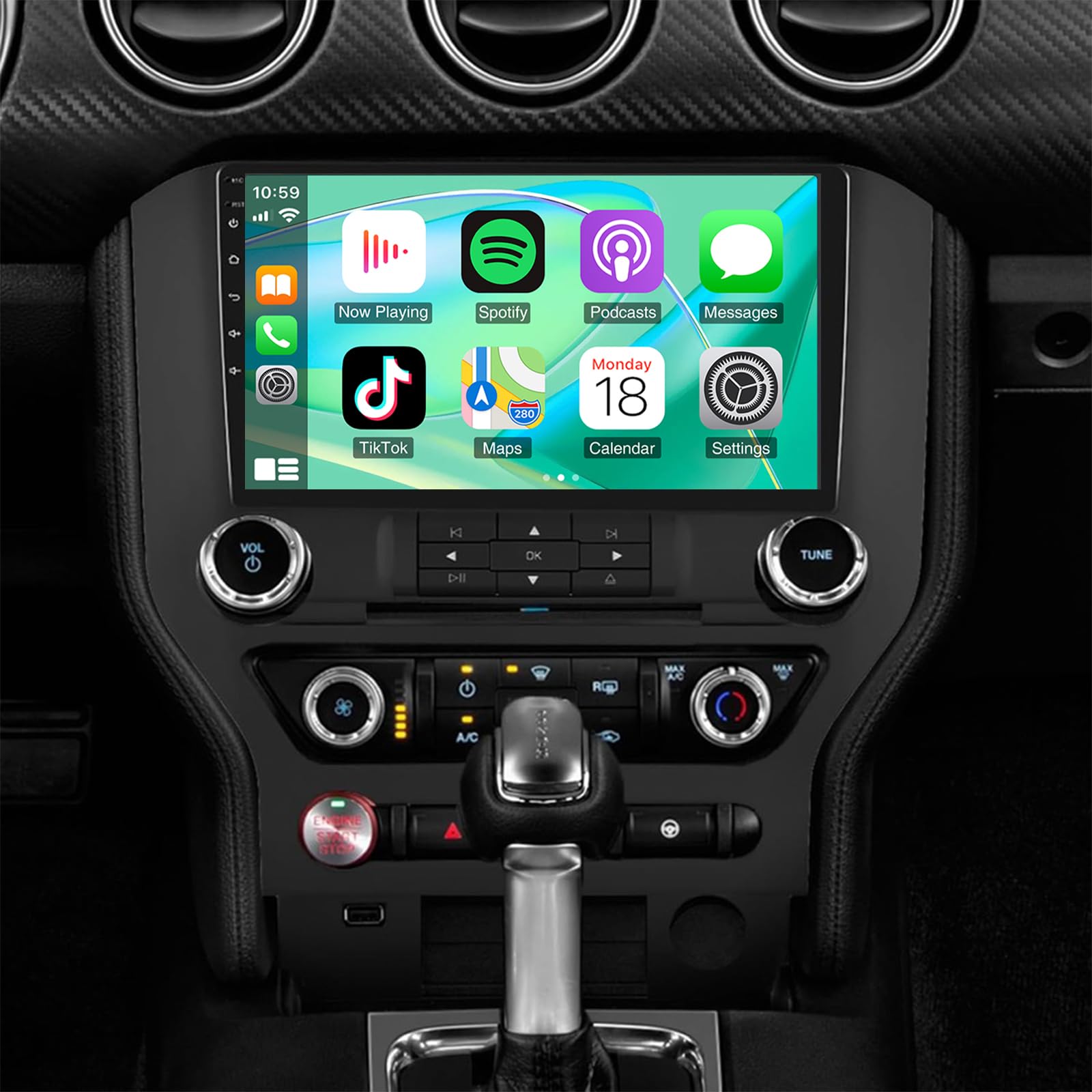
Image: New 9-inch touchscreen stereo installed in a Ford Mustang dashboard. This image shows the final appearance of the stereo unit integrated into the vehicle's interior.
2. Wiring Connections
Connect the provided wiring harnesses to the new stereo unit and the vehicle's existing connectors. Ensure all connections are secure. Pay attention to the main power plug, antenna, GPS, and Wi-Fi connections.
Video: How to connect car stereo radio. This video guides you through the process of connecting the various cables and harnesses for the car stereo.

Image: Detailed view of the wiring harnesses included with the car stereo. This image helps identify the different cables for connection.
3. Microphone Installation
Route the microphone cable and install the microphone in a suitable location, typically near the driver's sun visor or rearview mirror, for optimal voice pickup during calls.
4. USB Cable Installation
Route the USB cables to an accessible location, such as the glove compartment or center console, for connecting external devices or charging.
5. GPS Antenna Installation
Place the GPS antenna on the dashboard or another location with a clear view of the sky to ensure accurate navigation signal reception.
6. Reassembly
Once all connections are made and tested, reassemble the dashboard panels in reverse order of disassembly. Ensure all clips and screws are securely fastened.
Operating Instructions
1. Power On/Off & Touchscreen Interface
Press the power button to turn the unit on or off. The 9-inch touchscreen provides an intuitive interface for navigating through features and applications.

Image: The HD display showcasing Mirror Link functionality. The 2.5D tempered glass provides enhanced protection and a clear viewing experience.
2. CarPlay & Android Auto
Connect your smartphone via USB for wired CarPlay/Android Auto or wirelessly via Bluetooth. This allows access to phone calls, music, maps, and voice control directly from the stereo screen.

Image: An overview of the CarPlay, Android Auto, and Mirror Link features, showing smartphone integration for various applications.
3. GPS Navigation
Utilize the built-in offline North America map or connect to Wi-Fi for online navigation. The system supports various navigation apps.

Image: The GPS Navigation interface displaying map data and the Wi-Fi Hotspot feature for internet connectivity.
4. Radio (FM/RDS)
Access FM/RDS radio stations. You can manually tune or use the automatic search function to find and save your favorite stations.
5. Bluetooth Connectivity
Pair your smartphone via Bluetooth for hands-free calling, phonebook synchronization, and wireless music streaming.
6. Audio Settings (EQ/DSP)
Adjust audio settings using the built-in Equalizer (EQ) and Digital Sound Processor (DSP) to customize your sound experience.
7. Rear View Camera
The AHD backup camera automatically displays the rear view on the screen when the vehicle is in reverse gear, aiding in safe parking.

Image: The reversing display showing the backup camera view with guidelines, alongside the steering wheel control interface.
8. Steering Wheel Control
Utilize your vehicle's existing steering wheel controls to manage stereo functions, ensuring convenience and safety while driving.
9. Wi-Fi Connection
Connect to a Wi-Fi hotspot to access online features, download apps, and browse the internet directly from the stereo.
10. Mirror Link
Use the Mirror Link feature to display your smartphone screen directly on the stereo, providing access to a wider range of mobile applications and content.
11. Split Screen
The split-screen function allows you to run two applications simultaneously, such as navigation and music, for enhanced multitasking.
Video: Calibrate the Car Radio Screen. This video demonstrates how to calibrate the touchscreen for optimal responsiveness and accuracy.
Maintenance
- Cleaning: Use a soft, dry cloth to clean the touchscreen and unit. Avoid abrasive cleaners or solvents.
- Software Updates: Periodically check for software updates via the system settings to ensure optimal performance and access to new features.
- Temperature: Avoid exposing the unit to extreme temperatures.
Troubleshooting
- No Power: Check all power connections and fuses. Ensure the vehicle's ignition is on.
- No Sound: Verify speaker connections and audio settings. Check volume levels and mute status.
- GPS Not Working: Ensure the GPS antenna is properly connected and has a clear view of the sky. Check GPS settings in the system menu.
- Touchscreen Unresponsive: Try restarting the unit. If the issue persists, perform a factory reset (note: this will erase all personal data).
- Bluetooth Connection Issues: Ensure Bluetooth is enabled on both the stereo and your smartphone. Delete previous pairings and try reconnecting.
Warranty and Support
This product comes with a manufacturer's warranty. For detailed warranty information, technical support, or service inquiries, please refer to the warranty card included in the packaging or contact PHEZEN customer service directly. Keep your purchase receipt as proof of purchase.