
CHAMBERLAIN MYQ-D49TXXB
CHAMBERLAIN myQ Video Doorbell User Manual
Model: MYQ-D49TXXB | Brand: CHAMBERLAIN
Introduction
The CHAMBERLAIN myQ Video Doorbell provides advanced security and convenience for your home's entryway. Featuring 2K video resolution, a 150-degree wide-angle lens, and Color Night Vision, it ensures clear visibility day and night. With flexible power options (battery or wired) and real-time motion alerts, you can stay connected and respond to visitors from anywhere via the myQ app.
This manual provides detailed instructions for setting up, operating, and maintaining your myQ Video Doorbell.
What's in the Box
Verify that all components are present before beginning installation:
- myQ Video Doorbell Unit
- Mounting Plate
- Charging Cable (USB-C)
- Hardware Bag (screws, anchors)

Image: The myQ Video Doorbell unit, a sleek black device with a camera lens at the top and a glowing blue ring button.
Setup and Installation
The myQ Video Doorbell offers both battery-powered wireless installation and wired installation using existing doorbell wiring.
1. Prepare for Installation
- Download the myQ app from your device's app store.
- Ensure your Wi-Fi network is stable at the installation location.
- For wired installation, turn off power to your existing doorbell at the circuit breaker.
2. Mounting the Doorbell
Choose your preferred installation method:
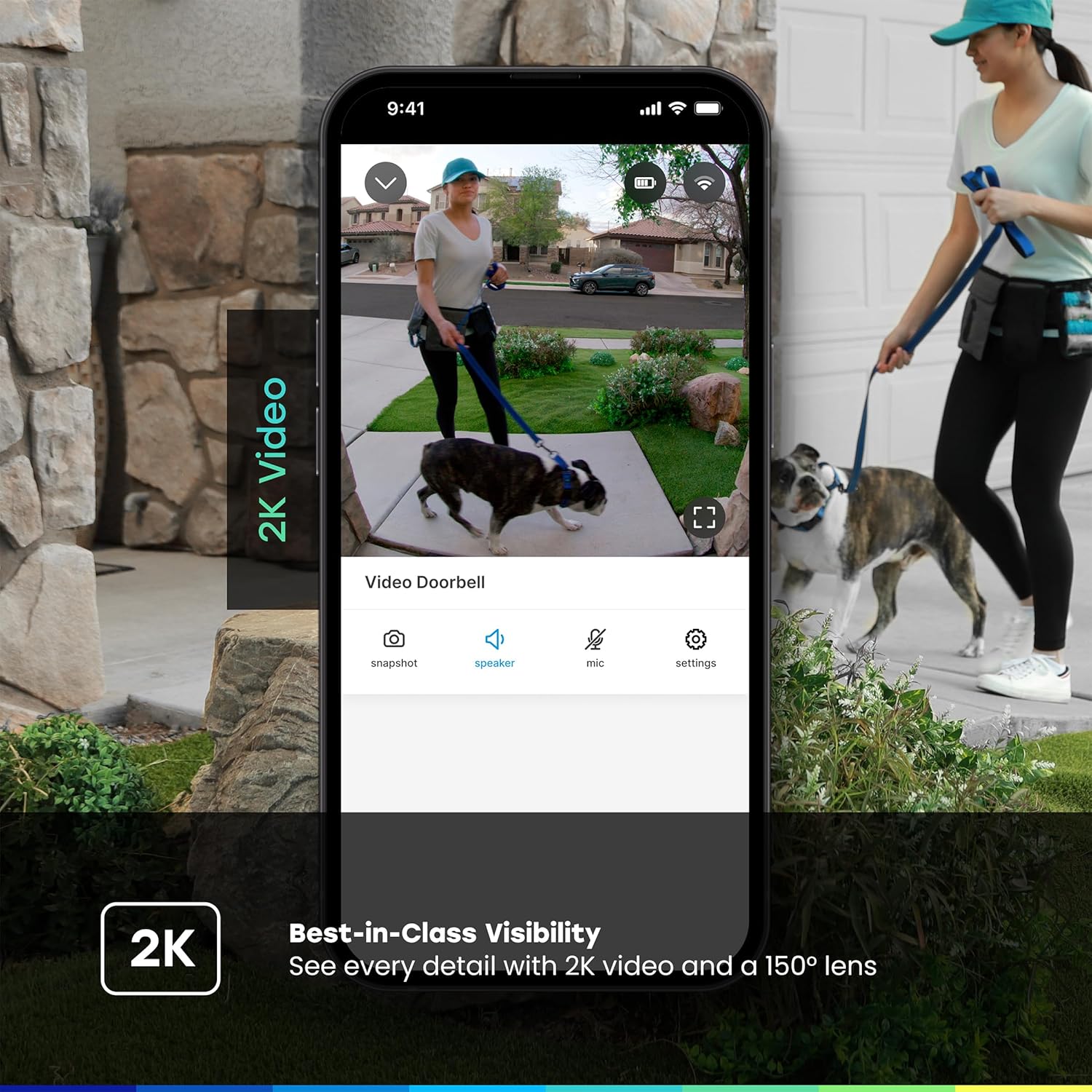
Image: A sequence showing the myQ Video Doorbell being attached to its mounting plate on a wall, illustrating the ease of installation.
- Battery Installation:
- Charge the doorbell fully using the provided USB-C cable before installation.
- Secure the mounting plate to your desired location using the included screws and anchors.
- Snap the myQ Video Doorbell onto the mounting plate.
- Wired Installation:
- Remove your existing doorbell button.
- Connect the existing doorbell wires to the terminals on the myQ Video Doorbell's mounting plate.
- Secure the mounting plate to the wall.
- Snap the myQ Video Doorbell onto the mounting plate.
- Restore power at the circuit breaker.
3. App Pairing and Configuration
- Open the myQ app and follow the on-screen instructions to add your new Video Doorbell.
- The app will guide you through connecting the doorbell to your Wi-Fi network.
- Customize settings such as motion detection zones, notification preferences, and chime options.
Operating Instructions
Live View and Two-Way Talk
Access a live video feed of your front door anytime through the myQ app. When someone presses the doorbell or motion is detected, you will receive an instant notification on your smartphone.

Image: A smartphone screen displaying the myQ app with a live video feed of children at a front door and a notification indicating a visitor.
- Tap the notification to open the live view.
- Use the microphone icon in the app to enable two-way audio communication with visitors at your door.
- Tap the speaker icon to hear audio from the doorbell.
Motion Detection and Alerts
The myQ Video Doorbell features customizable motion detection. You can define specific activity zones to reduce unwanted alerts and focus on areas of importance.
- Configure motion sensitivity and detection zones within the myQ app settings.
- Receive real-time alerts on your smartphone when motion is detected.

Image: A smartphone screen showing a "Smart Secure triggered" notification from the myQ app, indicating an unexpected person detected and the system locking the home.
Video Recording and Storage
The myQ Video Doorbell records events triggered by motion or doorbell presses. Video history and advanced features like person/vehicle/animal/face detection are available with a myQ Video Monitoring Plan (sold separately).

Image: A graphic detailing myQ app features, showing checkmarks for 24/7 live streaming, remote control, motion detection, and indicating that video history and advanced detections are free for 30 days.
Key Features
- 2K Video Resolution: Provides clear and detailed video footage, allowing for better identification of visitors and events.

Image: A split screen showing the clarity of 2K video from the doorbell, highlighting the detail captured.
- 150-Degree Wide-Angle Lens: Offers an expansive view of your entryway, capturing more of the surrounding area.
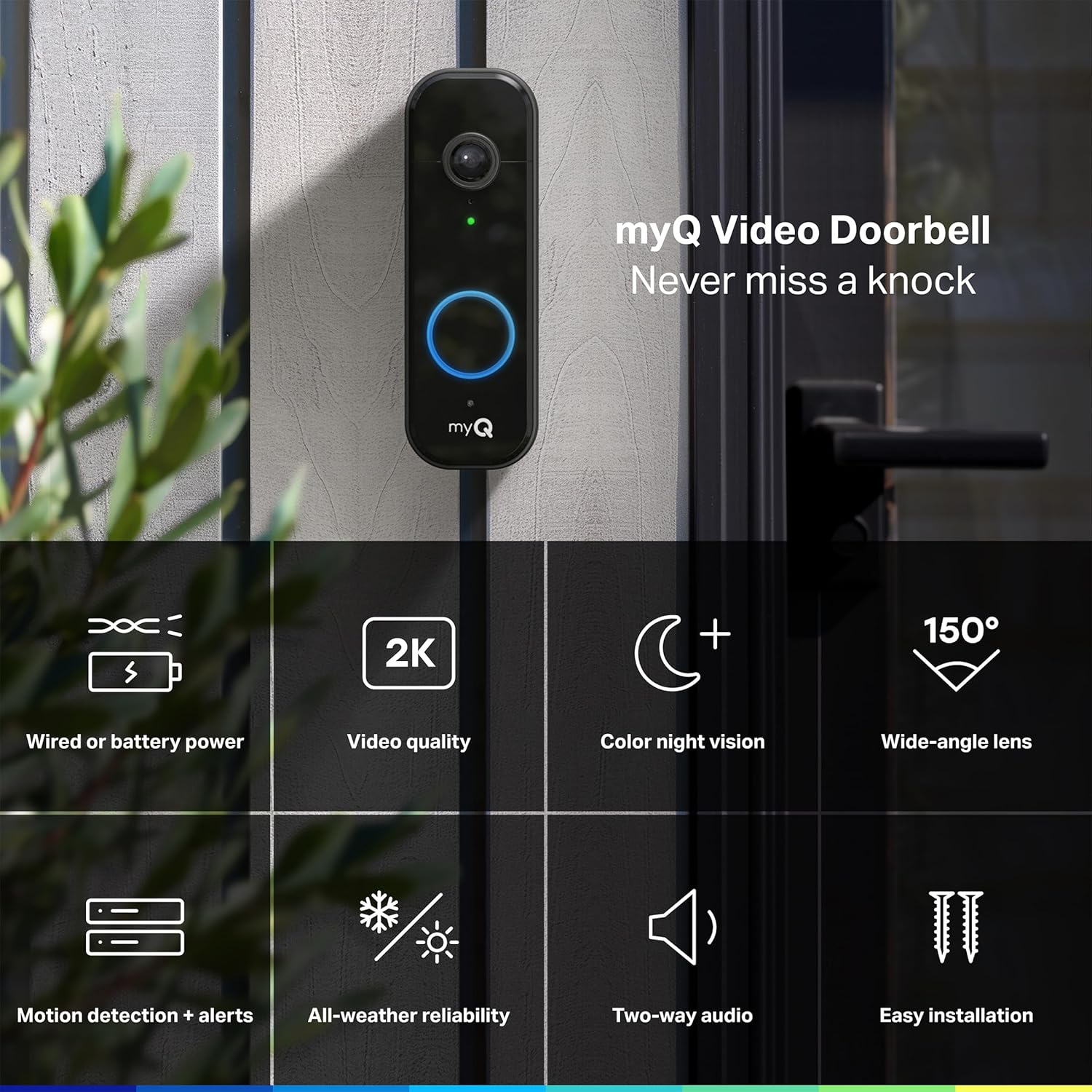
Image: The myQ Video Doorbell mounted on a wall, surrounded by icons representing its key features like 2K video, color night vision, and 150-degree wide-angle lens.
- Color Night Vision: Delivers full-color video even in low-light conditions, providing more detail than traditional black-and-white night vision.

Image: A side-by-side comparison demonstrating the superior detail and color retention of the doorbell's Color Night Vision compared to standard night vision.
- All-Weather Reliability: Designed to withstand various weather conditions, operating in temperatures from -4°F to 122°F.
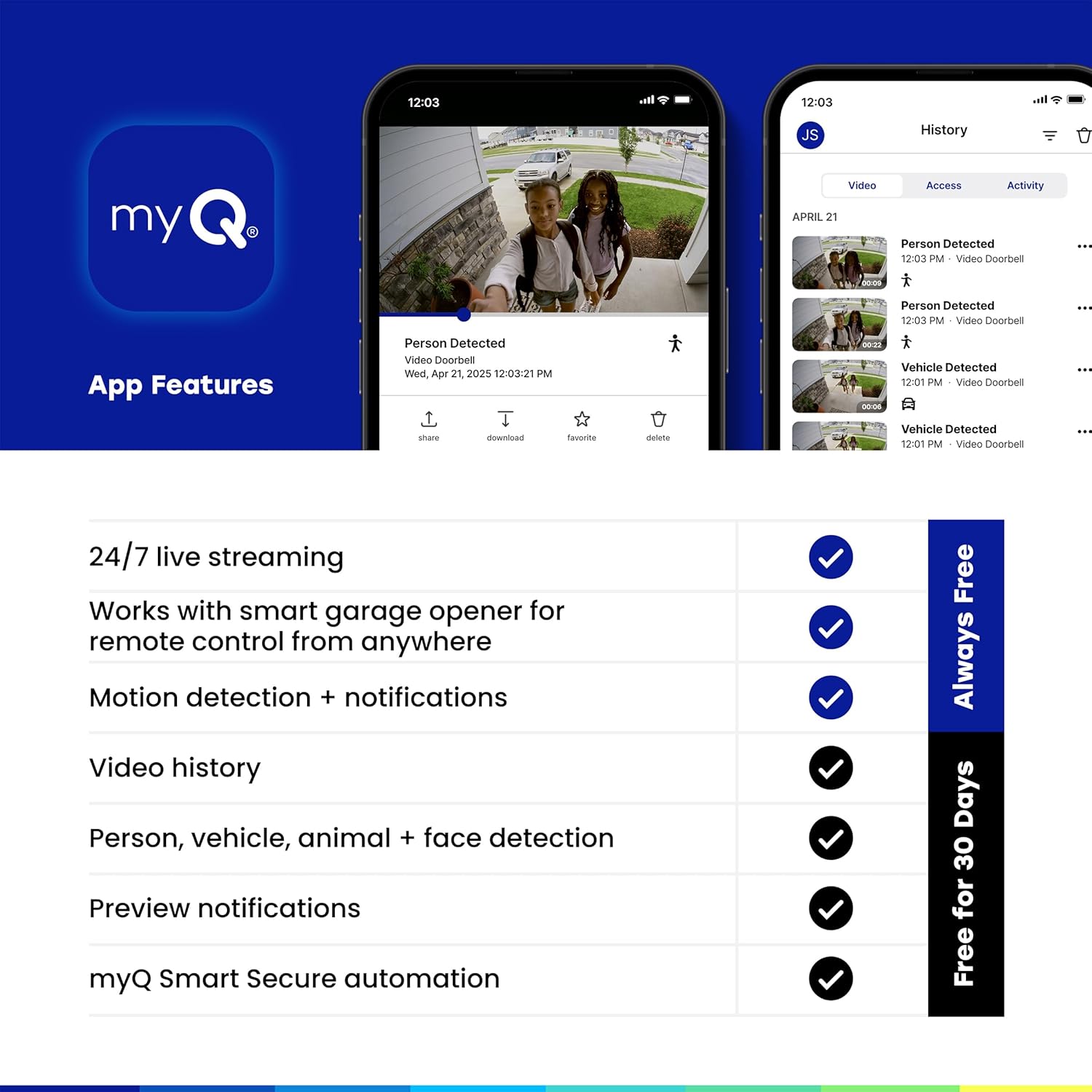
Image: The myQ Video Doorbell with water droplets on its surface, illustrating its robust all-weather design.
Maintenance
- Cleaning: Gently wipe the camera lens and doorbell surface with a soft, damp cloth. Avoid abrasive cleaners or solvents.
- Battery Charging (if applicable): If using battery power, monitor the battery level in the myQ app. When low, remove the doorbell from its mount and charge it using the provided USB-C cable.
- Firmware Updates: Ensure your myQ app and doorbell firmware are always up to date for optimal performance and security. Updates are typically managed through the myQ app.
Troubleshooting
| Problem | Possible Cause | Solution |
|---|---|---|
| Doorbell not connecting to Wi-Fi | Weak Wi-Fi signal; Incorrect Wi-Fi password; Router issues | Move doorbell closer to router; Double-check password; Restart router; Ensure 2.4GHz Wi-Fi is enabled. |
| No motion alerts | Motion detection disabled; Incorrect sensitivity/zones; Obstruction | Enable motion detection in app; Adjust sensitivity and zones; Clear any obstructions from camera view. |
| Poor video quality | Dirty lens; Low bandwidth; Poor lighting | Clean camera lens; Check internet speed; Ensure adequate lighting or rely on Color Night Vision. |
| Battery drains quickly | Frequent motion events; Cold weather; Constant live view usage | Adjust motion sensitivity; Consider wired installation if in cold climate; Limit live view sessions. |
Specifications
| Feature | Detail |
|---|---|
| Model Name | myQ Video Doorbell |
| Model Number | MYQ-D49TXXB |
| Video Resolution | 2K |
| Field of View | 150 degrees (wide-angle) |
| Night Vision | Color Night Vision |
| Power Source | Battery Powered / Wired |
| Connectivity | Wi-Fi, Bluetooth |
| Operating Temperature | -4°F to 122°F (-20°C to 50°C) |
| Dimensions (L x W x H) | 5.71 x 1.89 x 1.34 inches |
| Weight | 13.7 ounces |
| Indoor/Outdoor Usage | Outdoor |
Warranty and Support
For warranty information and technical support, please refer to the official CHAMBERLAIN website or contact their customer service. Keep your purchase receipt for warranty claims.
Online resources and FAQs are available through the myQ app and the CHAMBERLAIN support portal.
Related documentsMYQ-D49TXXB


Ask a question about this manual
Ask about setup, troubleshooting, compatibility, parts, safety, or missing instructions. Manuals+ will review the question and use this page’s manual context to help answer it.