
Introduction
This manual provides essential information for setting up, operating, maintaining, and troubleshooting your Dell Precision 3561 15.6" FHD laptop. Please read this guide thoroughly to ensure proper use and longevity of your device.
The Dell Precision 3561 is a mobile workstation designed for demanding tasks, featuring an Intel Core i5-11500H processor, 16GB RAM, a 512GB Solid State Drive, and NVIDIA T600 4GB graphics, running on Windows 11 Pro 64-bit.
Setup
1. Unboxing and Initial Inspection
Carefully remove the laptop and its accessories from the packaging. Verify that all components are present:
- Dell Precision 3561 Laptop
- AC Adapter and Power Cord
Inspect the laptop for any physical damage. If any damage is found, contact your vendor immediately.
2. Connecting to Power
Connect the AC adapter to the power connector on the laptop and then plug the power cord into a wall outlet. The battery will begin charging automatically.
Image: Top view of the Dell Precision 3561 laptop, showcasing the Dell logo on the lid.
3. Initial Boot-Up and Windows Setup
Press the power button to turn on the laptop. Follow the on-screen instructions to complete the initial setup of Windows 11 Pro. This includes setting up your region, language, network connection, and user account.
Operating Your Laptop
1. Basic Input Devices
- Keyboard: The laptop features a backlit QWERTY keyboard. Use it for typing and system commands.
- Touchpad: Use the integrated touchpad for cursor control and multi-touch gestures.
2. Connecting Peripherals and Ports
The Dell Precision 3561 offers various ports for connecting external devices:
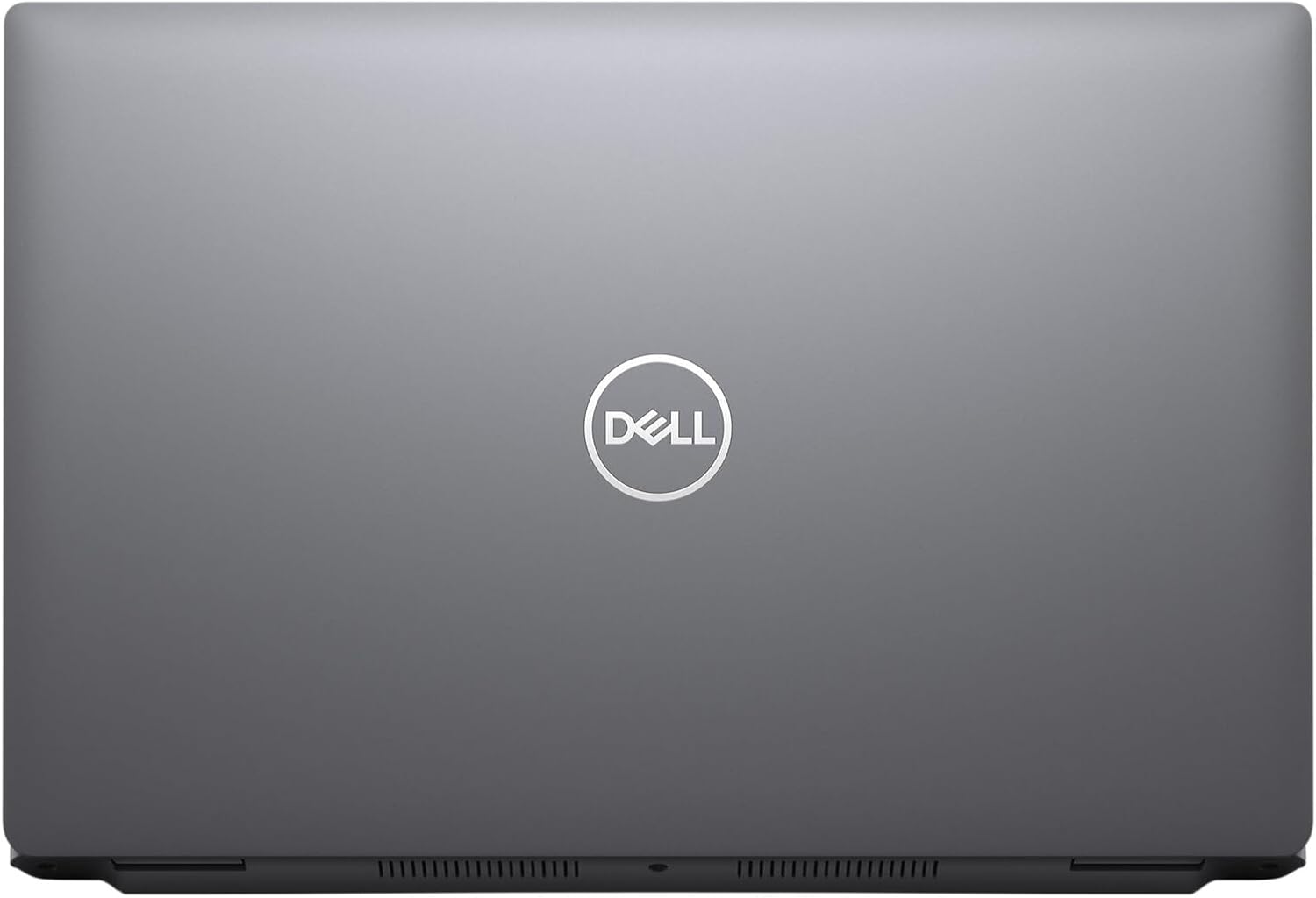
Image: Left side view of the Dell Precision 3561, displaying two USB 4.0 Type-C ports (with DisplayPort/Power Delivery/Thunderbolt) and ventilation grilles.
- USB 4.0 Type-C (x2): These ports support DisplayPort, Power Delivery, and Thunderbolt, allowing for high-speed data transfer, video output, and charging.
- SD Card Reader: For reading and writing to SD memory cards.

Image: Right side view of the Dell Precision 3561, showing the USB 3.2 Gen1 port, HDMI port, RJ45 Ethernet port, and an audio combo jack.
- USB 3.2 Gen1 (x1): Supports PowerShare for charging devices even when the laptop is off or in sleep mode.
- HDMI: Connect to external displays such as monitors or projectors.
- RJ45 (Ethernet): For wired network connections.
- Audio Combo Jack: Connect headphones or a headset with a microphone.
3. Wireless Connectivity
The laptop supports Wi-Fi (802.11ac) for wireless internet access. To connect, navigate to the network settings in Windows 11 Pro and select your desired Wi-Fi network.
4. Webcam Usage
The integrated front-facing webcam allows for video conferencing and capturing images. Access it through applications like Camera, Microsoft Teams, or Zoom.
Maintenance
1. Cleaning Your Laptop
- Screen: Use a soft, lint-free cloth lightly dampened with water or a screen cleaner. Avoid harsh chemicals.
- Keyboard and Chassis: Use a soft cloth to wipe surfaces. Compressed air can be used to remove dust from between keys.
- Vents: Periodically check and clean the ventilation grilles to ensure proper airflow and prevent overheating.
2. Battery Care
- Avoid fully discharging the battery frequently.
- Store the laptop in a cool, dry place if not used for extended periods.
- Use only the original Dell AC adapter provided with your laptop.
3. Software Updates
Regularly update your Windows 11 Pro operating system and device drivers to ensure optimal performance, security, and compatibility. You can check for updates via Windows Update in the Settings menu.
Troubleshooting
This section addresses common issues you might encounter with your Dell Precision 3561 laptop.
1. Power Issues
- Laptop does not turn on: Ensure the AC adapter is securely connected to both the laptop and a working power outlet. Check if the power indicator light is on.
- Battery not charging: Verify the AC adapter connection. Try a different power outlet.
2. Display Problems
- No image on screen: Connect an external monitor to the HDMI port to check if the issue is with the laptop's internal display. Restart the laptop.
- Flickering or distorted image: Update your graphics drivers. Adjust display resolution in Windows settings.
3. Connectivity Issues
- Wi-Fi not connecting: Ensure Wi-Fi is enabled in Windows settings. Restart your router and the laptop. Check for updated wireless drivers.
- USB devices not recognized: Try connecting the device to a different USB port. Update USB drivers.
4. System Performance
- Slow performance: Close unnecessary applications. Check Task Manager for processes consuming high CPU or RAM. Ensure sufficient free space on the SSD.
For more complex issues, refer to Dell's official support website or contact their technical support.
Specifications
| Feature | Description |
|---|---|
| Brand | Dell |
| Model Name | Dell Precision 3561 |
| Screen Size | 15.6 Inches |
| Native Resolution | 1920 x 1080 pixels (FHD) |
| CPU Model | Intel Core i5-11500H |
| CPU Speed | 2.9 GHz |
| RAM Memory Installed Size | 16 GB DDR4 |
| Hard Disk Size | 512 GB SSD (Solid State Drive) |
| Operating System | Windows 11 Pro |
| Graphics Card | NVIDIA T600 4GB GDDR6 (Dedicated) |
| Webcam Capability | Yes (Front Camera) |
| Connectivity Technology | HDMI, USB, Wi-Fi (802.11ac) |
| Total USB Ports | 3 (1x USB 3.2 Gen1, 2x USB 4.0 Type-C) |
| Audio Output Type | Headphones, Speakers |
| Keyboard | Backlit QWERTY |
| Item Weight | 5 Pounds |
| Item Dimensions (L x W x Thickness) | 14.09"L x 9.19"W x 0.95"Th |
Warranty Information
This Dell Precision 3561 laptop, being a Certified Refurbished product, comes with a minimum 90-day warranty. The refurbishing process includes functionality testing, basic cleaning, inspection, and repackaging. For specific warranty terms and conditions, please refer to the documentation provided with your purchase or contact your vendor.
Support
For technical assistance, driver downloads, or further information regarding your Dell Precision 3561, please visit the official Dell Support website. You can typically find support resources by searching for your product model (Precision 3561) on their site.
Dell Support Website: www.dell.com/support


