
1. Introduction
Welcome to the user manual for your BOOX Tab X C 13.3-inch Color ePaper Tablet. This device combines the benefits of an e-reader with the versatility of an Android tablet, featuring a large color ePaper display, front light, G-Sensor, Wi-Fi, and Bluetooth connectivity. This manual provides essential information to help you set up, operate, maintain, and troubleshoot your device, ensuring an optimal user experience.

Image: The BOOX Tab X C tablet, showcasing its sleek design and large display.
2. Setup
2.1 Unboxing and Initial Charge
Upon opening the package, ensure all components are present. The box should contain your BOOX Tab X C tablet and a USB cable. Before first use, fully charge the device using the provided USB cable and a compatible power adapter (not included). A full charge ensures the device is ready for initial setup and optimal performance.
2.2 Powering On/Off
- To Power On: Press and hold the power button (typically located on the side or top edge) for a few seconds until the BOOX logo appears.
- To Power Off: Press and hold the power button until a power-off menu appears on the screen. Select "Power Off".
- To Restart: From the power-off menu, select "Restart".
2.3 Initial Configuration
After powering on for the first time, the device will guide you through an initial setup wizard. Follow the on-screen prompts to:
- Select your preferred language.
- Connect to a Wi-Fi network.
- Accept terms and conditions.
- Sign in with your Google account to access the Google Play Store and other services.
- Optionally, sign in with your BOOX account for cloud synchronization and other BOOX-specific features.
3. Operating Instructions
3.1 Display and Navigation
The BOOX Tab X C features a 13.3-inch Color ePaper display, designed for comfortable reading. The display offers various refresh modes to balance clarity and speed. Navigate the interface using touch gestures similar to other Android devices.

Image: The BOOX Tab X C displaying a detailed document with handwritten notes and highlights.
3.2 Applications and Multitasking
Running on Android 13, the Tab X C supports a wide range of applications available through the Google Play Store. You can install productivity tools, reading apps, and more.

Image: The BOOX Tab X C home screen displaying a grid of various application icons.
The device also supports multitasking, allowing you to switch between or view multiple applications simultaneously.

Image: The BOOX Tab X C displaying a view of multiple open applications for efficient multitasking.
3.3 Reading and Annotation
The Tab X C is optimized for reading various document formats, including PDFs and e-books. Use the built-in reader or third-party apps to open your files. The stylus allows for precise annotation, highlighting, and note-taking directly on documents.
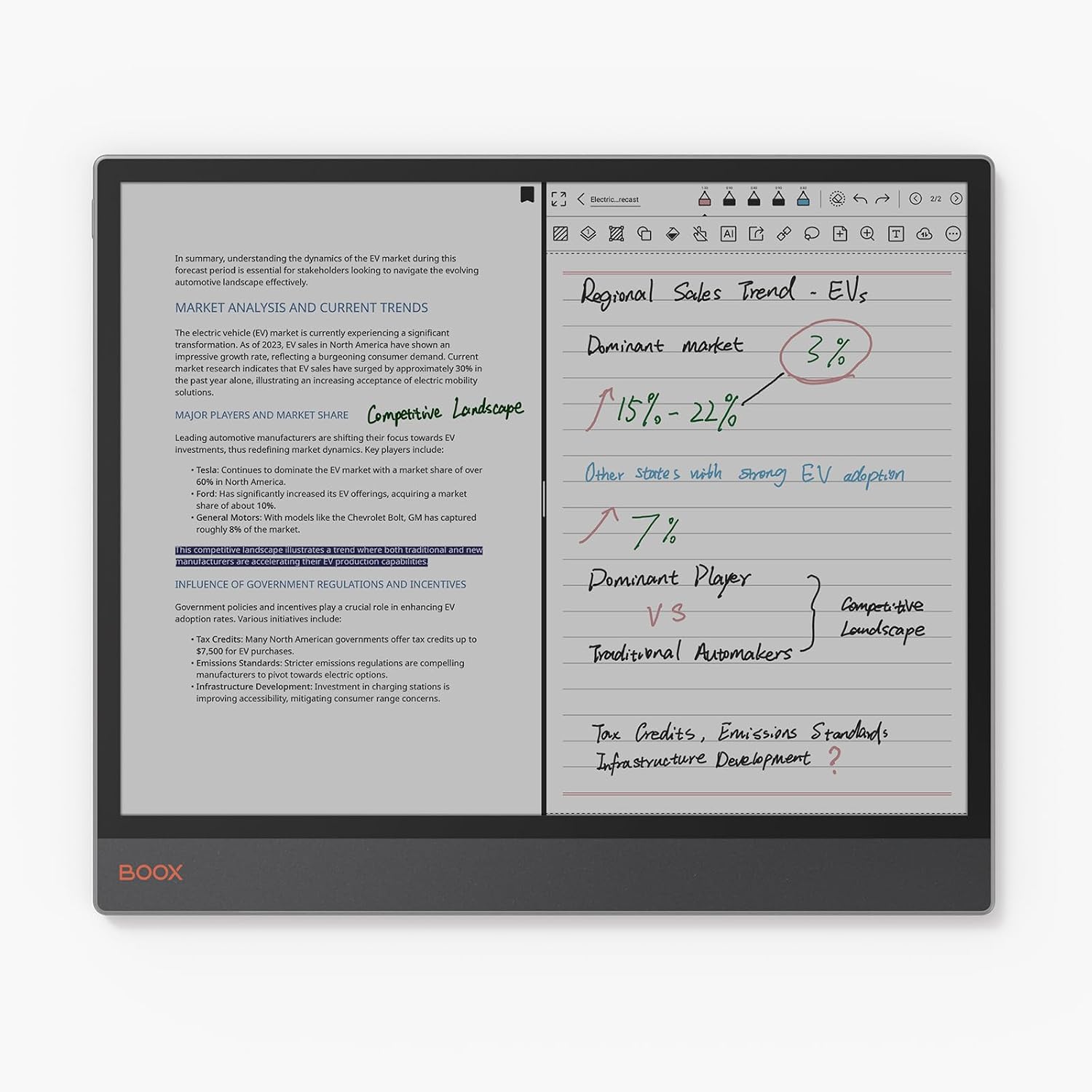
Image: The BOOX Tab X C in split-screen mode, showing a document on one side and handwritten notes on the other.
3.4 Stylus Usage
The included stylus enhances interaction with the tablet, offering a natural writing and drawing experience. It features wireless charging and magnetic attachment for convenience. The tip is durable and replaceable.

Image: Close-up view of the BOOX stylus, highlighting its wireless charging, magnetic attachment, and durable, replaceable tip.
3.5 Connectivity
- Wi-Fi: Connect to wireless networks for internet access, app downloads, and cloud synchronization.
- Bluetooth: Pair with Bluetooth accessories such as keyboards, headphones, or external speakers.
- USB OTG: The USB port supports On-The-Go (OTG) functionality, allowing you to connect external storage devices or peripherals.
4. Maintenance
4.1 Cleaning the Device
To clean the screen and body of your BOOX Tab X C, use a soft, lint-free cloth. For stubborn smudges, slightly dampen the cloth with water or a screen-cleaning solution specifically designed for electronic displays. Avoid using harsh chemicals or abrasive materials.
4.2 Battery Care
To prolong battery life:
- Avoid fully discharging the battery frequently.
- Do not expose the device to extreme temperatures.
- Use the provided USB cable for charging.
4.3 Software Updates
BOOX provides regular firmware updates to improve performance, add new features, and enhance security. It is recommended to keep your device's software up to date. You can check for updates in the device settings. BOOX commits to at least 3 years of firmware updates for each product.
5. Troubleshooting
5.1 Common Issues and Solutions
- Device not turning on: Ensure the battery is charged. Connect the device to a power source and try again.
- Slow performance: Close unused applications, clear cache, or restart the device. Ensure sufficient storage space is available.
- Display ghosting: This is a characteristic of ePaper displays. Adjusting the refresh rate settings or performing a full refresh (if available in settings) can minimize ghosting.
- Wi-Fi/Bluetooth connectivity issues: Ensure Wi-Fi/Bluetooth is enabled. Restart the device and your router/accessory. Forget and re-add the network/device.
5.2 Factory Reset
If you encounter persistent issues, a factory reset may resolve them. Warning: A factory reset will erase all data on your device. Back up important files before proceeding. The option for factory reset is typically found in the device's system settings under "System" or "About Tablet".
6. Specifications
| Feature | Detail |
|---|---|
| Brand | BOOX |
| Model Name | Tab X C |
| Storage Capacity | 128 GB |
| Screen Size | 13.3 Inches |
| Max Display Resolution | 300 Pixels per inch |
| Operating System | Android 13 |
| Installed RAM Size | 6 GB |
| Special Feature | USB OTG Support |
| Model Year | 2025 |
| Processor Brand | Qualcomm |
| Processor Description | Qualcomm Snapdragon |
| Battery Type | Lithium-ion |
| Battery Energy Content | 21.2 Watt-hours |
| Item Weight | 625 Grams |
| Dimensions (L x W x H) | 28.7L x 0.5W x 24.3H cm |
| Input Method | Touchscreen with Stylus |
| Display Type | Electronic Ink |
| Screen Resolution | 3990 x 2640 pixels |
| Aspect Ratio | 4:3 |
| Wireless Technology | Bluetooth, Wi-Fi (802.11ac) |
| Included Components | USB cable |
7. Warranty and Support
7.1 Product Warranty
The BOOX Tab X C comes with an official 2-year warranty. This warranty covers manufacturing defects and ensures your device functions as intended under normal use. Please retain your proof of purchase for warranty claims.
7.2 Customer Support
For any questions, technical assistance, or warranty claims, please visit the official BOOX help center. You can submit your inquiries there for prompt support. BOOX aims to respond to requests within 24 hours.
For more information and resources, visit the BOOX Brand Store.


