
1. Introduction
This manual provides essential information for setting up, operating, maintaining, and troubleshooting your HP 15.6 inch FHD Touchscreen Laptop. Please read these instructions carefully to ensure proper use and longevity of your device.
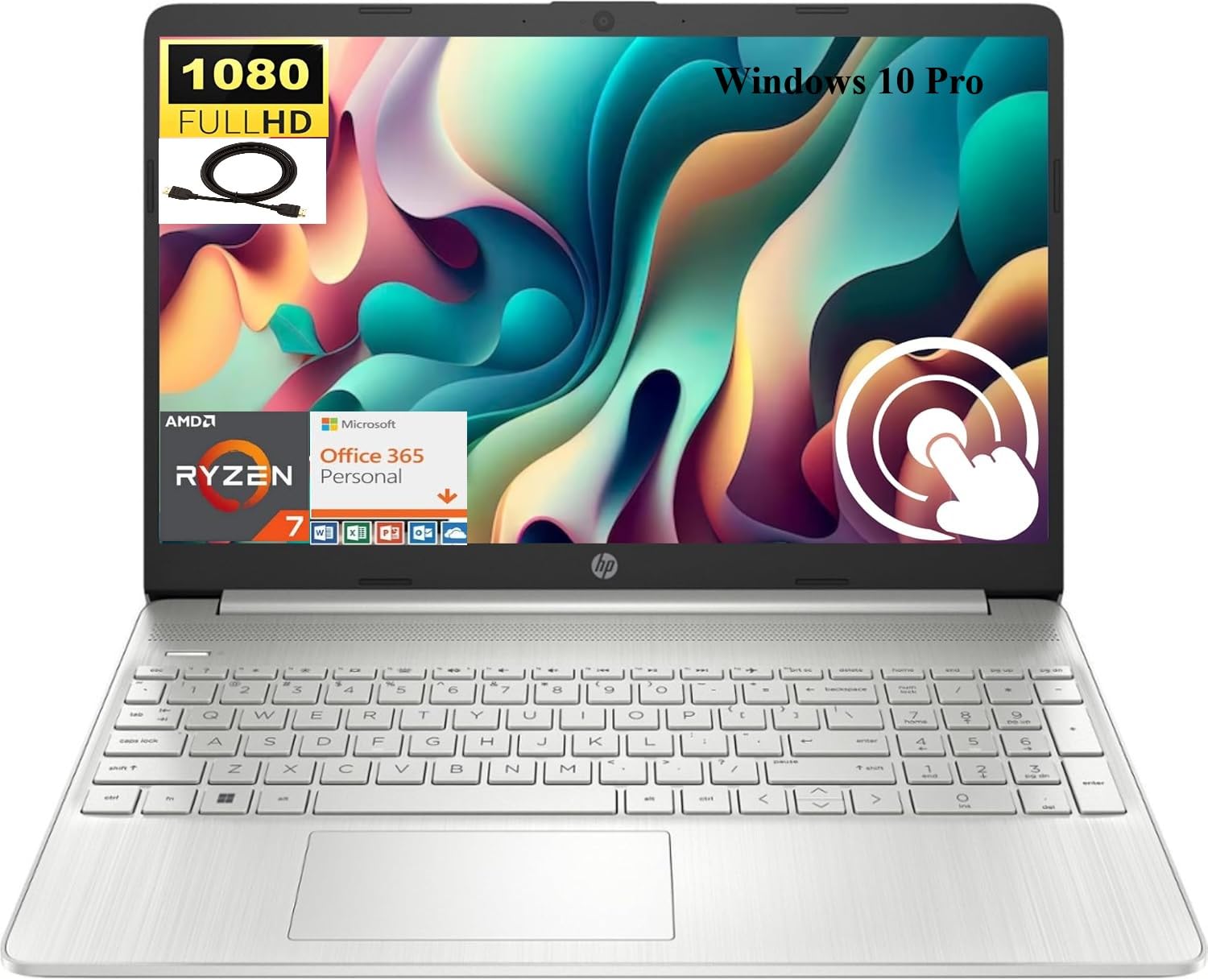
Image 1.1: HP 15.6 inch FHD Touchscreen Laptop, silver finish, open with screen displaying a scenic image.
2. Setup
2.1 Unboxing and Initial Inspection
Carefully remove your laptop and all accessories from the packaging. Verify that all components are present and undamaged. Retain the packaging for future transport or service needs.
2.2 Connecting Power
- Connect the AC adapter to the power connector on your laptop.
- Plug the power cord into an electrical outlet.
- Allow the battery to charge for at least 30 minutes before initial use, or until the battery indicator shows a sufficient charge.
2.3 Initial Boot-up and Windows 10 Pro Setup
Press the power button to turn on your laptop. Follow the on-screen instructions to complete the Windows 10 Pro setup process. This includes selecting your region, language, creating a user account, and connecting to a Wi-Fi network.

Image 2.1: HP laptop shown with an HDMI cable, illustrating connectivity options.
3. Operating Instructions
3.1 Touchscreen and Display
Your laptop features a 15.6 inch Full HD (1920 x 1080) IPS touchscreen display. Use touch gestures for navigation, zooming, and interaction with applications. The micro-edge design maximizes your viewing area.
3.2 Keyboard and Touchpad
The full-size, natural silver keyboard includes a numeric keypad for efficient data entry. The integrated touchpad supports multi-touch gestures for precise cursor control.

Image 3.1: HP laptop displaying the Windows Start Menu, showcasing the operating system interface.
3.3 Ports and Connectivity
Your laptop is equipped with various ports for connecting external devices:
- 2 x SuperSpeed USB Type-A 5Gbps: For standard USB devices.
- 1 x SuperSpeed USB Type-C 5Gbps: For modern USB-C devices.
- 1 x HDMI 1.4b: Connect to external displays or projectors.
- 1 x AC smart pin: For power adapter connection.
- 1 x Multi-format SD media card reader: For reading SD cards.
- 1 x Headphone/microphone combo: For audio input/output.
Wireless connectivity includes Realtek RTL8821CE 802.11a/b/g/n/ac (1x1) Wi-Fi and Bluetooth 4.2 combo.

Image 3.2: Detailed diagram highlighting the location and type of ports on the HP laptop, including headphone/microphone combo, SD media card reader, SuperSpeed USB Type-C, SuperSpeed USB Type-A, and HDMI 1.4b.
3.4 Webcam and Audio
The HP True Vision 720p HD camera with integrated dual array digital microphones allows for clear video conferencing. Enjoy HD Audio with stereo speakers for an enhanced listening experience.

Image 3.3: Visual representation of the HP True Vision HD Camera for video chat and HD Audio with stereo speakers for sound output.
4. Maintenance
4.1 Cleaning Your Laptop
Use a soft, lint-free cloth slightly dampened with water or a screen cleaner specifically designed for electronics to clean the display and exterior surfaces. Avoid harsh chemicals or abrasive materials.
4.2 Battery Care
To prolong battery life, avoid extreme temperatures and fully discharging the battery frequently. For optimal performance, keep the laptop connected to power when possible, but also allow occasional discharge cycles.
4.3 Software Updates
Regularly check for and install Windows updates and HP driver updates to ensure system stability, security, and optimal performance.
5. Troubleshooting
If you encounter issues with your HP laptop, consider the following basic troubleshooting steps:
- No Power: Ensure the AC adapter is securely connected to both the laptop and a working power outlet. Check the power indicator light.
- Display Issues: If the screen is blank, try connecting an external monitor via HDMI to check if the issue is with the laptop's display. Restart the laptop.
- Connectivity Problems: For Wi-Fi or Bluetooth issues, ensure wireless is enabled. Try restarting your router or the laptop's wireless adapter.
- Slow Performance: Close unnecessary applications, check for background processes, and ensure sufficient free storage space.
For more complex issues, refer to the HP support website or contact HP customer service for assistance.
6. Specifications
Below are the detailed technical specifications for your HP 15.6 inch FHD Touchscreen Laptop (Model HP 15):
| Brand | HP |
| Model Name | HP 15 |
| Screen Size | 15.6 Inches |
| Display Resolution | 1920x1080 Pixels (FHD) |
| Display Type | LED, Touch, IPS, Micro-edge, BrightView |
| Processor | AMD Ryzen 7 4700U (8 Cores, up to 4.1 GHz) |
| Graphics | Integrated AMD Radeon Graphics |
| RAM Memory | 8 GB DDR4 SDRAM |
| Hard Disk Size | 512 GB SSD (PCIe NVMe M.2) |
| Operating System | Windows 10 Pro |
| Connectivity | Wi-Fi (802.11a/b/g/n/ac), Bluetooth 4.2 |
| Ports | 2x USB-A 5Gbps, 1x USB-C 5Gbps, 1x HDMI 1.4b, 1x AC Smart Pin, 1x SD Card Reader, 1x Headphone/Mic Combo |
| Camera | HP True Vision 720p HD Camera |
| Audio | HD Audio, Dual Speakers |
| Battery | 3-cell, 41 Wh Li-ion |
| Dimensions (L x W x H) | 14.11 x 9.53 x 0.78 inches |
| Item Weight | 3.75 Pounds |

Image 6.1: Diagram illustrating the dimensions of the HP laptop: 14.11" W, 9.53" D, and 0.78" H.
7. Warranty and Support
Your HP laptop comes with a standard manufacturer's warranty. For detailed warranty information, please refer to the documentation included with your product or visit the official HP support website. For technical assistance, driver downloads, and service inquiries, please visit support.hp.com.