
SOLAKAKA KI99PRO
SOLAKAKA KI99 Pro 96% Wireless Mechanical Keyboard User Manual
Model: KI99PRO
Introduction
This manual provides detailed instructions for the setup, operation, and maintenance of your SOLAKAKA KI99 Pro 96% Wireless Mechanical Keyboard. Please read this manual thoroughly before using the product to ensure proper functionality and to maximize your user experience.
Product Features
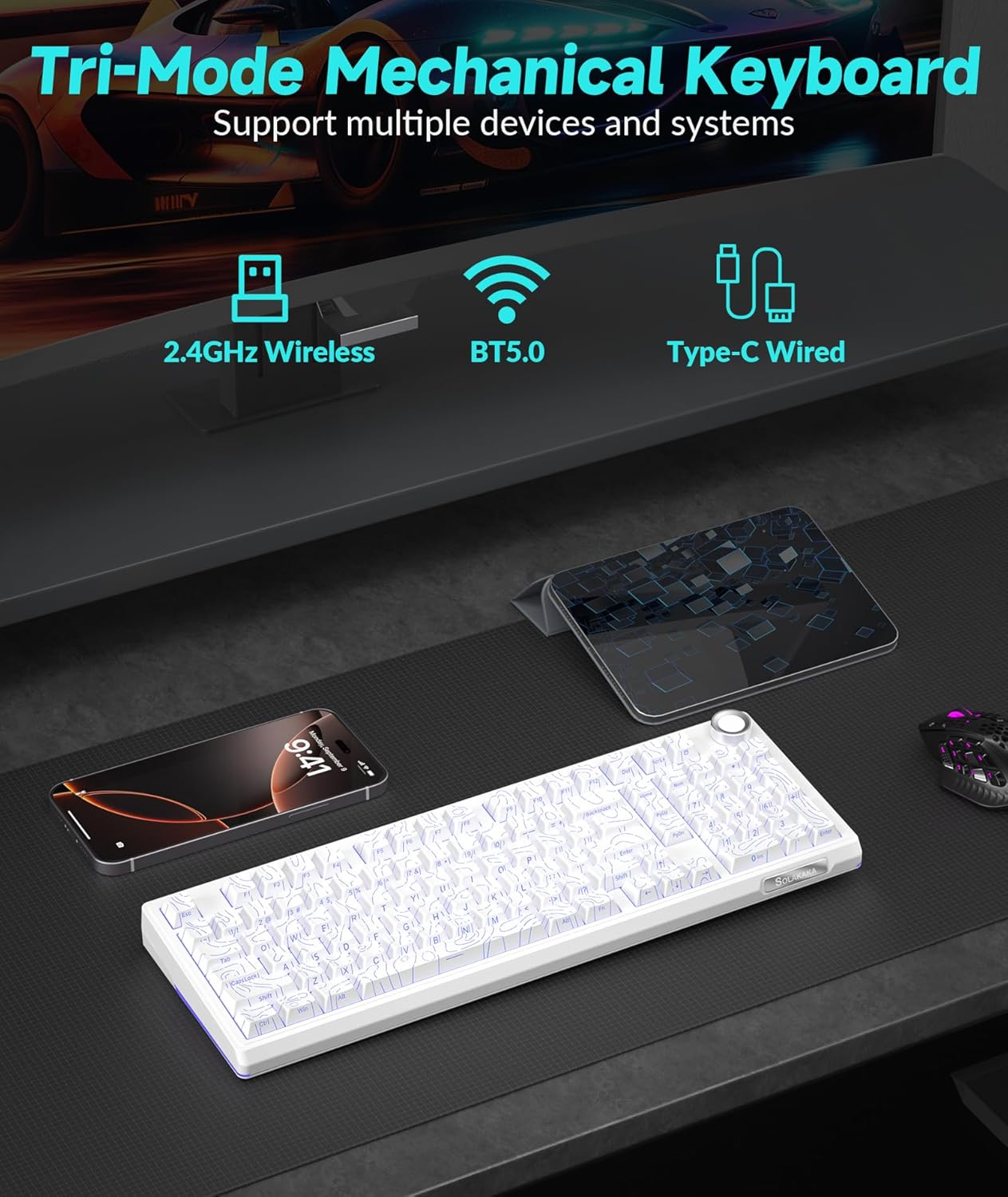
- Triple-mode Connectivity: Supports Bluetooth 5.0, 2.4GHz wireless, and Type-C wired connections for versatile use across various devices and operating systems (Windows, macOS).
- Long-lasting Battery: Equipped with a 10,000mAh high-capacity battery for extended use.
- 96% Layout: Integrates most functional keys of a full-size keyboard in a compact form factor, including a dedicated numeric keypad.
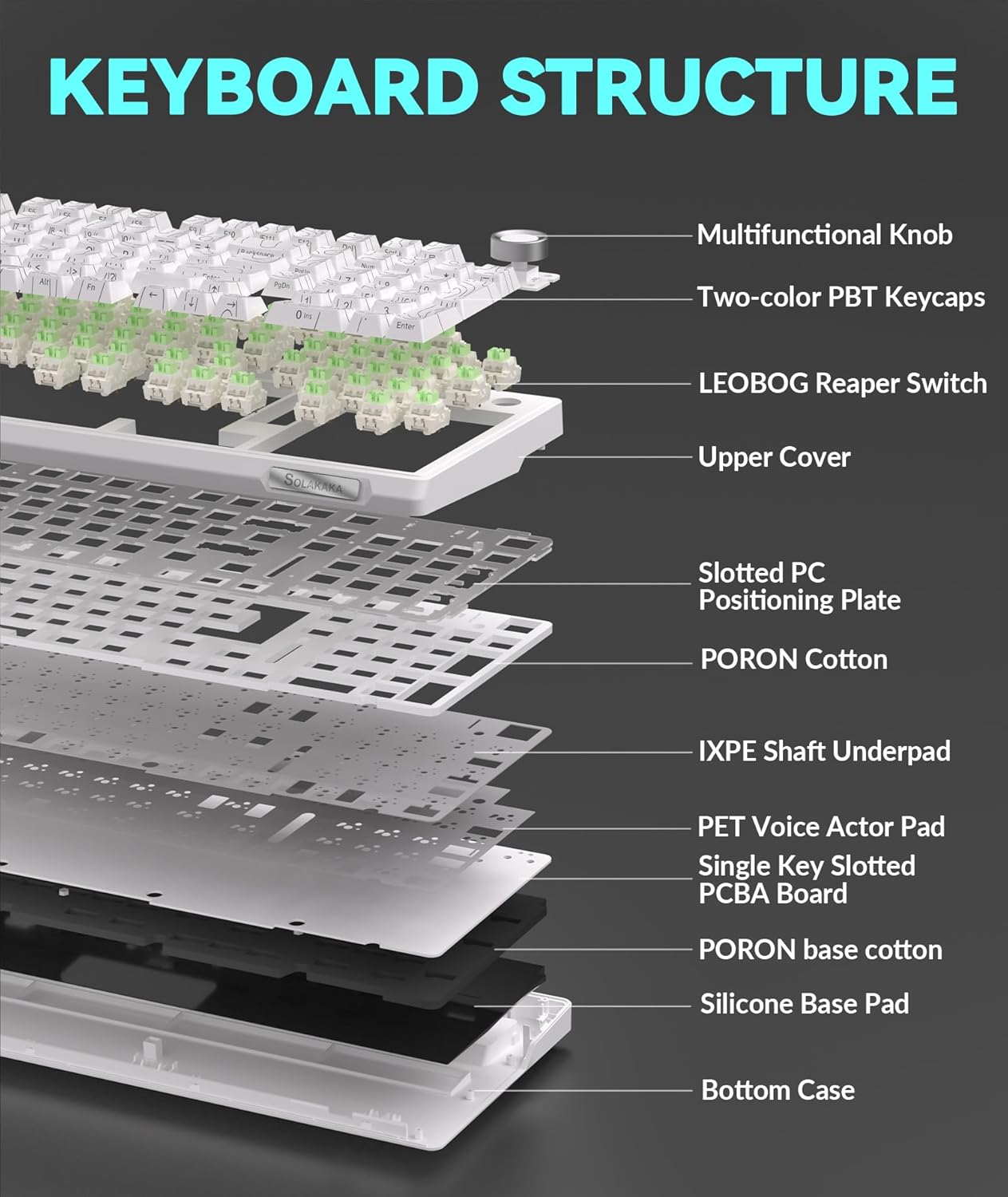
- Multifunctional Knob: Allows for easy adjustment of volume, media playback, and RGB lighting brightness.
- Gasket Structure & Five-layer Noise Reduction: Designed to reduce key vibration and noise, providing a smooth and quiet typing experience.
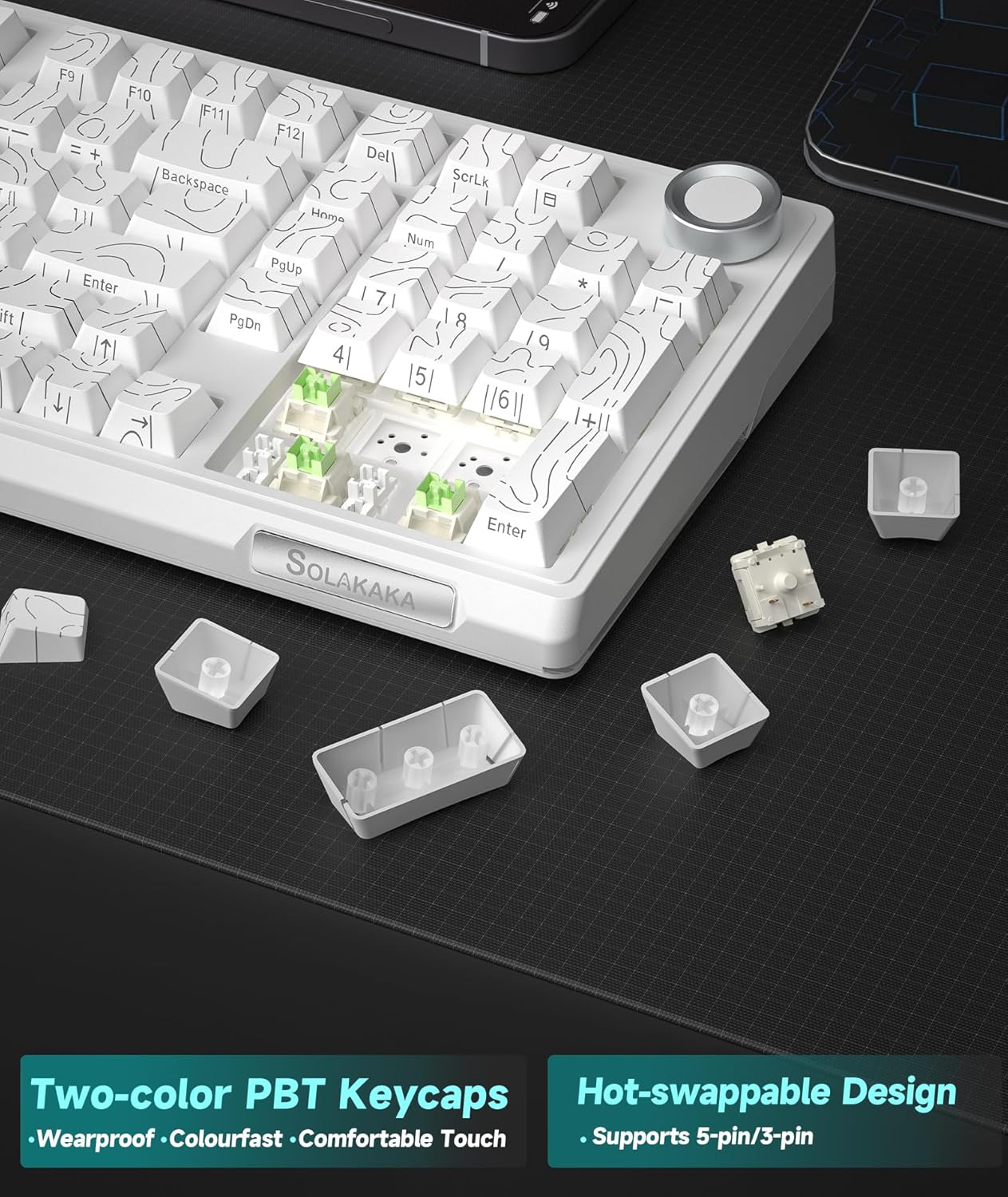
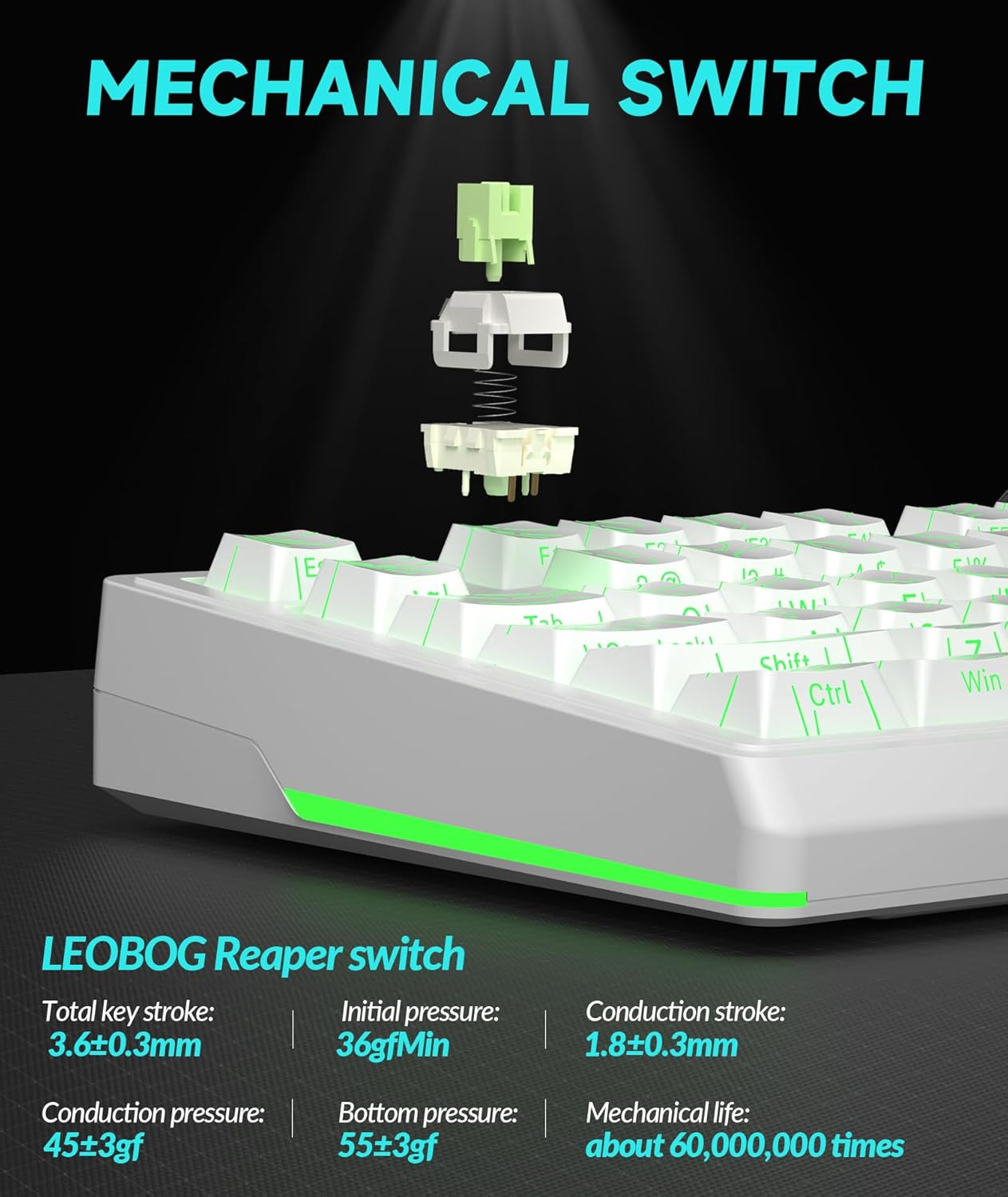
- Hot-swappable Switches: Features a 1.2mm flex-cut hot-swappable PCB and PC board, compatible with 3-pin and 5-pin switches for personalized tactile customization without soldering.
- High-quality PBT Keycaps: Dual-color injection molded PBT keycaps offer wear and fade resistance, maintaining clear characters and vibrant colors.
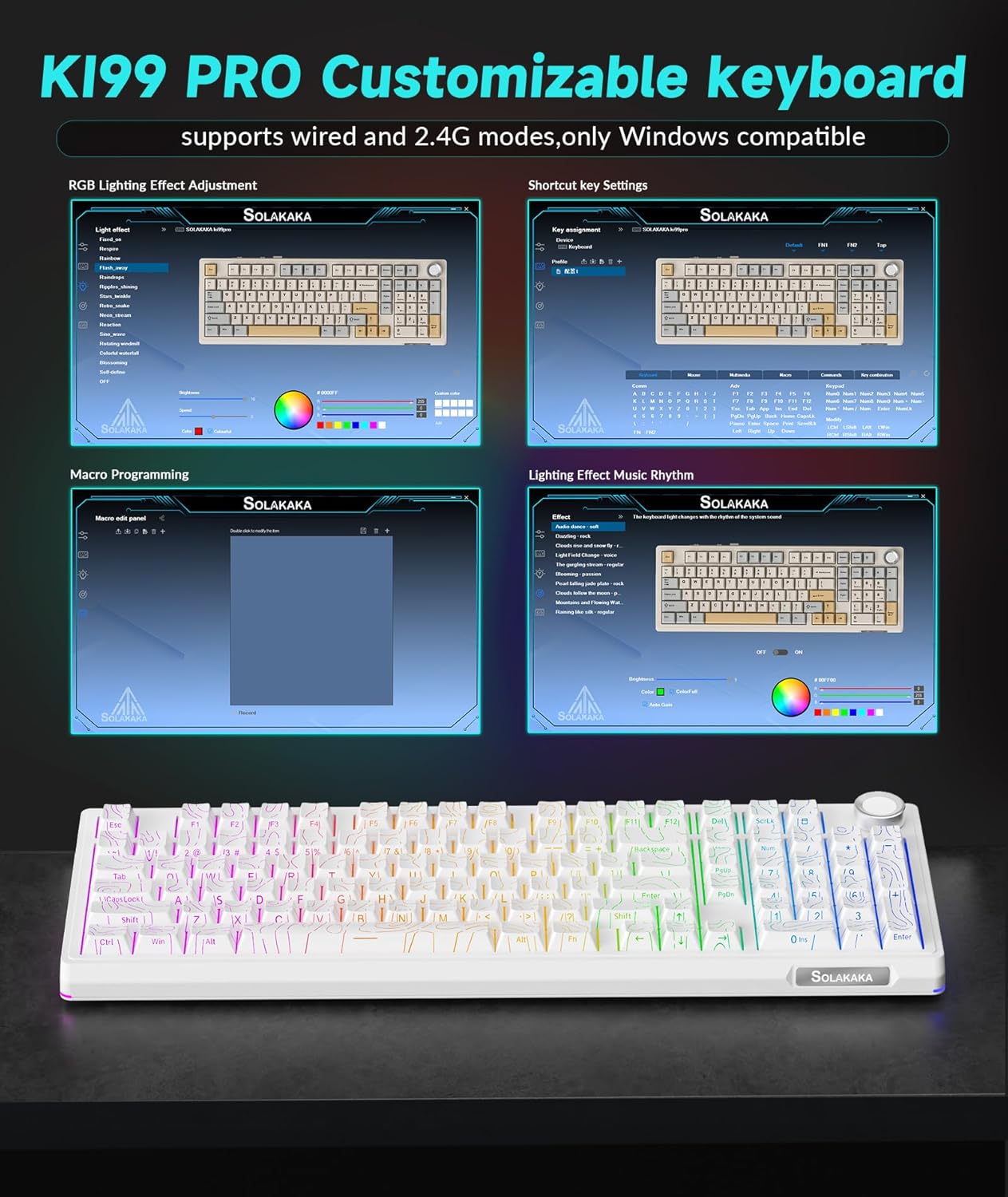
- Customizable Driver Software: Allows reprogramming key functions, adjusting RGB lighting effects, and customizing macro programming (Windows compatible for 2.4G and wired modes).
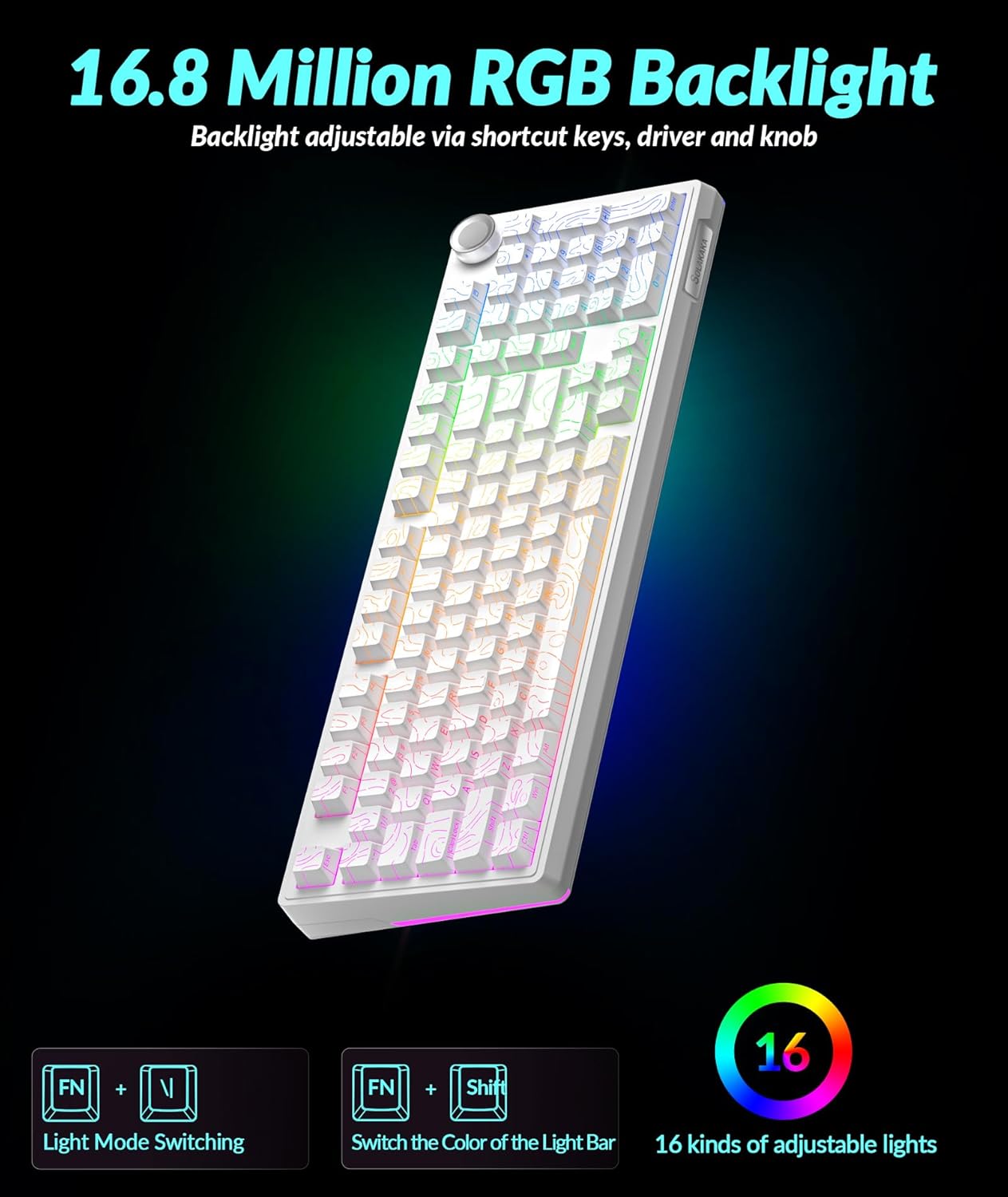
- Vibrant RGB Lighting: Full-key RGB lighting and side RGB light bars with 16.8 million color options, adjustable via driver software or shortcut keys.

Setup Instructions
Connectivity Modes
The KI99 Pro keyboard supports three connection modes: Wired (USB-C), 2.4GHz Wireless, and Bluetooth 5.0. A switch on the keyboard allows selection between these modes.
1. Wired Mode (USB-C)
- Toggle the mode switch on the keyboard to the wired position.
- Connect the provided USB-C cable from the keyboard to your computer's USB port.
- The keyboard will be recognized automatically by your operating system.
2. 2.4GHz Wireless Mode
- Toggle the mode switch on the keyboard to the 2.4GHz wireless position.
- Locate the 2.4GHz USB receiver, typically stored in a compartment on the keyboard.
- Plug the 2.4GHz USB receiver into an available USB port on your computer.
- The keyboard should connect automatically.
3. Bluetooth 5.0 Mode
- Toggle the mode switch on the keyboard to the Bluetooth position.
- Press and hold Fn + 1, Fn + 2, or Fn + 3 to enter pairing mode for one of the three available Bluetooth channels. The corresponding key will flash blue, indicating it is ready for pairing.
- On your device (PC, laptop, smartphone), enable Bluetooth and search for "KI99pro 5.0".
- Select the keyboard to connect. The blue light will become solid once connected.
- To switch between paired Bluetooth devices, short press Fn + 1/2/3.
Charging the Keyboard
The keyboard is equipped with a 10,000mAh battery. To charge, connect the USB-C cable to the keyboard and a power source (e.g., computer USB port, USB wall adapter). The charging indicator will show the charging status.

Operating Instructions
Multifunctional Knob
The knob located on the top right of the keyboard provides quick access to several functions:
- Rotate: Adjusts system volume (clockwise to increase, counter-clockwise to decrease).
- Press: Plays/pauses media.
- Press and Hold: May cycle through lighting brightness levels or modes (refer to specific lighting controls).
RGB Lighting Control
The keyboard features full-key RGB backlighting and side RGB light bars. Lighting effects can be adjusted using shortcut keys or the customization software.
- Fn + \|: Switches RGB backlight effects.
- Fn + ← / →: Adjusts lighting effects speed.
- Fn + ↑ / ↓: Adjusts backlight brightness.
- Fn + Shift: Switches side light mode.
- Fn + Alt: Switches side light brightness.
- Fn + ?: Switches side light color.
- Fn + Esc: Restores factory lighting settings.
Customization Software
The KI99 Pro supports driver software for advanced customization. This software is compatible with Windows operating systems when the keyboard is connected via wired or 2.4GHz wireless mode. It allows users to:
- Reprogram key functions.
- Adjust RGB lighting effects in detail.
- Create and customize macro programming.
Please visit the official SOLAKAKA website to download the latest version of the customization software.
Maintenance
Cleaning the Keyboard
- Disconnect the keyboard from all power sources and devices before cleaning.
- Use a soft, lint-free cloth slightly dampened with water or a mild cleaning solution to wipe the keycaps and chassis.
- Avoid excessive moisture and do not spray cleaning solutions directly onto the keyboard.
- Use compressed air to remove dust and debris from between the keycaps.
Hot-Swapping Switches
The KI99 Pro features hot-swappable switches, allowing for easy replacement without soldering. This enables customization of typing feel and sound.
- Gently remove the keycap using a keycap puller.
- Use a switch puller to carefully extract the switch from the PCB. Ensure the switch is pulled straight up to avoid bending the pins.
- Align the pins of the new 3-pin or 5-pin switch with the holes on the PCB.
- Press the new switch firmly into place until it clicks. Ensure it is seated correctly and functions properly before replacing the keycap.
Troubleshooting
| Problem | Possible Cause | Solution |
|---|---|---|
| Keyboard not responding in wireless mode. | Low battery, incorrect mode selected, receiver not plugged in (2.4GHz), not paired (Bluetooth), out of range. |
|
| Keys not registering or double-typing. | Dust/debris under keycap/switch, faulty switch, software issue. |
|
| RGB lighting not working or incorrect. | Lighting settings incorrect, software glitch. |
|
| Keyboard not charging. | Faulty cable, power source, or keyboard port. |
|
Specifications
| Brand | SOLAKAKA |
| Model Number | KI99PRO |
| Keyboard Description | Mechanical |
| Connectivity Technology | 2.4GHz Wireless, Bluetooth 5.0, USB-C Wired |
| Compatible Devices | Laptop, PC, Smartphone (Windows, macOS) |
| Special Features | Customizable, Hot-Swappable, Multifunctional Knob, Programmable, RGB Backlighting |
| Keycap Material | PBT (Dual-color injection molded) |
| Battery Capacity | 10,000mAh (2 Lithium Ion batteries included) |
| Item Weight | 3.27 pounds |
| Package Dimensions | 17.13 x 6.73 x 2.13 inches |
| Manufacturer | SOLAKAKA |
Warranty and Support
For warranty information, technical support, or further assistance, please refer to the official SOLAKAKA website or contact their customer service directly. Details regarding product registration and warranty claims can typically be found on the manufacturer's support pages.
Manufacturer: SOLAKAKA
Visit the SOLAKAKA Store for more products and support information.
Related documentsKI99PRO


Ask a question about this manual
Ask about setup, troubleshooting, compatibility, parts, safety, or missing instructions. Manuals+ will review the question and use this page’s manual context to help answer it.