
NIMO NIMO N156
NIMO 15.6" IPS-FHD Laptop User Manual
Model: NIMO N156
1. Introduction
Welcome to the user manual for your new NIMO 15.6" IPS-FHD Laptop. This document provides comprehensive instructions and important information to help you set up, operate, maintain, and troubleshoot your device. Please read this manual thoroughly to ensure you get the most out of your NIMO laptop and to ensure its optimal performance and longevity.

Image: The NIMO 15.6" IPS-FHD Laptop, featuring its vibrant display, full keyboard, and sleek design. The image highlights the laptop's overall aesthetic and key features like the fingerprint reader and backlit keyboard.
2. What's in the Box
Upon unboxing your NIMO laptop, please verify that all the following items are included:
- 1 x NIMO N156 Laptop: The main computing unit.
- 1 x Type-C 100W PD Fast Charger: For rapid charging and power supply.
- 1 x User Manual: This instructional guide.
- Windows 11 Home: Pre-installed operating system.
3. Safety Information
Adhering to these safety guidelines will help prevent damage to your device and ensure your personal safety:
- Temperature and Environment: Do not expose the laptop to extreme temperatures (below 0°C or above 35°C), direct sunlight, or high humidity. Avoid dusty environments.
- Physical Handling: Avoid placing heavy objects on the laptop. Do not drop or subject the device to strong impacts.
- Power Supply: Use only the provided 100W Type-C PD Fast Charger or a NIMO-approved compatible charger. Using incompatible chargers may damage the laptop or pose a fire hazard.
- Liquids: Keep liquids away from the device. In case of accidental spills, immediately power off the laptop and disconnect the charger. Do not attempt to use it until it has been professionally inspected.
- Disassembly: Do not attempt to disassemble, modify, or repair the laptop yourself. Unauthorized repairs can void your warranty and cause further damage. Refer all servicing to qualified NIMO service personnel.
- Ventilation: Ensure proper airflow around the laptop, especially when in use. Do not block ventilation openings. Operating the laptop on soft surfaces like beds or sofas can obstruct airflow and lead to overheating.
4. Initial Setup
4.1 Charging the Laptop
Before using your NIMO laptop for the first time, it is recommended to fully charge the battery. Connect the provided 100W Type-C PD Fast Charger to the dedicated Type-C charging port on the laptop (usually marked with a power icon) and then plug the charger into a functional power outlet. The charge LED indicator will illuminate to confirm charging is in progress.

Image: The NIMO laptop connected to its 100W Type-C PD Fast Charger. This powerful charger is designed for efficient power delivery and can also be used to charge other compatible devices such as MacBooks, tablets, and iPhones 15, reducing cable clutter.
4.2 Powering On and Initial Configuration
Once sufficiently charged, press the power button located on the keyboard to turn on your NIMO laptop. The system will boot into Windows 11 Home. Follow the on-screen prompts to complete the initial setup process, which typically includes:
- Selecting your region and keyboard layout.
- Connecting to a Wi-Fi network.
- Accepting the Microsoft License Terms.
- Creating or signing in with a Microsoft account.
- Setting up a PIN or password for login.
- Configuring privacy settings.
5. Operating Your NIMO Laptop
5.1 Keyboard and Touchpad
The NIMO laptop features a full-size keyboard designed for comfortable and efficient typing. It includes a dedicated numeric keypad for data entry and a backlit function, allowing you to work effectively in low-light environments. The integrated touchpad supports multi-touch gestures for intuitive navigation and control.

Image: A detailed view of the NIMO laptop's keyboard, highlighting its backlit keys and integrated numeric keypad. The image also illustrates the convenience of the backlit feature for typing in dimly lit conditions.
5.2 Fingerprint Reader
For enhanced security and quick, convenient access, your NIMO laptop is equipped with an integrated fingerprint reader. You can register your fingerprints through Windows Hello settings to unlock your device with a simple touch, eliminating the need to type passwords.

Image: A close-up of the NIMO laptop's touchpad, clearly showing the integrated fingerprint scanner for secure login. The image also includes a view of the webcam with its privacy shield, emphasizing the laptop's security and privacy features.
5.3 Display Features
The NIMO laptop boasts a stunning 15.6-inch Full HD (1920x1080) IPS display. This technology ensures vibrant colors, sharp details, and wide viewing angles, providing an immersive visual experience whether you are working on documents, streaming videos, or browsing the web.

Image: The NIMO laptop's 15.6-inch Full HD IPS display, showcasing its ability to render vivid and detailed visuals, enhancing the overall viewing experience.
5.4 Connectivity Ports
Your NIMO laptop is equipped with a comprehensive array of ports to ensure versatile connectivity with various peripherals and external devices:
- Micro SD Slot: For expanding storage or transferring files from memory cards.
- USB 2.0 Port (x1): For connecting older USB devices or peripherals that do not require high-speed data transfer.
- USB 3.0 Ports (x2): For high-speed data transfer with compatible USB devices such as external hard drives or flash drives.
- Headphone Jack: A standard 3.5mm audio jack for connecting headphones, earbuds, or external speakers.
- Kensington Lock Slot: A security slot compatible with Kensington security cables to physically secure your laptop.
- Type-C (Multifunction) Port: A versatile USB-C port that supports data transfer, video output (DisplayPort Alt Mode), and potentially power delivery for compatible devices.
- Type-C (PD Charger Only) Port: A dedicated USB-C port specifically for power input using the 100W Power Delivery (PD) charger.
- HDMI Port: For connecting to external monitors, projectors, or TVs to extend or mirror your display.

Image: An illustration of the NIMO laptop's side profiles, clearly labeling the various connectivity ports available, including USB, HDMI, Type-C, Micro SD, and the headphone jack, demonstrating its extensive connectivity options.
5.5 Webcam and Privacy Shield
The laptop includes a 2.0MP webcam, suitable for video conferencing and online communication. For enhanced privacy, a physical webcam shield is integrated, allowing you to cover the camera lens when not in use, ensuring your privacy is protected at all times.
5.6 180° Lay-Flat Hinge
The NIMO laptop features a durable hinge design that allows the screen to lay completely flat, opening up to 180 degrees. This functionality is useful for sharing content with others in a group setting or collaborating on projects, providing greater flexibility in how you use your device.
6. Maintenance and Care
6.1 Cleaning Your Laptop
To keep your NIMO laptop in optimal condition, follow these cleaning guidelines:
- Screen: Use a soft, lint-free microfiber cloth specifically designed for electronics. For smudges, lightly dampen the cloth with water or a screen cleaning solution (non-ammonia based) and gently wipe the screen. Do not spray liquid directly onto the screen.
- Exterior: Wipe the laptop's exterior surfaces with a soft, damp cloth. Avoid using harsh chemicals, abrasive cleaners, or solvents, as these can damage the finish.
- Keyboard: Use compressed air to remove dust and debris from between the keys. A soft brush can also be used.
6.2 Battery Care
To maximize the lifespan and performance of your laptop's battery:
- Avoid frequently fully discharging the battery to 0%. It is generally better to keep the charge between 20% and 80%.
- If storing the laptop for an extended period, ensure the battery is charged to about 50% and store it in a cool, dry place.
- Avoid exposing the laptop to high temperatures, as this can degrade battery health.
6.3 Storage and Transport
When storing or transporting your NIMO laptop:
- Always use a padded laptop bag or sleeve to protect it from bumps, scratches, and impacts.
- Avoid leaving the laptop in direct sunlight or in a car where temperatures can fluctuate drastically.
- Ensure the laptop is powered off or in sleep mode before transport to prevent damage from sudden movements.
7. Troubleshooting
This section addresses common issues you might encounter with your NIMO laptop. If the problem persists, please refer to the Warranty and Support section for further assistance.
7.1 Laptop Not Powering On
- Check Power Connection: Ensure the 100W Type-C PD Fast Charger is securely connected to the laptop and the power outlet. Verify the power outlet is functional by plugging in another device.
- Battery Drain: If the battery is completely drained, it may take a few minutes of charging before the laptop can power on. Allow it to charge for at least 30 minutes.
- Hard Reset: Disconnect the charger, press and hold the power button for 15-20 seconds, then reconnect the charger and try powering on again.
7.2 Display Issues (No Image, Flickering)
- External Display: Connect an external monitor via the HDMI port to check if the issue is with the laptop's internal display or the graphics output.
- Brightness: Ensure the display brightness is not set to minimum. Adjust using the function keys (e.g., Fn + F5/F6 or keys with sun icons).
- Display Mode: If connected to an external display, press Windows Key + P to cycle through display modes (PC screen only, Duplicate, Extend, Second screen only).
7.3 Connectivity Problems (Wi-Fi, Bluetooth)
- Restart Devices: Restart your laptop, Wi-Fi router, and modem.
- Check Settings: Ensure Wi-Fi and Bluetooth are enabled in Windows settings (Settings > Network & internet or Settings > Bluetooth & devices).
- Driver Update: Outdated or corrupted drivers can cause connectivity issues. Check Device Manager for any warnings and update drivers if necessary.
7.4 Slow Performance
- Close Applications: Close any unnecessary applications or browser tabs running in the background.
- Disk Space: Ensure you have sufficient free space on your 1TB SSD. Low disk space can significantly impact performance.
- Malware Scan: Run a full system scan using reputable antivirus software to check for malware or viruses.
- Windows Updates: Ensure your Windows 11 Home operating system is up to date.
8. Technical Specifications
Below are the detailed technical specifications for the NIMO N156 Laptop:
| Feature | Specification |
|---|---|
| Model Name | NIMO N156E |
| Processor | Intel Core i5-12450H (8 Cores, up to 4.4 GHz) |
| RAM | 32GB DDR4 (3200 MHz) |
| Storage | 1TB PCIe SSD |
| Display | 15.6" Full HD (1920 x 1080) IPS |
| Graphics Coprocessor | Integrated Intel Graphics |
| Operating System | Windows 11 Home |
| Wireless Type | WiFi 6, 802.11a/b/g/n/ac |
| USB Ports | 1 x USB 2.0, 2 x USB 3.0 |
| Other Ports | Type-C (Multifunction), Type-C (PD Charger Only), HDMI, Micro SD, Headphone Jack, Kensington Lock |
| Average Battery Life | 5 Hours |
| Item Weight | 3.8 pounds |
| Product Dimensions (LxWxH) | 14.07 x 8.98 x 0.76 inches |
| Color | Scarlet Red |
| Special Features | Backlit Keyboard, Fingerprint Reader, HD Audio, Memory Card Slot, Numeric Keypad, Webcam Shield |
9. Warranty and Support
9.1 Manufacturer's Warranty
Your NIMO laptop is backed by a comprehensive 2-Year Manufacturer's Warranty provided by Nimo Direct Inc. This warranty covers defects in materials and workmanship under normal use. Please retain your original purchase receipt as proof of purchase for any warranty claims.
9.2 Returns Policy
NIMO offers a 90-Day Hassle-Free Returns policy. If you encounter any issues or are not satisfied with your purchase within this period, please refer to your purchase documentation or contact customer support for return procedures.
9.3 Customer Support
For technical assistance, troubleshooting guidance beyond this manual, or to inquire about warranty services, please contact NIMO customer support. You can typically find contact information on the official NIMO website or through your purchase platform. Nimo Direct Inc. is committed to providing dedicated support to resolve issues and facilitate replacements if necessary.
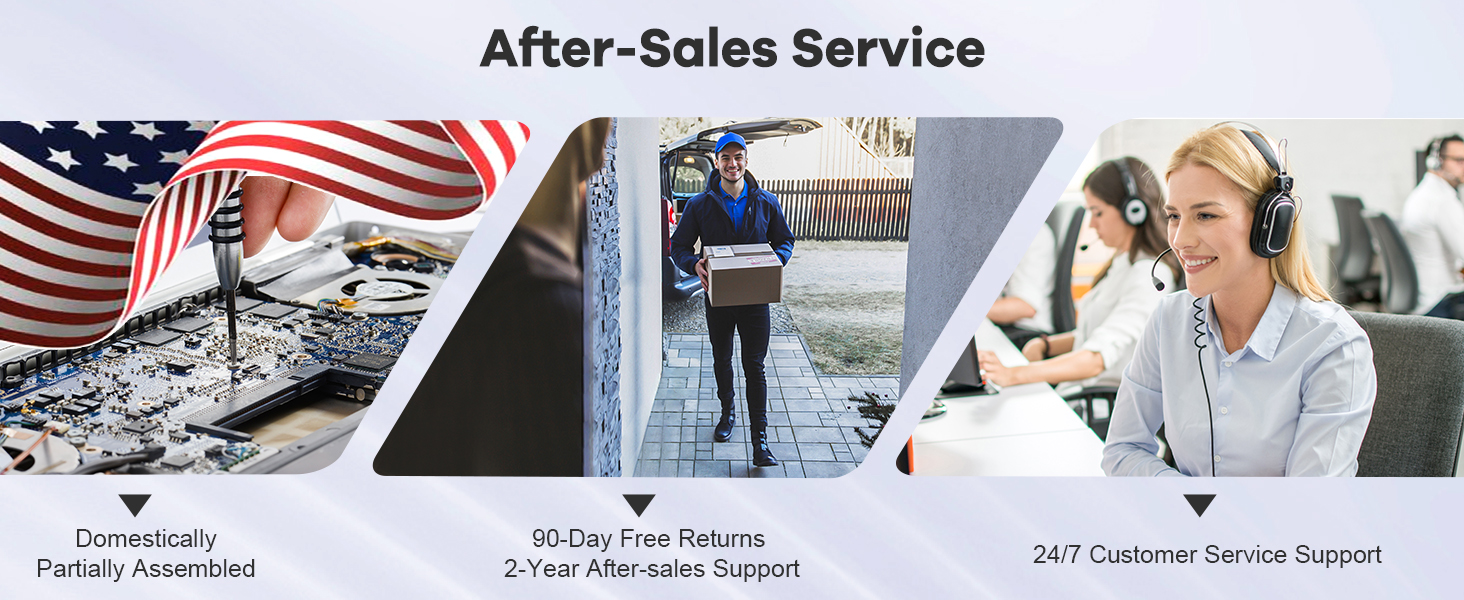
Image: An illustration depicting NIMO's comprehensive after-sales service, including domestic assembly/repair, package delivery for returns, and 24/7 customer service support, emphasizing commitment to customer satisfaction.
Related documentsNIMO N156


Ask a question about this manual
Ask about setup, troubleshooting, compatibility, parts, safety, or missing instructions. Manuals+ will review the question and use this page’s manual context to help answer it.