
1. Introduction
This manual provides detailed instructions for the AULA WIN60 HE MAX 60% Mechanical Gaming Keyboard. Please read this guide thoroughly to ensure proper setup, operation, and maintenance of your device. This keyboard is designed for high-performance gaming and typing on compatible Windows PC and laptop systems.
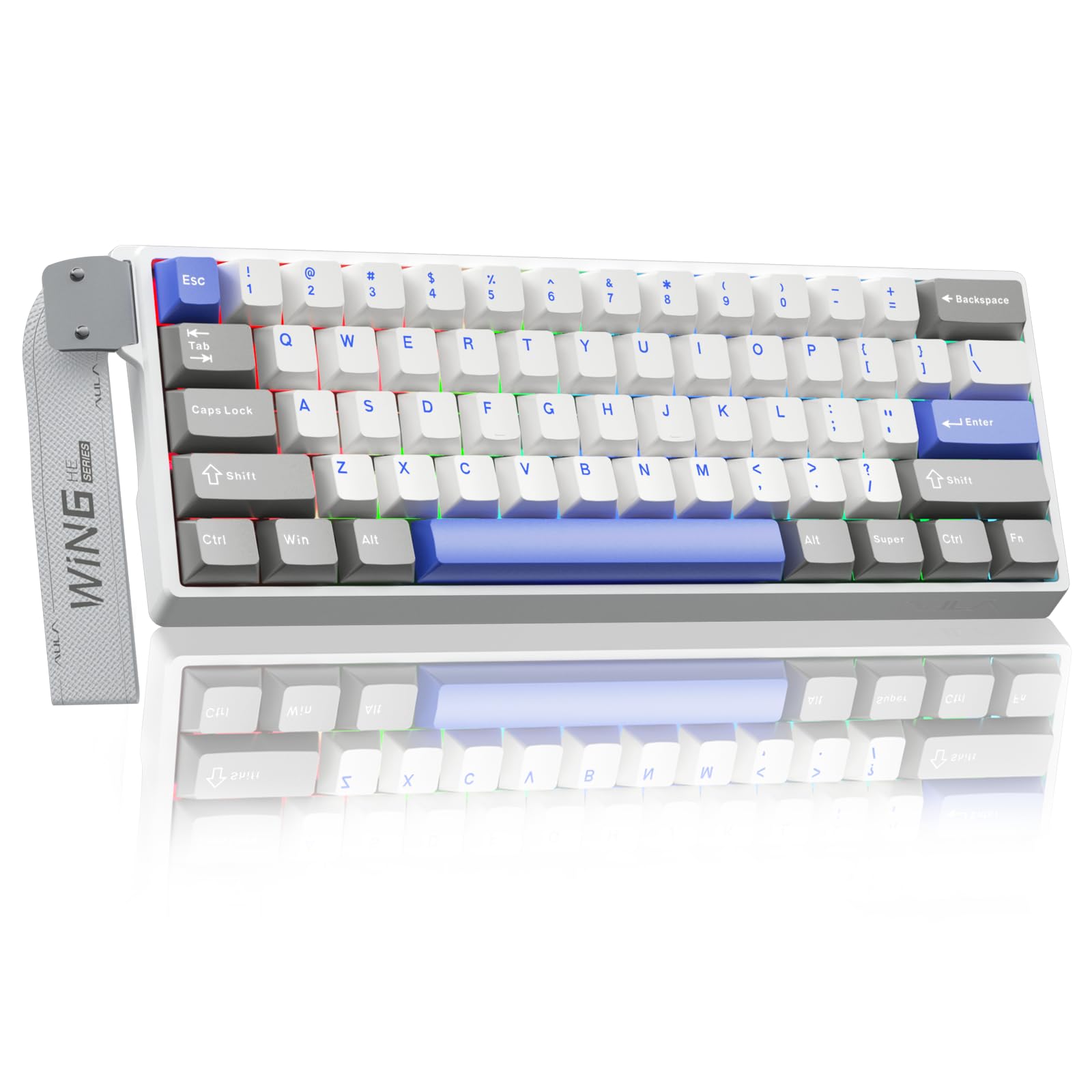
Image 1.1: The AULA WIN60 HE MAX 60% Mechanical Gaming Keyboard.
What's in the Box
- AULA WIN60 HE MAX Keyboard x 1
- USB-C Cable x 1
- Keycap Puller x 1

Image 1.2: Overview of AULA WIN60 HE MAX key features.
2. Setup
Connecting the Keyboard
- Locate the USB-C port on the back of your AULA WIN60 HE MAX keyboard.
- Connect one end of the provided USB-C cable to the keyboard's USB-C port.
- Connect the other end of the USB-C cable to an available USB port on your Windows PC or laptop.
- The keyboard will automatically be recognized by your operating system.
Compatibility Note: This keyboard is compatible with Windows PC and laptop systems. It is not compatible with PlayStation 4, PlayStation 5, or XBOX consoles.
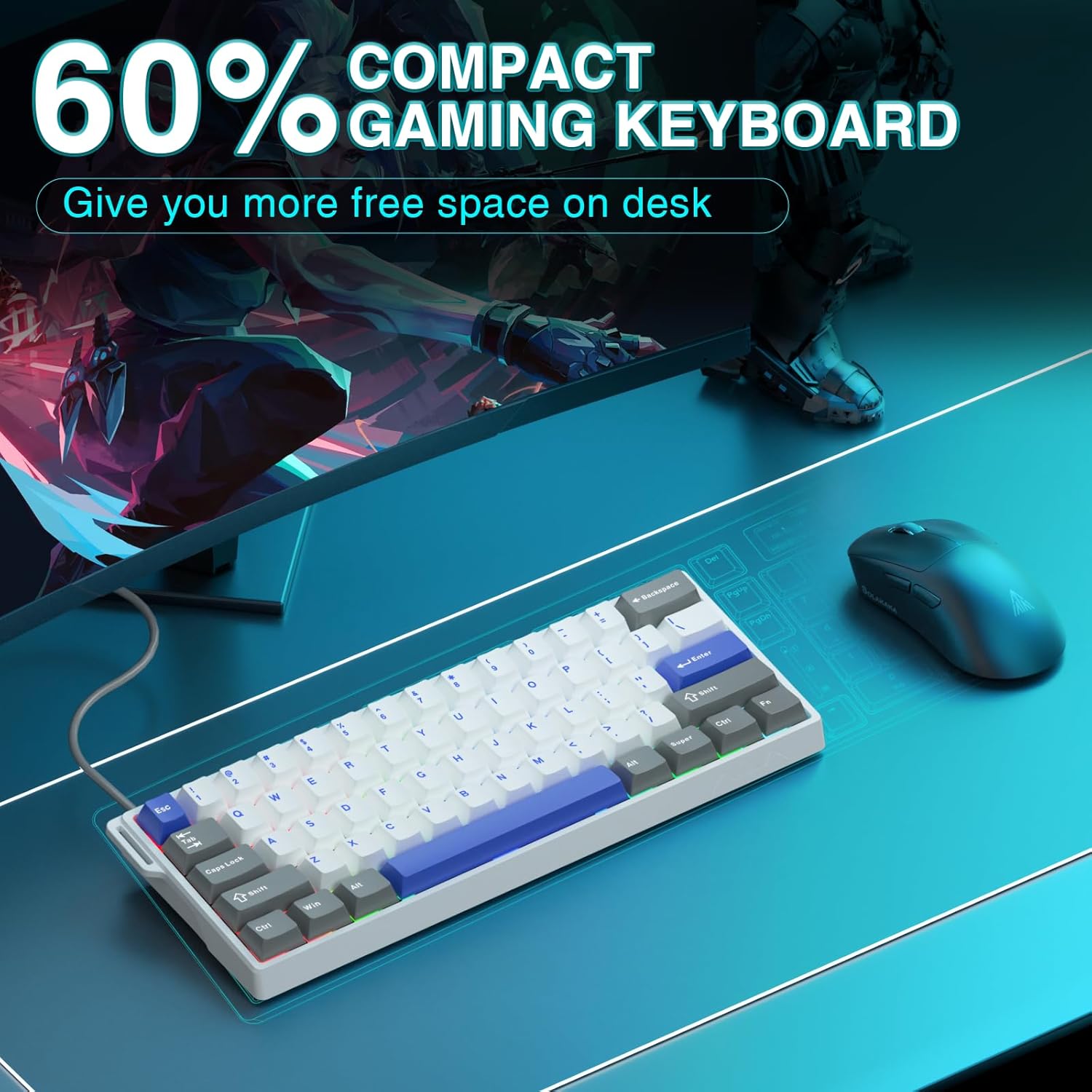
Image 2.1: The compact 60% design of the keyboard on a desk.
Video 2.1: AULA WIN60 HE MAX 60% Mechanical Gaming Keyboard overview, demonstrating its features and compact design.
3. Operating Instructions
Basic Key Functions
The AULA WIN60 HE MAX features a 60% compact layout, which means some functions are accessed via the Fn (Function) key in combination with other keys. Refer to the keycaps for secondary functions, typically indicated by side-printed legends.
RGB Lighting Control
The keyboard features dynamic RGB lighting with 16.8 million customizable colors. Use the following Fn key combinations to adjust the lighting effects:
- Fn + \|: Switch lighting effect mode.
- Fn + [{: Decrease lighting speed.
- Fn + ]}: Increase lighting speed.
- Fn + ;:: Decrease light brightness.
- Fn + '"': Increase light brightness.
- Fn + Alt (Right): Switch lighting effect color.
- Fn + Ctrl (Right): Turn on/off keyboard lighting.

Image 3.1: RGB lighting control key combinations.
Advanced Customization with Web-Based Driver
The AULA WIN60 HE MAX utilizes a powerful, easy-to-use web-based driver for comprehensive customization. This driver allows you to remap keys, create advanced macros, and fine-tune RGB lighting without installing bulky software. Access the driver from any device with an internet connection.
Note: The web driver currently supports Windows operating systems.

Image 3.2: AULA Web Driver interface for customization.
Video 3.3: Demonstration of the AULA WIN60 HE MAX keyboard's features, including customization options.
Rapid Trigger Mode and Adjustable Actuation
The AULA WIN60 HE MAX features Hall Effect magnetic switches with Rapid Trigger mode and adjustable actuation. This allows for ultra-fast response times and precise control, particularly beneficial in fast-paced gaming scenarios.
- Rapid Trigger: Keys reset instantly upon release, allowing for rapid, repeated inputs. The ultra-low RT step distance of 0.01mm ensures minimal delay.
- Adjustable Actuation: Customize the actuation point of each key to your preference, from 0.01mm to 3.3mm, for personalized responsiveness.

Image 3.4: Explanation of Rapid Trigger functionality.
8000 Hz Polling Rate
Experience unparalleled speed and precision with an 8000 Hz polling rate. This means the keyboard reports inputs to your computer 8000 times per second, resulting in a 0.2ms response time, significantly faster than standard keyboards.

Image 3.5: 8000 Hz Polling Rate for ultra-fast response.
Video 3.6: AULA WIN60 HE Gaming Keyboard Hall Effect Magnetic Switch demonstration, showcasing switch performance.
4. Maintenance
Cleaning Your Keyboard
To maintain optimal performance and appearance, regularly clean your keyboard:
- Disconnect the keyboard from your computer before cleaning.
- Use a soft, lint-free cloth slightly dampened with water or a mild cleaning solution to wipe down the keycaps and chassis.
- For dust and debris between keys, use compressed air.
- Avoid using harsh chemicals or abrasive materials, as these can damage the keyboard's finish or keycap legends.
Hot-Swappable Switches
The AULA WIN60 HE MAX features hot-swappable magnetic switches, allowing you to easily replace individual switches without soldering. Use the provided keycap puller and switch puller (if included, or a compatible tool) to carefully remove and install switches.
Video 4.1: AULA WIN60 HE MAX keyboard demonstration, which may include visuals of switch removal or installation.
5. Troubleshooting
Common Issues and Solutions
- Keyboard not responding:
- Ensure the USB-C cable is securely connected to both the keyboard and your computer.
- Try connecting the keyboard to a different USB port on your computer.
- Restart your computer.
- Verify that the keyboard is compatible with your operating system (Windows only).
- RGB lighting not working or incorrect:
- Check the RGB control key combinations (refer to Section 3. Operating Instructions).
- Ensure the web-based driver is accessed and settings are correctly applied.
- If the driver is not functioning, ensure your internet connection is stable and try accessing it again.
- Keys not registering or double-typing:
- This can sometimes be resolved by cleaning around the affected switch with compressed air.
- If the issue persists, the switch may need to be replaced. Utilize the hot-swappable feature to replace the faulty switch.
- Ensure the web driver settings for actuation are not set too sensitively for your typing style.
- Web driver not accessible:
- Ensure your computer has an active internet connection.
- Verify that your browser is up to date.
- Confirm your operating system is Windows, as the driver is not compatible with other OS.
6. Specifications
| Feature | Detail |
|---|---|
| Model Name | WIN 60 HE |
| Keyboard Layout | 60% (68 Keys) |
| Switch Type | Leobog Wing Chun Magnetic Switches (Hall Effect) |
| Polling Rate | 8000 Hz |
| Rapid Trigger Range | 0.01mm - 3.3mm |
| RT Adjustment Accuracy | 0.01mm |
| Connectivity | Wired USB-C |
| Backlighting | RGB (16.8 Million Colors) |
| Keycap Material | PBT (Double-shot, side-printed) |
| Chassis Material | Plastic |
| Product Dimensions (L x W x H) | 11" x 5" x 1.1" (27.94cm x 12.7cm x 2.79cm) |
| Compatible Devices | Laptop, PC Windows |
| Special Features | Hall Effect Keyboard, Hot-Swappable, Magnetic Switch, Rapid Trigger, Web-Based Driver |

Image 6.1: Detailed comparison of WIN60 HE series specifications.
7. Warranty and Support
Warranty Information
The AULA WIN60 HE MAX keyboard comes with a 6-month warranty from the date of purchase. This warranty covers manufacturing defects and issues arising from normal use. It does not cover damage caused by misuse, accidents, unauthorized modifications, or improper maintenance.
Customer Support
For technical assistance, troubleshooting, or warranty claims, please contact CORBOBO Direct customer support through the platform where you purchased the product. Please have your purchase details and product model information ready when contacting support.
You can also visit the CORBOBO Store on Amazon for additional product information and resources.