
Introduction
This manual provides comprehensive instructions for the installation, operation, maintenance, and troubleshooting of your Haudio 7-inch Wireless Apple CarPlay Screen. This portable car stereo offers seamless integration with Apple CarPlay and Android Auto, a 1080P backup camera, GPS navigation, mirror link functionality, voice control, and FM transmission. Please read this manual thoroughly before using the product to ensure proper function and safety.
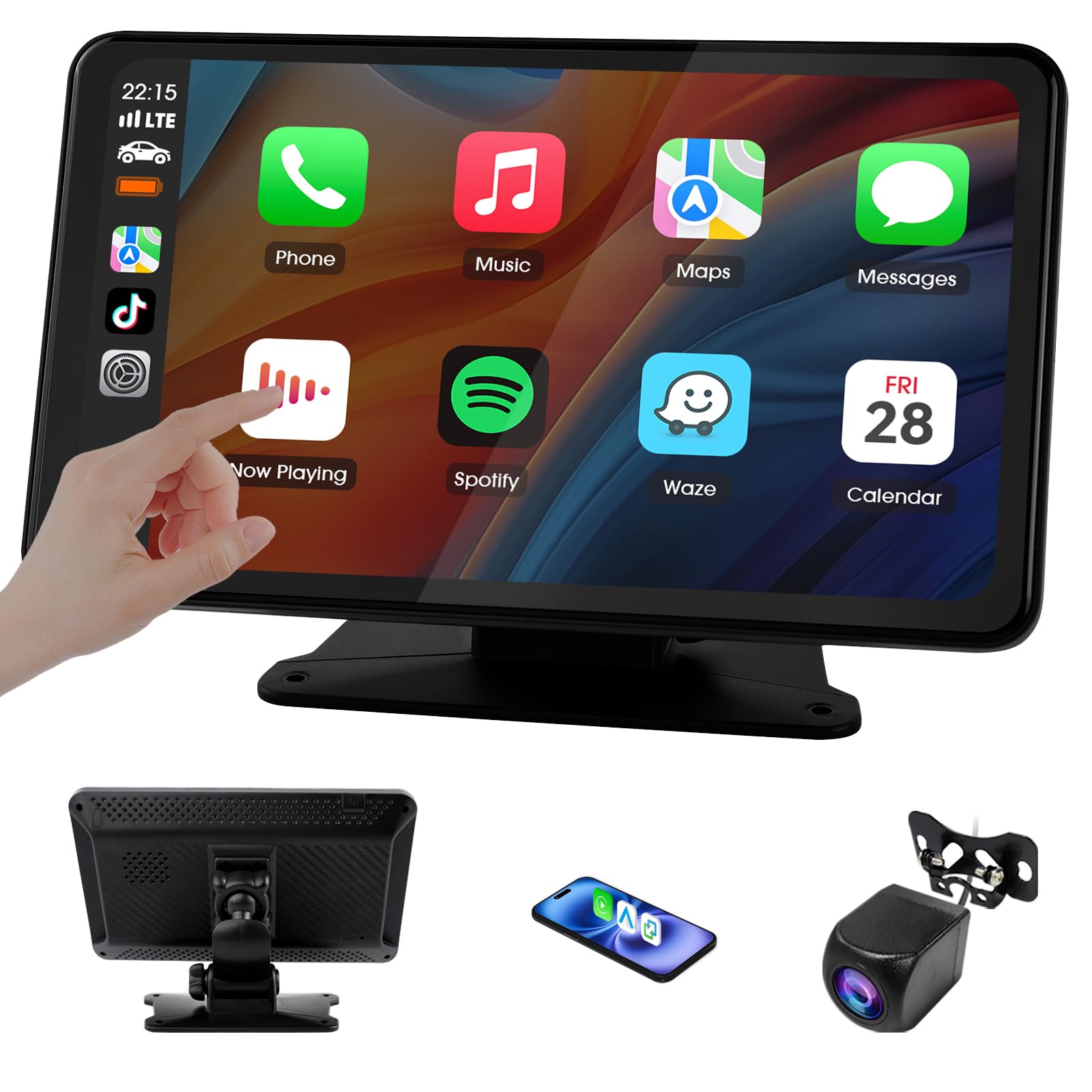
Figure 1: Haudio 7-inch Wireless Apple CarPlay Screen
What's in the Box
Verify that all components are present in the package:
- Main device (7-inch display unit)
- Cigarette lighter power adapter
- PND bracket (for mounting)
- Reversing camera (1080P AHD)
- AUX cable
- User's manual
- SD/TF card (for media playback)
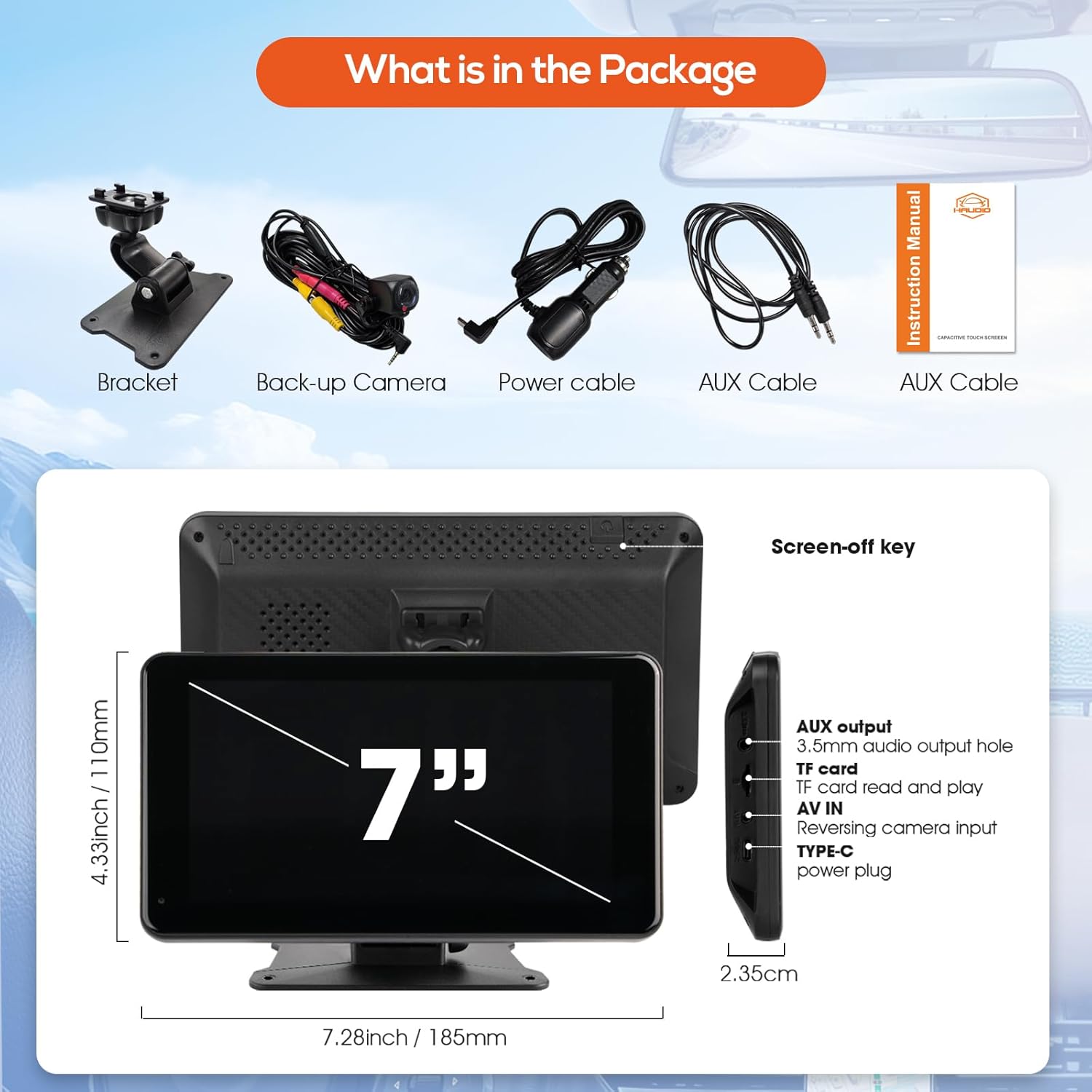
Figure 2: Package Contents including main unit, bracket, backup camera, power cable, AUX cable, and user manual.
Setup
1. Device Placement and Power Connection
- Attach the PND bracket to the main device.
- Mount the device securely on your dashboard or windshield using the bracket. Ensure it does not obstruct your view or interfere with airbags.
- Connect the cigarette lighter power adapter to the device and plug it into your vehicle's 12V power outlet.

Figure 3: Portable car stereo mounted on a dashboard, demonstrating free placement.
2. Backup Camera Installation
The 1080P AHD backup camera requires wiring for full functionality. Professional installation is recommended for optimal performance.
- Mount the backup camera near your vehicle's license plate or another suitable rear location.
- Route the camera cable to the main device.
- Connect the camera's power wire to your vehicle's reverse light power source (typically 12V) and the ground wire to a chassis ground point. This enables automatic display when reversing.
- Connect the video signal cable from the camera to the AV IN port on the main device.

Figure 4: Backup camera wiring diagram for connecting to reverse light and ground.
3. Bluetooth Pairing for CarPlay/Android Auto
- Ensure Bluetooth is enabled on your smartphone and the Haudio device.
- On your smartphone, search for available Bluetooth devices and select 'Haudio-bt' or a similar name displayed on the screen.
- Confirm the pairing request on both devices.
- Once paired, your device will automatically connect to Wireless CarPlay or Android Auto.

Figure 5: Bluetooth connection steps for smartphone integration.
4. Audio Output via FM Transmission or AUX
- FM Transmission: Select an unused FM frequency on the Haudio device and tune your car's FM radio to the same frequency to broadcast audio.
- AUX Cable: Connect the provided AUX cable from the Haudio device's AUX output to your car's AUX input for direct audio transfer.
Operating Instructions
1. Wireless CarPlay and Android Auto
Once connected via Bluetooth, your smartphone's CarPlay or Android Auto interface will appear on the 7-inch screen. This allows access to navigation, music, calls, and messages directly from the device.
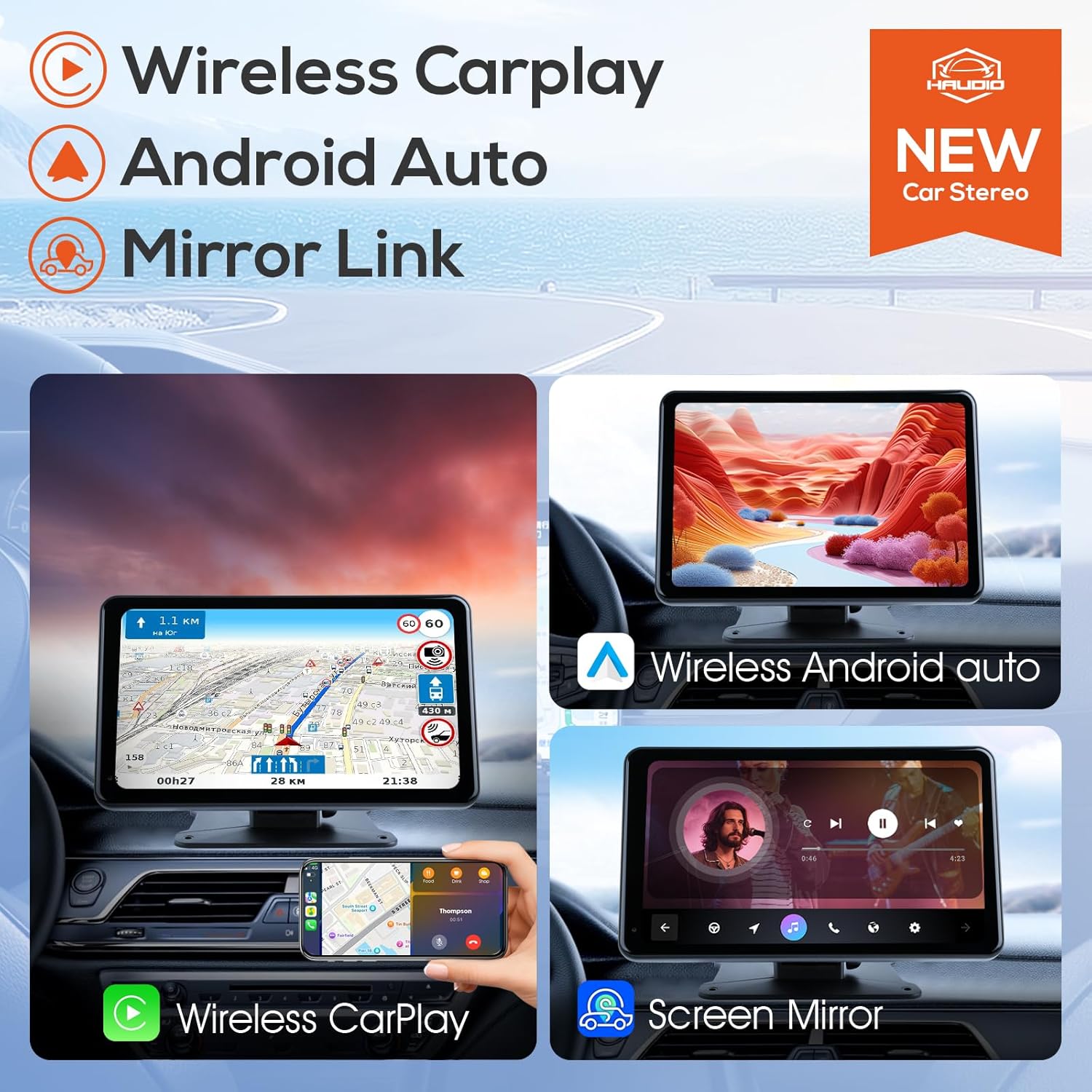
Figure 6: Wireless CarPlay, Android Auto, and Mirror Link interfaces.
2. Voice Control
Utilize voice commands for hands-free operation. Activate your phone's voice assistant (e.g., Siri, Google Assistant) through the device to control navigation, music playback, and phone calls without touching the screen.

Figure 7: Voice assistant integration for navigation and media control.
3. Multimedia Playback
Insert an SD or TF card into the designated slot to play stored videos, music, and photos directly on the 1024x600 HD touchscreen.
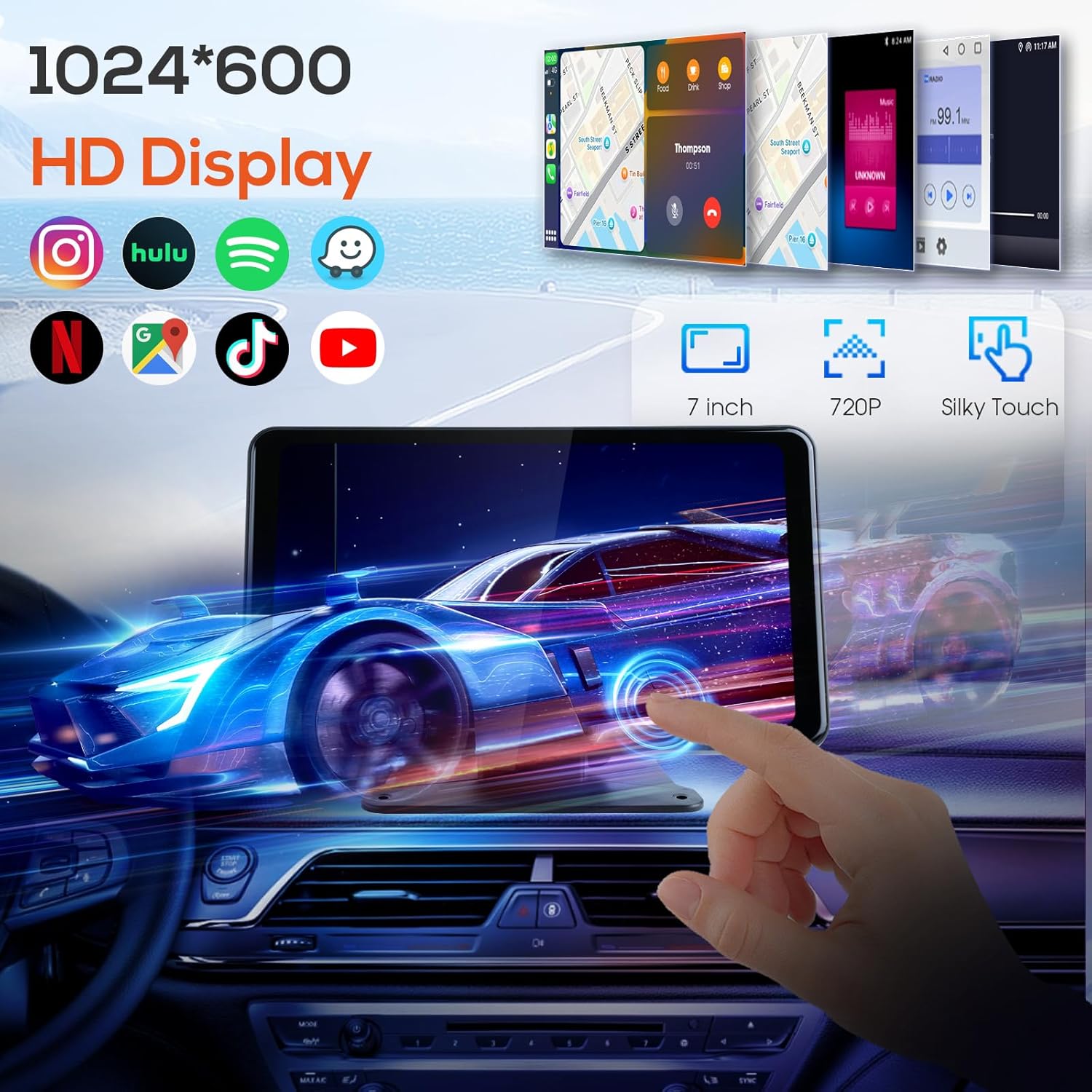
Figure 8: High-definition display for multimedia content.
4. Backup Camera Display
When your vehicle is shifted into reverse, the screen will automatically display the live feed from the 1080P AHD backup camera, providing a wide-angle view and guidelines for safe parking.
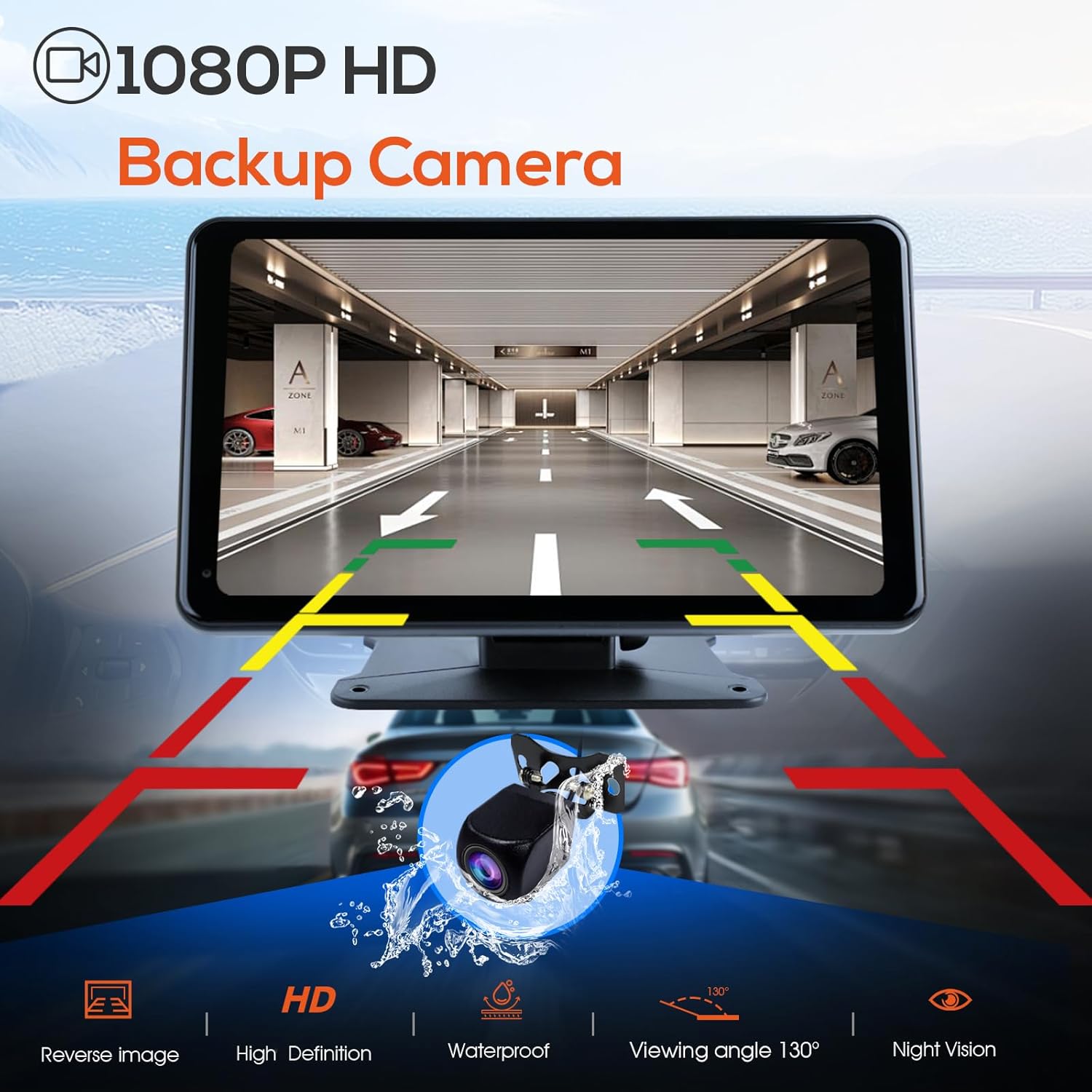
Figure 9: Backup camera view with 130-degree wide-angle and night vision.
5. UI Switching
The device supports switching between different user interfaces or wallpapers to customize your display experience.
Video 1: Demonstrates the plug-and-play installation, free placement, voice navigation, music playback, hand-free phone calls, UI switching, and FM functionality of the Haudio 7-inch Portable Car Radio.
Video 2: Overview of the Haudio Portable Car Stereo, showcasing its versatile design, SD/TF card support, 1024x600 IPS screen, 1080P AHD reverse camera, and CarPlay/Android Auto voice control features.
Maintenance
To ensure the longevity and optimal performance of your Haudio 7-inch Wireless Apple CarPlay Screen, follow these maintenance guidelines:
- Cleaning: Use a soft, dry cloth to clean the screen and device exterior. Avoid abrasive cleaners or solvents that may damage the surface.
- Temperature: Do not expose the device to extreme temperatures (hot or cold) for extended periods, as this can affect battery life and screen performance.
- Moisture: Keep the device dry. Avoid exposure to water or excessive humidity.
- Cable Management: Ensure all cables are securely connected and not pinched or tangled to prevent damage.
Troubleshooting
If you encounter issues with your device, refer to the following common problems and solutions:
| Problem | Possible Cause | Solution |
|---|---|---|
| Device does not power on. | Loose power connection, faulty cigarette lighter socket. | Check power cable connection. Ensure the cigarette lighter socket is functional. |
| Cannot connect to Wireless CarPlay/Android Auto. | Bluetooth not enabled, incorrect pairing, phone software issue. | Ensure Bluetooth is on for both devices. Re-pair the devices. Restart your phone and the Haudio unit. |
| No sound or delayed sound. | Incorrect FM frequency, loose AUX cable, volume settings. | Adjust FM frequency on both devices. Check AUX cable connection. Adjust volume on both the device and car stereo. |
| Backup camera not displaying. | Incorrect wiring, faulty camera, AV IN not selected. | Verify camera wiring to reverse light and AV IN port. Check camera functionality. Ensure vehicle is in reverse. |
| Device resets or turns off unexpectedly. | Unstable power supply, software glitch. | Ensure stable power connection. Perform a factory reset if issues persist (refer to on-screen settings). |
Specifications
| Feature | Detail |
|---|---|
| Brand | Haudio |
| Model Number | 761709916268 |
| Screen Size | 7 inches |
| Display Resolution | 1024x600 HD IPS |
| Connectivity Technology | Auxiliary, Bluetooth, USB, Wi-Fi |
| Controller Type | Android, iOS (App, Touch, Voice) |
| Special Features | Android Auto, Apple CarPlay, Built-In Bluetooth, GPS Navigation, Rear View Camera Input, FM Transmission, Mirror Link |
| Compatible Devices | Smartphone |
| Connector Type | USB Type-C |
| Audio Output Mode | Mono |
| Surround Sound Channel Configuration | 2.0 |
| Video Encoding | MPEG-4 |
| Color | Black |
| Output Power | 2 Watts |
| Wattage | 5 watts |
| Number of Channels | 2 |
| Supported Internet Services | CarPlay, Android Auto |
| Built-In Media Support | SD, TF card |
| Item Dimensions (D x W x H) | 0.9"D x 7.2"W x 4.3"H |

Figure 10: Dimensions of the Haudio 7-inch Wireless Apple CarPlay Screen.
Warranty and Support
Your Haudio 7-inch Wireless Apple CarPlay Screen comes with a 1-year warranty from the date of purchase. This warranty covers manufacturing defects and malfunctions under normal use.
For technical support, warranty claims, or any questions regarding your product, please contact Haudio customer service through the retailer's platform or the official Haudio website. Please have your model number (761709916268) and proof of purchase ready when contacting support.

