1. Introduction
This manual provides essential information for setting up, operating, and maintaining your new Samsung 65" QLED Q7F 4K Smart TV (2025). This television features advanced Vision AI, Quantum HDR, and a Q4 AI Processor to deliver stunning 4K picture quality and intelligent performance. Please read this manual thoroughly before using your TV to ensure safe and optimal operation.
2. Safety Information
Always follow basic safety precautions when using this product to reduce the risk of fire, electric shock, and injury to persons. Keep this manual for future reference.
- Power: Use only the supplied power cord. Do not overload wall outlets.
- Ventilation: Ensure adequate ventilation around the TV. Do not block ventilation openings.
- Cleaning: Unplug the TV before cleaning. Use a soft, dry cloth. Do not use liquid cleaners or aerosol cleaners.
- Water and Moisture: Do not expose the TV to rain or moisture. Do not place objects filled with liquids on the TV.
- Mounting: Follow instructions carefully when mounting the TV on a wall or stand. Ensure the mounting surface can support the TV's weight.
- Children: Do not allow children to climb on the TV or stand.
3. What's in the Box
Verify that all components are present:
- Samsung QLED Q7F 4K Vision AI Smart TV (2025)
- SOLARCELL REMOTE TM2560E (Remote Control)
- Power Cable
- User Manual (this document)

Image: The Samsung QLED Q7F 4K Smart TV, its remote control, power cable, and user manual are shown as included items.
4. Setup
4.1. Physical Setup
Your Samsung QLED Q7F TV can be placed on a stand or wall-mounted. Ensure the TV is placed on a stable, level surface if using the stand, or securely mounted to a wall according to the wall mount instructions (sold separately).
Attaching the Stand
Carefully place the TV screen-down on a soft, flat surface to prevent damage. Align the stand components with the designated slots on the TV and secure them using the provided screws. Ensure the stand is firmly attached before placing the TV upright.

Image: A front view of the Samsung QLED Q7F 4K Smart TV with its stand attached, ready for placement.
Wall Mounting
If wall-mounting, refer to the wall mount kit's instructions for proper installation. The TV supports VESA mounting standards. Ensure all cables are connected before mounting the TV to the wall.

Image: A side profile of the Samsung QLED Q7F 4K Smart TV, highlighting its slim design suitable for wall mounting.
4.2. Connecting Peripherals
Connect your external devices such as Blu-ray players, gaming consoles, sound systems, and cable/satellite boxes to the TV's ports.
- HDMI Ports: The TV features multiple HDMI ports for high-definition audio and video. Use HDMI 3 (eARC) for soundbars or AV receivers supporting Audio Return Channel.
- USB Ports: Connect USB storage devices for media playback or software updates.
- LAN Port: For a wired internet connection. Alternatively, use Wi-Fi.

Image: A close-up view of the rear input ports on the Samsung QLED Q7F 4K Smart TV, including HDMI, USB, and LAN connections.
4.3. Initial Power On & Smart Hub Setup
After connecting the power cable and any desired devices, press the power button on the remote control to turn on the TV. Follow the on-screen instructions to complete the initial setup, including:
- Language Selection: Choose your preferred language.
- Network Connection: Connect to your Wi-Fi network or use a wired LAN connection.
- Samsung Account: Sign in or create a Samsung account to access Smart Hub features, apps, and services.
- Channel Scan: Scan for available broadcast channels if using an antenna.
Video: An official Samsung video demonstrating the setup process for a Samsung Smart TV, including initial power-on and Smart Hub configuration.
5. Operating Your TV
5.1. Remote Control Functions
The SOLARCELL REMOTE TM2560E is designed for intuitive control of your Samsung Smart TV. It features a minimalist design with essential buttons for navigation, volume, channel, and direct access to popular streaming services.

Image: The sleek, black Samsung SOLARCELL REMOTE TM2560E remote control, featuring a solar panel on the back for charging.
5.2. Smart Hub Navigation
The Smart Hub is your gateway to all the smart features of your TV. Use the remote's navigation buttons to browse apps, live TV, connected devices, and recommended content. The intuitive interface allows for quick access to your favorite entertainment.
5.3. Picture Settings
Your QLED Q7F TV offers exceptional picture quality with various settings to customize your viewing experience:
- QLED Display: Experience over one billion authentic hues with Pantone-certified color accuracy and 100% Color Volume with Quantum Dot technology.
- Quantum HDR: Enhances contrast and reveals hidden details in both bright and dark scenes, providing a more lifelike image.
- Q4 AI Processor: Intelligently optimizes picture and sound quality, upscaling content to stunning 4K resolution regardless of the original source.
- Motion Xcelerator 60Hz: Reduces blur and judder in fast-moving scenes, ideal for sports and action content.
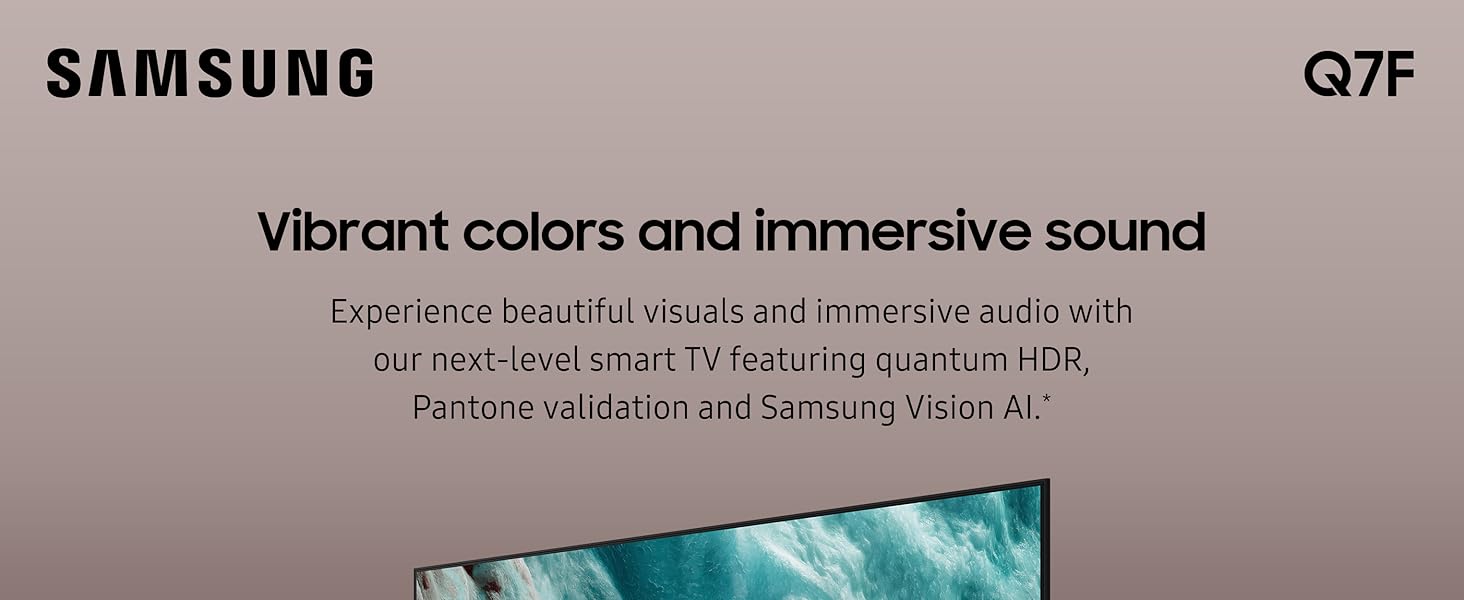
Image: The Samsung QLED Q7F 4K Smart TV showcasing its vibrant colors and immersive audio capabilities, highlighting the visual and auditory brilliance.
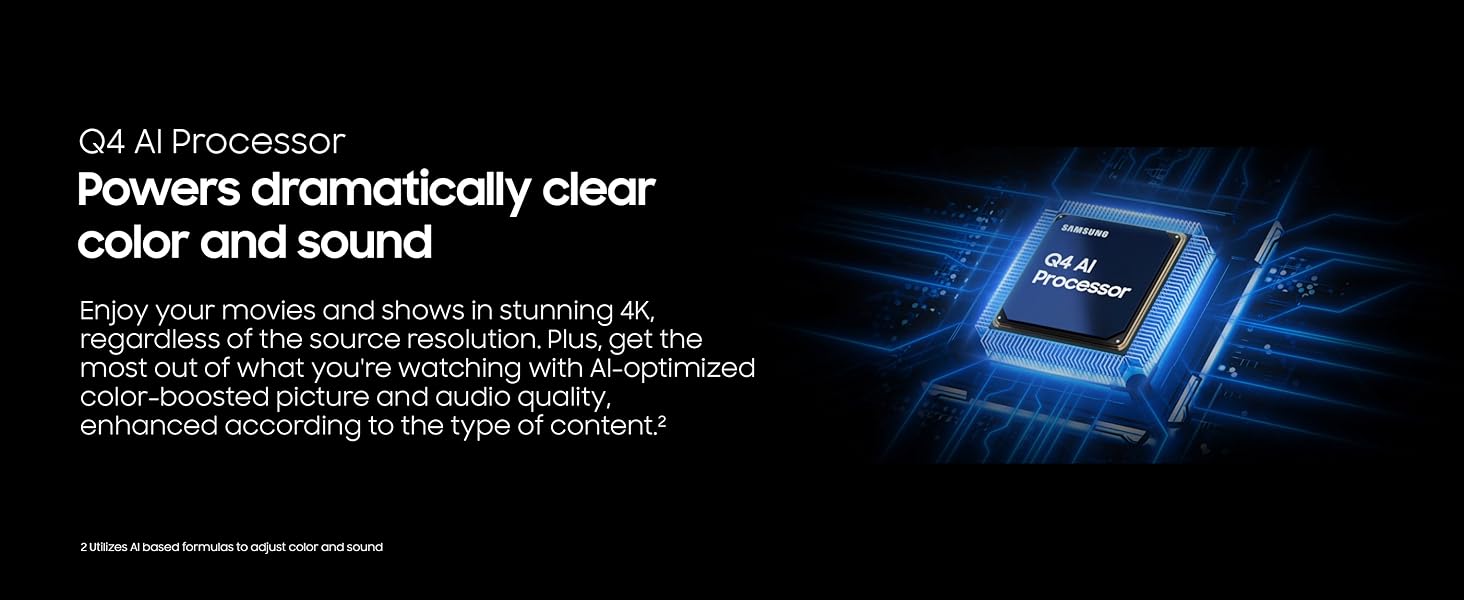
Image: The Samsung QLED Q7F 4K Smart TV demonstrating its 100% Color Volume with Quantum Dot technology, displaying over a billion true colors.
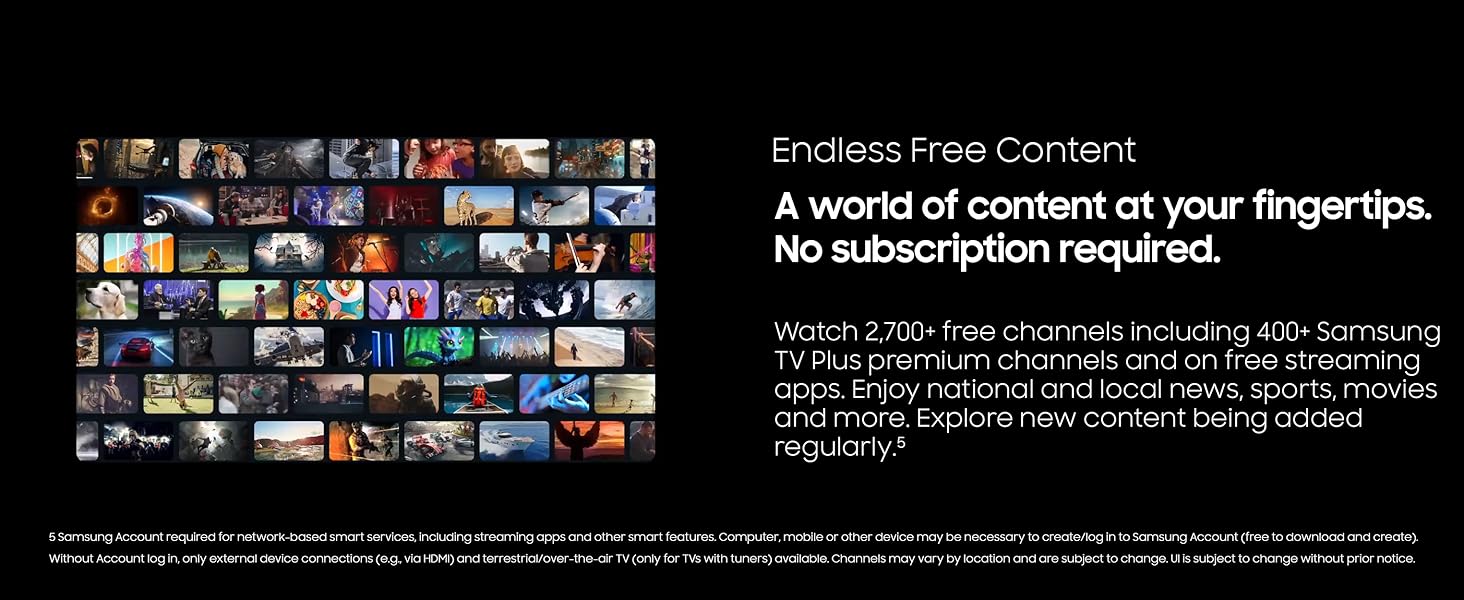
Image: The Samsung QLED Q7F 4K Smart TV illustrating Quantum HDR, which brings out deep blacks and bold contrast for detailed imagery.
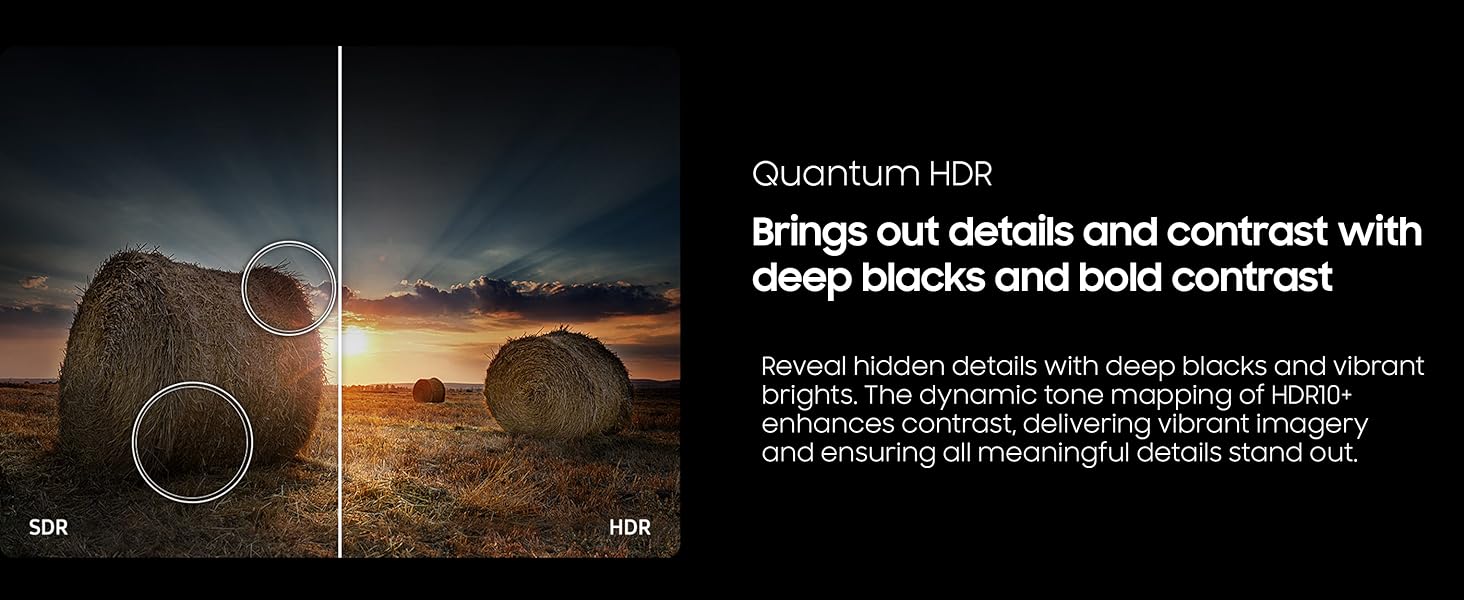
Image: The Samsung QLED Q7F 4K Smart TV highlighting its 4K Upscaling capability, which upgrades lower-resolution content to crisp 4K clarity.
5.4. Sound Settings
The TV features an advanced 3D audio system that syncs with on-screen motion. Adaptive Sound automatically adjusts audio levels for optimal listening, whether it needs to be louder or softer. For enhanced audio, consider pairing with a compatible Samsung soundbar for Q-Symphony functionality.
5.5. Smart Features
- Vision AI: Powers intelligent optimization of picture and sound.
- Samsung Knox Security: Protects your TV experience from harmful attacks, unauthorized apps, and phishing websites, safeguarding your personal information and connected IoT devices.
- Endless Free Content: Access over 2,700 free channels, including 400+ Samsung TV Plus premium channels and free streaming apps, without a subscription.
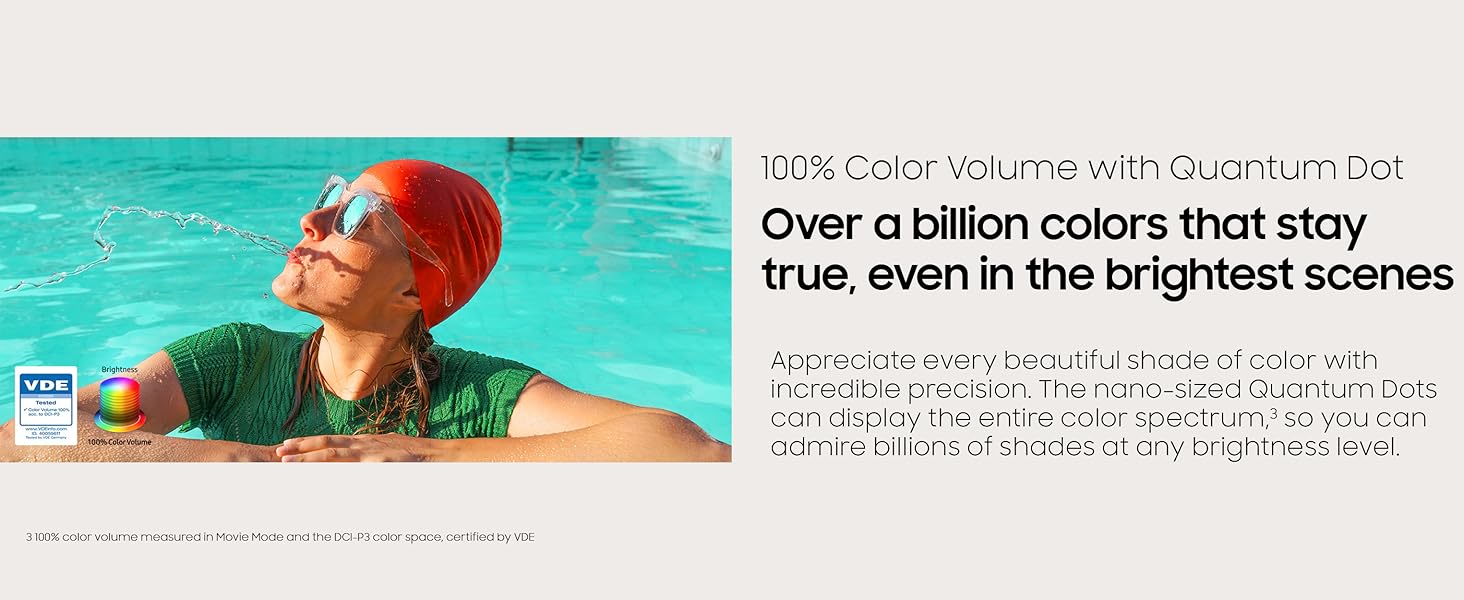
Image: The Samsung QLED Q7F 4K Smart TV highlighting its Samsung Knox Security, which provides triple-layer protection for personal data and connected devices.
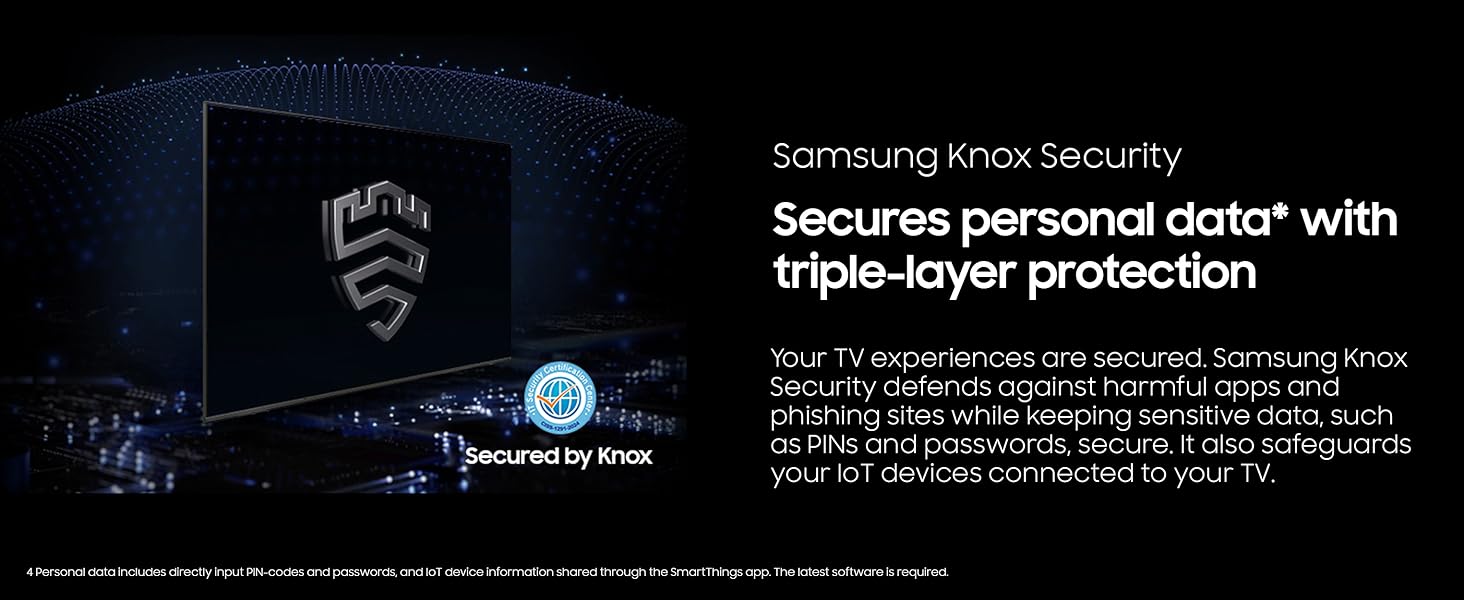
Image: The Samsung QLED Q7F 4K Smart TV showcasing its 'Endless Free Content' feature, offering a wide world of streaming content without subscription.
5.6. Gaming Features
The QLED Q7F is optimized for gaming, offering a responsive and immersive experience:
- Motion Xcelerator 60Hz: Ensures clear picture and smooth motion, reducing lag and blur during gameplay.
- Cloud Gaming: Access cloud gaming services directly from your TV (subscription may be required).

Image: The Samsung QLED Q7F 4K Smart TV illustrating its Motion Xcelerator 60Hz feature, providing clear picture and smooth motion for games and sports.
6. Maintenance
6.1. Cleaning
To clean your TV, first unplug the power cord. Use a soft, microfiber cloth to gently wipe the screen and frame. Do not use harsh chemicals, abrasive materials, or spray cleaners directly onto the TV.
6.2. Software Updates
Ensure your TV's software is always up to date for optimal performance and security. You can usually find software update options in the TV's settings menu under 'Support' or 'Software Update'. The TV may also automatically download and install updates when connected to the internet.
7. Troubleshooting
If you encounter issues with your TV, try the following basic troubleshooting steps:
- No Power: Check if the power cord is securely plugged into the TV and the wall outlet. Try a different outlet.
- No Picture/Sound: Verify that the correct input source is selected. Check all cable connections (HDMI, etc.) for looseness.
- Remote Not Working: Ensure the remote has sufficient charge (SOLARCELL REMOTE can be charged via solar or USB-C). Point the remote directly at the TV.
- Network Connection Issues: Restart your router and modem. Reconnect the TV to the Wi-Fi network in the settings menu.
- Picture/Sound Distortion: Try adjusting picture and sound settings. If using external devices, check their settings and connections.
- Factory Reset: As a last resort, you can perform a factory reset through the TV's settings menu. This will erase all personalized settings.
8. Specifications
| Feature | Detail |
|---|---|
| Brand | Samsung |
| Model Number | E1SAMQN65Q7F |
| Screen Size | 64.5 Inches (65" Class) |
| Display Technology | QLED |
| Resolution | 4K (3840 x 2160) |
| Refresh Rate | 60 Hz |
| Processor | Q4 AI Processor |
| Special Features | 100% Color Volume with Quantum Dot, Vision AI, Quantum HDR, Samsung Knox Security, Motion Xcelerator 60Hz, Adaptive Sound, Cloud Gaming |
| Connectivity | Bluetooth, Wi-Fi, Multiple HDMI, USB |
| Product Dimensions | 10.5"D x 57.2"W x 35.6"H |
| Item Weight | 37.7 Pounds |
9. Warranty and Support
Your Samsung QLED Q7F 4K Smart TV (2025) is covered by a limited manufacturer's warranty. Please refer to the warranty card included in your product packaging for specific terms and conditions. For technical support, service, or additional information, visit the official Samsung support website or contact Samsung customer service.


