
1. Introduction
This manual provides detailed instructions for the TECKNET 2.4G Wireless Silent Full-Size USB Keyboard, Model B0F62JCHBF. Please read this manual thoroughly before using the product to ensure proper setup and operation. Keep this manual for future reference.
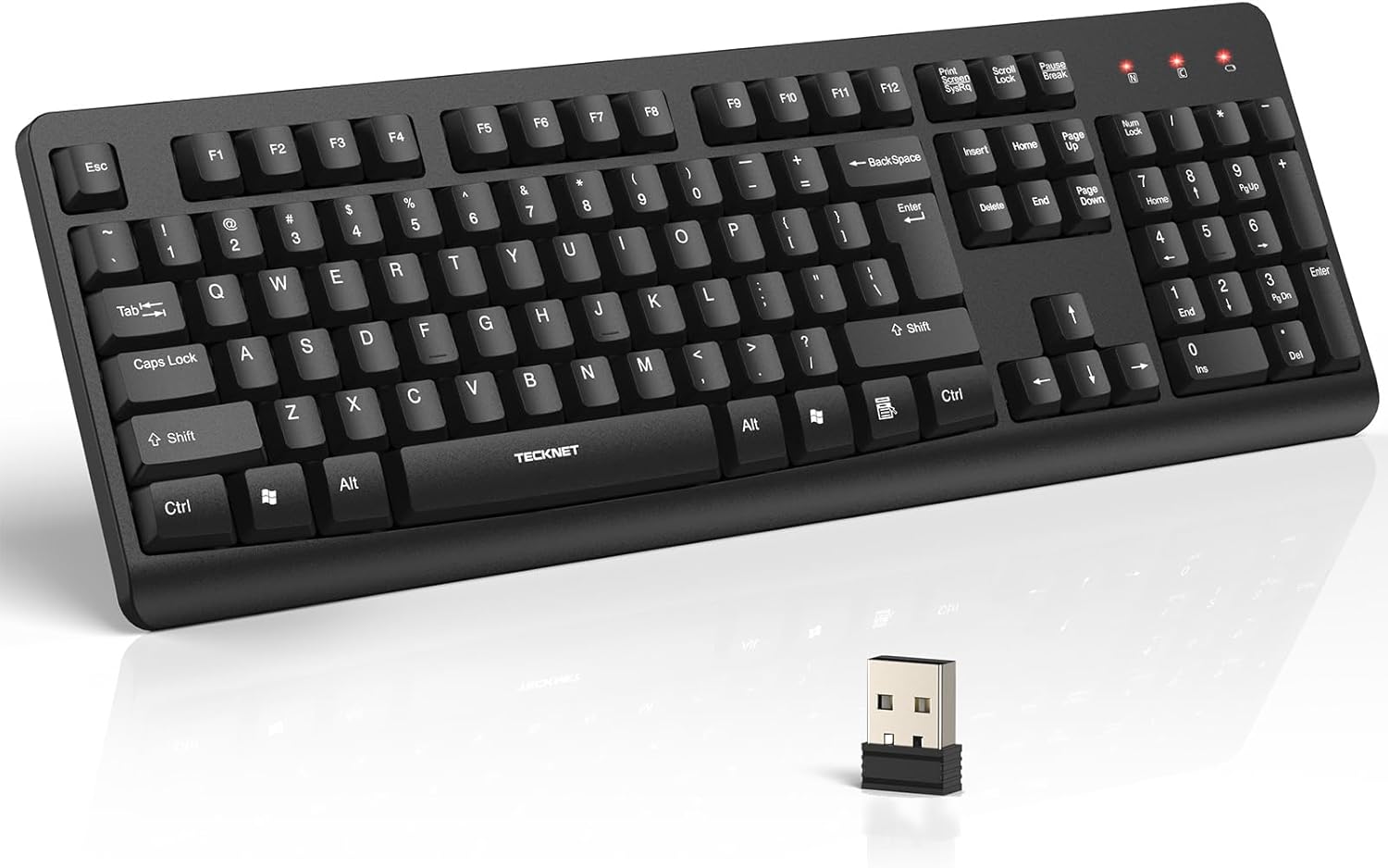
Image 1.1: TECKNET Wireless Keyboard with its 2.4G USB receiver.
2. Package Contents
- TECKNET Wireless Keyboard
- 2.4G USB Receiver (stored in the battery compartment)
- Instruction Manual
3. Setup Guide
3.1 Battery Installation
- Locate the battery compartment on the underside of the keyboard.
- Open the battery compartment cover.
- Insert one (1) AA battery (not included) into the compartment, ensuring correct polarity (+/-).
- Close the battery compartment cover securely.
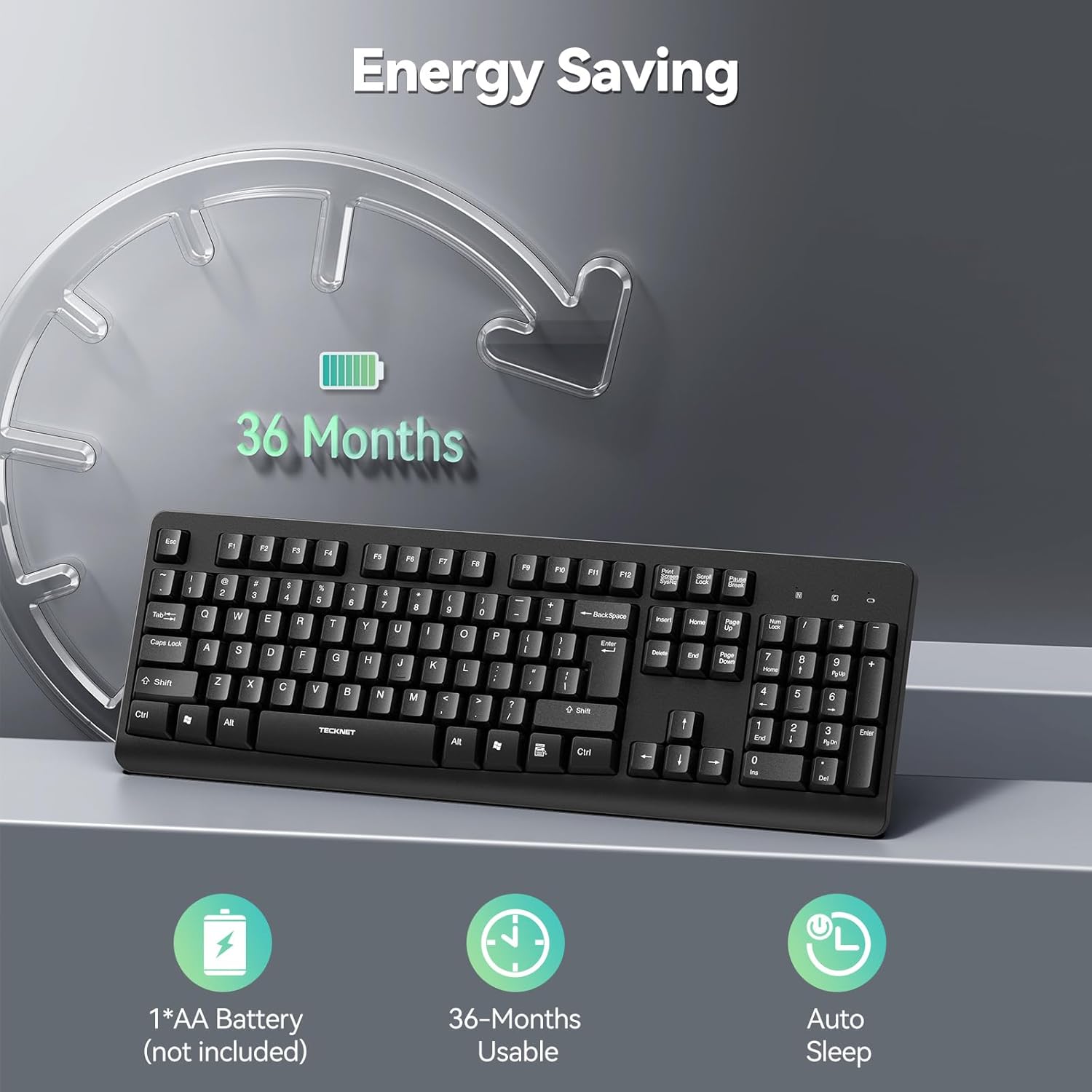
Image 3.1: The keyboard features a 36-month battery life with one AA battery (not included) and an auto-sleep function.
3.2 Connecting the USB Receiver
- Remove the 2.4G USB receiver from its storage slot within the battery compartment.
- Plug the USB receiver into an available USB-A port on your computer (desktop, laptop, or compatible smart TV).
- The keyboard is plug-and-play; no additional drivers are required. Your system should automatically detect and configure the device.
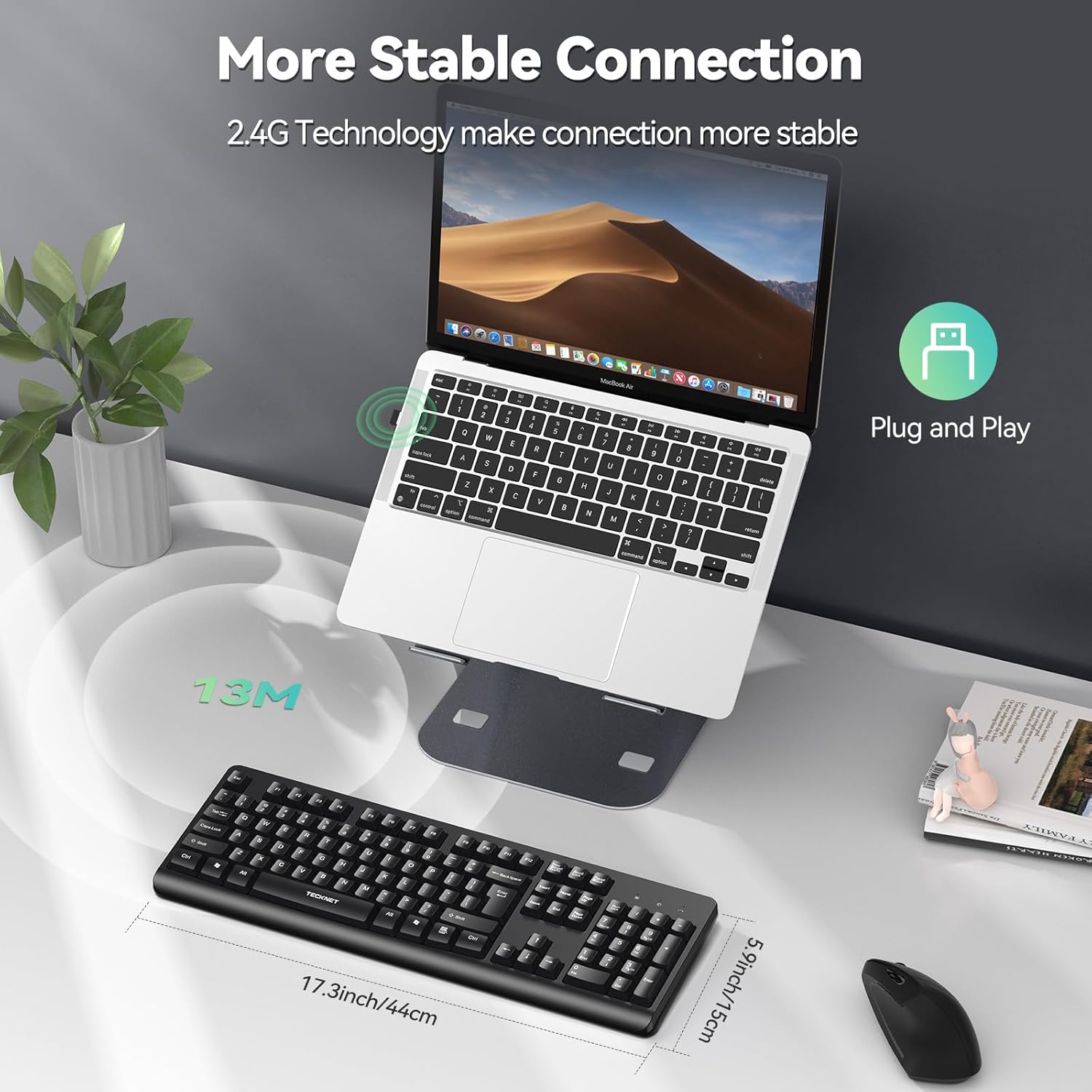
Image 3.2: The 2.4G wireless connection provides a stable signal up to 13 meters (43 feet).
4. Operating Instructions
4.1 Basic Typing
Begin typing immediately after successful connection. The full-size layout includes a dedicated number pad for efficient data entry.
4.2 Silent Typing Experience
The keyboard is engineered with PET film key switches and a 3mm key travel, reducing typing noise by up to 90% compared to standard keyboards. This feature is beneficial for quiet environments such as shared workspaces, libraries, or home offices.
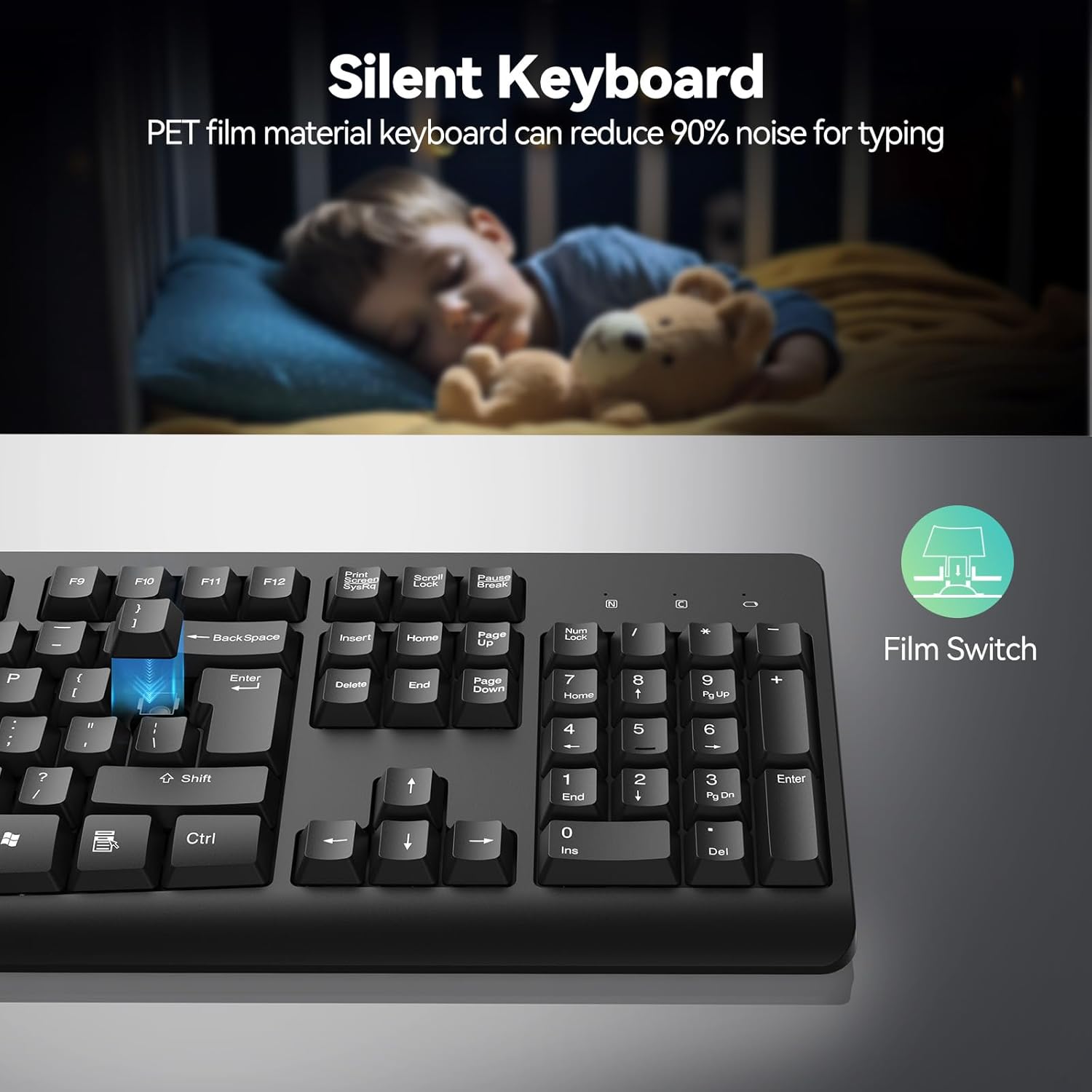
Image 4.1: The silent key design minimizes typing noise.
4.3 Ergonomic Design
The keyboard features 8-degree foldable tilt feet, allowing you to adjust the typing angle for improved comfort. Crater-shaped keycaps are designed to conform to your finger shape, enhancing the typing experience during extended use.
4.4 Power Management
- Auto Sleep Mode: To conserve battery life, the keyboard automatically enters sleep mode after a period of inactivity. Press any key to wake it up.
- Low Battery Alert: An LED indicator on the keyboard will illuminate to notify you when the battery level is low, signaling that a replacement is needed soon.
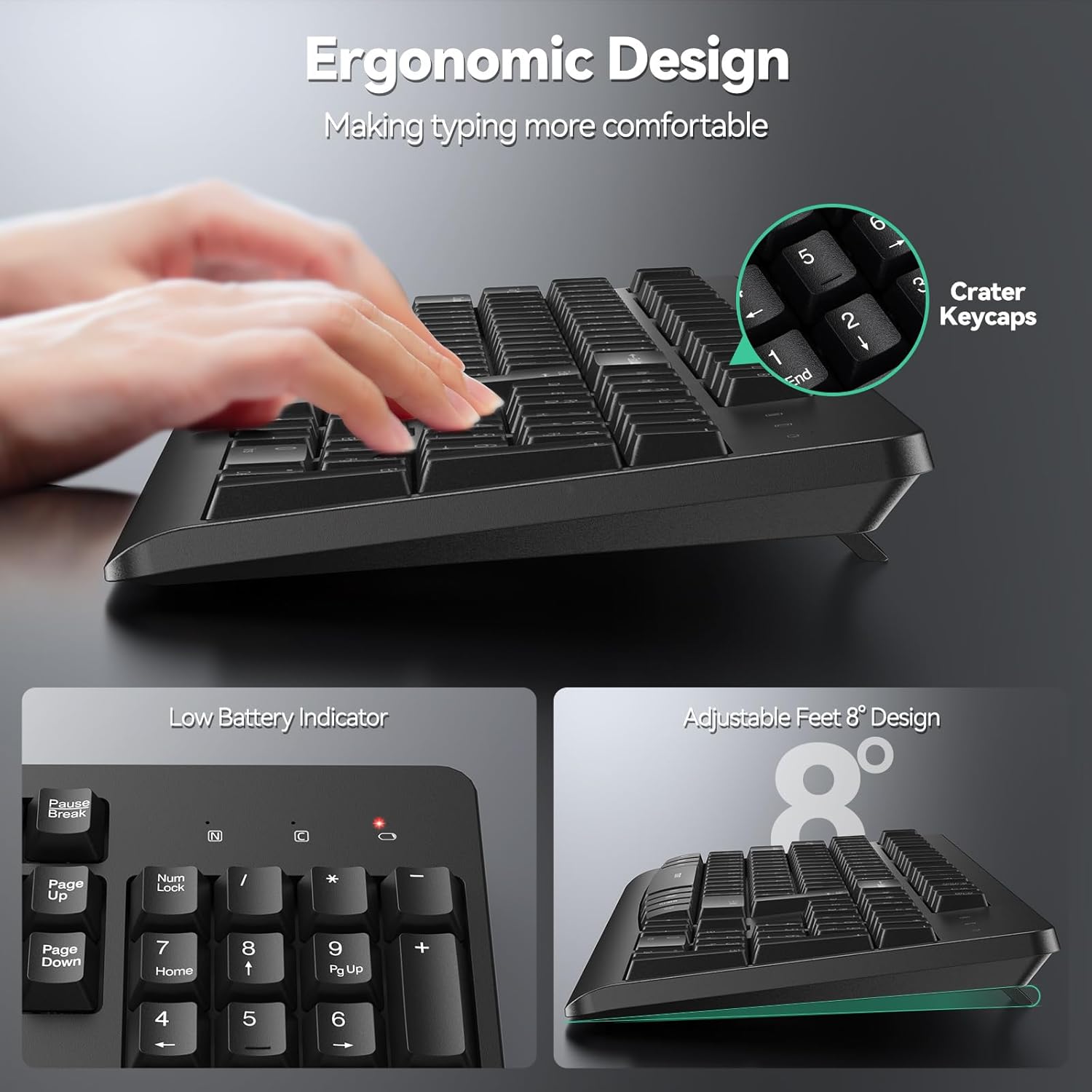
Image 4.2: Ergonomic design with adjustable feet and a low battery indicator light.
5. Maintenance
5.1 Spill-Resistant Design
The keyboard features a spill-resistant design with four built-in drainage holes on the underside. This helps protect the internal components from minor liquid spills. In case of a spill, tilt the keyboard to allow liquid to drain out.
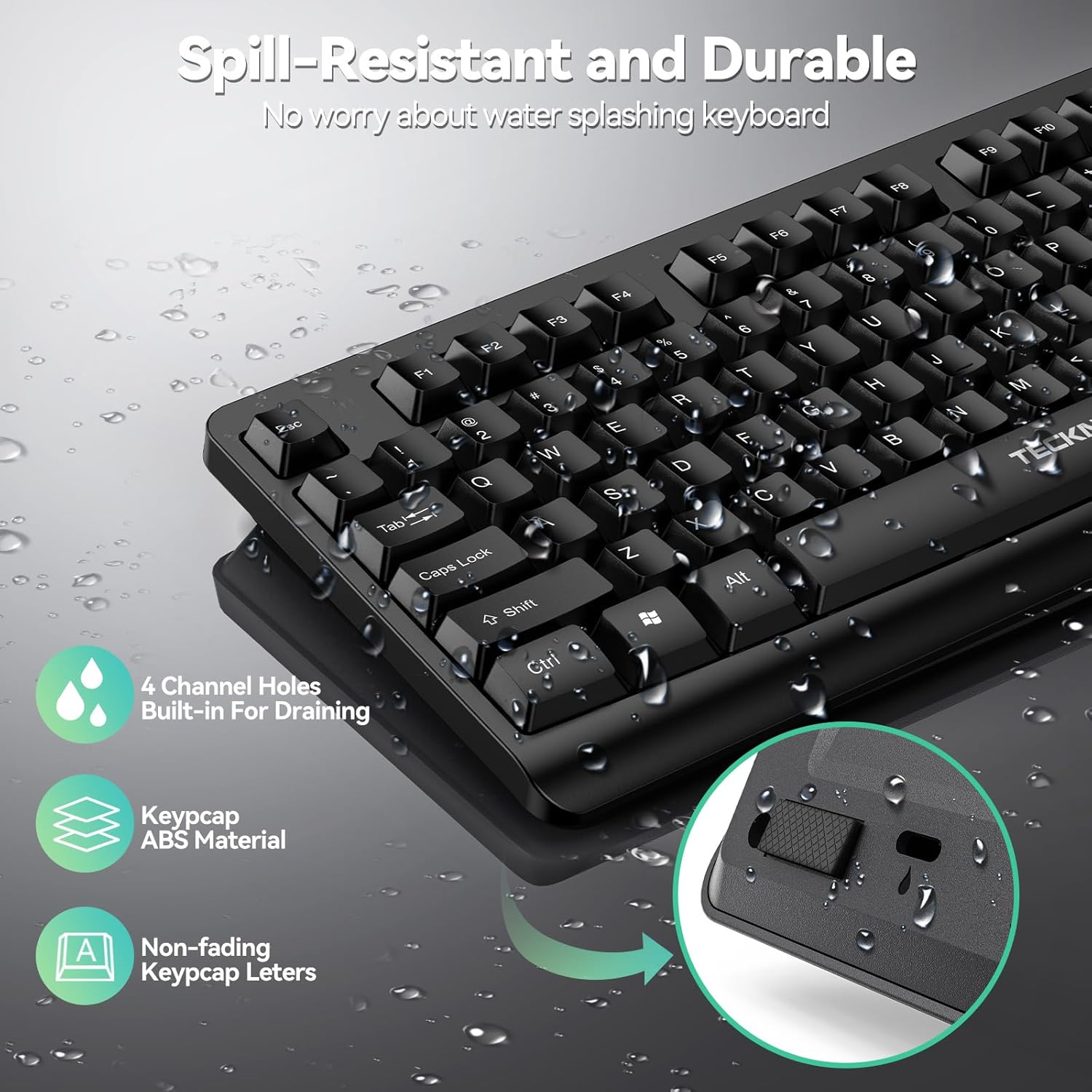
Image 5.1: The keyboard's spill-resistant design includes drainage channels.
5.2 Cleaning
- Disconnect the USB receiver from your computer before cleaning.
- Use a soft, damp cloth to wipe the surface of the keyboard. Avoid using harsh chemicals or abrasive cleaners.
- For dust and debris between keys, use compressed air.
6. Troubleshooting
- Keyboard not responding:
- Ensure the USB receiver is securely plugged into a working USB port.
- Check the battery. Replace the AA battery if the low battery indicator is on or if the keyboard has been inactive for a long period. - Intermittent connection:
- Move the keyboard closer to the USB receiver to ensure it is within the 13-meter operating range.
- Avoid placing the receiver near other wireless devices or large metal objects that may cause interference. - Keys not functioning correctly:
- Clean the keyboard to remove any debris that might be obstructing key movement.
- If the issue persists after checking the battery and connection, try the keyboard with a different computer to rule out system-specific problems.
7. Specifications
| Feature | Detail |
|---|---|
| Brand | TECKNET |
| Model | B0F62JCHBF |
| Connectivity Technology | 2.4G Wireless (USB-A Receiver) |
| Compatible Devices | Laptop, PC, Smart TV |
| Operating System Compatibility | Windows 11/10/8/7, Linux, iOS 10.4+ |
| Keyboard Description | Wireless, Full-Size with Number Pad |
| Special Features | Silent Keys, Spill Proof, Ergonomic Design, Foldable Feet, Auto Sleep, Low Battery Indicator |
| Power Source | 1 x AA Battery (not included) |
| Estimated Battery Life | Up to 36 months |
| Product Dimensions | 17 x 5 x 3 inches (44cm L x 15cm W x 7.6cm H approx.) |
| Item Weight | 1.29 pounds |
| Material | Plastic, Silicone |

Image 7.1: The keyboard offers wide compatibility with desktops, laptops, and smart TVs.
8. Warranty and Support
TECKNET products are designed for reliability and performance. For warranty information or technical support, please refer to the official TECKNET website or contact their customer service directly. Keep your purchase receipt as proof of purchase.
You can visit the official TECKNET store for more information: TECKNET Store


