
1. Introduction
This manual provides detailed instructions for the installation, operation, and maintenance of your Haudio 10.1-inch 2 DIN Car Stereo. This unit features wireless Apple CarPlay and Android Auto, a high-definition touchscreen, and various multimedia capabilities to enhance your driving experience. Please read this manual thoroughly before use to ensure proper functionality and safety.
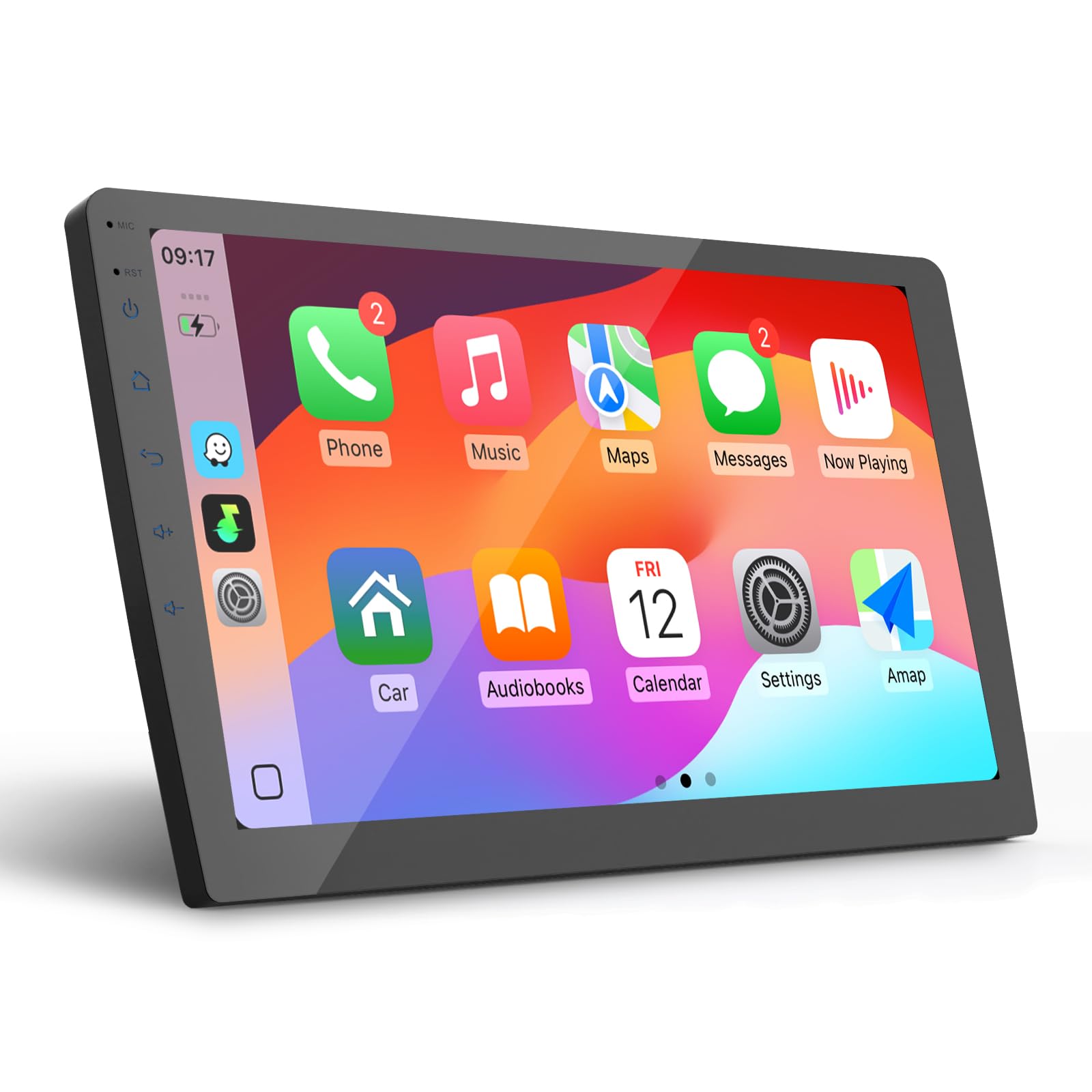
Figure 1: Haudio 10.1-inch 2 DIN Car Stereo
2. Product Features
- Wireless Connectivity: Supports wireless Apple CarPlay and Android Auto for seamless smartphone integration.
- Mirror Link: Project your mobile phone screen onto the 10.1-inch car navigation display.
- High-Resolution Display: 10.1-inch IPS touchscreen with 720 x 1280 resolution for clear visuals.
- Powerful Performance: Equipped with a 1.3 GHz Quad-core CPU and 2GB RAM + 64GB storage for smooth operation.
- Enhanced Audio: Integrated DSP technology and multi-zone audio control for clear sound. Supports lossless music formats (MP3, FLAC).
- Navigation: Built-in GPS navigation system.
- Backup Camera: Includes a 720P AHD backup camera with a 140° wide-angle view for safe reversing.
- Multitasking: Features split-screen and picture-in-picture functionality.
- Customization: Supports 25 sets of UI theme changes.
- Operating System: Based on Android 13, allowing APK installation and removal.
- Voice Control: Compatible with SIRI and Google voice commands for hands-free operation.
- Radio: FM/AM/RDS radio tuner.
- Connectivity Ports: Two USB ports and RCA connections.

Figure 2: Wireless CarPlay, Android Auto, and Mirror Link

Figure 3: HD Display and App Interface

Figure 4: High Fidelity Sound Quality with EQ/ASP

Figure 5: Live Map Navigation and Voice Assistant
3. Setup and Installation
The Haudio 2 DIN Car Stereo is designed for universal fit in vehicles with a compatible 2 DIN dashboard opening. Professional installation is highly recommended to ensure correct wiring and optimal performance. Before installation, verify that your vehicle's dashboard opening matches the stereo's dimensions.
3.1 Package Contents
Please check the box for the following items:
- Haudio 10.1-inch Car Stereo Unit
- GPS Antenna
- Instruction Manual (this document)
- Rear Camera
- RCA Cables
- Power Cable
- Camera Input Cable
- USB Cables (x2)
- Mounting Bracket

Figure 6: Package Contents and Dimensions
3.2 Important Installation Notes
- Ensure your dashboard opening size corresponds to the 2 DIN stereo. If not, an additional dashboard kit may be required.
- Read all instructions before attempting installation.
- Consider professional installation by a car audio specialist.
- Some car models may require additional accessories such as a wiring harness adapter or radio antenna adapter.
4. Operating Instructions
4.1 Wireless CarPlay and Android Auto
- Ensure Bluetooth and Wi-Fi are enabled on your smartphone and the car stereo.
- On the car stereo, navigate to the CarPlay or Android Auto application.
- Follow the on-screen prompts to pair your smartphone. For Apple CarPlay, select your car stereo from your iPhone's Bluetooth settings. For Android Auto, ensure the Android Auto app is installed on your phone.
- Once connected, your phone's interface will appear on the stereo display, allowing access to navigation, music, calls, and messages.
4.2 Mirror Link
Mirror Link allows you to project your smartphone's screen onto the car stereo display. This feature is compatible with both iOS and Android devices via USB or Wi-Fi connection. Refer to the on-screen Mirror Link application for specific connection steps.
4.3 Bluetooth Connection
Connect your smartphone via Bluetooth for hands-free calling and audio streaming.
- Enable Bluetooth on your phone and the car stereo.
- On your phone, search for available Bluetooth devices and select "Haudio-bt" (or similar name).
- Confirm the pairing code on both devices.
- Once paired, you can make/receive calls and play music through the car stereo.

Figure 7: Bluetooth Connection Steps
4.4 Radio Operation (FM/AM/RDS)
Access the Radio application on the main menu. You can scan for stations, save presets, and utilize RDS features where available.
4.5 GPS Navigation
The unit comes with pre-installed navigation software. Ensure the GPS antenna is properly connected for accurate positioning. You can also use navigation apps via CarPlay or Android Auto.
4.6 Backup Camera
When the vehicle is shifted into reverse, the display will automatically switch to the backup camera view, showing guidelines for assistance. Ensure the camera is properly installed and connected.

Figure 8: 720P HD Backup Camera View
4.7 Voice Control
Activate SIRI or Google Assistant through your connected smartphone for hands-free control of navigation, calls, and music.
4.8 Customization
The Android 13 operating system allows for extensive customization, including changing UI themes (25 options available) and installing/uninstalling applications (APKs).
5. Maintenance
- Screen Cleaning: Use a soft, lint-free cloth to clean the touchscreen. Avoid abrasive cleaners or solvents.
- General Cleaning: Wipe the unit's exterior with a dry or slightly damp cloth. Do not use excessive moisture.
- Connection Checks: Periodically check all wiring connections to ensure they are secure and free from corrosion.
- Software Updates: Check for available software updates to ensure optimal performance and access to new features.
6. Troubleshooting
If you encounter issues with your Haudio car stereo, refer to the following common problems and solutions:
- No Power: Check the power cable connection and vehicle's fuse box. Ensure the ignition is on.
- No Sound: Verify speaker connections, volume settings, and audio source selection. Check if the mute function is active.
- Touchscreen Unresponsive: Try restarting the unit. If the issue persists, a factory reset might be necessary (note: this will erase all custom settings).
- Bluetooth/CarPlay/Android Auto Connection Issues: Ensure Bluetooth and Wi-Fi are enabled on both devices. Try unpairing and re-pairing the devices. Check for software updates on your smartphone and the car stereo.
- GPS Signal Loss: Ensure the GPS antenna is properly installed and has a clear view of the sky.
- Backup Camera Not Displaying: Check the camera's power and video connections. Ensure the reverse gear signal wire is correctly connected.
For persistent issues or problems not listed here, please contact Haudio customer support.
7. Specifications
| Feature | Specification |
|---|---|
| Model Number | 10.1"-CPU1.3GHz(2+64G) |
| Display Size | 10.1 inches |
| Display Resolution | 720 x 1280 |
| Processor | 1.3 GHz Quad-core CPU |
| RAM | 2GB |
| Internal Storage | 64GB |
| Operating System | Android 13 |
| Connectivity | USB, RCA, Bluetooth, Wi-Fi |
| Bluetooth Version | 4.1 (as per feature bullets, though some images suggest V5.0) |
| Wi-Fi Frequency | 2.4 GHz |
| Special Features | Apple CarPlay, Android Auto, Mirror Link, Touchscreen, DSP, GPS, Backup Camera |
| Compatible Devices | Smartphones |
| HDMI Ports | 1 |
| Audio Output Mode | Stereo, 5.1 Surround Sound |
| Video Encoding | H.264, H.265/HEVC |
| Digital Media Format | MPEG-2.5 |
| Dimensions (P x L x H) | 4.1 x 25.2 x 14.6 cm |
8. Warranty and Support
Haudio is committed to providing reliable products and excellent customer service.
- Manufacturer Warranty: This product comes with a 1-year manufacturer's warranty.
- Returns and Exchanges: Enjoy 30 days for returns and exchanges.
- Customer Support: Haudio offers lifetime after-sales consultation and technical support. Expect a quick response within 12 hours for any inquiries.

Figure 9: Haudio Warranty and Support Overview
For support, please refer to the contact information provided with your purchase or visit the official Haudio website.


