
PHEZEN B0F626ST6T
Car Radio for Fiat 500 2016 2017 2018 2019 with Wireless Carplay Android Auto,7 Inch Touch Screen Car Audio Receiver with GPS Navigation/Bluetooth/Mirror Link/WiFi/FM/HiFi/Backup Camera(2G+32G)
User Manual
Brand: PHEZEN
1. Product Overview
This car stereo radio is specifically designed for Fiat 500 models from 2016 to 2019, offering a significant upgrade to your vehicle's infotainment system. It features a 7-inch 2.5D touch screen with rich colors and clear images, powered by the latest Android 13 system with 2GB RAM and 32GB ROM for seamless multitasking and smooth operation.
Key features include wireless Apple CarPlay and Android Auto support, dual GPS navigation (offline and online maps), Wi-Fi connectivity, steering wheel control compatibility, and a backup camera input. It also boasts built-in Bluetooth for hands-free calling and music streaming, an FM radio function, and various multimedia capabilities.

Figure 1.1: Main unit of the PHEZEN Car Radio with its user interface.
2. What's in the Box
Please verify that all components listed below are included in your package:
- 1 x Android Stereo Radio
- 1 x Power Cable
- 1 x GPS Antenna
- 1 x Rear Camera Input Cable
- 1 x RCA Cable
- 2 x USB Cable
- 1 x AHD Camera
- 1 x Microphone
- 1 x Canbus Box
- 1 x Radio Adapter
- 1 x Instruction Manual

Figure 2.1: Contents of the product package, including the main unit and various cables and accessories.
3. Specifications
| Feature | Detail |
|---|---|
| Package Dimensions | 11.46 x 8.58 x 5.2 inches |
| Item Weight | 3.1 pounds |
| Brand | PHEZEN |
| Connectivity Technology | Bluetooth, Wi-Fi, USB |
| Controller Type | iOS, Android |
| Special Feature | Touchscreen, Android Auto, Built-In Bluetooth, GPS Navigation, Apple CarPlay |
| Compatible Devices | Smartphone |
| Connector Type | USB Type A |
| Audio Output Mode | Stereo |
| Control Method | Touch |
4. Setup
4.1 Compatibility Check
Before installation, it is crucial to confirm the original car system configuration, year, and central control map of your Fiat 500 to ensure compatibility and avoid installation issues. This unit is compatible with Fiat 500 models from 2016 to 2019.
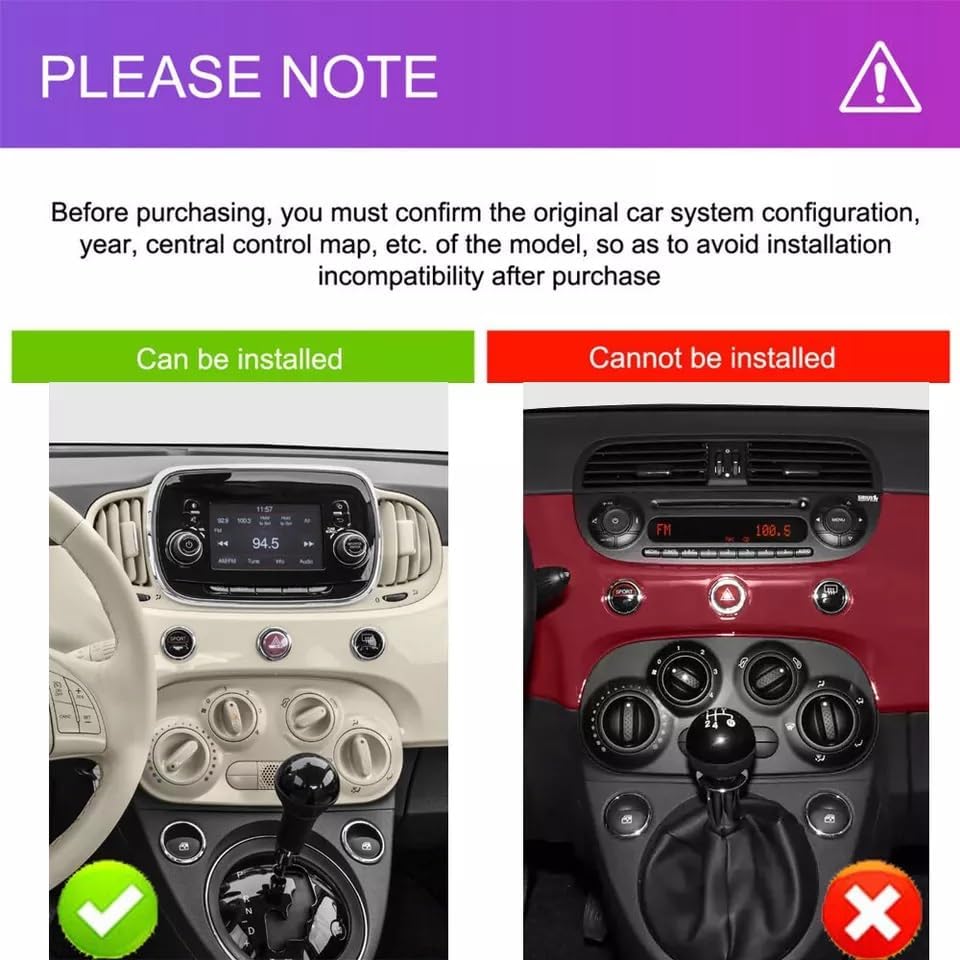
Figure 4.1: Visual guide for checking car compatibility. Ensure your car's original system matches the 'Can be installed' example.
4.2 Wiring Diagram
Refer to the following image for the correct wiring connections. Ensure all cables are securely connected to their respective ports on the car radio and your vehicle's harness.

Figure 4.2: Detailed view of the car radio's rear connections and wiring harness.
For detailed installation instructions, please refer to the included instruction manual or contact customer support if you have questions.
5. Operating Instructions
5.1 Bluetooth Connection
To connect your smartphone via Bluetooth for hands-free calling and audio streaming, follow these steps:
- On the car radio, navigate to the Bluetooth settings.
- Enable Bluetooth on your smartphone and search for available devices.
- Select "CarBT" (or similar device name) from the list on your phone.
- Enter the PIN "0000" if prompted.
- Once connected, "Phone audio" and "Media audio" should be displayed on the car radio, indicating a successful connection. If not, restart the Bluetooth on both devices.
Video 5.1: Demonstrates the process of connecting your smartphone to the car stereo via Bluetooth for audio and calls.
The car radio supports Bluetooth 5.0 for stable and fast connections, ensuring clear communication and high-quality music playback. It includes a built-in microphone and supports external microphones for enhanced call clarity.

Figure 5.1: Features including Bluetooth hands-free calling, FM/RDS radio, and Hi-Fi sound settings.
5.2 Wireless CarPlay & Android Auto (ZLINK)
This unit supports both wireless Apple CarPlay and Android Auto via the ZLINK application. This allows you to seamlessly integrate your smartphone's features onto the car radio's large screen.
- Open the "ZLINK" application on the car radio.
- Ensure your phone's Wi-Fi and Bluetooth are enabled.
- The system will prompt you to connect. If the connection is not successful, manually connect to the car radio's Wi-Fi hotspot (e.g., "AndroidAP_B442").
- Once connected via Wi-Fi, the ZLINK app should automatically establish the CarPlay/Android Auto connection.
- If issues persist after manual Wi-Fi connection, delete the car radio's Wi-Fi history record on your phone and try connecting via ZLINK again.

Figure 5.2: Overview of CarPlay, Android Auto, and Mirror Link capabilities.

Figure 5.3: Visual representation of wireless CarPlay, Android Auto, and Mirror Link in action.
5.3 GPS Navigation & WiFi Connectivity
The car radio features a dual navigation system, supporting both offline and online maps. Connect to Wi-Fi to access online maps, real-time traffic updates, and other internet-dependent applications.
- To use online maps, connect the car radio to a Wi-Fi hotspot (e.g., from your smartphone).
- Navigate to "Settings" > "Network & Internet" > "Wi-Fi hotspot" on the car radio to set up or connect to a hotspot.
- Once connected, you can use pre-installed navigation apps or download others from the Play Store.
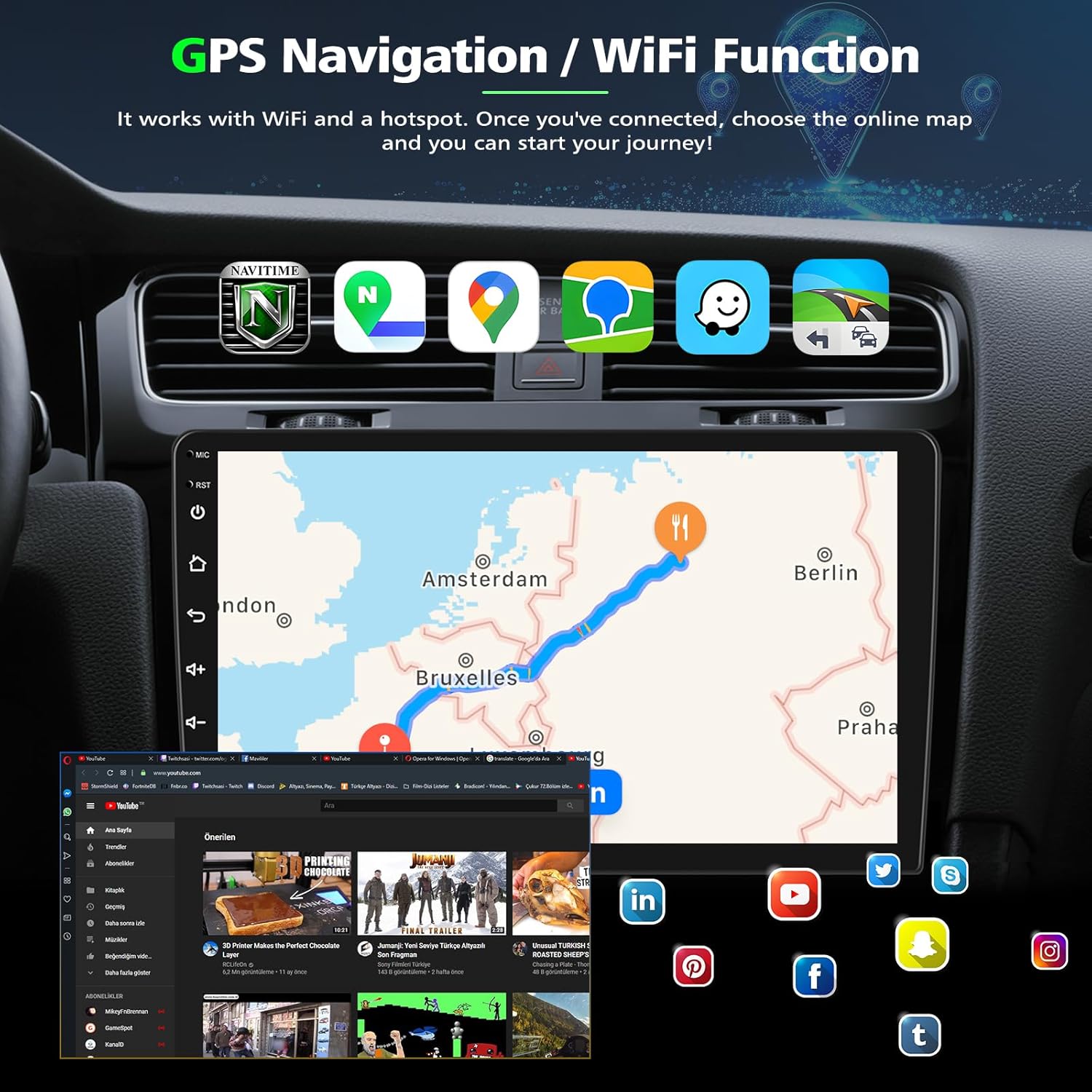
Figure 5.4: GPS Navigation and Wi-Fi Functionality interface.

Figure 5.5: GPS Navigation and Wi-Fi capabilities, including access to online maps and various applications.
5.4 Steering Wheel Control (SWC)
The unit supports steering wheel controls, allowing you to manage audio and calls without taking your hands off the wheel. This feature enhances driving safety and convenience.

Figure 5.6: Steering Wheel Control interface for custom button mapping.

Figure 5.7: Visualizing Rear View Camera, Steering Wheel Control, and Split Screen features.
5.5 Backup Camera Display
The included AHD backup camera provides a clear 1080p full HD image with a 170° wide-angle lens, IP68 waterproof rating, and night vision. The display automatically switches to the rear view when the vehicle is in reverse, assisting with safe parking.

Figure 5.8: Reverse Display showing the backup camera view with parking assistance lines.
5.6 Split Screen Functionality
The split-screen feature allows you to run two applications simultaneously on the 7-inch display. For example, you can have navigation on one side and music playback on the other, enhancing convenience and multitasking.
Figure 5.9: Demonstrating the split screen feature with navigation and music playing concurrently.
5.7 Voice Control
Utilize voice commands through Siri or Google Assistant (via CarPlay/Android Auto) to control your phone's functions, such as making calls, navigating, or playing music, providing a safer and more intuitive user experience.
Figure 5.10: Voice control integration for hands-free operation.
6. Maintenance
To ensure the longevity and optimal performance of your PHEZEN Car Radio, follow these maintenance guidelines:
- Cleaning the Screen: Use a soft, lint-free cloth to gently wipe the touchscreen. For stubborn smudges, slightly dampen the cloth with water or a screen-safe cleaner. Avoid abrasive materials or harsh chemicals.
- Dust Removal: Regularly use a soft brush or compressed air to remove dust from vents and button crevices to prevent overheating and maintain functionality.
- Software Updates: Periodically check for software updates provided by PHEZEN to ensure your system has the latest features and bug fixes. Follow the instructions provided with the update carefully.
- Avoid Extreme Temperatures: Do not expose the unit to extreme hot or cold temperatures for prolonged periods, as this can affect electronic components and the screen.
- Secure Connections: Occasionally check that all cables connected to the unit are secure and free from damage. Loose connections can lead to intermittent issues.
7. Troubleshooting
If you encounter any issues with your car radio, please refer to the following common troubleshooting steps:
| Problem | Possible Cause | Solution |
|---|---|---|
| No Power | Loose power connection; Blown fuse; Vehicle battery issue. | Check power cables and connections. Inspect vehicle's fuse box and replace any blown fuses. Ensure car battery is charged. |
| No Sound | Volume too low; Mute activated; Speaker wiring issue; Incorrect audio output settings. | Increase volume. Check if mute is on. Verify speaker wiring connections. Adjust audio output settings in the system menu. |
| Bluetooth Not Connecting | Bluetooth not enabled; Device not discoverable; Incorrect pairing PIN; Interference. | Ensure Bluetooth is on for both devices. Make sure the car radio is in pairing mode. Use PIN "0000". Try restarting both devices. |
| CarPlay/Android Auto Not Working | Incorrect Wi-Fi/Bluetooth connection; ZLINK app issue; Phone compatibility. | Verify Wi-Fi and Bluetooth connections. Ensure ZLINK app is updated. Clear Wi-Fi history on phone and reconnect. Check phone's compatibility with CarPlay/Android Auto. |
| GPS Signal Lost | GPS antenna obstruction; Poor satellite reception; Software glitch. | Ensure GPS antenna has a clear view of the sky. Move to an open area. Restart the unit. Check for map updates. |
| Touchscreen Unresponsive | Temporary software freeze; Physical damage. | Perform a soft reset (refer to manual for specific steps). If issue persists, contact support. |
If the problem persists after attempting these solutions, please contact our customer support for further assistance.
8. Warranty and Support
PHEZEN is committed to providing reliable products and excellent customer service. Your car radio comes with a manufacturer's warranty. For specific warranty terms and conditions, please refer to the documentation included with your purchase.
For any questions regarding installation, operation, or troubleshooting, our dedicated after-sales support team is ready to assist you. You can reach us by clicking the store name "UZZO-PHEZEN" on the product page, then selecting "Ask a question" and leaving a message to the seller. We aim to respond within 24 hours to help resolve your issue.
We value your satisfaction and are here to ensure you have the best possible experience with your PHEZEN Car Radio.
Ask a question about this manual
Ask about setup, troubleshooting, compatibility, parts, safety, or missing instructions. Manuals+ will review the question and use this page’s manual context to help answer it.