
JIAN BOLAND T200
JIAN BOLAND T200 Biometric Time Clock Instruction Manual
1. Introduction
The JIAN BOLAND T200 is a biometric time clock designed for efficient employee attendance tracking in small businesses. It offers multiple check-in methods including fingerprint, RFID badge, and PIN, with no monthly fees or software subscriptions required. This manual provides detailed instructions to help you set up, operate, and maintain your device effectively.

Image: JIAN BOLAND T200 Biometric Time Clock with an RFID card being swiped, showing the display and keypad.
2. Package Contents
Please verify that all items listed below are included in your package:
- JIAN BOLAND T200 Biometric Time Clock Unit
- Power Adapter
- Mounting Bracket
- Instruction Manual
- 8GB USB Disk
- 5 x RFID ID Cards
- Screws for Mounting
- Data Cable

Image: An exploded view showing all items included in the JIAN BOLAND T200 package.
3. Product Features
The JIAN BOLAND T200 Biometric Time Clock offers a range of features designed for convenience and accuracy:
- Biometric Verification: Supports fingerprint, RFID badge, and PIN for secure and flexible clocking in/out.
- Dedicated IN/OUT Buttons: Separate buttons for clocking in and out help prevent duplicate punches and ensure accurate attendance records.
- Offline Operation: The device operates independently without requiring Wi-Fi or network connectivity. Attendance data is managed via USB transfer.
- Automated Reporting: Automatically generates Excel attendance reports for various pay periods, including weekly, bi-weekly, bi-monthly, and monthly.
- User-Friendly Interface: Features voice prompts for guidance and supports 11 languages, including English, German, Arabic, Spanish, French, and Portuguese.
- Cost-Effective Solution: Operates with no monthly fees or additional software costs, providing a low-cost time and attendance solution.
- Flexible Installation: Can be easily mounted on a wall or placed on a desktop using the included bracket.
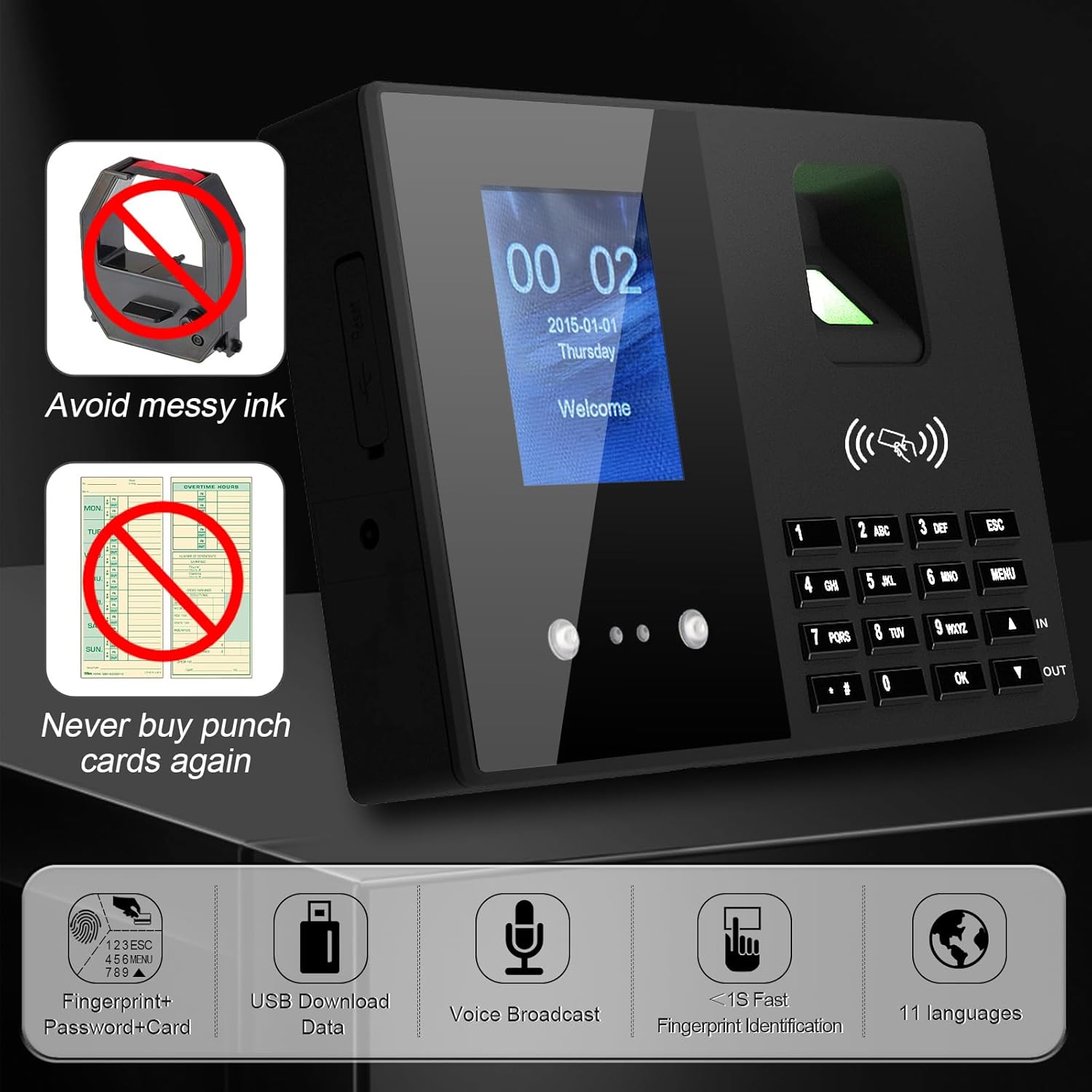
Image: Key features of the JIAN BOLAND T200 Time Clock.
4. Components Overview
Familiarize yourself with the main components of your JIAN BOLAND T200 Time Clock:

Image: Detailed diagram labeling the various parts of the JIAN BOLAND T200 Time Clock.
- LCD Screen: Displays time, date, menu options, and user prompts.
- Fingerprint Collector: Sensor for fingerprint recognition.
- RFID Swipe Zone: Area for scanning RFID ID cards.
- Keypad: For entering PINs, navigating menus, and inputting data.
- MENU Button: Accesses the main system menu.
- IN/OUT Buttons: Used to specify clock-in or clock-out actions.
- OK/Enter Button: Confirms selections and entries.
- ESC Button: Returns to the previous menu or cancels an action.
- U Disk Interface: USB port for data transfer.
- Power Connector: For connecting the power adapter.
- Mounting Holes: For wall installation.

Image: Side view of the JIAN BOLAND T200 Time Clock, showing the USB disk interface and power connector.
5. Setup Instructions
5.1 Unpacking and Placement
Carefully unpack all components from the box. Choose a suitable, stable location for the time clock. It can be placed on a desktop or mounted on a wall using the provided bracket and screws.
5.2 Power Connection
Connect the power adapter to the time clock's power connector and plug it into a standard electrical outlet. The device will power on automatically.
5.3 Initial Configuration
- Upon first power-on, the device may prompt you for initial setup. Use the keypad and 'OK' button to navigate.
- Set the correct date and time. Refer to the device's on-screen menu for specific date/time settings.
- Select your preferred operating language from the available options (e.g., English, German, Spanish).
5.4 Administrator Registration
Register at least one administrator. An administrator has privileges to manage employee data and system settings. This typically involves registering a fingerprint, RFID card, or PIN. Follow the on-screen prompts to complete administrator registration.
5.5 Employee Registration
For each employee, register their preferred check-in method (fingerprint, RFID card, or PIN). Ensure each registration is unique and clearly associated with the employee.
- To register a fingerprint: Place the employee's finger firmly on the fingerprint collector. The device will guide you through multiple scans for accuracy.
- To register an RFID card: Swipe the provided RFID card over the designated swipe zone.
- To register a PIN: Enter a unique numerical PIN using the keypad and confirm.

Image: Illustration of the four check-in methods supported by the JIAN BOLAND T200.
6. Operation
6.1 Clocking In/Out
Employees can clock in or out using their registered method:
- Press the 'IN' button before clocking in or the 'OUT' button before clocking out.
- Present your registered fingerprint to the collector, swipe your RFID card, or enter your PIN.
- The device will provide a voice prompt or on-screen confirmation of a successful punch.

Image: Demonstrating fingerprint and RFID card usage on the JIAN BOLAND T200.
6.2 Data Management (USB Transfer)
To download attendance records and generate reports:
- Insert the provided USB disk into the U Disk Interface on the side of the time clock.
- Navigate to the 'Reports' or 'Data Download' section in the device's menu.
- Select the desired date range or pay period (weekly, bi-weekly, bi-monthly, monthly) for the report.
- Confirm the download. The device will generate an Excel report file on the USB disk.
- Remove the USB disk and transfer the data to a computer for review and payroll processing.

Image: Process of downloading attendance data via USB to a computer.
6.3 Modifying Excel Reports
Please note that modifying the generated Excel reports may require an authorization password. For assistance with this, contact JIAN BOLAND customer support.
7. Maintenance
7.1 Cleaning
Regularly wipe the device with a soft, dry cloth to remove dust and smudges. Avoid using abrasive cleaners, solvents, or harsh chemicals, as these can damage the device's surface or internal components. Keep the fingerprint collector clean and free of dust or debris for optimal performance.
7.2 Battery
The device includes a C battery for backup power. This battery helps retain system settings and attendance data during power outages. Replace the battery as needed to ensure continuous data protection.
8. Troubleshooting
If you encounter issues with your JIAN BOLAND T200 Time Clock, refer to the following common problems and solutions:
- Issue: Device does not power on.
Solution: Ensure the power adapter is securely connected to both the device and a working power outlet. Check the power outlet with another device to confirm it is functional. - Issue: Fingerprint recognition failure.
Solution: Ensure the fingerprint collector is clean and free of moisture or debris. Try re-registering the fingerprint, ensuring the finger is placed firmly and consistently during the registration process. Ensure the employee's finger is clean and dry. - Issue: RFID card not recognized.
Solution: Ensure the card is correctly placed over the designated swipe zone. Verify that the card is properly registered to an employee in the system. Try re-registering the card if necessary. - Issue: Incorrect date or time displayed.
Solution: Access the system settings menu (usually via the 'MENU' button) and manually adjust the date and time. Ensure the internal backup battery is functional to maintain settings during power interruptions. - Issue: Unable to download data to USB.
Solution: Ensure the USB disk is properly inserted into the U Disk Interface and is formatted correctly (FAT32 is generally recommended). Check if the USB disk has sufficient free space. Try a different USB disk if issues persist. - Issue: Difficulty understanding menu options or functions.
Solution: Verify that the language setting is correct. Refer to this instruction manual (physical copy or digital) for detailed explanations of menu navigation and function descriptions.
9. Specifications
| Feature | Detail |
|---|---|
| Brand | JIAN BOLAND |
| Model | T200 |
| Display Type | LCD |
| Check-in Methods | Fingerprint, RFID, PIN |
| Maximum User Capacity | 2000 |
| Fingerprint Capacity | 3000 |
| Record Capacity | 200,000 |
| Card Capacity | 1000 |
| Operating Temperature | 0°C – 45°C |
| Rated Voltage | DC5V2A |
| Product Dimensions | 7"W x 5"H |
| Item Weight | 6.4 ounces |
| Power Source | Corded Electric |
| Batteries | 1 C battery required (included) |
| Mounting Type | Tabletop and wall mount |
| Supported Languages | 11 languages including English, German, Arabic, Spanish, French, Portuguese |

Image: Dimensions and technical capacities of the JIAN BOLAND T200 Time Clock.
10. Warranty and Support
For technical assistance, troubleshooting, or inquiries regarding the authorization password for Excel report modification, please contact JIAN BOLAND customer support. Refer to the contact information provided with your product packaging or on the official JIAN BOLAND website for the most up-to-date support details.
Ask a question about this manual
Ask about setup, troubleshooting, compatibility, parts, safety, or missing instructions. Manuals+ will review the question and use this page’s manual context to help answer it.