
TOPTRO TP1
TOPTRO TP1 Smart Projector User Manual
Model: TP1
1. Introduction
This manual provides detailed instructions for the setup, operation, and maintenance of your TOPTRO TP1 Smart Projector. The TP1 is designed to deliver a high-quality home cinema experience with its native 1080P resolution, 4K decoding support, integrated smart system with licensed streaming applications, Dolby Audio, and advanced connectivity options.
2. Product Overview
2.1 Package Contents
- TOPTRO TP1 Smart Projector
- Power Cord
- HDMI Cable
- Remote Control
- User Manual
- Cleaning Kit
2.2 Key Features
- Officially Licensed Streaming Apps: Access Netflix, Prime Video, YouTube, and more directly.
- Dolby Audio Support: Enhanced sound experience with built-in 2*10W speakers.
- Native 1080P Resolution: Full HD display with 4K video decoding capability.
- 800 ANSI Lumens: Bright and clear image projection.
- 360° Adjustable Stand: Flexible projection angles for various surfaces.
- Auto Focus & Auto Keystone: Automatic image correction for quick setup.
- WiFi 6 & Two-Way Bluetooth 5.2: Fast wireless connectivity and versatile audio options.
- Multiple Installation Methods: Supports ceiling, desktop, tripod, and wall mounting.

Image 2.1: The TOPTRO TP1 Smart Projector, showcasing its compact design and integrated stand. Key features such as Netflix, 1080P, Dolby Audio, and Auto Focus are visually represented around the projector.
3. Setup Guide
3.1 Power Connection
- Connect the power cord to the projector's power input port.
- Plug the other end of the power cord into a suitable electrical outlet.
- Press the power button on the projector or remote control to turn on the device.
3.2 Initial Placement
Position the projector on a stable surface. The 360° adjustable stand allows for flexible placement, including projecting onto walls or ceilings. Ensure the projection path is clear of obstructions.
3.3 Remote Control
Insert two AAA batteries (not included) into the remote control. Point the remote control towards the projector's IR receiver for optimal response.
3.4 Network Connection
- Upon first startup, follow the on-screen prompts to select your language and region.
- Navigate to the network settings and select your desired Wi-Fi network.
- Enter the Wi-Fi password to establish a connection. The projector supports Wi-Fi 6 (5G/2.4G dual-band) for stable streaming.
4. Operating Instructions
4.1 Smart System Navigation
The TOPTRO TP1 features an intelligent system with pre-installed applications. Use the remote control's directional buttons and 'OK' button to navigate the interface. The home screen provides access to streaming services, apps, and settings.

Image 4.1: The projector displaying its smart interface, featuring icons for Netflix, YouTube, Prime Video, Hulu, Plex, and an open browser, accessible via the remote control.
4.2 Streaming Applications
Directly access officially licensed applications such as Netflix, Prime Video, and YouTube. Log in with your existing accounts to enjoy a wide range of content. Ensure a stable internet connection for optimal streaming performance.
4.3 Media Playback
The projector supports playback from various sources:
- USB Drive: Insert a USB drive into the USB port to play local media files.
- HDMI Input: Connect external devices like laptops, gaming consoles (PS5), or TV sticks via the HDMI port.
- Wireless Screen Mirroring: Connect iOS and Android smartphones or iPads wirelessly (Google phones are not supported for direct mirroring).
5. Connectivity
5.1 Wi-Fi 6
The TP1 is equipped with the latest Wi-Fi 6 technology, supporting both 5G and 2.4G dual-band frequencies. This ensures a smoother and more stable wireless connection for streaming and online activities.
5.2 Two-Way Bluetooth 5.2
The two-way Bluetooth 5.2 functionality allows the projector to:
- Connect to External Speakers: Pair with Bluetooth-enabled speakers for enhanced audio output.
- Act as a Bluetooth Speaker: Stream audio from your phone or laptop to the TP1, utilizing its built-in speakers.

Image 5.1: The TOPTRO TP1 Projector demonstrating its Wi-Fi 6 and two-way Bluetooth 5.2 capabilities, showing wireless connection to external speakers and a smartphone for gaming.
5.3 Physical Ports
The projector includes the following ports:
- HDMI Port: For connecting devices like Fire TV Stick, Roku, laptops, and gaming consoles.
- USB Port: For connecting USB drives.
- 3.5mm Headphone Jack: For connecting wired headphones or external speakers.
5.4 CEC & ARC Functions
The HDMI port supports CEC (Consumer Electronics Control) and ARC (Audio Return Channel) functions:
- CEC: Allows you to control connected HDMI devices (e.g., a TV stick) using the projector's remote control. To enable, select the HDMI signal source, enter settings via the remote's menu button, and turn on CEC.
- ARC: Enables audio output from the projector to an ARC-compatible speaker or soundbar connected via HDMI. Ensure the external audio device is set to HDMI ARC mode.
6. Audio Features
The TOPTRO TP1 is equipped with advanced audio capabilities to enhance your viewing experience.
6.1 Dolby Audio Support
Experience rich and clear sound effects with Dolby Audio support, providing an immersive audio environment for movies and music.
6.2 Built-in Speakers
The projector features two integrated 10W speakers, delivering robust sound output suitable for most environments. For larger spaces or enhanced audio, external speakers can be connected via Bluetooth or the 3.5mm audio jack.

Image 6.1: The TOPTRO TP1 Projector creating an immersive audio experience with Dolby Audio, projecting an image of a cellist with sound waves illustrating the audio output.
7. Image Adjustment
The TP1 projector offers several features for optimizing image quality and projection alignment.
7.1 Auto Focus
The projector automatically adjusts the focus to ensure a sharp and clear image. This feature activates upon startup or when the projector is moved.
7.2 Auto Keystone Correction
The auto keystone function automatically corrects vertical image distortion, ensuring a rectangular screen even when the projector is placed at an angle.
7.3 4-Point Correction
For precise image alignment, the 4-point correction feature allows manual adjustment of each corner of the projected image to achieve a perfect rectangular shape.
7.4 Digital Zoom (50%-100%)
Adjust the size of the projected image from 100% down to 50% without physically moving the projector, providing flexibility for various screen sizes and distances.

Image 7.1: Visual representation of the projector's Auto Focus, Auto Vertical Keystone, 4-Point Correction, and Digital Zoom capabilities, ensuring a clear and properly aligned image.
7.5 Projection Throw Ratio
With a 1.1:1 projection throw ratio, the TP1 can project a large screen even in small spaces, making it suitable for various room sizes.
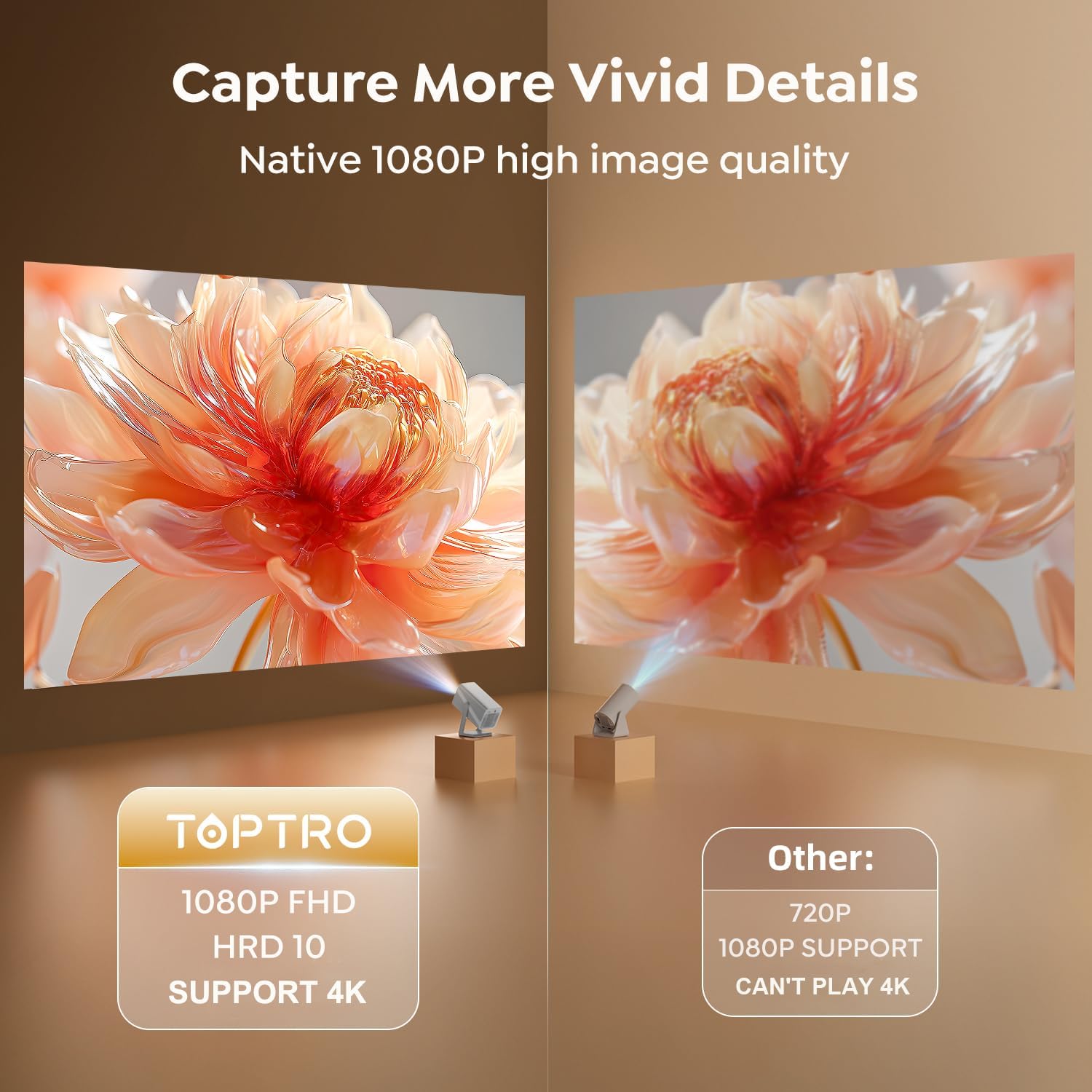
Image 7.2: A side-by-side comparison illustrating the superior clarity and detail of the TOPTRO TP1's native 1080P FHD image quality compared to a standard 720P projector.
8. Installation Methods
The TOPTRO TP1 projector offers versatile installation options to suit different environments and preferences.
8.1 360° Rotatable Stand
The integrated 360° rotatable stand allows you to easily adjust the projection angle, enabling projection onto walls, ceilings, or floors without additional accessories.

Image 8.1: The TOPTRO TP1 Projector positioned to project an image onto the ceiling, highlighting the flexibility of its 360° adjustable stand.
8.2 Mounting Options
The projector supports various mounting configurations:
- Desktop/Tabletop: Place the projector on a flat surface.
- Tripod: Utilize the 1/4'' screw hole on the base to mount the projector on a tripod.
- Ceiling Mount: Secure the projector to the ceiling using a compatible mount (sold separately).
- Wall Mount: Attach the projector to a wall using a compatible mount (sold separately).
9. Specifications
| Feature | Specification |
|---|---|
| Brand | TOPTRO |
| Model Number | TP1 |
| Product Dimensions | 24 x 12.2 x 11.6 cm |
| Item Weight | 1.1 kg |
| Colour | Silver |
| Form Factor | Portable |
| Native Screen Resolution | 1920 x 1080 (FHD) |
| Maximum Display Resolution | 3840 x 2160 (4K Decoding) |
| Brightness | 800 ANSI Lumens |
| Display Type | LCD |
| Connectivity Technology | 3.5mm Jack, Bluetooth 5.2, HDMI, USB, Wi-Fi 6 (5G/2.4G) |
| Voltage | 110 Volts |
| Wattage | 60 watts |
| Special Features | 360° Rotatable Stand, Auto Keystone Correction, Precise Focus, Digital Zoom, Built-in Officially-Licensed Apps (Netflix/Prime Video/YouTube), Dolby Audio, Built-In 2*10W Speakers, Two-way Bluetooth 5.2 |
| Recommended Uses | Education, Gaming, Home Cinema |
| Mounting Type | Ceiling/Floor/Tabletop/Wall Mount |
10. Troubleshooting
This section addresses common issues you might encounter with your TOPTRO TP1 projector.
10.1 No Image or Blurry Image
- Check Power: Ensure the projector is properly connected to power and turned on.
- Auto Focus: Allow the projector a few seconds to perform auto-focus. If still blurry, manually adjust focus via settings.
- Keystone Correction: Verify auto keystone correction is active or perform 4-point correction manually if the image is distorted.
- Lens Cleanliness: Use the provided cleaning kit to gently clean the projector lens.
10.2 No Sound
- Volume Level: Check the projector's volume settings and ensure it is not muted.
- External Audio: If using external speakers, ensure they are properly connected (Bluetooth or 3.5mm jack) and their volume is adjusted. For ARC, confirm the external device is set to HDMI ARC mode.
- Source Audio: Verify the audio output settings on your connected source device (e.g., laptop, TV stick).
10.3 Wi-Fi Connection Issues
- Network Availability: Ensure your Wi-Fi network is active and within range.
- Password: Double-check the Wi-Fi password for accuracy.
- Router Restart: Try restarting your Wi-Fi router.
- Signal Interference: Move the projector closer to the router or away from potential interference sources.
10.4 Remote Control Not Responding
- Batteries: Replace the batteries in the remote control.
- Line of Sight: Ensure there is a clear line of sight between the remote and the projector's IR receiver.
11. Warranty and Support
TOPTRO is committed to providing reliable products and excellent customer service.
11.1 Warranty Information
- 1-Year Money-Back Guarantee: If you are not satisfied with your purchase, you may be eligible for a full refund within one year.
- 3-Year Free Replacement Warranty: The projector is covered by a three-year warranty for free replacement in case of manufacturing defects.
- Lifetime Technical Support: TOPTRO provides professional technical support for the lifetime of the product.
11.2 Contact Support
Should you encounter any issues or require assistance, please refer to the quick guide included in your package for contact details. TOPTRO aims to provide a solution within 24 hours of your inquiry.
Related documentsTP1


Ask a question about this manual
Ask about setup, troubleshooting, compatibility, parts, safety, or missing instructions. Manuals+ will review the question and use this page’s manual context to help answer it.