
Introduction
Welcome to the user manual for your new OnePlus 13s smartphone. This guide provides essential information on setting up, operating, maintaining, and troubleshooting your device. The OnePlus 13s combines powerful performance with advanced AI features and a compact design.
- Elite Performance: Powered by the Snapdragon 8 Elite processor, the OnePlus 13s delivers high performance for demanding tasks, supported by a Cryo-Velocity cooling system.
- Smarter Everyday: Experience OxygenOS 15 with integrated OnePlus AI features like AI Plus Mind, Intelligent Search, and Google Gemini for enhanced productivity and organization.
- Extended Battery Life: Equipped with a 5850mAh battery and 80W SUPERVOOC Fast Charge, ensuring long-lasting power and quick recharging.
- Compact Design: Features a 16.05cm (6.32-inch) ProXDR display in an ergonomic form factor, offering a comfortable viewing and handling experience.
- Advanced Camera System: Capture clear images with a 32MP autofocus front camera and dual 50MP rear cameras, including features like Clear Burst.
- Enhanced Connectivity: Includes an independent G1 Wi-Fi chipset, 5.5G support, and a 360-degree antenna system for reliable network connections.
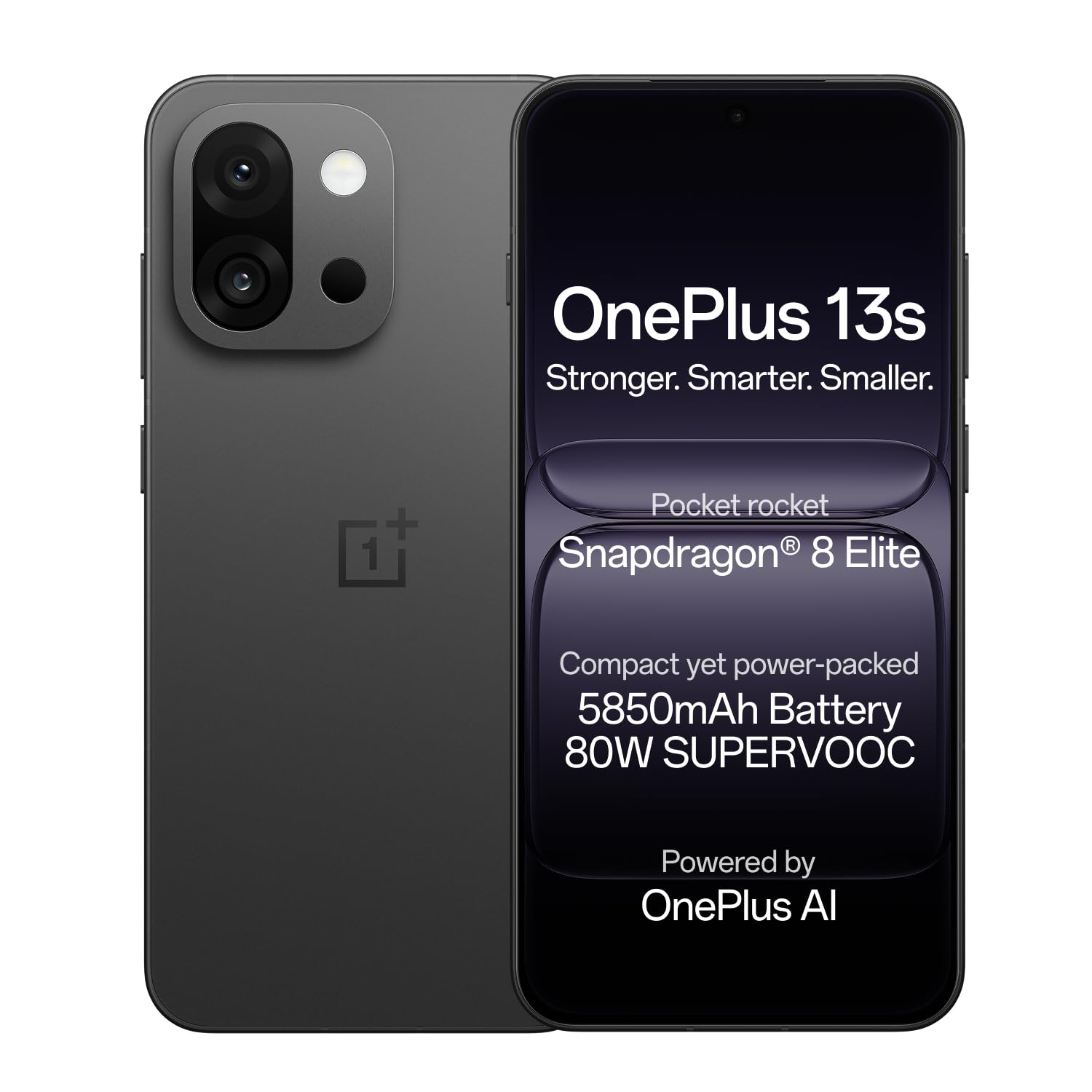
Image: OnePlus 13s smartphone in Black Velvet.
Setup Guide
1. Unboxing and Initial Inspection
Carefully unbox your OnePlus 13s. Verify that all components are present and undamaged.
Box Contents:
- OnePlus 13s Smartphone
- Power Adapter
- USB Cable
- SIM Tray Ejector
- Phone Case
- Screen Protector (pre-applied or in box)
2. Inserting the SIM Card
- Locate the SIM card tray on the side of your device.
- Insert the SIM tray ejector tool into the small hole next to the tray and press gently until the tray pops out.
- Place your Nano SIM card(s) into the tray with the gold contacts facing down. The OnePlus 13s supports Dual SIM.
- Carefully reinsert the SIM tray into the phone until it clicks into place.

Image: Side view of the OnePlus 13s, indicating the SIM tray location.
3. Initial Power On and Setup
- Press and hold the Power button (usually on the right side) until the OnePlus logo appears.
- Follow the on-screen instructions to select your language, connect to Wi-Fi, and set up your Google account.
- Configure security features such as fingerprint recognition and a screen lock (PIN, pattern, or password).
4. Charging the Device
Before first use, it is recommended to fully charge your OnePlus 13s. Use the provided 80W SUPERVOOC Power Adapter and USB Cable for optimal charging speed.
- Connect the USB cable to the power adapter and then to the USB Type-C port on your phone.
- Plug the power adapter into a wall outlet.
- The device will indicate charging status on the screen. A full charge takes approximately 63 minutes.

Image: Internal view of the OnePlus 13s highlighting the 5850mAh battery and SUPERVOOC charging.
Operating Instructions
1. Basic Navigation
- Touchscreen: Interact with the device using taps, swipes, pinches, and long presses on the 120Hz ProXDR AMOLED display.
- Fingerprint Recognition: Unlock your device quickly and securely using the in-display fingerprint sensor.
- Power Button: Press to lock/unlock the screen. Press and hold to power off or restart the device.
- Volume Buttons: Adjust media volume, call volume, and notification volume.
2. OxygenOS 15 and AI Features
Your OnePlus 13s runs on OxygenOS 15, which includes several AI-powered enhancements:
- AI Plus Mind: Organize schedules, events, and information efficiently.
- Intelligent Search: Power your search using natural, conversational prompts.
- AI Voice Scribe: Record, translate, and summarize VoIP and video calls across applications.
- Google Gemini: Utilize Google's personal AI assistant for various tasks, including writing, planning, and learning.

Image: OxygenOS 15 interface demonstrating the AI Plus Mind feature.

Image: OxygenOS 15 interface demonstrating the AI Search feature.
3. Camera Usage
The OnePlus 13s features a versatile camera system for capturing photos and videos.
- Rear Cameras: Dual 50MP sensors for high-resolution photos and 20x digital zoom.
- Front Camera: 32MP with autofocus for clear selfies and video calls.
- Clear Burst: Utilize this feature to capture fast-moving subjects without missing key moments.
- AI Unblur: Automatically unblur photos of people or pets.
- AI Detail Boost: Enhance sharp details, even when zooming in on images.

Image: Detailed view of the OnePlus 13s camera module, showing 50MP AF Wide, 50MP AF Telephoto, and 32MP AF Front cameras.

Image: Demonstration of the AI Unblur feature, showing a blurred and unblurred photo of a cat.
4. Connectivity
The OnePlus 13s supports various connectivity options:
- Cellular: 5G network support for fast mobile data.
- Wi-Fi: Independent G1 Wi-Fi chipset for enhanced wireless performance.
- Bluetooth: For connecting wireless accessories.
- NFC: For contactless payments and quick pairing.
- USB Type-C: For charging and data transfer.

Image: Internal view of the OnePlus 13s, emphasizing the independent Wi-Fi chipset for next-gen connectivity.
Maintenance
1. Battery Care
- To prolong battery lifespan, avoid extreme temperatures.
- Use only the official OnePlus 80W SUPERVOOC charger and cable.
- Avoid completely draining the battery frequently.
2. Software Updates
Regularly check for and install software updates to ensure optimal performance, security, and access to new features. Updates are delivered via OxygenOS 15.
- Go to Settings > About device > OxygenOS.
- Tap Check for updates and follow the on-screen prompts.
3. Cleaning Your Device
- Use a soft, lint-free cloth to clean the screen and body.
- Avoid harsh chemicals or abrasive materials.
- The device is water resistant; however, avoid intentional submersion.
Troubleshooting
If you encounter issues with your OnePlus 13s, try the following common troubleshooting steps:
- Device Not Responding: Press and hold the Power button for about 10-15 seconds to force a restart.
- Charging Issues: Ensure the charger and cable are securely connected and undamaged. Try a different power outlet.
- App Crashes: Clear the cache and data for the problematic app (Settings > Apps > [App Name] > Storage > Clear cache/Clear data). If the issue persists, reinstall the app.
- Network Connectivity: Toggle Airplane Mode on and off. Restart your device. Check your SIM card insertion. For Wi-Fi, forget the network and reconnect.
- Slow Performance: Close unnecessary background apps. Clear system cache (refer to online guides for your specific OxygenOS version). Consider a factory reset as a last resort (back up your data first).
For persistent issues, refer to the Support section for contact information.
Specifications
| Feature | Detail |
|---|---|
| Brand | OnePlus |
| Model | 13s |
| Operating System | Android 15, OxygenOS |
| CPU Model | Snapdragon 8 Elite (4.32 GHz) |
| RAM Memory | 12 GB |
| Storage Capacity | 256 GB |
| Display Size | 6.32 Inches |
| Display Type | AMOLED, 120Hz ProXDR |
| Resolution | 2640×1216 Pixels (460 PPI) |
| Rear Camera | Dual 50 MP (Optical Sensor Resolution) |
| Front Camera | 32 MP (Autofocus) |
| Battery Capacity | 5850 mAh (Lithium-Ion) |
| Charging | 80W SUPERVOOC Fast Charge (63 mins for full charge) |
| Connectivity | 5G, Wi-Fi (Independent G1 chipset), Bluetooth, NFC, USB Type C |
| Biometric Security | Fingerprint Recognition |
| Water Resistance | Water Resistant |
| Dimensions | 15.1 x 7.2 x 0.8 Centimeters |
| Weight | 185 Grams |
| Model Year | 2025 |
Warranty Information
Your OnePlus 13s comes with the following warranty coverage:
- Manufacturer Warranty: 1 year manufacturer warranty for the device from the date of purchase.
- Accessories Warranty: 1 year manufacturer warranty for in-box accessories, including batteries, from the date of purchase.
- Lifetime Display Warranty: OnePlus provides a lifetime display warranty for industry-wide greenline issues.
Please retain your proof of purchase for warranty claims. For detailed terms and conditions, refer to the official OnePlus website or contact customer support.

Image: Information regarding the OnePlus Lifetime Display Warranty.
Support
For further assistance or inquiries, please contact OnePlus Customer Service:
- Customer Service Contact Number: 1800 102 8411
- WhatsApp Support: +91-9289606888
- Manufacturer Address: OPPO Mobiles India Private Limited, PLOT-NO.1, SECTOR ECOTECH-VII, GREATER, NOIDA, UTTAR PRADESH, India-201306
- Visit the Official OnePlus Support Website


