
Introduction
This manual provides detailed instructions for the setup, operation, maintenance, and troubleshooting of your wisecoco 7.84 Inch Mini Monitor. This device is designed as a secondary display for Windows 10/11 systems, offering a 1280x400 HD IPS screen with a single USB-C cable connection.
Package Contents
Before proceeding, please verify that all items are present in your package:
- 1 x wisecoco 7.84 Inch Mini Monitor
- 1 x USB A to USB C Cable
- 1 x User Manual

Image: Package contents of the wisecoco 7.84 Inch Mini Monitor, including the monitor, USB A to USB C cable, and user manual.
Setup Instructions
Follow these steps to set up your wisecoco Mini Monitor:
- Connect the Monitor: Connect the mini monitor to your PC or laptop using the provided USB A to USB C cable. The monitor will initially display a white screen with the wisecoco logo.
- Access USB Drive: On your PC, navigate to "This PC" and locate the USB Drive (typically labeled G: or similar) that represents the monitor's internal storage.
- Install Driver: Open the USB Drive and run the "AicUsbDisplayDriverV0.8.9.exe" file to install the necessary display driver. Follow the on-screen prompts to complete the installation.
- Complete Setup: Once the driver installation is complete, the monitor will display correctly, mirroring or extending your main display.

Image: Step-by-step guide for installing the USB display driver for the wisecoco 7.84 Inch Mini Monitor on Windows 10/11.
Important Note: This monitor is compatible with Windows 10/11 only. Driver installation is mandatory for correct display functionality.
Driver Installation Video Guide
Video: A short video demonstrating the driver installation process for the wisecoco 7.84 Inch Mini Monitor on a Windows PC.
Operating Instructions
Display Modes
The monitor supports various display modes to suit your needs:
- Extend Mode: Extends your desktop across both screens, providing more workspace.
- Duplicate Mode: Mirrors your main display, showing the same content on both screens.
- Secondary Screen Mode: Functions as an independent secondary display.
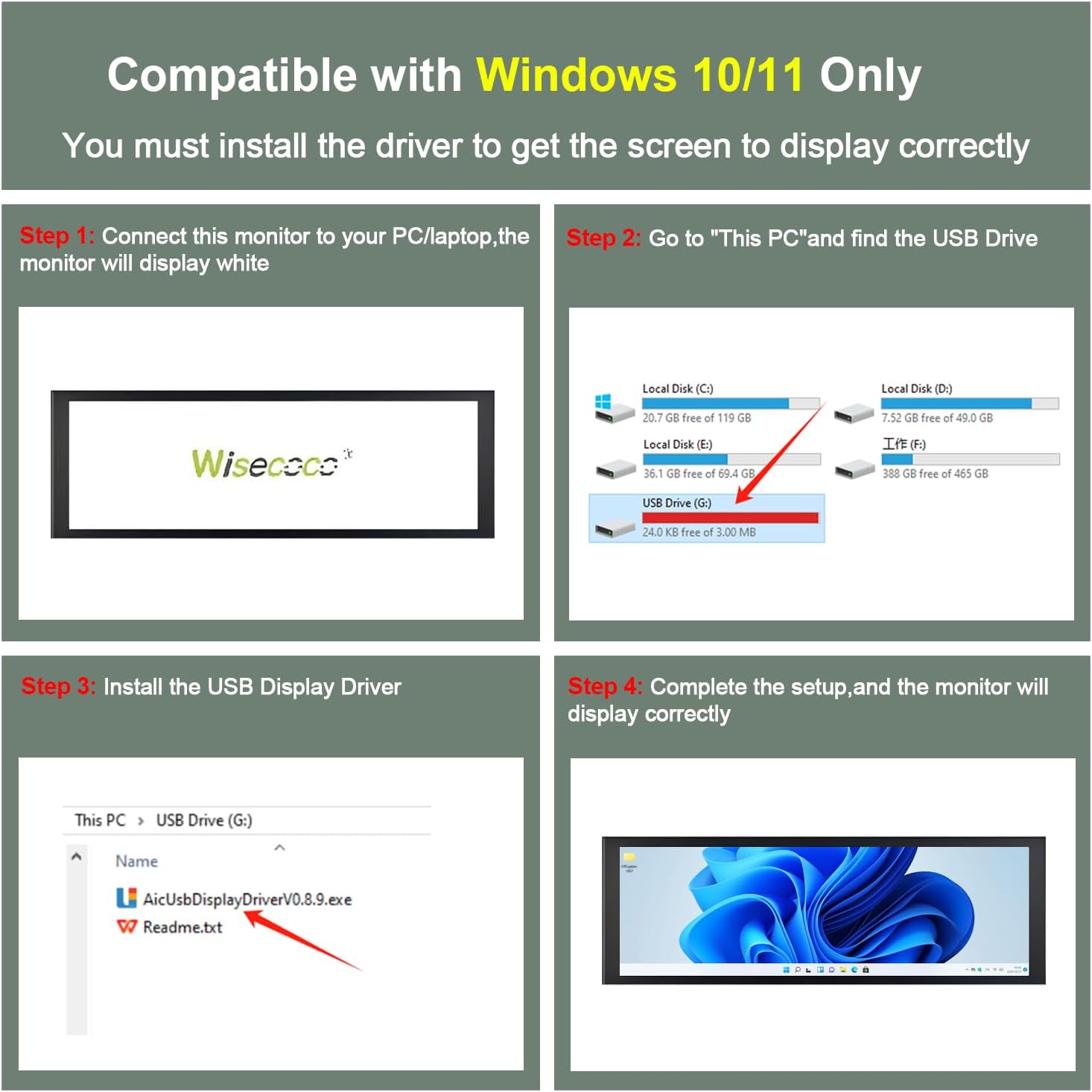
Image: wisecoco 7.84 Inch Mini Monitor demonstrating duplicated, extended, and secondary screen modes.
Orientation Support
The monitor supports both horizontal and vertical orientations. You can adjust the display settings in Windows to match your physical setup.
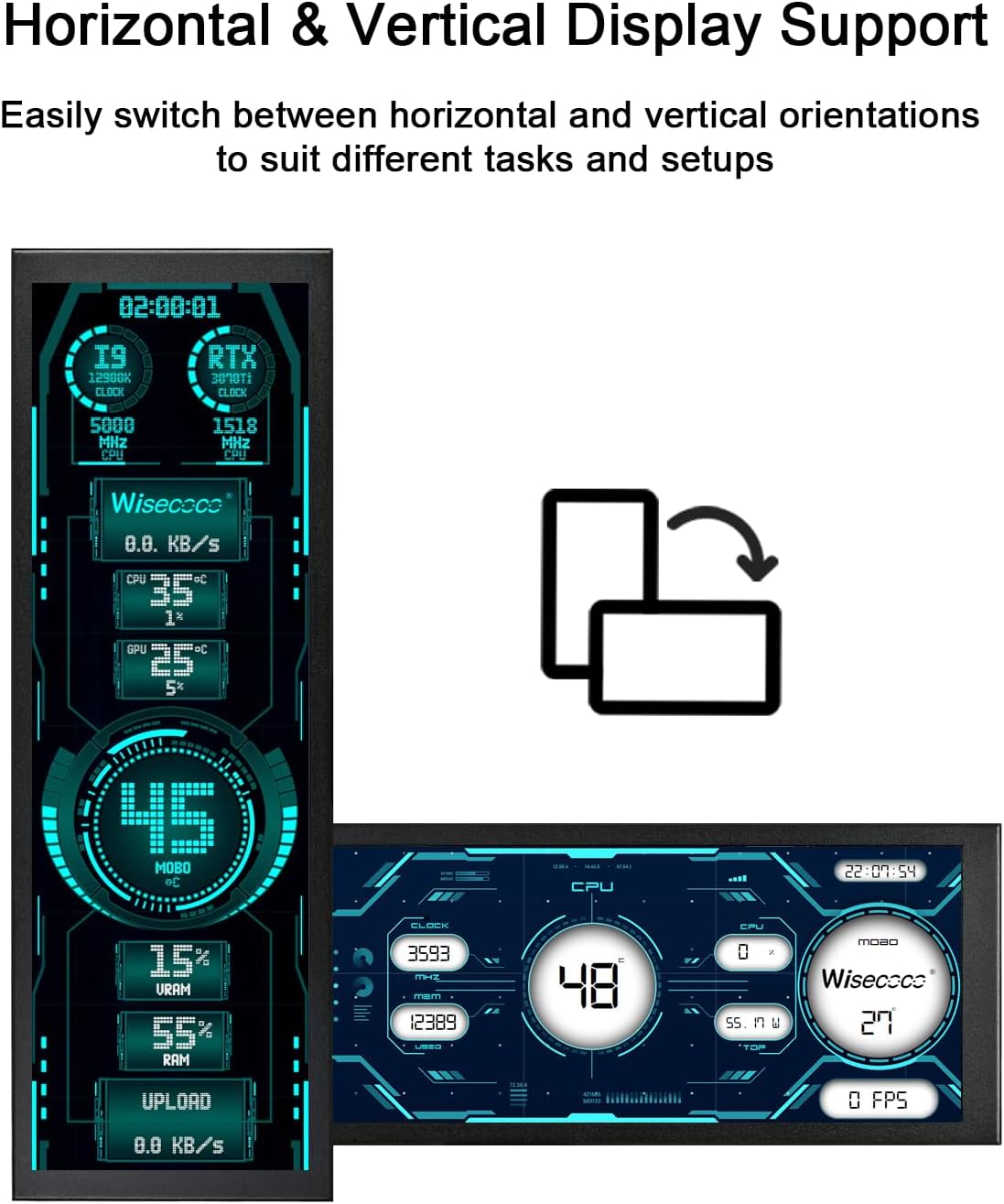
Image: wisecoco 7.84 Inch Mini Monitor demonstrating horizontal and vertical display support.
Brightness Adjustment
A brightness adjustment button is located on the monitor for easy control of display brightness.

Image: Dimensions of the wisecoco 7.84 Inch Mini Monitor, showing length, width, and height, with an arrow pointing to the brightness adjustment button.
Software Recommendations
For sensor panel display functionality, software such as Aida64 and Wallpaper Engine are recommended. These applications allow you to customize the information displayed on the mini monitor, such as CPU/GPU temperature, usage, and other system metrics.
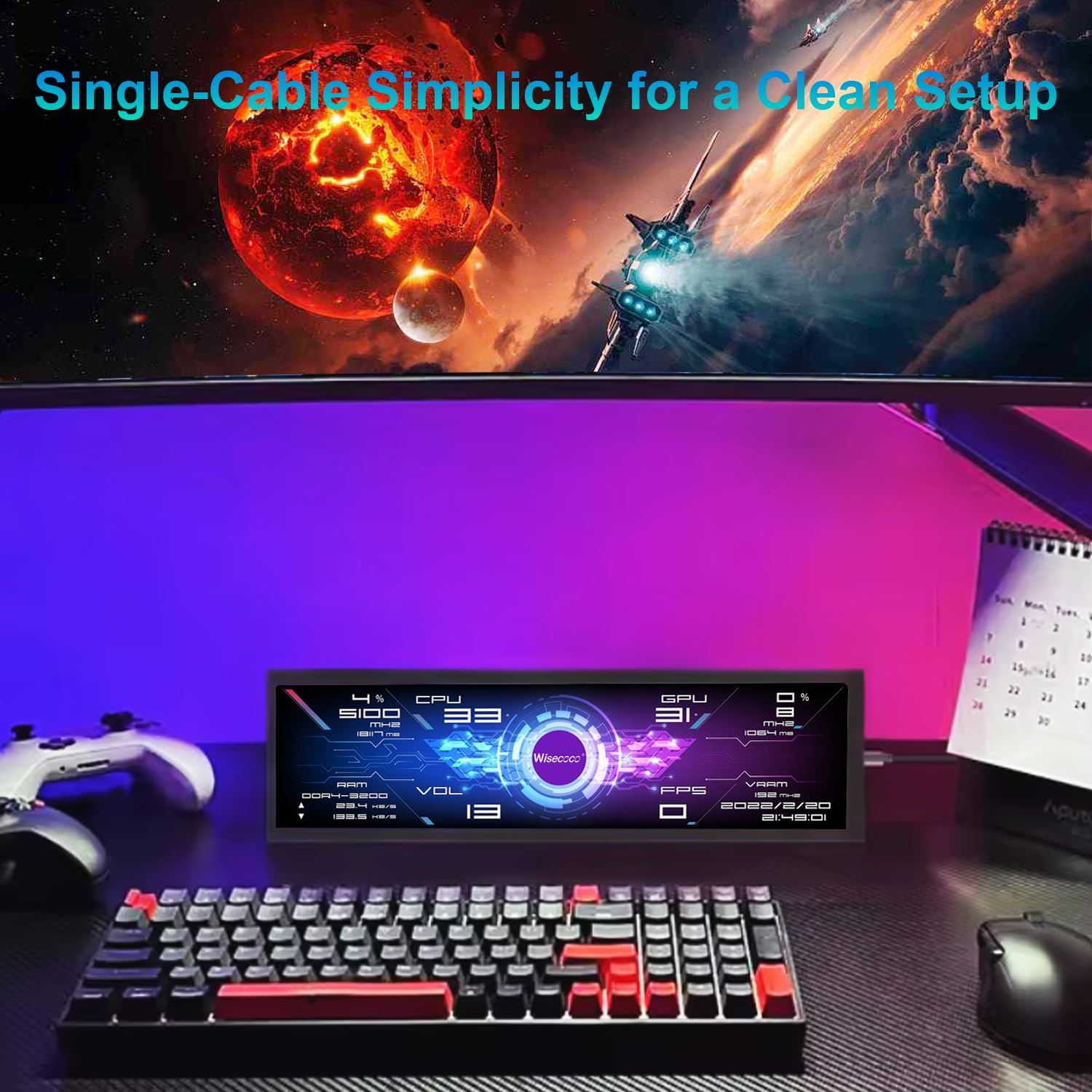
Image: wisecoco 7.84 Inch Mini Monitor integrated into a PC setup, displaying system monitoring data using Aida64 or similar software.
Maintenance
To ensure the longevity and optimal performance of your monitor, follow these maintenance guidelines:
- Cleaning: Use a soft, lint-free cloth slightly dampened with water or a screen cleaner specifically designed for electronics. Avoid harsh chemicals or abrasive materials.
- Storage: When not in use for extended periods, store the monitor in a cool, dry place away from direct sunlight and extreme temperatures.
- Handling: Handle the monitor with care to prevent physical damage. Avoid dropping or subjecting it to strong impacts.
- Ventilation: Ensure proper airflow around the monitor to prevent overheating.
Troubleshooting
If you encounter issues with your wisecoco Mini Monitor, refer to the following common problems and solutions:
| Problem | Solution |
|---|---|
| Monitor displays white screen or no image after connection. | Ensure the USB A to USB C cable is securely connected to both the monitor and your PC. Verify that the display driver has been correctly installed as per the Setup Instructions. Restart your PC if necessary. |
| Monitor is not detected by Windows. | Check the USB cable connection. Try a different USB port on your PC. Reinstall the display driver. Ensure your PC is running Windows 10 or 11. |
| Image is distorted or flickering. | Ensure the display driver is up to date. Check for any loose cable connections. Adjust display settings in Windows (resolution, refresh rate). |
| Cannot adjust brightness. | Use the physical brightness adjustment button on the monitor. If the issue persists, ensure the driver is installed correctly. |
Specifications
Key technical specifications for the wisecoco 7.84 Inch Mini Monitor:
| Feature | Detail |
|---|---|
| Brand | wisecoco |
| Model Number | R0784WX02 |
| Screen Size | 7.84 Inches |
| Resolution | 1280x400 Pixels (HD) |
| Aspect Ratio | 65:24 |
| Display Type | LCD (IPS Panel) |
| Refresh Rate | 60 Hz |
| Response Time | 5 Milliseconds |
| Brightness | 350 Candela |
| Viewing Angle | 178 Degrees |
| Connectivity | USB Type C |
| Item Dimensions (D x W x H) | 0.8"D x 8.2"W x 2.7"H |
| Operating System Compatibility | Windows 10/11 Only |
Warranty and Support
Your wisecoco Mini Monitor comes with a 12-month warranty from the date of purchase. wisecoco also offers a 30-day money-back guarantee. For any questions, technical assistance, or warranty claims, please contact wisecoco customer support through the retailer where the product was purchased.


