
Introduction
The LEOBOG F99 Pro is a versatile mechanical keyboard designed for both work and gaming. It features a 99-key layout, RGB backlighting, hot-swappable switches, and multiple connectivity options. This manual provides detailed instructions for setting up, operating, maintaining, and troubleshooting your keyboard.

Image: LEOBOG F99 Pro Mechanical Keyboard showcasing its custom design and key features like Gasket Structure, Pre-lubed Linear Switches, RGB Backlit, 8000mAh Battery, PBT Keycaps, Hot Swappable, and 96% Layout with Numpad.
Package Contents
- 1x LEOBOG F99 Pro Mechanical Keyboard
- 2x PBT Keycaps (for customization)
- 1x User Manual
- 1x USB-C Cable
- 1x 2.4GHz Wireless Receiver
- Keycap/Switch Puller (included for hot-swapping)
Setup
1. Charging the Keyboard
Before first use, fully charge the keyboard using the provided USB-C cable. Connect the USB-C end to the keyboard and the USB-A end to a power source (e.g., computer USB port, wall adapter). The keyboard features an 8000mAh battery for extended use.
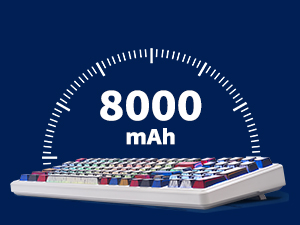
Image: An illustration indicating the 8000mAh battery capacity of the keyboard.
2. Connection Modes
The LEOBOG F99 Pro supports three connection modes: Bluetooth 5.0, 2.4GHz Wireless, and USB-C Wired.

Image: The LEOBOG F99 Pro keyboard displaying its triple-mode connection capabilities (BT5.0, 2.4GHz, USB-C Wired) and compatibility with various devices like Windows, Mac, iOS, Android, Xbox, PC, Laptops, and Tablets.
2.1. 2.4GHz Wireless Connection
- Locate the 2.4GHz USB receiver, usually stored in a compartment on the keyboard.
- Plug the receiver into an available USB port on your computer.
- Switch the keyboard's mode selector to "2.4G" (if available, otherwise it might auto-detect).
- The keyboard should connect automatically.
2.2. Bluetooth Connection
- Switch the keyboard's mode selector to "BT".
- Press and hold Fn + 1, Fn + 2, or Fn + 3 for 3-5 seconds to enter pairing mode. The indicator light will flash rapidly.
- On your device (PC, laptop, tablet, smartphone), go to Bluetooth settings and search for "LEOBOG F99 Pro".
- Select the keyboard to pair. The indicator light will become solid once connected.
- You can pair up to three Bluetooth devices and switch between them using Fn + 1/2/3.
2.3. USB-C Wired Connection
- Connect the provided USB-C cable to the keyboard's USB-C port.
- Connect the other end of the cable to a USB port on your computer.
- Switch the keyboard's mode selector to "USB" or "Wired".
- The keyboard will function as a wired device and charge simultaneously.
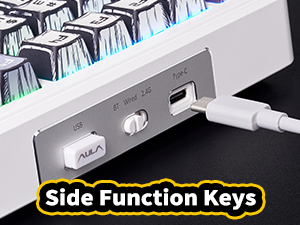
Image: A close-up of the keyboard's side, showing the USB-C port and connection switch for wired mode.
Operating Instructions
1. Function Key Combinations (Fn)
The Fn key allows access to secondary functions printed on certain keycaps. Common combinations include:
- Fn + F1-F12: Multimedia controls (e.g., volume, play/pause, track skip).
- Fn + 1/2/3: Switch between paired Bluetooth devices.
- Fn + Backspace: Delete.
- Fn + Right Shift: Toggle lighting effects.
- Fn + Arrow Keys: Adjust lighting brightness and speed.
- Fn + Tab: Switch lighting color.
2. RGB Lighting Control
The LEOBOG F99 Pro features 16 RGB lighting effects and 16.8 million customizable colors. Use the dedicated knob or Fn key combinations to adjust lighting.
- Knob: Rotate to adjust lighting brightness or switch between lighting modes (functionality may vary based on software settings). Press the knob to turn RGB on/off.
- Fn + Right Shift: Cycle through different RGB lighting effects.
- Fn + Up Arrow: Increase lighting brightness.
- Fn + Down Arrow: Decrease lighting brightness.
- Fn + Left Arrow: Decrease lighting speed.
- Fn + Right Arrow: Increase lighting speed.
- Fn + Tab: Change lighting color.
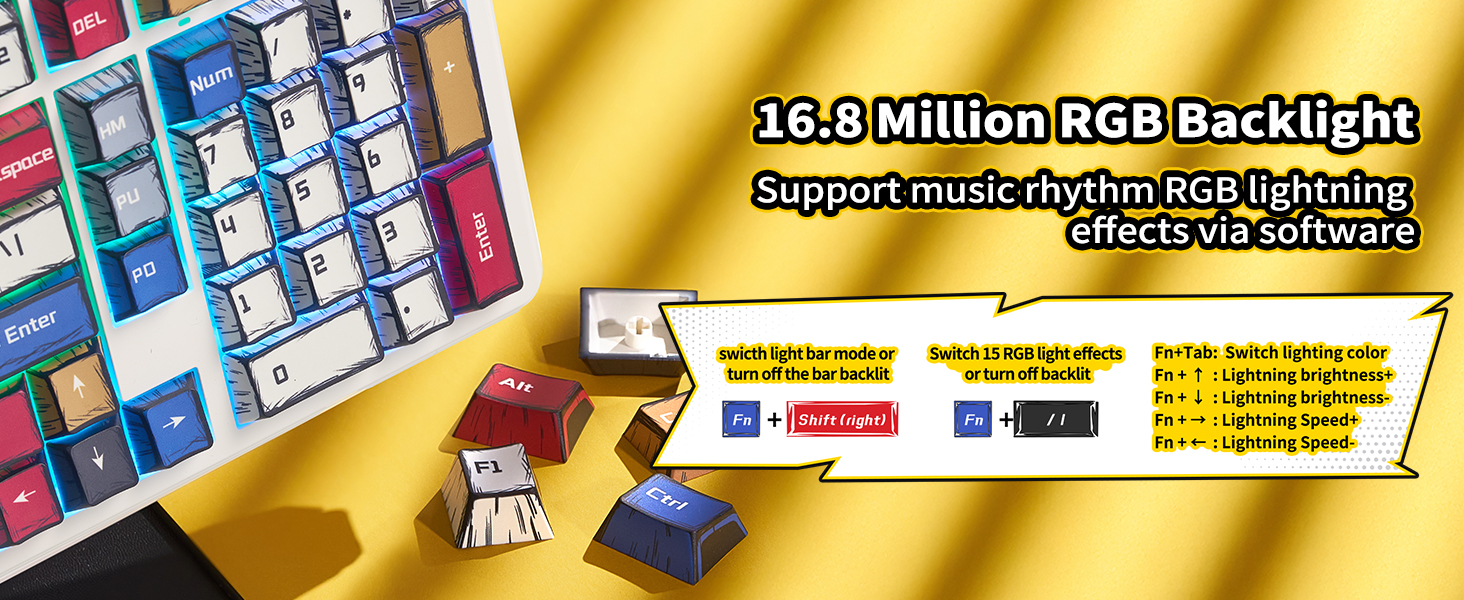
Image: The LEOBOG F99 Pro keyboard illuminated with vibrant RGB backlighting, highlighting its customizable lighting features.
3. Macro Customization
The keyboard supports macro recording and editing, as well as custom shortcut keys, via dedicated driver software. Please refer to the official LEOBOG website for software downloads and detailed instructions on macro programming.
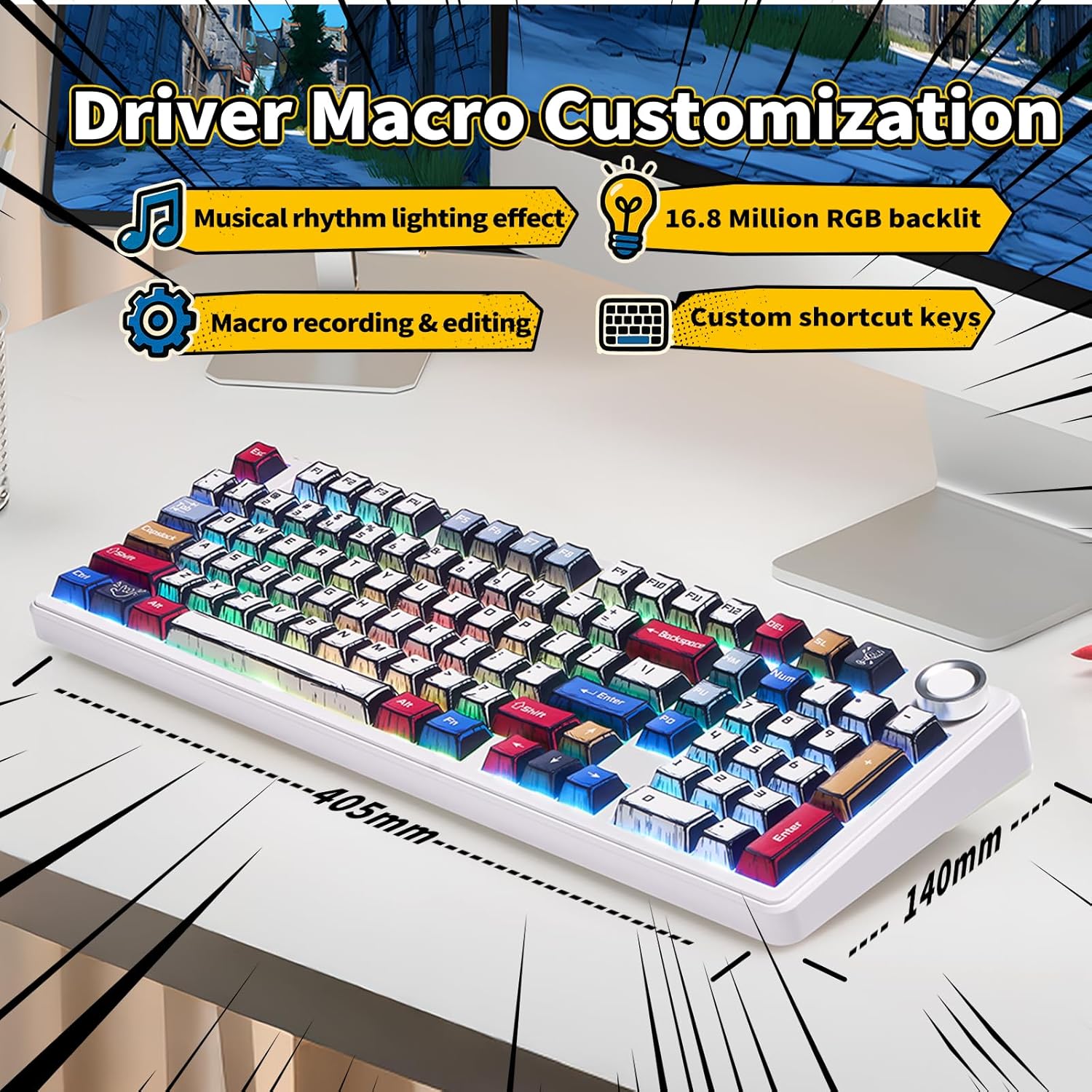
Image: A visual representation of the keyboard's macro customization features, including musical rhythm lighting effects, 16.8 million RGB backlight, macro recording & editing, and custom shortcut keys.
4. Hot-Swapping Switches and Keycaps
The F99 Pro features a hot-swappable PCB, allowing you to easily replace 3-pin or 5-pin mechanical switches without soldering. The PBT keycaps are also replaceable.
- Use the provided keycap puller to gently remove the desired keycap.
- Use the switch puller to carefully remove the switch from the PCB.
- Align the pins of the new switch with the holes on the PCB and press firmly until it clicks into place.
- Place the new keycap onto the switch stem.

Image: A close-up showing the hot-swappable feature of the keyboard, with a switch being removed and highlighting pre-lubed switches for smooth, quiet, and quick response.
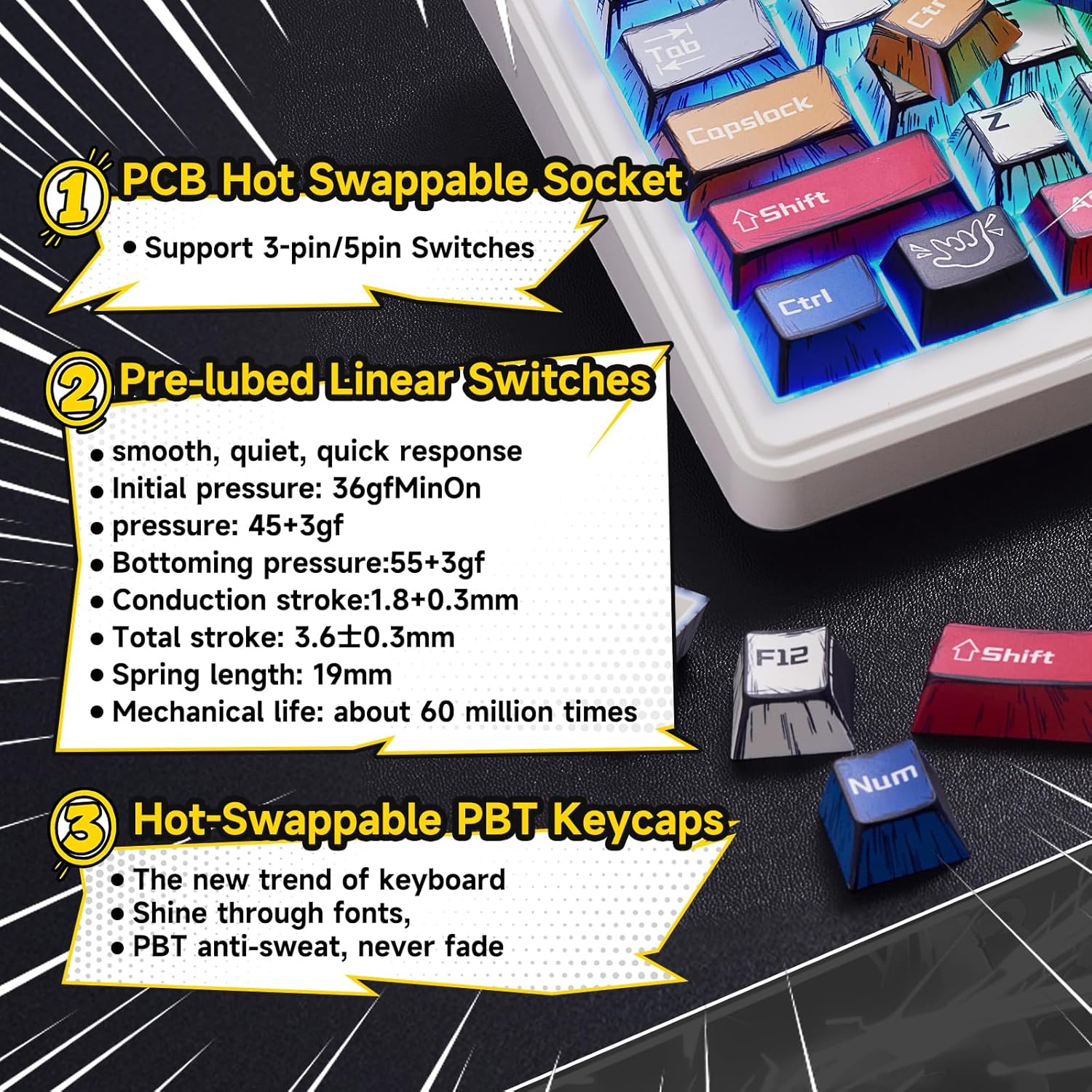
Image: Detailed view of the keyboard's internal components, emphasizing the PCB hot-swappable socket supporting 3-pin/5-pin switches, pre-lubed linear switches with specifications, and hot-swappable PBT keycaps.
Maintenance
1. Cleaning
- Disconnect the keyboard from all power sources before cleaning.
- Use a soft, lint-free cloth dampened with a small amount of water or isopropyl alcohol to wipe the keycaps and chassis.
- For deeper cleaning, remove keycaps using the keycap puller and use compressed air to clear debris from between switches.
- Avoid spraying liquids directly onto the keyboard.
2. Battery Care
- To prolong battery life, avoid fully discharging the keyboard frequently.
- Charge the keyboard regularly, especially if it will be stored for an extended period.
- The 8000mAh battery provides approximately 53 hours of use with backlighting on and up to 400 hours with backlighting off.
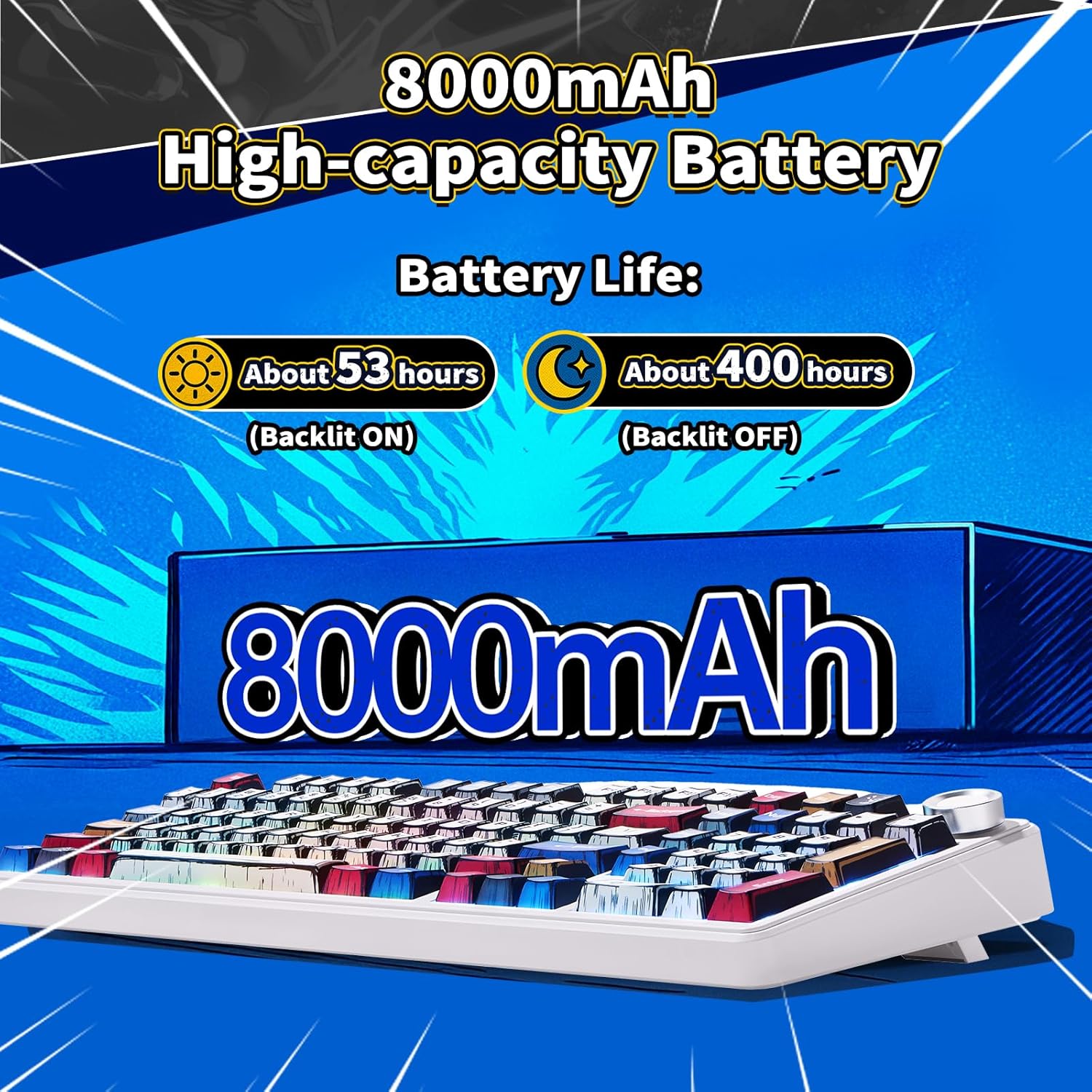
Image: A graphic illustrating the 8000mAh high-capacity battery and its estimated battery life: about 53 hours with backlight ON and about 400 hours with backlight OFF.
Troubleshooting
| Problem | Possible Solution |
|---|---|
| Keyboard not responding in wireless mode. |
|
| RGB lighting not working or stuck. |
|
| Keys not registering or double-typing. |
|
| Bluetooth connection unstable. |
|
Specifications
| Feature | Detail |
|---|---|
| Model | F99 Pro |
| Brand | LEOBOG |
| Keyboard Layout | 99 Keys (96% Compact with Numpad) |
| Connectivity | Bluetooth 5.0, 2.4GHz Wireless, USB-C Wired |
| Switches | Pre-lubed Linear (Hot-Swappable 3-pin/5-pin) |
| Keycaps | Double Shot PBT |
| Backlighting | RGB (16.8 Million Colors, 16 Effects) |
| Battery Capacity | 8000mAh |
| Battery Life (approx.) | 53 hours (backlight ON), 400 hours (backlight OFF) |
| Dimensions (L x W x H) | 16.34" x 7.09" x 1.97" |
| Weight | 3.37 Pounds |
| Compatible OS | Windows, Android, iOS, Mac, PS, XBOX |

Image: An exploded diagram illustrating the Gasket Structure of the keyboard, detailing layers like the multifunctional knob, PBT keycaps, Star vector Switch, upper cover, slotted PC positioning plate, PORON cotton, IXPE shaft underpad, PET voice actor pad, single key slotted PCBA board, PORON base cotton, silicone base pad, and bottom case.
Warranty and Support
Warranty Information
The LEOBOG F99 Pro Mechanical Keyboard comes with a 1-Year Manufacturer Warranty. This warranty covers defects in materials and workmanship under normal use. It does not cover damage caused by misuse, accidents, unauthorized modifications, or normal wear and tear.
Customer Support
For technical assistance, warranty claims, or general inquiries, please contact LEOBOG customer support through their official website or the retailer where the product was purchased. Please have your product model number (F99 Pro) and proof of purchase ready when contacting support.
Official Product Video
Video: An official product video from LEOBOG Direct showcasing the LEOBOG F99 Custom Mechanical Gaming Keyboard - Pro Version, highlighting its features and design.