
Product Overview
This manual provides detailed instructions for the Zomolither 8 Core, 4G+64G Car Stereo Radio, designed specifically for Mazda 5 models from 2005 to 2010. This unit features an Android 13 operating system, a 9-inch IPS touchscreen, wireless Apple CarPlay and Android Auto, Bluetooth 5.0, FM/RDS radio, DSP audio processing with 32-band EQ, GPS navigation, and Wi-Fi connectivity. It also supports steering wheel controls and includes an AHD backup camera for enhanced safety and convenience.
Setup and Installation
Before beginning installation, ensure your vehicle is a Mazda 5 manufactured between 2005 and 2010. The package includes all necessary components for installation. Professional installation is recommended.
Package Contents:
- Android Car Stereo (with Frame)
- AHD Backup Camera
- External Microphone
- Power Cable
- Installation Tool
- GPS Antenna
- USB Cable (Double USB interface)
- RCA Cable
- User Manual
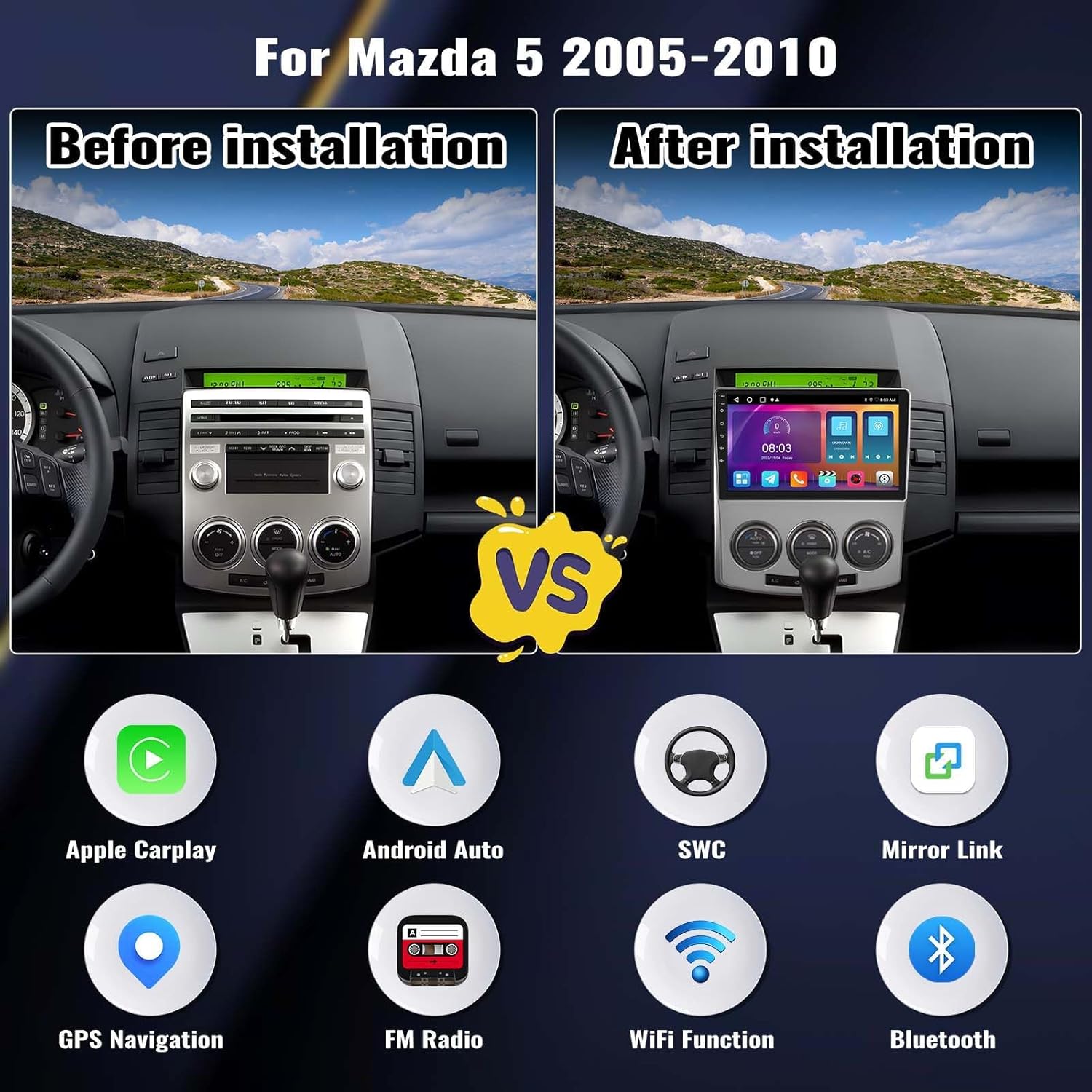
Image: Comparison of the car dashboard before and after installing the Zomolither car stereo, showing the integrated 9-inch display.

Image: Diagram illustrating the dimensions of the car stereo unit and a visual representation of all included accessories in the package.
Wiring and Connections:
- Power Cable: Connect the power cable to the vehicle's wiring harness according to the provided diagram. Ensure correct polarity.
- GPS Antenna: Mount the GPS antenna in a location with a clear view of the sky, typically on the dashboard or under the windshield.
- USB Cables: Connect the double USB interfaces for external devices or data transfer.
- External Microphone: Plug in the external microphone for improved call quality during hands-free operation.
- AHD Backup Camera: Connect the backup camera to the designated input. The screen will automatically switch to the camera view when the vehicle is in reverse.
- RCA Cables: Use RCA cables for connecting external audio/video devices if needed.
- Steering Wheel Control (SWC): After physical wiring, access the steering wheel control learning function in the system settings to map your vehicle's steering wheel buttons.
Operating Instructions
System Basics:
- Power On/Off: The unit powers on with the vehicle's ignition. Press and hold the power button (if available) for manual control.
- Touchscreen Interface: Navigate the Android 13 system using the 9-inch 1280*720 IPS capacitive touchscreen.
- User Interface (UI): Customize your experience by selecting from 59 available desktop themes. App icons can be rearranged on the home screen.

Image: The car stereo display highlighting its Android 13 operating system, 4GB RAM, 64GB ROM, 1280x720 IPS screen resolution, and 8-core processor for stable performance.

Image: A detailed breakdown of the 1280x720 IPS screen's capabilities, including its wide viewing angle, 2.5D design, customizable UI themes, responsive touch, and split-screen feature.
Wireless Apple CarPlay & Android Auto:
Connect your smartphone wirelessly via Bluetooth or using a USB cable to access Apple CarPlay or Android Auto. This allows for seamless integration of phone apps, navigation, music, and communication features directly on the car stereo display.
- Voice Control: Activate voice commands by saying "Hey Siri" for Apple CarPlay or "OK Google" for Android Auto to control functions hands-free.

Image: The car stereo screen demonstrating the interfaces for Apple CarPlay, Android Auto, and Mirror Link, with various navigation and application icons visible.
Audio Features:
- DSP Audio: Utilize the Digital Signal Processor (DSP) technology for advanced audio customization.
- 32-Band EQ: Adjust the 32-band equalizer to fine-tune sound effects, balance volume levels, and optimize audio quality to your preference.
- Bluetooth 5.0: Connect your phone for hands-free calling and wireless music streaming with improved signal strength and faster transmission.
- FM/RDS Radio: Access FM radio stations (87.50-108.0 MHz) with 18 preset stations. RDS provides additional information like station name and traffic updates.

Image: Multiple screenshots displaying the Bluetooth 5.0 calling interface, the detailed DSP and 32-band equalizer settings, various GPS navigation applications, and the FM/RDS radio tuning screen.
Navigation and Connectivity:
- GPS Navigation: The unit comes with pre-installed Google Maps. Connect to Wi-Fi for real-time traffic updates. Offline maps can be used by downloading data beforehand.
- Wi-Fi Connection: Connect to a Wi-Fi hotspot to download applications like YouTube and TikTok from the app store, and access online navigation features.

Image: The car stereo screen showing Wi-Fi connection capabilities for downloading apps and the built-in GPS receiver with support for offline maps, ensuring continuous navigation.
Backup Camera and Steering Wheel Control:
- AHD Backup Camera: The included AHD backup camera provides a 170-degree ultra-wide angle view and is waterproof. The screen automatically displays the rear view when reversing.
- Steering Wheel Control (SWC): After proper wiring and configuration in the system settings, you can control various functions of the stereo directly from your vehicle's steering wheel buttons.

Image: The top portion displays the clear view from the AHD backup camera, complete with parking guidelines. The bottom portion illustrates the process of setting up steering wheel controls on the unit.
Video Demonstration:
Video: A demonstration of the Zomolither car radio's multifunctional display, showcasing various features and user interface interactions.
Maintenance
- Screen Cleaning: Use a soft, lint-free cloth to gently wipe the touchscreen. Avoid abrasive cleaners or solvents that could damage the screen.
- Software Updates: Periodically check for system software updates via the Wi-Fi connection to ensure optimal performance and access to new features. Follow on-screen prompts for updates.
- General Care: Keep the unit free from excessive dust and moisture. Ensure all connections remain secure.
Troubleshooting
| Issue | Possible Cause | Solution |
|---|---|---|
| Unit does not power on | Incorrect power wiring; Blown fuse; Vehicle ignition off | Check power cable connections; Inspect vehicle's fuse box; Ensure vehicle ignition is on |
| No sound | Volume too low; Mute activated; Speaker wiring issue | Increase volume; Check mute setting; Verify speaker connections |
| GPS signal lost or inaccurate | GPS antenna obstructed or disconnected; Poor satellite reception | Ensure GPS antenna has clear view of sky; Check antenna connection; Move to an open area |
| Bluetooth connection issues | Bluetooth off on unit or phone; Device not paired; Interference | Enable Bluetooth on both devices; Re-pair device; Move closer to unit; Restart devices |
| Backup camera not displaying | Camera cable disconnected; Incorrect camera input selected; Faulty camera | Check camera wiring; Ensure vehicle is in reverse; Contact support if camera is faulty |
| Steering wheel controls not working | Incorrect wiring; SWC learning not completed | Verify SWC wiring; Perform SWC learning in settings |
Specifications
- System: Android 13
- Chipset: 8257 (8-Core Processor)
- Memory: 4GB RAM + 64GB ROM
- Screen Size: 9 inches
- Screen Resolution: 1280*720 IPS
- Radio Chip: 8035
- Power Output: 4*45W
- Bluetooth Version: 5.0
- Work Temperature: -20℃ to 75℃ (-4℉ to 167℉)
- Power Amplifier Chip: YD7388
- Radio Band: FM/RDS (87.50-108.0 MHz)
- Video Output: Supported
- Reversing Input: AHD/CVBS
- External Microphone: Supported
- Split Screen: Supported
- Maps: Built-in offline maps (requires internet to download data)
- WIFI: Supported
- USB: Double USB interface
- Audio Format Support: APE/FLAC/WAV/MP3/WMA etc.
- Video Format Support: MKV/RMVB/AVI/MP4/MDV etc.
- Picture Format Support: PNG/JPEG/JPG/GIF/WBMP/BNP etc.
- Factory Setting Keyword: 1234
- Supported Languages: Chinese/English/French/Italian/Korean/Japanese/Arabic/Spanish/Portuguese/Russian/Turkish/Vietnamese/Hebrew/Polish/German
- Compatible Vehicle Type: Car (Mazda 5 2005-2010)
- Supported Satellite Navigation System: BeiDou, GLONASS, GPS, Galileo
Warranty Information
The Zomolither Car Stereo Radio comes with a 1-year manufacturer's warranty from the date of purchase. This warranty covers defects in materials and workmanship under normal use.
Additionally, Zomolither offers a 30-day refund policy and 12-month replacement for eligible products. For detailed terms and conditions regarding warranty claims, refunds, or replacements, please refer to the support section or contact customer service.
Customer Support
For any concerns, questions, or technical assistance regarding your Zomolither Car Stereo Radio, please do not hesitate to contact our customer support team.
- Online Support: You can reach us via email at Zomolither@126.com.
- Compatibility Check: If you are unsure about product compatibility with your car model, please send pictures of your car's dashboard to our support team before purchase. We will assist in checking suitability and recommend any necessary upgrades.
- After-sales Service: Zomolither provides lifetime technical support for its products.