
1. Introduction
Welcome to the Raemond K80 Android 15 Tablet user manual. This document provides essential information for setting up, operating, maintaining, and troubleshooting your new tablet. Please read this manual thoroughly to ensure optimal performance and longevity of your device.
The Raemond K80 is a 10.1-inch tablet featuring the Android 15 operating system, an octa-core processor, 24GB RAM, 128GB ROM (expandable up to 1TB), and a 1280x800 IPS HD display. It supports Wi-Fi 6 and Bluetooth 5.4, and includes 5MP front and 8MP rear cameras. The tablet comes with a keyboard, mouse, and stylus for enhanced versatility.
2. What's in the Box
Upon opening your Raemond K80 package, please verify that all the following items are included:
- Raemond K80 Tablet
- Bluetooth Keyboard
- Protective Case
- Wireless Mouse
- Stylus Pen
- Charger & USB-C Cable

Image: The Raemond K80 Tablet shown with its included accessories: keyboard, protective case, mouse, stylus, and charger with cable.
3. Initial Setup
3.1 Powering On and Initial Configuration
- Charge the Tablet: Before first use, connect the tablet to the charger using the provided USB-C cable and allow it to charge fully.
- Power On: Press and hold the power button located on the side of the tablet until the Raemond logo appears on the screen.
- Follow On-Screen Prompts: The tablet will guide you through the initial setup process, including language selection, Wi-Fi connection, and Google account login.
3.2 Connecting to Wi-Fi
The Raemond K80 supports Wi-Fi 6 for fast and stable internet connectivity.
- Go to Settings > Network & Internet > Wi-Fi.
- Toggle the Wi-Fi switch to On.
- Select your desired Wi-Fi network from the list.
- Enter the network password if prompted and tap Connect.
3.3 Pairing Bluetooth Accessories
The tablet supports Bluetooth 5.4 for connecting accessories like the included keyboard and mouse.
- Ensure the Bluetooth accessory (keyboard/mouse) is in pairing mode. Refer to the accessory's specific instructions.
- On your tablet, go to Settings > Connected devices > Bluetooth.
- Toggle the Bluetooth switch to On.
- Tap Pair new device and select your accessory from the list of available devices.
- Follow any on-screen prompts to complete the pairing process.
3.4 Setting Up Screen Lock and Face Unlock
Secure your tablet with a screen lock and utilize Face Unlock for convenient access.
- Go to Settings > Security & privacy > Device unlock.
- Tap Set a screen lock and choose your preferred method (Pattern, PIN, or Password). Follow the instructions to set it up.
- For Face Unlock, tap Face Unlock and follow the on-screen instructions to register your face.
Video: Demonstrates how to access and configure security and privacy settings on the Raemond K80 tablet, including setting up a screen lock and face unlock.
4. Operating Your Tablet
4.1 Basic Navigation and Gestures
The Raemond K80 runs on Android 15, offering intuitive navigation. You can use standard touch gestures or the included stylus.
- Swipe Up: Access the app drawer.
- Swipe Down: Access quick settings and notifications.
- Tap: Select items or open apps.
- Pinch-to-Zoom: Enlarge or shrink content.
4.2 Split Screen with App Pairing
Enhance multitasking with the split-screen feature, allowing you to run two applications simultaneously.
- Open the first app you wish to use.
- Swipe up from the bottom of the screen to access recent apps.
- Tap the app icon at the top of the first app's card and select Split top.
- Choose the second app from your recent apps or app drawer to fill the other half of the screen.
Video: Illustrates the process of using the split-screen feature with app pairing on the Raemond K80 tablet for enhanced multitasking.
4.3 Three-Finger Screenshot
Quickly capture screenshots using a simple three-finger gesture.
- Ensure the feature is enabled: Go to Settings > System > Gestures > Three pointer screenshot and toggle the switch to On.
- To take a screenshot, simply swipe down on the screen with three fingers.
Video: Demonstrates how to enable and use the three-finger screenshot gesture on the Raemond K80 tablet.
4.4 Camera Operation
The tablet features a 5MP front camera and an 8MP rear camera for photos and video calls.
- Open the Camera app.
- Tap the camera icon to switch between front and rear cameras.
- Tap the shutter button to take a photo or the video icon to record.
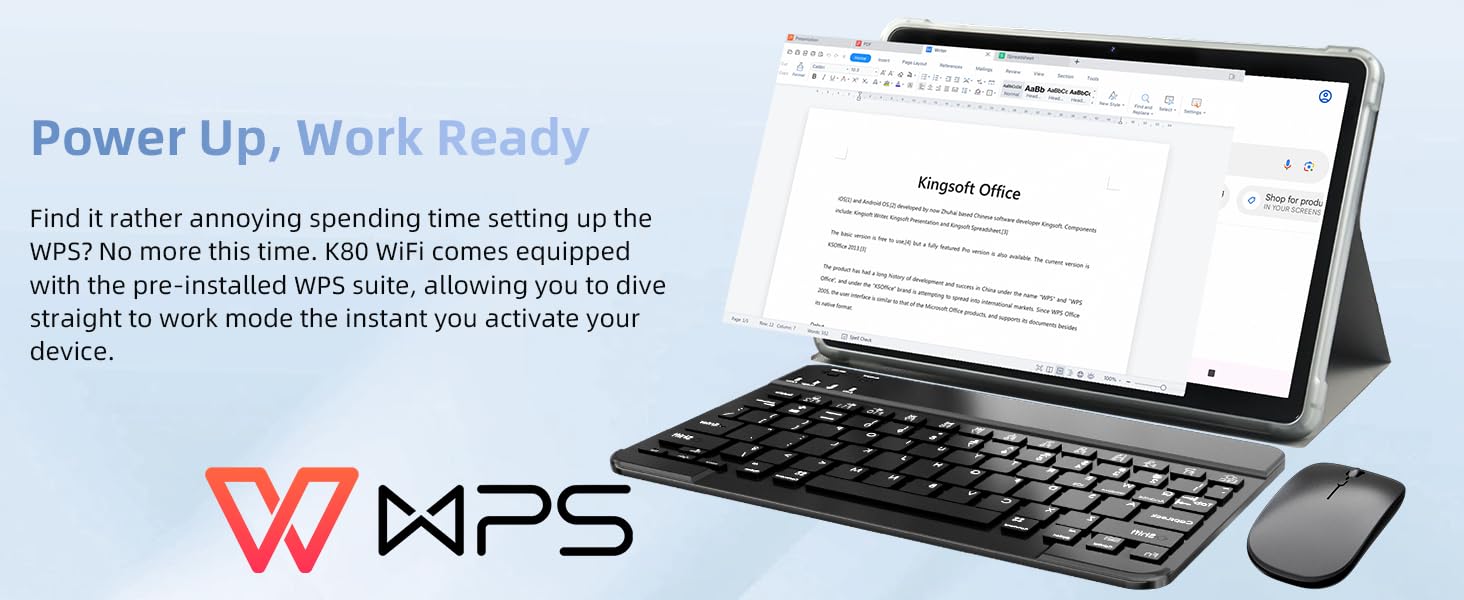
Image: Illustration highlighting the 5MP front and 8MP rear dual cameras of the Raemond K80 tablet, suitable for capturing images and video calls.
4.5 Multimedia and Entertainment
Enjoy a rich multimedia experience with the 1280x800 IPS HD display and dual smart box speakers.
- Video Playback: The tablet supports Widevine L1, ensuring crystal-clear HD content streaming from platforms like Netflix, Prime Video, YouTube, HBO, and Hulu.
- Audio: Dual smart box speakers with a smart amplifier chip (1217 series) provide enhanced sound quality. A 3.5mm headphone jack is also available.
- Gaming: The octa-core processor and 24GB RAM (8+16GB) provide smooth performance for games.
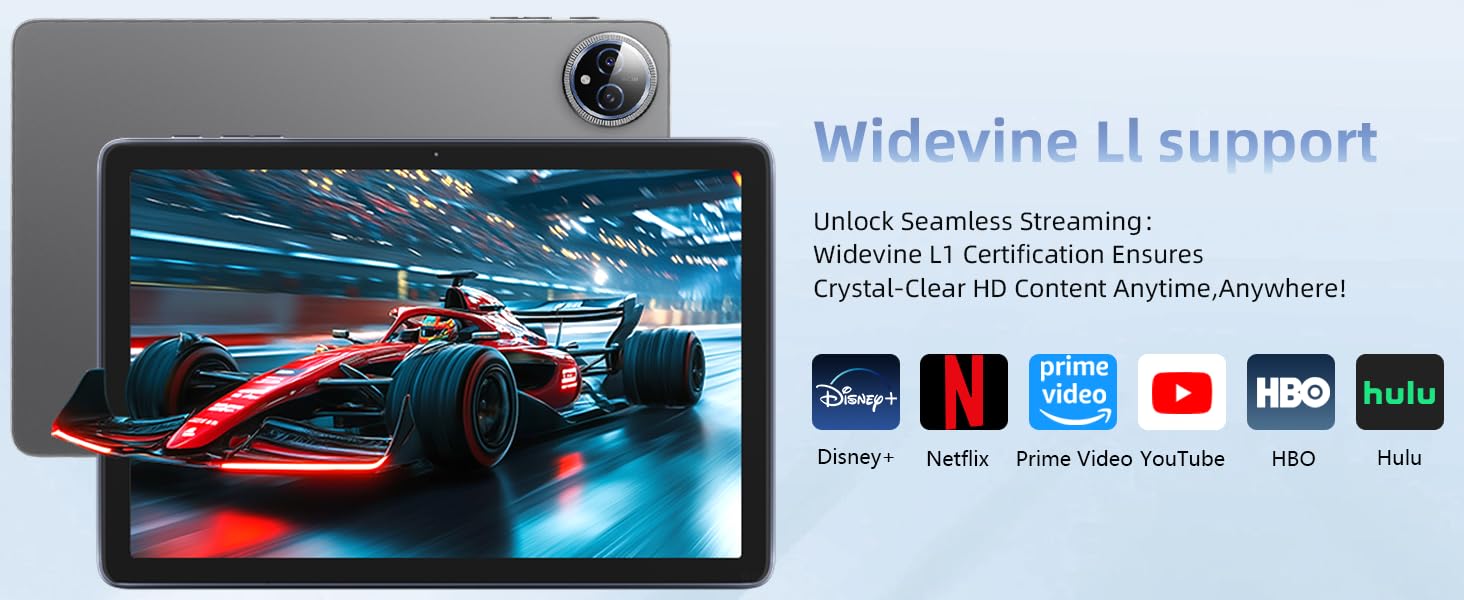
Image: The Raemond K80 tablet displaying streaming services, indicating Widevine L1 support for high-definition content.
4.6 Productivity and Storage
The Raemond K80 is equipped for productivity and offers ample storage.
- WPS Suite: Pre-installed WPS suite allows for immediate work on documents, spreadsheets, and presentations.
- Storage: 128GB internal storage, expandable up to 1TB via a microSD card (not included).
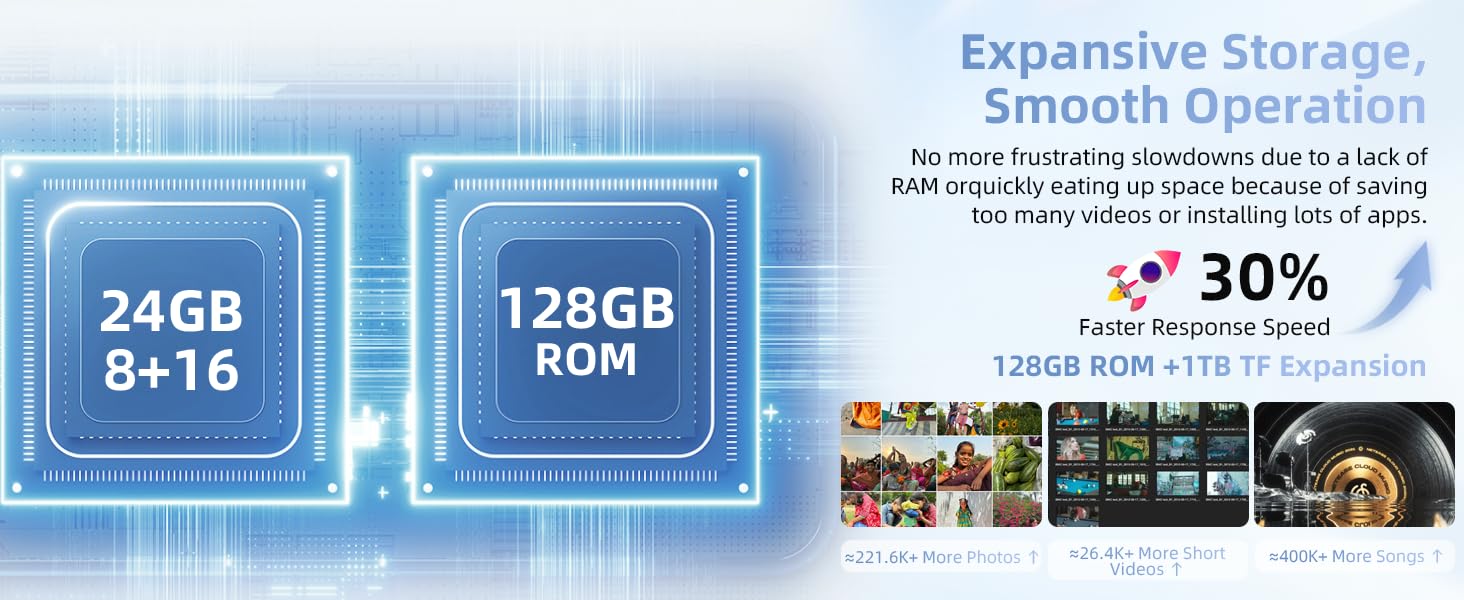
Image: Visual representation of the Raemond K80 tablet's 128GB ROM and 1TB expandable storage capacity.
4.7 GPS Navigation
The built-in GPS module provides accurate navigation for travel and location-based services.
- Utilize pre-installed map applications or download your preferred navigation apps from the Google Play Store.
- Ensure location services are enabled in Settings > Location for optimal GPS performance.
5. Maintenance
5.1 Charging the Battery
The Raemond K80 is equipped with a 6000mAh battery. Use the provided charger and USB-C cable for optimal charging.
- Connect the USB-C cable to the tablet's charging port and the charger to a power outlet.
- A charging indicator will appear on the screen.
- Avoid using non-certified chargers or cables to prevent damage to the device.
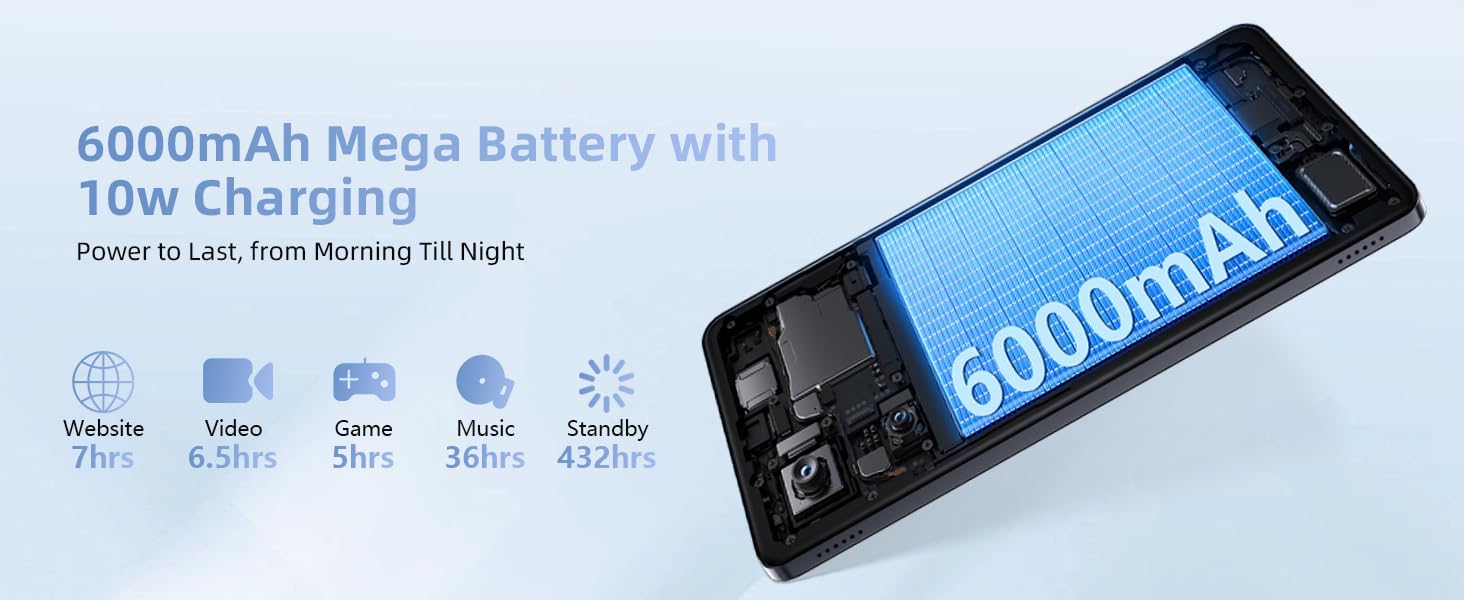
Image: Depicts the internal components of the Raemond K80 tablet, highlighting its 6000mAh battery and 10W charging capability.
5.2 Cleaning Your Tablet
To keep your tablet clean and functional:
- Use a soft, lint-free cloth to wipe the screen and body.
- Avoid using harsh chemicals, abrasive materials, or excessive moisture.
- Ensure the tablet is powered off and unplugged before cleaning.
5.3 Software Updates
Regularly check for and install software updates to ensure your tablet has the latest features and security patches.
- Go to Settings > System > System updates.
- Tap Check for updates and follow the on-screen instructions if an update is available.
6. Troubleshooting
If you encounter issues with your Raemond K80 tablet, try the following common solutions:
- Tablet not turning on: Ensure the battery is charged. Connect the charger and wait a few minutes before attempting to power on again.
- Screen unresponsive: Restart the tablet by pressing and holding the power button for about 10 seconds.
- Wi-Fi connection issues: Restart your Wi-Fi router and the tablet. Ensure you are within range of the Wi-Fi signal.
- Bluetooth pairing problems: Ensure both devices are in pairing mode and within close proximity. Try unpairing and re-pairing the device.
- Apps crashing: Clear the cache of the problematic app (Settings > Apps > [App Name] > Storage & cache > Clear cache). If the issue persists, try reinstalling the app.
- Slow performance: Close unnecessary background apps, clear cache, and ensure sufficient storage space. Consider a factory reset as a last resort (back up your data first).
7. Specifications
| Feature | Detail |
|---|---|
| Brand | Raemond |
| Model Name | K80 |
| Operating System | Android 15 |
| Processor | Unisoc T615 Octa-core (2x A75 1.8GHz, 6x A55 1.6GHz) |
| RAM Memory | 24 GB (8GB + 16GB Expansion) |
| Internal Storage | 128 GB |
| Expandable Storage | Up to 1 TB (MicroSD) |
| Screen Size | 10.1 Inches |
| Display Resolution | 1280x800 IPS HD |
| Front Camera | 5 MP |
| Rear Camera | 8 MP |
| Connectivity | Wi-Fi 6 (802.11ax), Bluetooth 5.4, USB Type-C, 3.5mm Headphone Jack |
| Battery Capacity | 6000 mAh |
| Item Weight | 535 Grams |
| Dimensions (L x W x Th) | 9.55"L x 6.35"W x 0.31"Th |
| Special Features | GPS/Beidou/GLONASS/Galileo A-GPS, Face ID, Widevine L1 |
8. Warranty and Support
The Raemond K80 Android tablet comes with a 2-year warranty. For any technical issues, setup questions, or support needs, please contact Raemond customer service.
- Customer Service: 24/7 online customer service support is available.
- Warranty Claims: Refer to your purchase documentation for detailed warranty claim procedures.
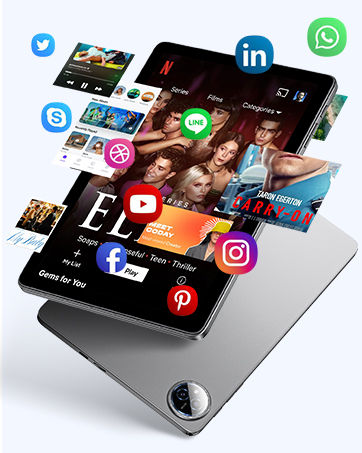
Image: A visual representation of customer support, symbolizing the available 24/7 assistance for Raemond products.