
Jazmm 939
Jazmm Portable Bluetooth AM FM Radio User Manual
Model: 939
Introduction
Thank you for purchasing the Jazmm Portable Bluetooth AM FM Radio. This device combines classic radio functionality with modern connectivity, offering AM/FM radio, Bluetooth streaming, and MP3 playback via USB or SD card. Its compact design, powerful speaker, and long-lasting rechargeable battery make it an ideal audio companion for various activities. This manual provides detailed instructions to help you set up, operate, and maintain your radio for optimal performance.
Safety Information
Please read all safety warnings and instructions carefully before using this product to ensure safe operation and prevent damage.
- Do not expose the device to rain, moisture, or extreme temperatures.
- Avoid dropping or subjecting the device to strong impacts.
- Do not disassemble, repair, or modify the device yourself. Refer all servicing to qualified personnel.
- Keep the device away from direct sunlight, heat sources, and open flames.
- Use only the specified charging cable and power adapter (if applicable) to charge the battery.
- Dispose of batteries properly according to local regulations.
- Clean the device with a soft, dry cloth. Do not use liquid cleaners or aerosols.
Package Contents
Please check the package contents upon unboxing:
- Jazmm Portable Bluetooth AM FM Radio (Model 939)
- USB-C Charging Cable
- Wrist Strap
- User Manual (this document)
Product Overview
Familiarize yourself with the various parts and controls of your radio.
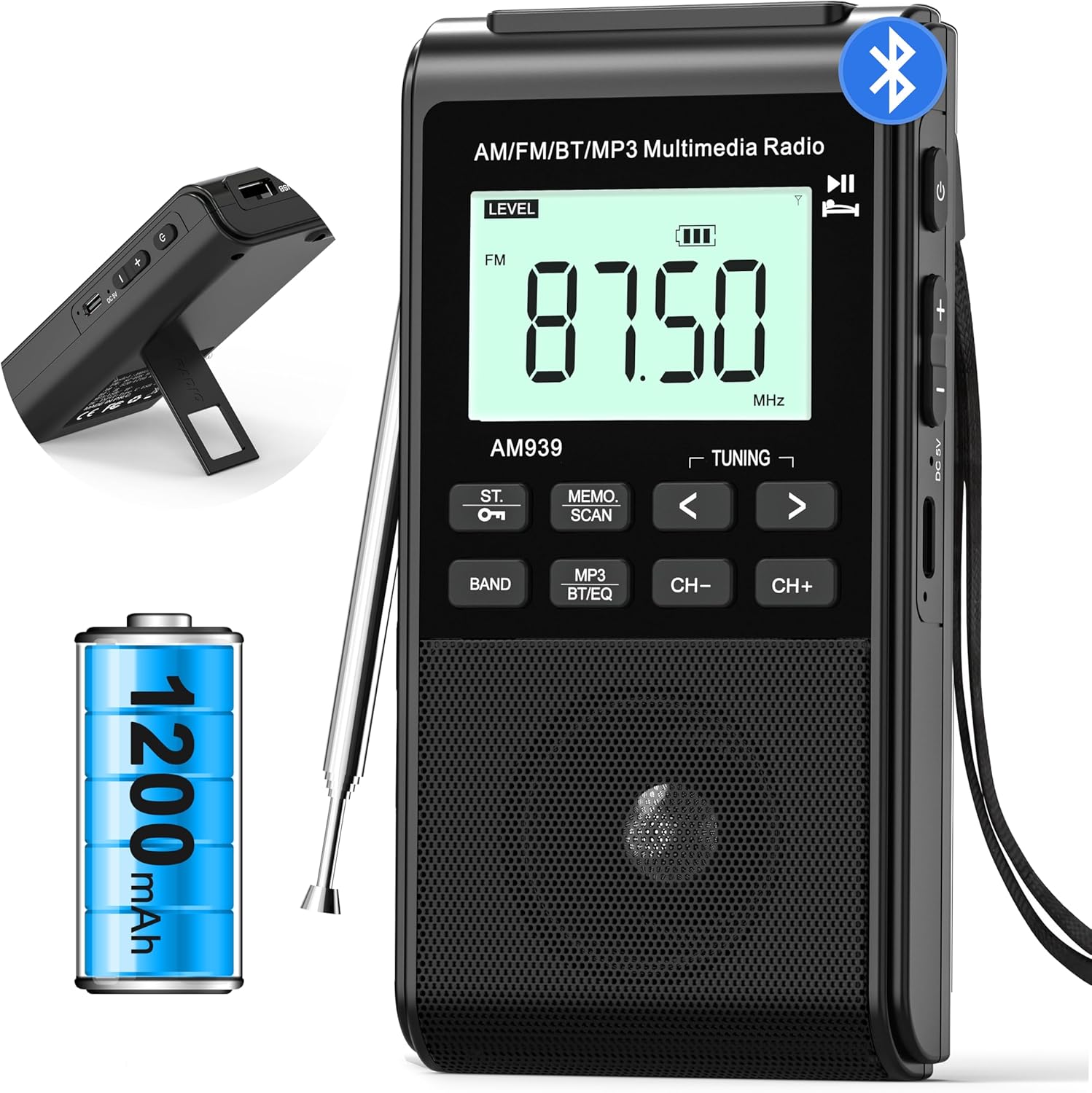
Image: Front view of the Jazmm Portable Bluetooth AM FM Radio, showing the LCD display, speaker, control buttons, and a side view of the charging port and antenna.
The radio features a clear LCD display, intuitive button controls for tuning and mode selection, a powerful front-facing speaker, and a retractable antenna for improved reception. On the side, you'll find the USB-C charging port, volume controls, and a power button. A foldable stand is integrated for desktop use, and a detachable wrist strap is included for portability.
Setup
Charging the Battery
Before first use, fully charge the radio's built-in 1200mAh rechargeable battery.
- Connect the provided USB-C charging cable to the charging port on the side of the radio.
- Connect the other end of the USB-C cable to a USB power adapter (not included) or a computer's USB port.
- The charging indicator on the LCD display will show charging status. A full charge typically takes 2-3 hours.
- Once fully charged, the battery icon will indicate full, and the radio offers up to 7 hours of continuous playtime (varies by volume).
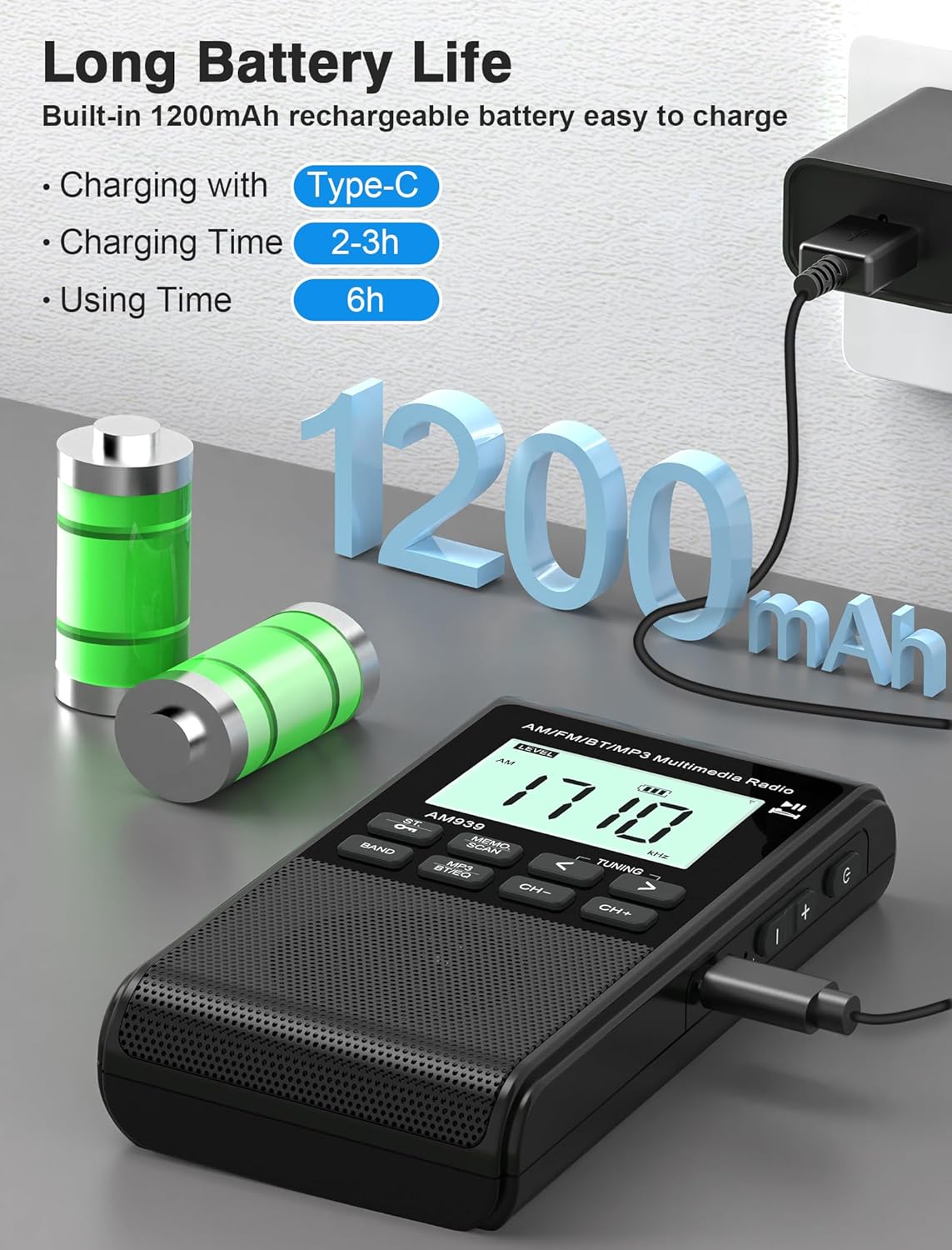
Image: Illustration of the radio connected to a USB-C charger, highlighting the 1200mAh battery and charging duration.
Attaching the Wrist Strap
For enhanced portability and security, attach the included wrist strap to the designated loop on the radio.
Operating Instructions
Power On/Off
- To power on, press and hold the Power button until the LCD screen illuminates.
- To power off, press and hold the Power button again until the screen turns off.
Volume Control
Use the + and - buttons on the side of the radio to adjust the volume level.
Radio Mode (AM/FM)
The radio supports both AM and FM bands with excellent reception.
- Press the BAND button to switch between FM and AM bands.
- Manual Tuning: Use the < and > buttons to manually tune to a specific frequency.
- Auto Scan & Presets:
- Press the MEMO/SCAN button to initiate an auto-scan. The radio will automatically scan and save available stations (up to 99 AM and 99 FM presets).
- Once stations are saved, use the CH- and CH+ buttons to navigate through the preset stations.
- To manually save a station, tune to the desired frequency, then press and hold the MEMO/SCAN button until the preset number flashes, then use CH-/CH+ to select a preset slot and press MEMO/SCAN again to confirm.
- Antenna: Extend the telescopic antenna for optimal FM reception. For AM reception, the internal antenna is usually sufficient, but rotating the radio may improve signal.
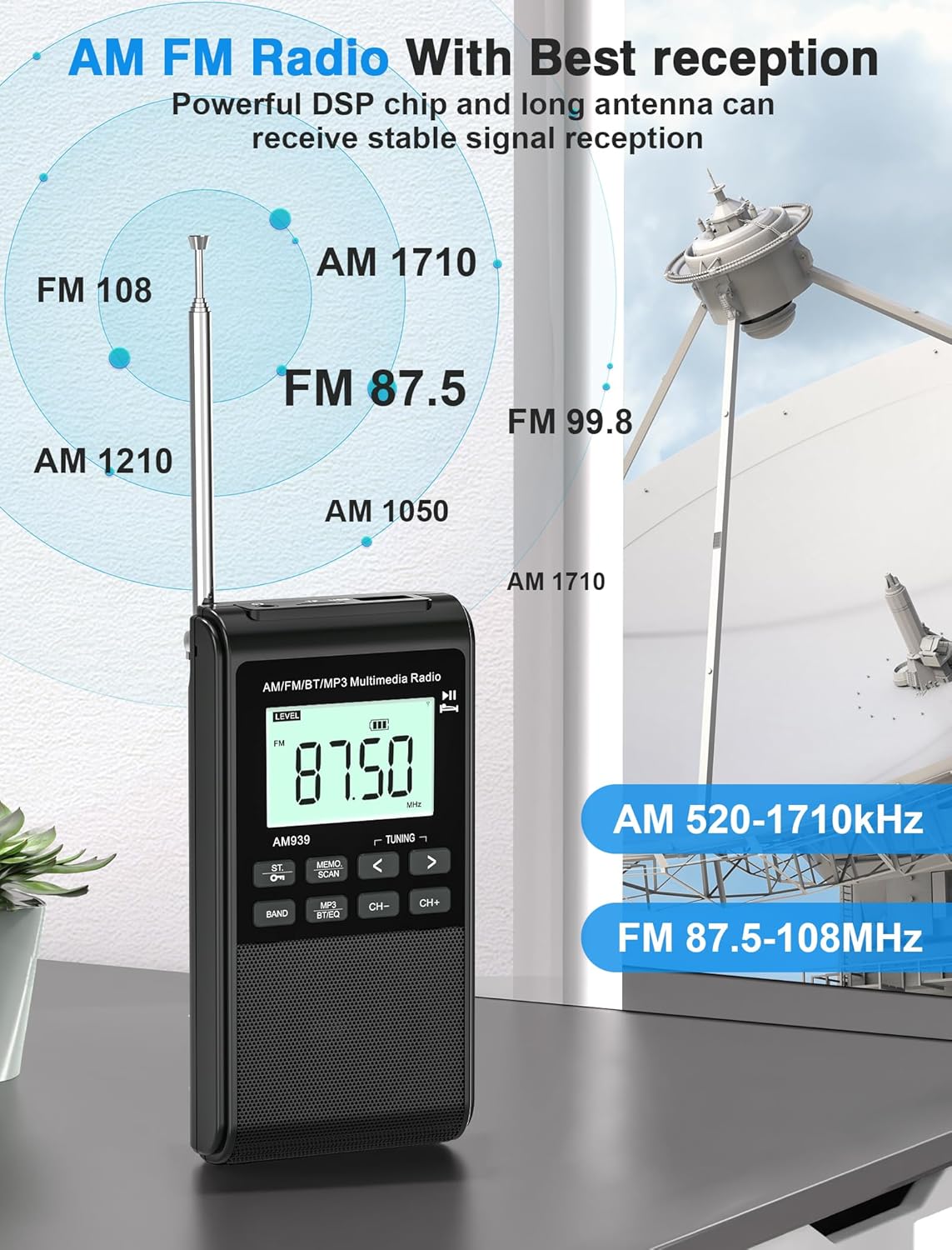
Image: Visual representation of the radio's AM/FM reception capabilities, showing frequency ranges and signal strength.
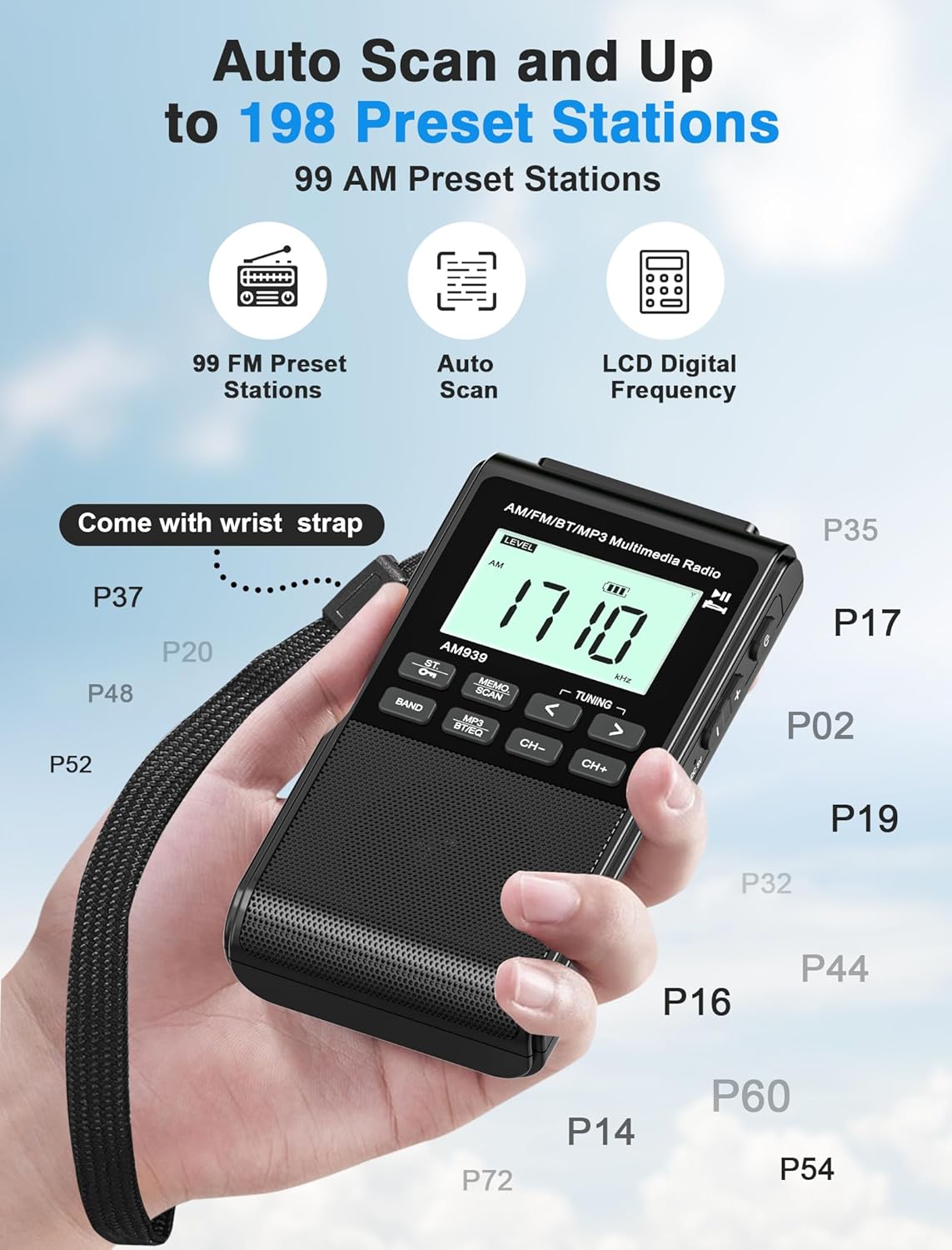
Image: Close-up of the radio's display showing auto-scan and preset station functionality, with various preset numbers indicated.
Bluetooth Mode
Connect your smartphone or other Bluetooth-enabled devices to stream audio wirelessly.
- Press the MP3/BT/EQ button repeatedly until "BT" appears on the LCD display, indicating Bluetooth mode.
- The radio will enter pairing mode, and the Bluetooth icon will flash.
- On your device, enable Bluetooth and search for "AM939" in the list of available devices.
- Select "AM939" to pair. Once connected, the Bluetooth icon on the radio's display will stop flashing.
- You can now play audio from your connected device through the radio.

Image: Visual guide demonstrating the three playback modes: Bluetooth, USB, and TF (SD) card, with a phone wirelessly connected to the radio.
USB/SD Card MP3 Player Mode
Play MP3 audio files directly from a USB flash drive or SD (TF) card (up to 32GB).
- Insert a USB flash drive into the USB port or an SD card into the TF card slot.
- Press the MP3/BT/EQ button repeatedly until "USB" or "TF" appears on the LCD display. The radio will automatically start playing MP3 files.
- Use the < and > buttons to skip tracks.
- The radio supports auto-resume playback, picking up where you left off.
EQ Modes (Equalizer)
Customize your audio experience with 6 preset equalizer modes.
- In any playback mode (Radio, Bluetooth, USB/SD), press the MP3/BT/EQ button (short press) to cycle through the EQ modes: Pop, Rock, Jazz, Classic, Vocal, Flat.
- Select the mode that best suits your listening preference.

Image: Depiction of the radio's 5W speaker and the six available EQ modes for sound customization.
Headphone Jack
For private listening, connect standard 3.5mm headphones to the headphone jack on the side of the radio.
- When headphones are connected, audio will automatically switch from the speaker to the headphones.
- Adjust volume using the + and - buttons.
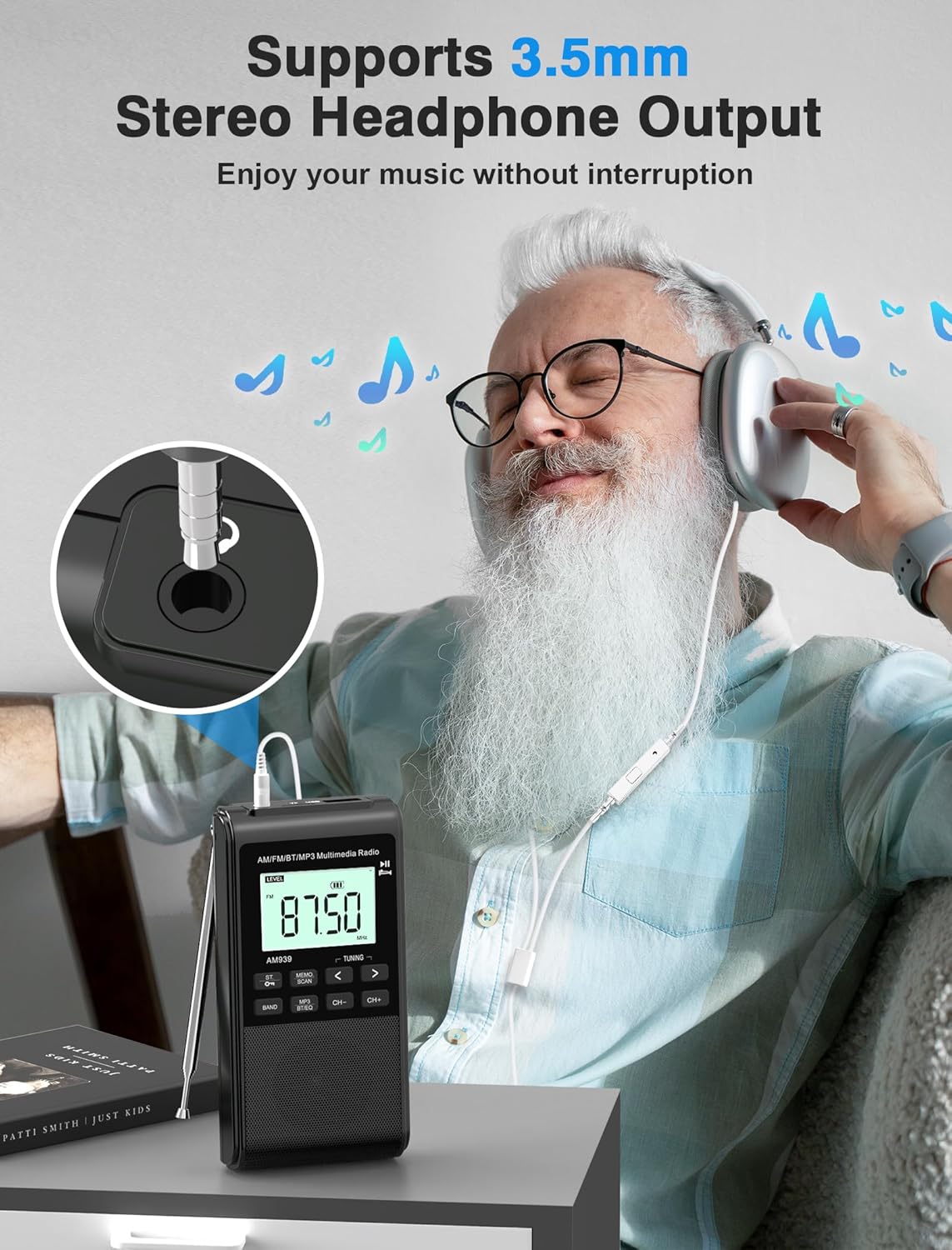
Image: A user enjoying music privately with headphones connected to the radio's 3.5mm stereo headphone output.
Sleep Timer
Set the radio to automatically shut down after a specified period.
- While the radio is on, press the Sleep Timer button (if available, or refer to specific button on device if not labeled).
- Cycle through the available sleep timer options: 10, 30, 60, or 90 minutes.
- The radio will automatically power off after the selected time.
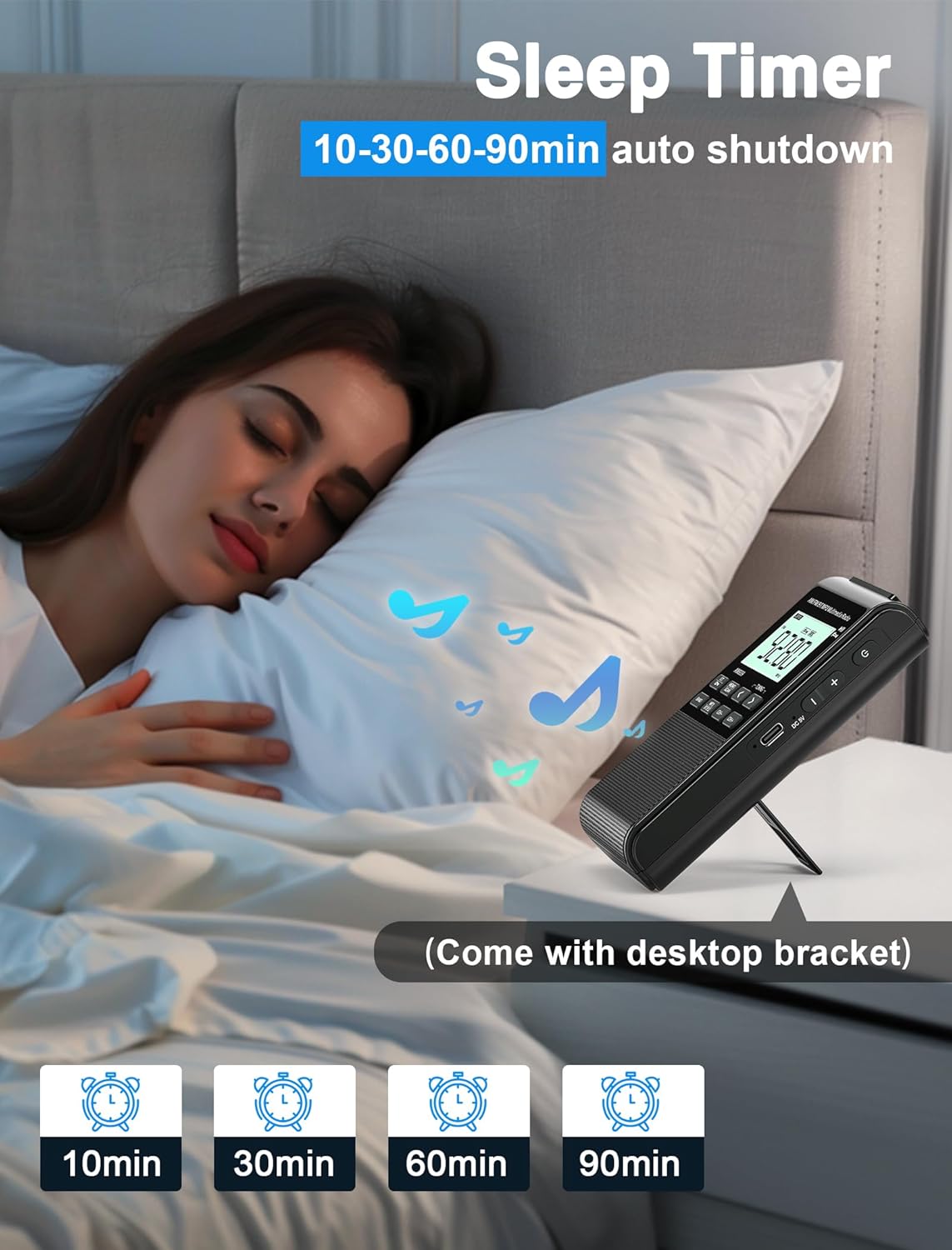
Image: Scene depicting the radio on a bedside table, illustrating the sleep timer function with options for 10, 30, 60, and 90 minutes auto shutdown.
Maintenance
- Cleaning: Wipe the radio's surface with a soft, dry, lint-free cloth. Do not use abrasive cleaners, waxes, or solvents.
- Battery Care: To prolong battery life, avoid fully discharging the battery frequently. If storing the radio for an extended period, charge it to about 50% every few months.
- Storage: Store the radio in a cool, dry place away from direct sunlight and extreme temperatures.
Troubleshooting
| Problem | Possible Cause | Solution |
|---|---|---|
| Radio does not turn on. | Battery is depleted. | Charge the radio fully using the USB-C cable. |
| Poor radio reception. | Antenna not extended (FM); weak signal; interference. | Extend the telescopic antenna fully for FM. Try rotating the radio for AM. Move away from electronic devices that may cause interference. Perform an auto-scan. |
| Bluetooth device cannot connect. | Radio not in Bluetooth pairing mode; device too far; already connected to another device. | Ensure the radio is in Bluetooth mode ("BT" flashing). Make sure your device's Bluetooth is on and within range (approx. 10 meters). Disconnect from other Bluetooth devices. |
| No sound from USB/SD card. | Incorrect mode; unsupported file format; corrupted files; card/drive not inserted correctly. | Ensure the radio is in USB or TF mode. Verify files are MP3 format. Reinsert the USB drive/SD card. Try a different USB drive/SD card. |
| Sound distortion. | Volume too high; weak signal; audio source issue. | Lower the volume. For radio, try to improve reception. Check the audio source if using Bluetooth/USB/SD. |
Specifications
| Brand | Jazmm |
| Model Number | 939 |
| Dimensions (L x W x H) | 6.6 x 2.8 x 12.7 cm |
| Weight | 157 g |
| Battery | 1200mAh Rechargeable (included) |
| Charging Time | Approx. 2-3 hours |
| Playtime | Up to 7 hours (varies by volume) |
| Connectivity | Bluetooth 5.0, USB, SD Card, 3.5mm Auxiliary |
| Speaker Output | 5W |
| Radio Bands | AM/FM |
| Preset Stations | Up to 198 (99 AM + 99 FM) |
| Supported Media | MP3 from USB/SD card (up to 32GB) |
| Color | Black |
Warranty and Support
Jazmm offers a 12-month warranty on this AM/FM radio. If you encounter any issues or require assistance, please contact our customer service team. We are committed to providing 24/7 world-class customer service to ensure your satisfaction.
For support, please refer to the contact information provided with your purchase or visit the official Jazmm website.
Ask a question about this manual
Ask about setup, troubleshooting, compatibility, parts, safety, or missing instructions. Manuals+ will review the question and use this page’s manual context to help answer it.