
1. Introduction
Thank you for purchasing the wogree W S100 2.1ch Sound Bar. This sound bar is designed to enhance your audio experience with your smart TV, 4K TV, or traditional TV, as well as computers, projectors, phones, and tablets. It features a built-in subwoofer, 6 levels of voice enhancement, and multiple connectivity options.
The W S100 delivers cinematic bass and clear dialogue through its dual full-range speakers and integrated subwoofer, making it suitable for movies, gaming, and streaming. Its low-profile 16-inch design allows for discreet placement under TVs or flush wall mounting.
This manual provides detailed instructions for setup, operation, maintenance, and troubleshooting to ensure optimal performance and longevity of your device.

Image 1.1: The wogree W S100 Sound Bar with its included remote control.
2. Package Contents
Please check the package contents upon unboxing to ensure all items are present:
- wogree W S100 Sound Bar
- Remote Control
- Power Adapter
- 3.5mm AUX Cable
- Optical Cable
- Wall Mounting Screws and Anchors
- User Manual
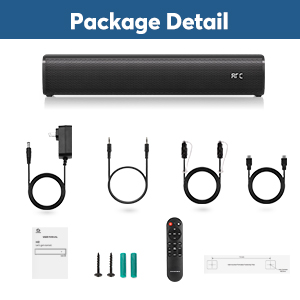
Image 2.1: All components included in the wogree W S100 Sound Bar package.
3. Product Overview
3.1 Sound Bar Components
The W S100 Sound Bar features a 2.1 channel audio system with two full-range speakers and a built-in subwoofer for enhanced bass response.
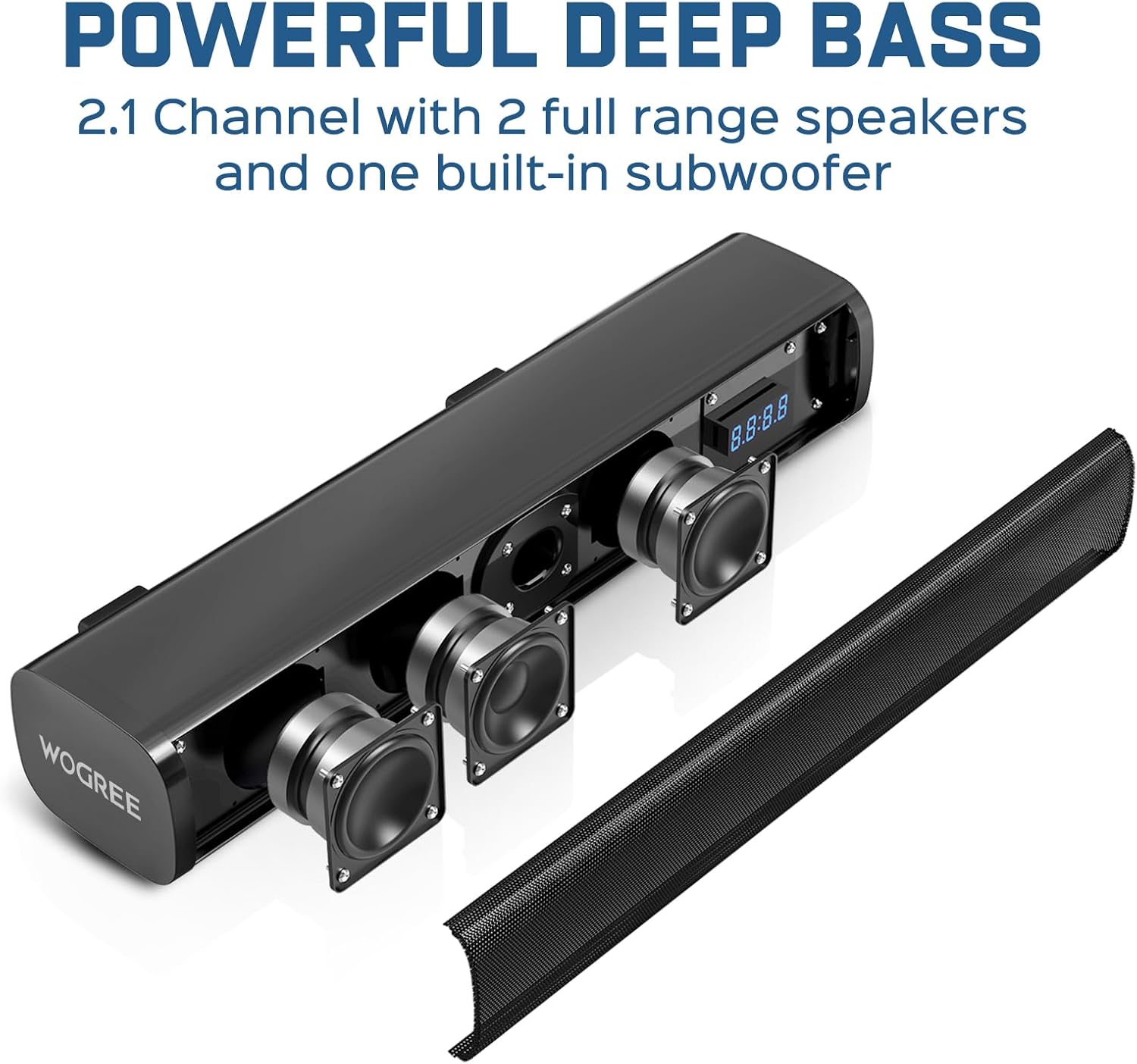
Image 3.1: Internal view highlighting the sound bar's speakers and built-in subwoofer.
3.2 Controls and Ports
The sound bar can be controlled via physical buttons located on the unit or through the included remote control. The rear panel provides various input ports for connectivity.
- Physical Buttons: Power, Volume Up/Down, Mode Selection.
- Remote Control: Full control over power, volume, input modes, audio modes, and voice enhancement levels.
- Connectivity Ports: ARC (HDMI), Optical, AUX (3.5mm), USB, Bluetooth 5.3.

Image 3.2: Rear panel of the sound bar displaying the various input ports.
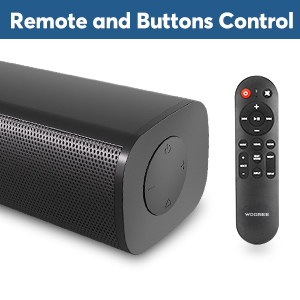
Image 3.3: Physical control buttons on the sound bar and the remote control.

Image 3.4: The smart LED display on the sound bar.
4. Setup
4.1 Placement
The wogree W S100 Sound Bar can be placed on a tabletop or mounted to a wall.
- Tabletop Placement: Position the sound bar directly in front of your TV on a stable surface.
- Wall Mount: Use the provided screws and anchors to securely mount the sound bar to a wall below your TV. Ensure the mounting location can support the weight of the sound bar.

Image 4.1: Desktop and wall mounting options for the sound bar.
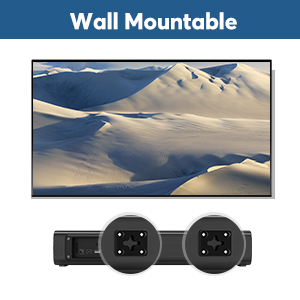
Image 4.2: Wall mount points on the back of the sound bar.
4.2 Connecting to Devices
The sound bar offers multiple connection methods:
- HDMI ARC: Connect an HDMI cable from the sound bar's ARC port to your TV's HDMI ARC port. This allows your TV remote to control the sound bar's volume.
- Optical: Connect the optical cable from the sound bar to your TV's optical output. Ensure protective caps are removed from the cable ends. On your TV, set the audio output to 'Optical' or 'External Speaker' and the audio format to 'PCM'.
- AUX: Connect the 3.5mm AUX cable from the sound bar to your device's audio output. Note: The AUX port cannot be used as a headphone jack.
- USB: Insert a USB drive for audio playback. The USB port is also used for firmware updates and cannot supply power to the sound bar.
- Bluetooth 5.3: Pair your Bluetooth-enabled device with the sound bar wirelessly.
Important Note: This sound bar does not support Dolby or DTS audio formats. Please disable Dolby and DTS settings on your TV and any streaming applications (e.g., Netflix, Amazon Prime Video, HBO, Hulu, YouTube) to ensure proper audio output.
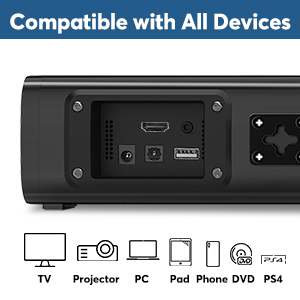
Image 4.3: The sound bar is compatible with a wide range of devices.
5. Operating Instructions
5.1 Power On/Off
Connect the power adapter to the sound bar and a power outlet. Press the power button on the sound bar or remote control to turn the unit on or off.
5.2 Input Mode Selection
Press the 'Mode' button on the sound bar or the corresponding input button on the remote control (e.g., 'ARC', 'OPT', 'AUX', 'USB', 'BT') to switch between input sources. The LED display will indicate the current mode.
5.3 Volume Control
Adjust the volume using the '+' and '-' buttons on the sound bar or remote control. If connected via ARC, your TV remote may also control the sound bar's volume.
5.4 Audio Modes (DSP Technology)
The sound bar features three optimized audio modes:
- Music Mode: Enhances bass for music genres like rock and hip-hop.
- Movie Mode: Provides an expansive surround sound experience for films.
- Dialogue Mode: Focuses on speech clarity, ideal for news and podcasts.
Select the desired mode using the 'Music', 'Movie', or 'Dialogue' buttons on the remote control.

Image 5.1: Visual representation of the three sound equalizer modes.
5.5 Voice Enhancement
The sound bar offers 6 levels of voice enhancement to amplify critical speech frequencies. This feature is particularly beneficial for users with hearing impairment or for improving dialogue clarity in complex audio mixes. Use the 'Voice' button on the remote to cycle through the levels (V0-V6).
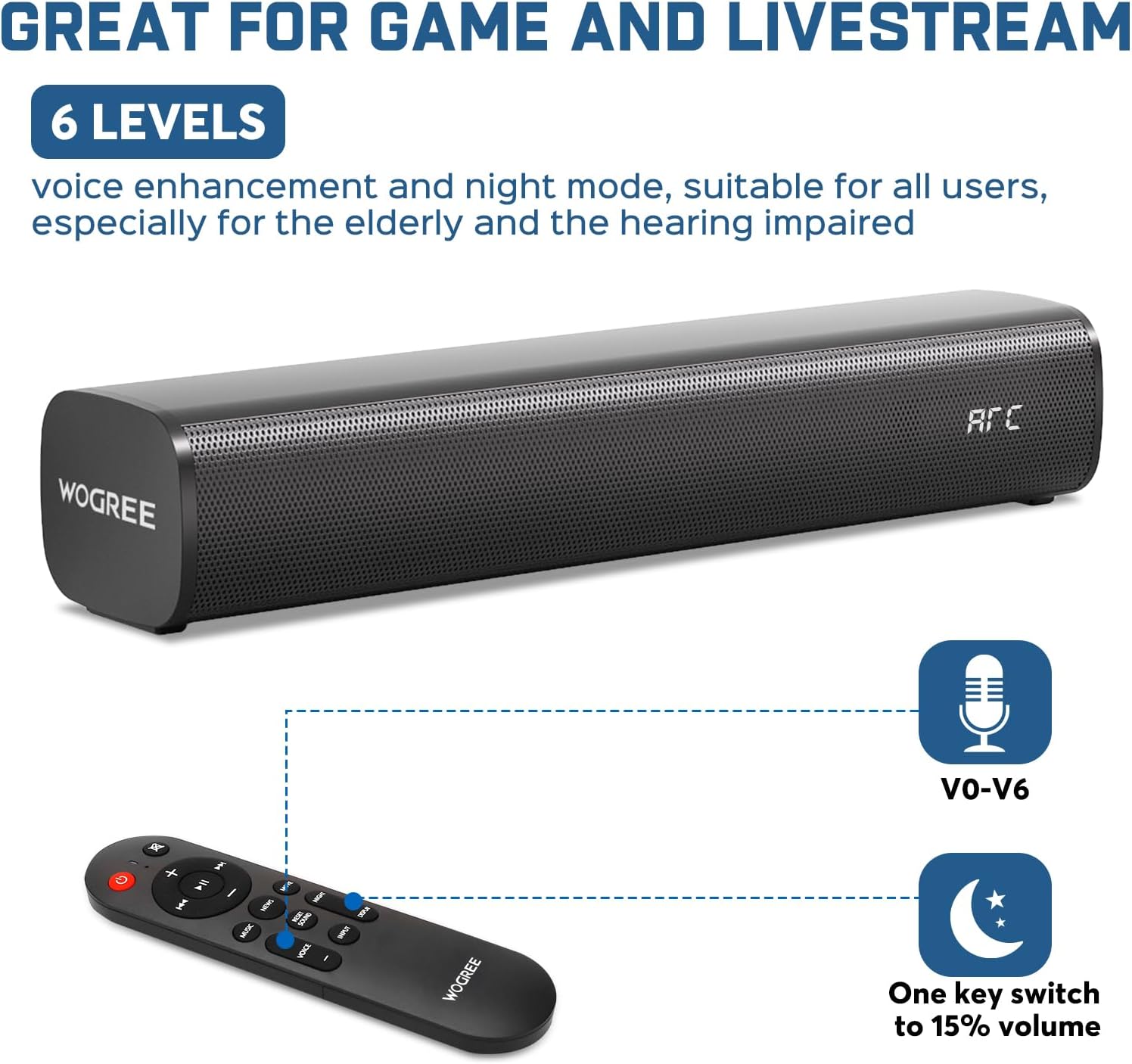
Image 5.2: Remote control functions for voice enhancement and night mode.
6. Maintenance
To ensure the longevity and optimal performance of your wogree W S100 Sound Bar, follow these maintenance guidelines:
- Cleaning: Use a soft, dry cloth to wipe the surface of the sound bar. Avoid using liquid cleaners, aerosols, or abrasive materials, as they may damage the finish or internal components.
- Placement: Keep the sound bar away from direct sunlight, heat sources, and excessive moisture. Ensure adequate ventilation around the unit.
- Storage: If storing the sound bar for an extended period, disconnect it from power and store it in a cool, dry place.
7. Troubleshooting
If you encounter issues with your sound bar, please refer to the following common problems and solutions:
- No Sound:
- Ensure the sound bar is powered on and the correct input source is selected.
- Check all cable connections (HDMI ARC, Optical, AUX) are secure.
- Verify your TV's audio output settings are correctly configured (e.g., PCM for Optical).
- Disable Dolby and DTS audio formats on your TV and streaming apps.
- Increase the volume on both the sound bar and the connected device.
- Low Volume:
- Check if the audio source (e.g., TV, streaming app) has volume protection enabled. Disable this feature to reach maximum volume.
- Ensure the sound bar's volume is at an appropriate level.
- Sound Bar Not Charging:
- The wogree W S100 Sound Bar is DC adapter powered and not battery-powered. It does not support charging.
- Headphone Compatibility:
- The sound bar is not compatible with headphones. The AUX port cannot be used as a headphone jack.
If the issue persists after following these steps, please contact customer support for further assistance.
8. Specifications
| Feature | Specification |
|---|---|
| Model Number | W S100 |
| Brand | wogree |
| Mounting Type | Tabletop Mount |
| Style | Built-in Subwoofer |
| Product Dimensions | 3.6 x 16 x 2.9 inches |
| Item Weight | 3.19 pounds |
| Speaker Maximum Output Power | 60 Watts |
| Frequency Response | 160 KHz |
| Connectivity Technology | Auxiliary, Bluetooth 5.3, HDMI (ARC), Optical, USB |
| Audio Output Mode | Surround |
9. Warranty and Support
The wogree W S100 Sound Bar comes with a 2-year manufacturer warranty, providing lifetime technical assistance. We also offer a 30-day hassle-free return and money-back guarantee.
For any issues or inquiries, please contact our customer support team. We are committed to responding within 24 hours to assist you.
Contact Information: Please refer to the contact details provided in your purchase documentation or on the official wogree website.

