
HOU F52
HOU Keyboard Case for iPad 11-inch A16 (2025) / iPad 10th Generation (2022) Instruction Manual
Model: F52
Introduction
Thank you for purchasing the HOU Keyboard Case. This manual provides detailed instructions for setting up, operating, and maintaining your keyboard case. This product is designed to enhance your iPad experience, offering versatility with its detachable keyboard, 360-degree rotating stand, and multi-touch trackpad. Please read this manual thoroughly before use to ensure optimal performance and longevity of your device.
This keyboard case is compatible with the following iPad models:
- iPad 11th Generation (A16, 2025 models: A3354, A3355, A3356)
- iPad 10th Generation (2022 models: A2696, A2757, A2777, A3162)
Please verify your iPad model number before installation.
Package Contents
Ensure all items are present in the package:
- HOU Keyboard Case (with integrated keyboard)
- USB-C Charging Cable
- User Manual (this document)

Image: Overview of the HOU Keyboard Case package contents.
Setup Instructions
1. Attaching Your iPad to the Case
- Gently align your iPad with the case. The case features reinforced corners and a dust-proof silicone design for full protection.
- Press your iPad firmly into the case until it is securely seated. Ensure all edges are properly covered.

Image: iPad installed in the protective case, ready for use.

Image: Detail of the case's full silicone protection for the iPad.
2. Charging the Keyboard
- Locate the USB-C charging port on the keyboard.
- Connect the provided USB-C cable to the keyboard and a power source (e.g., USB wall adapter, computer USB port).
- The charging indicator light will illuminate. A full charge typically takes 2-3 hours.
- The keyboard features a 500mAh battery, providing up to 72 hours of continuous use and 90 days of standby time.

Image: Keyboard case with iPad showing battery status and charging details.
3. Pairing the Keyboard via Bluetooth
- Turn on the keyboard by sliding the power switch. The Bluetooth indicator light will start blinking.
- On your iPad, go to Settings > Bluetooth.
- Ensure Bluetooth is turned On.
- Look for "HOU Keyboard" or a similar name in the "Other Devices" list and tap to connect.
- Once paired, the Bluetooth indicator light on the keyboard will stop blinking and remain solid.
Operating Instructions
Keyboard Usage
- Typing: The keyboard features a 1.3mm key travel and silent scissor switches for a comfortable typing experience.
- Backlight: The 7-color backlight with 3 adjustable brightness levels allows for comfortable typing in low-light conditions. Use the dedicated function keys to adjust brightness and volume.
- Shortcut Keys: Utilize the independent shortcut keys for increased efficiency. To view available shortcut keys for an app, press and hold the Cmd key.

Image: Backlit keyboard in use, demonstrating key press.

Image: Guide to checking app shortcut keys and displaying keyboard battery life via a widget.
Trackpad Functionality
The precise multi-touch trackpad supports iOS gestures and offers a 20% larger operating area compared to conventional trackpads, reducing accidental touches.
- Basic Gestures:
- Tap: Single finger tap for selection.
- Drag: Tap and hold, then move finger to drag items.
- Pinch Zoom: Two fingers pinch in/out to zoom.
- Open Dock: Move cursor to bottom edge.
- Open Control Center: Move cursor to top-right corner.
- Open App Switcher: Swipe up with three fingers.

Image: Visual guide to basic trackpad gestures for iPad.
Adjusting Viewing Angles and Rotation
- 360° Rotation: The case allows for 360-degree rotation of your iPad, enabling both portrait and landscape orientations. This is ideal for Zoom meetings, presentations, or various work modes.
- Adjustable Stand: The stand offers an adjustable viewing angle from 0° to 155°, providing optimal comfort for different tasks.
- Detachable Design: The magnetic detachable design allows you to separate the keyboard from the case. Use the case alone for drawing or video viewing, or combine it with the keyboard for typing and productivity.

Image: Demonstrating the 360-degree rotation and adjustable stand of the keyboard case.

Image: Visual representation of the one-touch 360-degree rotation feature.

Image: The detachable keyboard and case, offering flexible usage options.

Image: Optimal support angles for various activities, ranging from 95 to 156 degrees.
Apple Pencil Holder
The case includes a retractable pen holder and a magnetic storage slot for your Apple Pencil (USB-C compatible) or a compatible stylus. Note that charging is not supported in the magnetic slot.
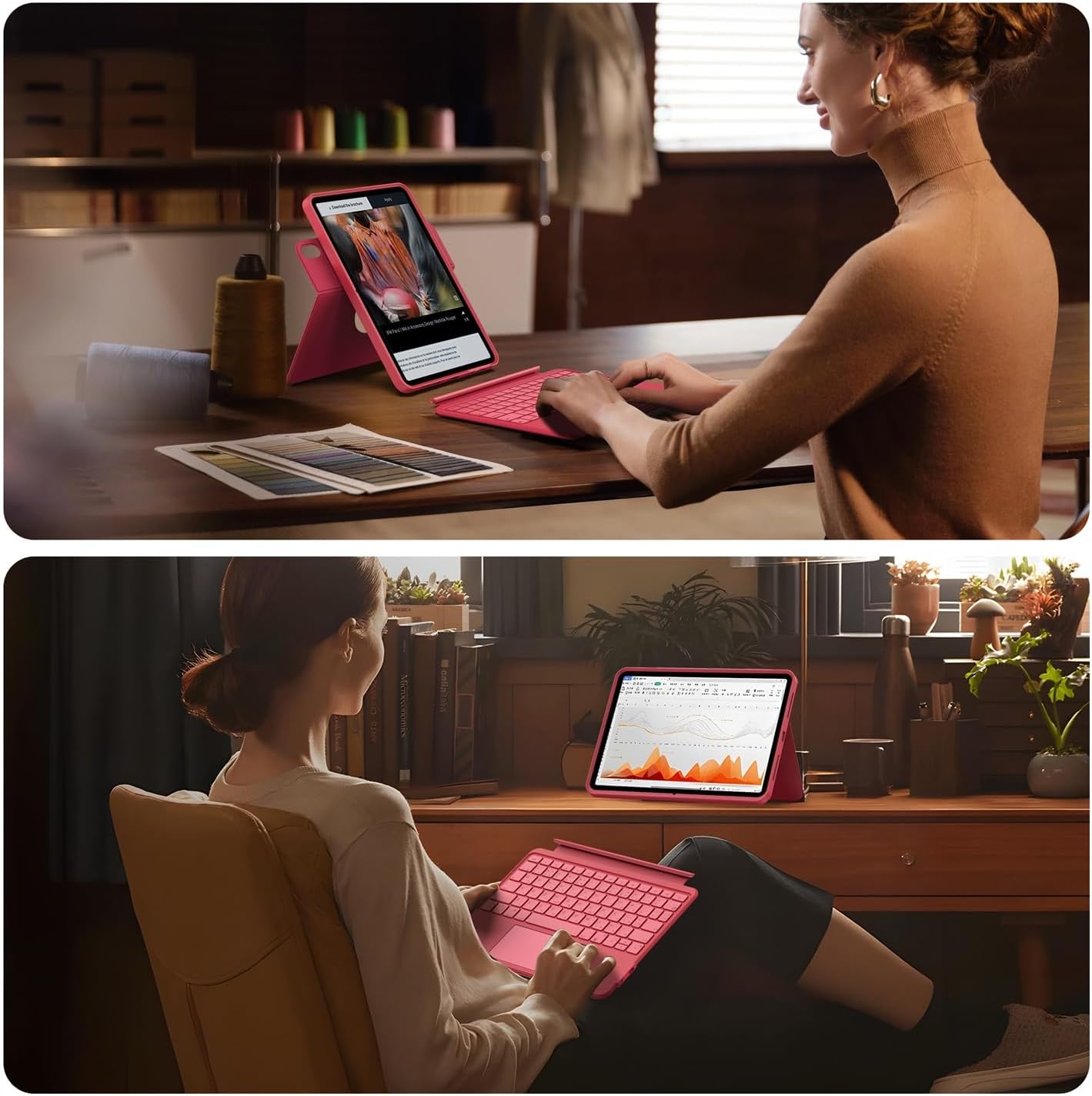
Image: Two pen storage positions on the case: a top magnetic holder and a rear elastic holder.

Image: Secure storage for Apple Pencil or compatible stylus.
Maintenance
- Cleaning the Case: Wipe the silicone case with a soft, damp cloth. Avoid harsh chemicals or abrasive cleaners.
- Cleaning the Keyboard: Use a soft, dry cloth to clean the keyboard surface. For dust between keys, use compressed air.
- Battery Care: To prolong battery life, avoid fully discharging the keyboard frequently. Charge it regularly, even if not in constant use.
- Storage: When not in use for extended periods, store the keyboard case in a cool, dry place.
Troubleshooting
- Keyboard not connecting via Bluetooth:
- Ensure the keyboard is powered on and fully charged.
- Turn off and on your iPad's Bluetooth.
- Forget the device in iPad Bluetooth settings and re-pair.
- Ensure your iPad's iOS version is 16 or higher.
- Keys not responding:
- Check if the keyboard is connected via Bluetooth.
- Recharge the keyboard battery.
- Trackpad not working:
- Ensure the keyboard is connected.
- Check iPad settings for trackpad functionality.
- Restart your iPad.
- iPad not fitting correctly in case:
- Verify your iPad model number against the compatible models listed in the introduction.
Specifications
| Brand | HOU |
| Model Number | F52 |
| Compatible Devices | iPad 10th Generation (2022), iPad 11th Generation A16 (2025) |
| Keyboard Description | Mechanical |
| Special Features | Backlit, Multi-touch Trackpad, 360° Rotating Stand |
| Color | Magenta |
| Included Components | iPad A16/10 Keyboard |
| Switch Type | Tactile |
| Minimum OS Version | iOS 16 |
| Package Dimensions | 29.1 x 20.5 x 2.7 cm |
| Item Weight | 900 g |
| Battery | 1 Lithium Ion battery (included), 350 mAh |
Warranty and Support
For warranty information and customer support, please refer to the documentation included with your purchase or visit the official HOU website. If you encounter any issues not covered in this manual, please contact our customer service team for assistance.
HOU Official Store: Visit HOU Store on Amazon.co.jp
Related documentsF52


Ask a question about this manual
Ask about setup, troubleshooting, compatibility, parts, safety, or missing instructions. Manuals+ will review the question and use this page’s manual context to help answer it.