
Introduction
Thank you for choosing the FOSA Dual Screen Camera. This compact digital camera is designed for ease of use, offering high-resolution photos and 4K video recording capabilities. Its dual-screen design is ideal for capturing both traditional shots and perfect selfies. Please read this manual carefully to understand the camera's features and ensure optimal performance.
Package Contents
Verify that all items are present in your package:
- 1 x FOSA Dual Screen Camera
- 1 x USB Cable
- 1 x User Manual
- 1 x Lanyard
Setup
1. Charging the Battery
The camera features a built-in 1000mAh battery. Before first use, fully charge the camera.
- Connect the supplied USB cable to the camera's USB-C port.
- Connect the other end of the USB cable to a USB power adapter (not included) or a computer's USB port.
- The charging indicator light will illuminate. It will turn off or change color once charging is complete.
2. Inserting a Memory Card
A memory card (up to 256GB, not included) is required to store photos and videos.
- Locate the memory card slot on the side of the camera.
- Insert a compatible memory card (e.g., MicroSD) into the slot with the metal contacts facing the front of the camera until it clicks into place.
- To remove, gently push the card until it springs out.
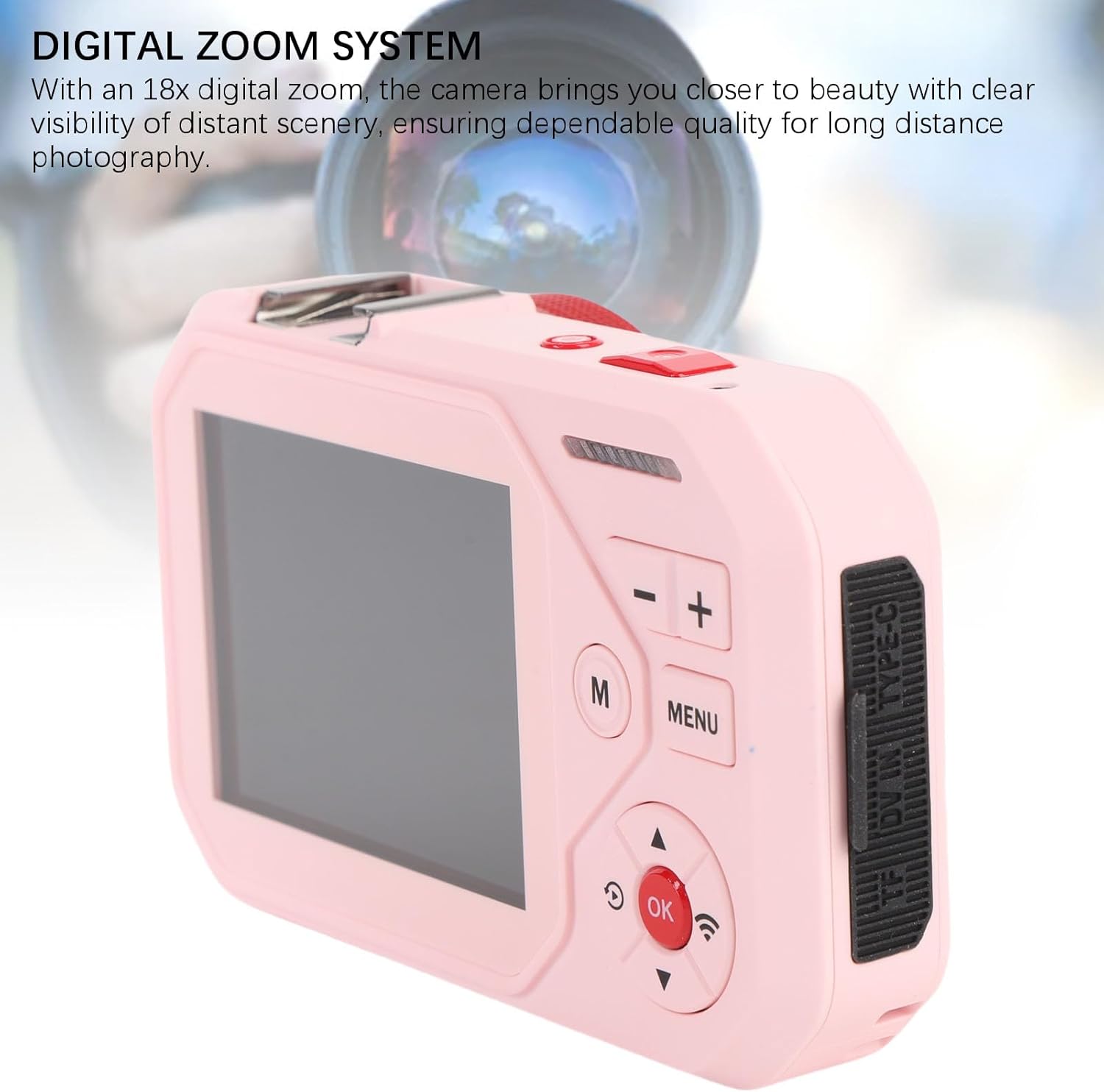
Image: Rear view of the camera, highlighting the memory card slot on the right side and the control panel.
3. Attaching the Lanyard
Attach the included lanyard to the camera for secure handling and to prevent accidental drops.
Operating the Camera
1. Power On/Off
- Press and hold the Power button (usually located on the top or side) to turn the camera on or off.
2. Basic Controls
Familiarize yourself with the main control buttons:
- Shutter Button: Press to take a photo or start/stop video recording.
- Mode (M) Button: Switches between photo, video, and playback modes.
- MENU Button: Accesses camera settings and options.
- OK Button: Confirms selections in menus.
- Navigation Buttons (Up/Down/Left/Right): Used to navigate menus and adjust settings. The Up/Down buttons may also control digital zoom in photo/video mode.
- Zoom Buttons (+/-): Adjusts the 18x digital zoom.
3. Taking Photos
- Turn on the camera and ensure it is in Photo mode (indicated by an icon on the screen).
- Frame your shot using the 2.8-inch HD main screen or the 1.54-inch front screen for selfies.
- The camera features autofocus. Allow the camera to focus automatically.
- Press the Shutter button fully to capture the 64MP high-resolution image.

Image: Front view of the camera, illustrating the main display and resolution indicators.
4. Recording Videos
- Switch to Video mode using the Mode (M) button.
- Press the Shutter button once to start recording. A recording indicator will appear on the screen.
- Press the Shutter button again to stop recording. The camera supports 4K, 2.7K, and 1080FHD video resolutions.
5. Using the Dual Screen for Selfies
The camera's dual-screen design allows for easy self-portraits:
- In Photo or Video mode, activate the front screen (refer to camera settings or a dedicated button if available).
- Use the 1.54-inch front screen to preview your composition in real-time.
- Press the Shutter button to capture your selfie or start recording.
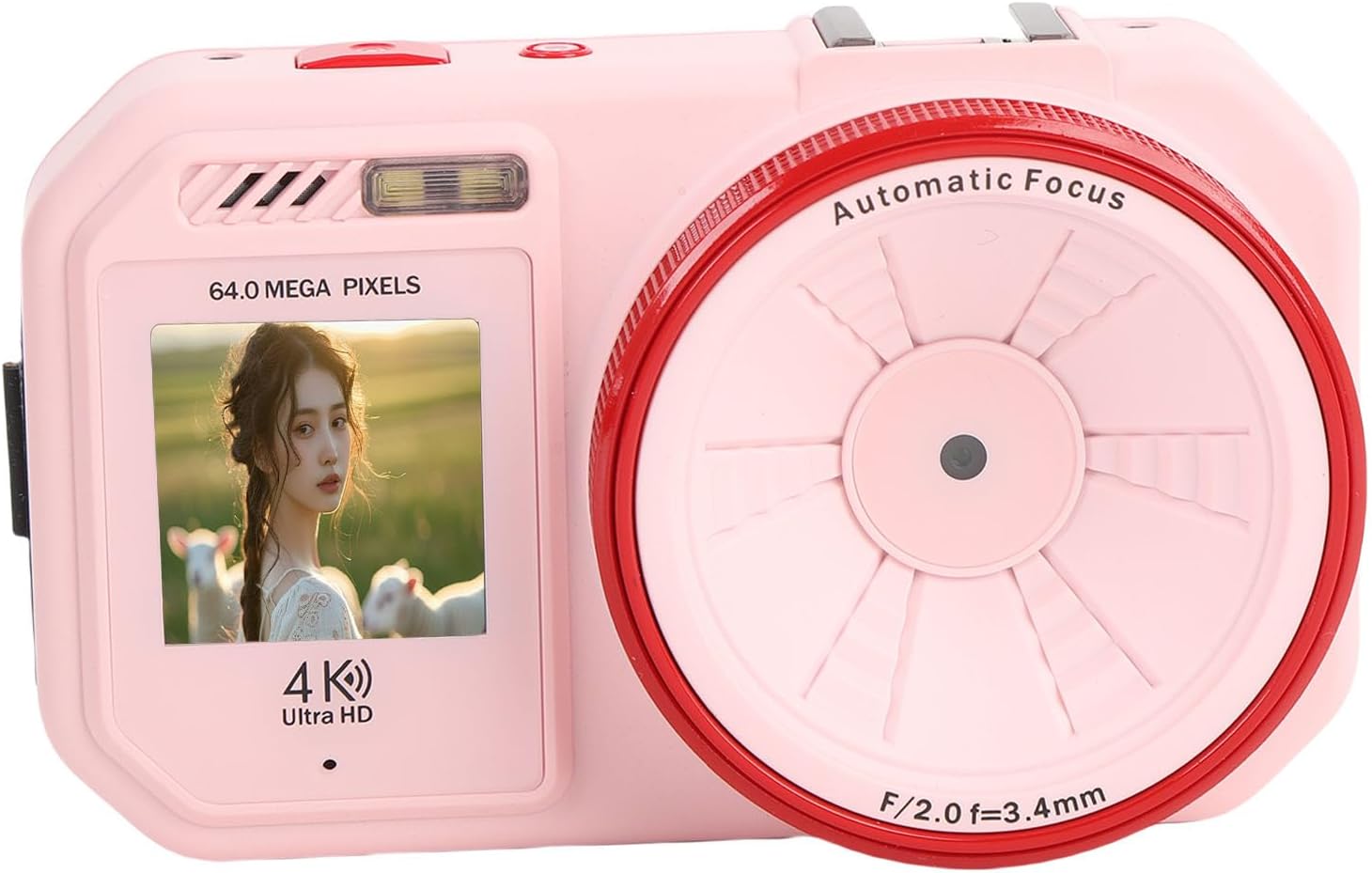
Image: Front view of the camera with the front screen displaying a live preview for selfie composition.
6. Digital Zoom
Utilize the 18x digital zoom to magnify distant subjects:
- In Photo or Video mode, press the '+' button to zoom in and the '-' button to zoom out.
7. Playback Mode
- Switch to Playback mode using the Mode (M) button.
- Use the Navigation buttons to browse through your photos and videos.
- Press the OK button to view a video or a photo in full screen.
8. Settings
Press the MENU button to access various camera settings, including:
- Resolution: Adjust photo and video resolution.
- Language: Select your preferred language (English, Simplified Chinese, Traditional Chinese, Japanese, Korean, French, German, Spanish, Italian, Russian, etc.).
- WiFi: Enable or disable WiFi connectivity.
- Date/Time: Set the current date and time.
- Format Card: Erase all data on the memory card. (Caution: This action is irreversible.)
Maintenance
1. Cleaning the Camera
- Use a soft, dry cloth to clean the camera body.
- For the lens and screens, use a specialized lens cleaning cloth and solution to avoid scratches.
- Do not use harsh chemicals or abrasive materials.
2. Storage
- Store the camera in a cool, dry place away from direct sunlight and extreme temperatures.
- If storing for an extended period, ensure the battery is partially charged (around 50%) and recharge it every few months to maintain battery health.
3. Battery Care
- Avoid fully discharging the battery frequently.
- Do not expose the camera to temperatures below 0°C (32°F) or above 40°C (104°F) for prolonged periods.
Troubleshooting
If you encounter issues with your camera, refer to the following common solutions:
- Camera does not turn on:
- Ensure the battery is fully charged.
- Press and hold the Power button for a few seconds.
- Cannot take photos/record videos:
- Check if a memory card is inserted correctly.
- Ensure the memory card has sufficient free space.
- Format the memory card if it's new or causing errors (Note: This will erase all data).
- Images are blurry:
- Ensure the lens is clean.
- Allow the autofocus to engage before pressing the shutter button.
- Ensure there is adequate lighting.
- Camera freezes:
- Remove and reinsert the memory card.
- If the battery is removable, remove and reinsert it. Otherwise, allow the battery to drain completely and then recharge.
Specifications
| Model Number | fosapa38rtyfud-12 |
| Material | ABS |
| Main Screen | 2.8 inch HD Color Screen |
| Front Screen | 1.54 inch Color Screen |
| Lens | AF Lens |
| Storage Media | Memory Card (Max. 256GB, not included) |
| Photo Resolution | Up to 64MP (8000x8000) |
| Video Resolution | 4K (3840x2160@30fps), 2.7K (2720x1520@30fps), 1080FHD (1920x1080@30fps) |
| Digital Zoom | 18x |
| Battery | Built-in 1000mAh |
| Connectivity | WiFi, USB-C |
| Dimensions | 4.72 x 3.15 x 3.15 inches |
| Item Weight | 7.3 ounces |
| Supported Languages | English, Simplified Chinese, Traditional Chinese, Japanese, Korean, French, German, Spanish, Italian, Russian, etc. |