
1. Introduction
Thank you for choosing the Lefant M210P Robot Vacuum. This manual provides essential information for the safe operation, maintenance, and troubleshooting of your new robotic vacuum cleaner. The M210P is designed to efficiently clean hard floors and low-pile carpets, featuring powerful suction, quiet operation, and smart navigation.
Key features include:
- Powerful Suction: Effectively picks up dust, pet hair, and debris.
- Ultra-Slim Design: 2.99-inch height allows cleaning under furniture.
- Multiple Cleaning Modes: Zig-zag, Random, Spot, Edge, Schedule, and Manual cleaning.
- Smart Navigation: Follows a logical zig-zag path for thorough coverage.
- Anti-Collision & Anti-Fall Sensors: Prevents damage and falls.
- Long Runtime & Auto-Recharge: Up to 120 minutes runtime and automatic return to charging station.
- Smart Control: Compatible with WiFi, App, and voice assistants like Alexa and Google Assistant.

2. Setup
2.1 Unpacking and Initial Charge
Carefully remove all components from the packaging. Place the robot vacuum on its charging station and ensure it is properly connected. Allow the robot to fully charge before its first use. The indicator light on the robot will change to indicate a full charge.

2.2 Charging Station Placement
Place the charging station against a wall in an open, uncluttered area. Ensure there is at least 1 meter (3 feet) of clear space in front of the station and 0.5 meters (1.5 feet) on either side to allow the robot to easily dock.
2.3 App Installation and Wi-Fi Connection
Download the Lefant app from your mobile device's app store. Follow the in-app instructions to connect your M210P to your home Wi-Fi network. This enables remote control, scheduling, and access to various cleaning modes. The robot supports 2.4 GHz Wi-Fi only.
3. Operating
3.1 Cleaning Modes
The M210P offers several cleaning modes to suit different needs:
- Zig-zag Cleaning: The robot cleans in a systematic zig-zag pattern, ensuring thorough coverage of open areas.
- Random Cleaning: The robot navigates randomly, suitable for complex layouts or when a quick pass is needed.
- Spot Cleaning: Focuses on a specific dirty area, cleaning in a spiral pattern.
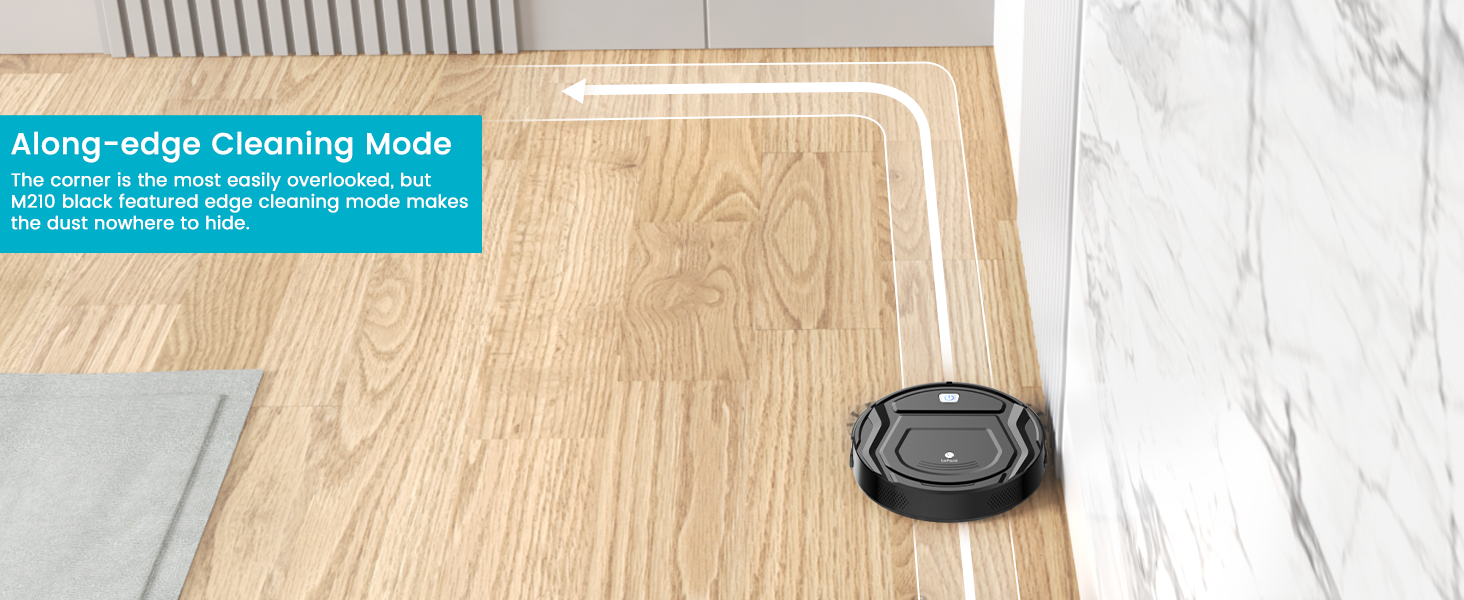
- Edge Cleaning: Cleans along walls and furniture edges to ensure no dust is missed.
- Schedule Cleaning: Set a cleaning schedule via the app for automated cleaning.
- Manual Cleaning: Control the robot's movement manually using the app.

3.2 Starting a Cleaning Cycle
Press the power button on the robot or use the Lefant app to start a cleaning cycle. The robot will automatically select a cleaning mode or follow your pre-set schedule.
3.3 Voice Control
Once connected to Alexa or Google Assistant, you can use voice commands to start, stop, or send the robot back to its charging station. For example, "Alexa, turn on the M210P."

3.4 Runtime and Auto-Recharge
The M210P can run for up to 120 minutes on a single charge in Quiet mode. When the battery level drops to 15% or the cleaning task is complete, the robot will automatically return to its charging station.

4. Maintenance
Regular maintenance ensures optimal performance and extends the lifespan of your robot vacuum.
4.1 Emptying the Dustbin
The M210P features a 500ml dustbin. It is recommended to empty the dustbin after each cleaning cycle, especially if you have pets or a large area to clean. Lift the top cover of the robot and remove the dustbin for easy emptying.

4.2 Cleaning the Filter
The robot is equipped with HEPA filtration. Tap the filter to remove loose dirt and debris. For a more thorough clean, gently brush the filter. Replace the filter every 1-2 months depending on usage.
4.3 Cleaning Side Brushes
Periodically check the side brushes for tangled hair or debris. Use a small brush or a pair of scissors to remove any obstructions. Ensure the brushes spin freely.
4.4 Cleaning Sensors and Charging Contacts
Wipe the anti-drop sensors, anti-collision sensors, and charging contacts on both the robot and the charging station with a clean, dry cloth to ensure proper function.
5. Troubleshooting
If your Lefant M210P encounters an issue, refer to the following common problems and solutions:
| Problem | Possible Cause | Solution |
|---|---|---|
| Robot does not turn on | Low battery; Power switch off | Place on charging station; Ensure power switch is ON. |
| Robot gets stuck frequently | Obstacles (cables, rugs); Uneven surfaces | Clear obstacles; Use virtual walls if available; Ensure proper floor preparation. |
| Robot does not charge | Charging contacts dirty; Charging station unplugged | Clean charging contacts; Ensure charging station is plugged in and powered. |
| Poor cleaning performance | Full dustbin; Clogged filter; Worn brushes | Empty dustbin; Clean/replace filter; Clean/replace side brushes. |
| App connectivity issues | Incorrect Wi-Fi password; 5GHz Wi-Fi network | Verify password; Connect to a 2.4GHz Wi-Fi network. |
For more detailed troubleshooting, refer to the Lefant app or the official Lefant support website.
6. Specifications
| Feature | Specification |
|---|---|
| Brand | Lefant |
| Model Name | M210P |
| Color | Black |
| Product Dimensions | 11"L x 11"W x 2.99"H |
| Item Weight | 5.2 pounds |
| Dustbin Capacity | 500 Milliliters |
| Battery Life (Runtime) | Up to 120 minutes (Quiet mode) |
| Filter Type | HEPA Filtration |
| Control Method | App, Remote, Touch, Voice |
| Compatible Devices | Amazon Echo, Google Home, Smartphones, Tablets |
| Special Features | Anti-Fall, Edge Cleaning, Pet Hair Pick Up, Low Noise, Obstacle Avoidance |
| UPC | 850074159025 |
7. Warranty and Support
Lefant products are manufactured to high-quality standards and come with a standard warranty. For specific warranty details, please refer to the warranty card included in your product packaging or visit the official Lefant website.
If you encounter any issues or have questions regarding your Lefant M210P Robot Vacuum, please contact Lefant customer support through the contact information provided on the official website or within the Lefant app. Please have your model number (M210P) and purchase information ready when contacting support.


