
UANTIN Docking Station Dual Monitor Adapter
UANTIN USB C Hub 6-in-1 Dual HDMI Adapter Instruction Manual
Model: Docking Station Dual Monitor Adapter
1. Introduction
The UANTIN USB C Hub 6-in-1 Dual HDMI Adapter is a versatile device designed to expand the connectivity of your USB-C enabled laptop or computer. It provides dual HDMI outputs for external monitors, multiple USB-A ports for peripherals, and a USB-C Power Delivery (PD) port for charging.

Image 1.1: UANTIN USB C Hub 6-in-1 Dual HDMI Adapter with connected cables.
2. Product Features
- Dual 4K@60Hz HDMI Output: Connect two external monitors simultaneously for extended display or mirroring, supporting resolutions up to 4K at 60Hz.
- 100W Power Delivery (PD) Charging: Charge your laptop or other power-consuming devices through the dedicated USB-C PD port, supporting up to 100W input.
- 3x USB-A 2.0 Ports: Connect USB peripherals such as keyboards, mice, flash drives, and external hard drives for data transfer and device connectivity.
- Plug and Play Operation: No driver installation required for most operating systems.
- Durable Design: Constructed with an aluminum alloy body for efficient heat dissipation and wear resistance.
- Compact and Portable: Designed for easy transport and use in various environments.
3. Specifications
| Feature | Detail |
|---|---|
| Product Dimensions | 2.76 x 1.57 x 0.39 inches |
| Item Weight | 3.2 ounces |
| Hardware Interface | HDMI, Thunderbolt, USB, USB Docking Station, USB Type C |
| Special Features | Fast Charging, Fast Data Transfer, Plug and Play, Portable |
| Compatible Devices | Laptops with compatible USB-C ports |
| Color | Grey |
4. Compatibility
This USB C Hub is compatible with a wide range of laptops and operating systems. Ensure your laptop's USB-C port supports the necessary functions for full compatibility.
4.1 Supported Operating Systems
- Windows 7/8/10/11
- macOS 11 and above (Note: macOS only supports mirror mode for external displays, not extended mode across multiple external monitors.)
- ChromeOS
4.2 Supported Devices
Compatible with mainstream laptop brands including Dell, HP, Lenovo, Surface, and MacBook models that feature a full-function USB-C port.
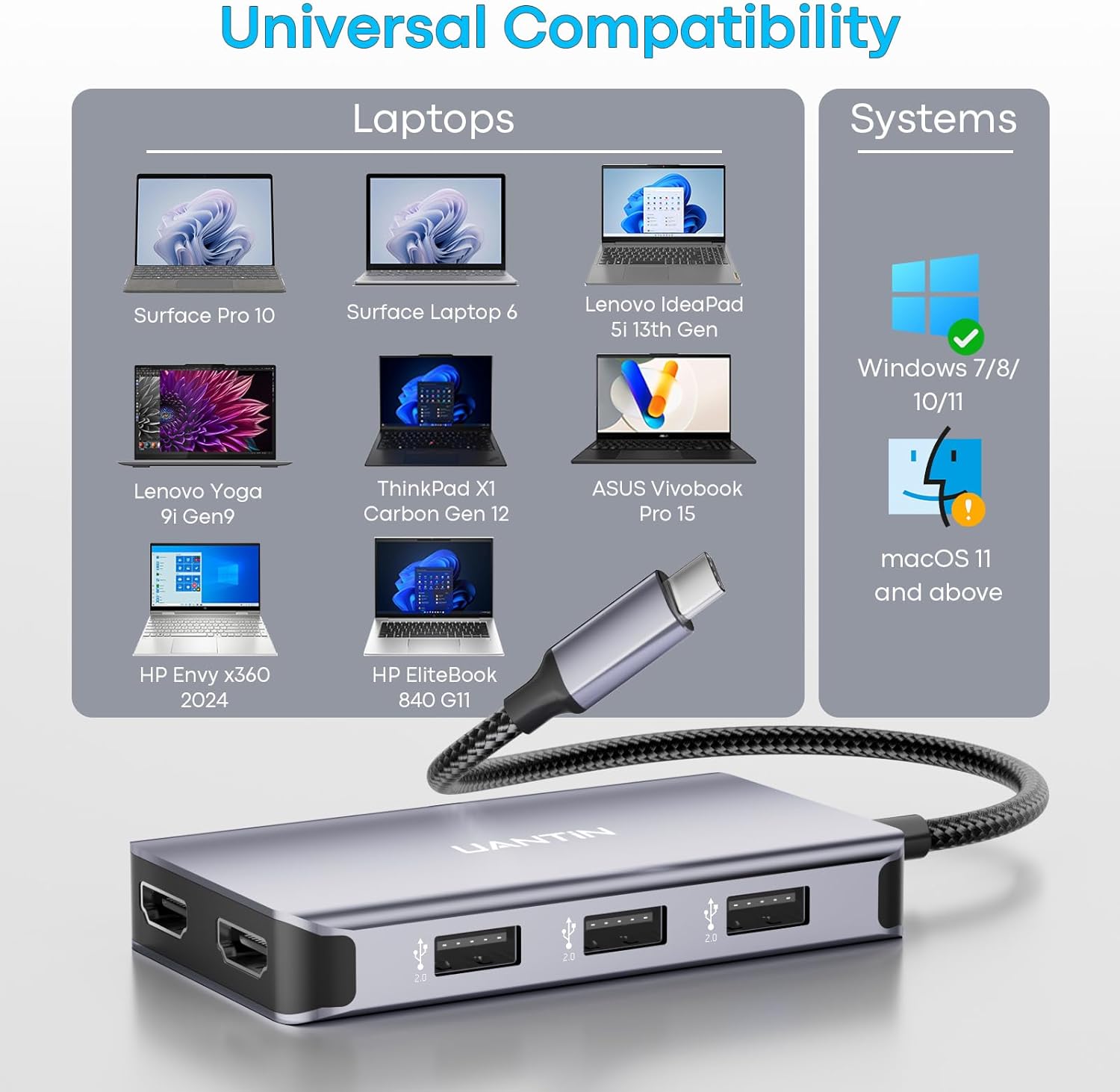
Image 4.1: Visual representation of universal compatibility with various laptop brands and operating systems.
4.3 USB-C Port Type Verification
Before use, confirm the supported functions of the USB-C port on your laptop. Not all USB-C ports support video output or Power Delivery.

Image 4.2: Guide to identifying USB-C port capabilities (Full Function, Data Video Output, Data+DisplayPort Alt, Only Charging, Only Data Transfer).
- Full Function: Supports charging, data transfer, and video output.
- Data Video Output: Supports data transfer and video output.
- Data+DisplayPort Alt: Supports data transfer and DisplayPort Alternate Mode for video output.
- Only Charging: Only supports power input.
- Only Data Transfer: Only supports data transfer.
5. Setup
The UANTIN USB C Hub is designed for plug-and-play operation. Follow these steps to set up your device:
- Connect the USB-C cable from the UANTIN Hub to a compatible USB-C port on your laptop.
- Connect your external monitors to the HDMI ports on the UANTIN Hub using HDMI cables.
- If charging is required, connect your laptop's power adapter to the USB-C PD port on the UANTIN Hub.
- Connect any USB peripherals (e.g., keyboard, mouse, flash drive) to the USB-A ports on the UANTIN Hub.

Image 5.1: Example of a laptop connected to dual external monitors using the UANTIN USB C Hub.
6. Operating Instructions
6.1 Dual Monitor Display
Connect your monitors to the two HDMI ports on the hub. Your operating system should automatically detect the external displays. You may need to adjust display settings within your operating system to configure mirror or extend modes.

Image 6.1: Table detailing display resolutions and standards for Windows and macOS.
6.2 USB-A Data Transfer
The three USB-A 2.0 ports support data transfer speeds up to 480Mbps. Connect your USB devices to these ports for file transfer or peripheral use.
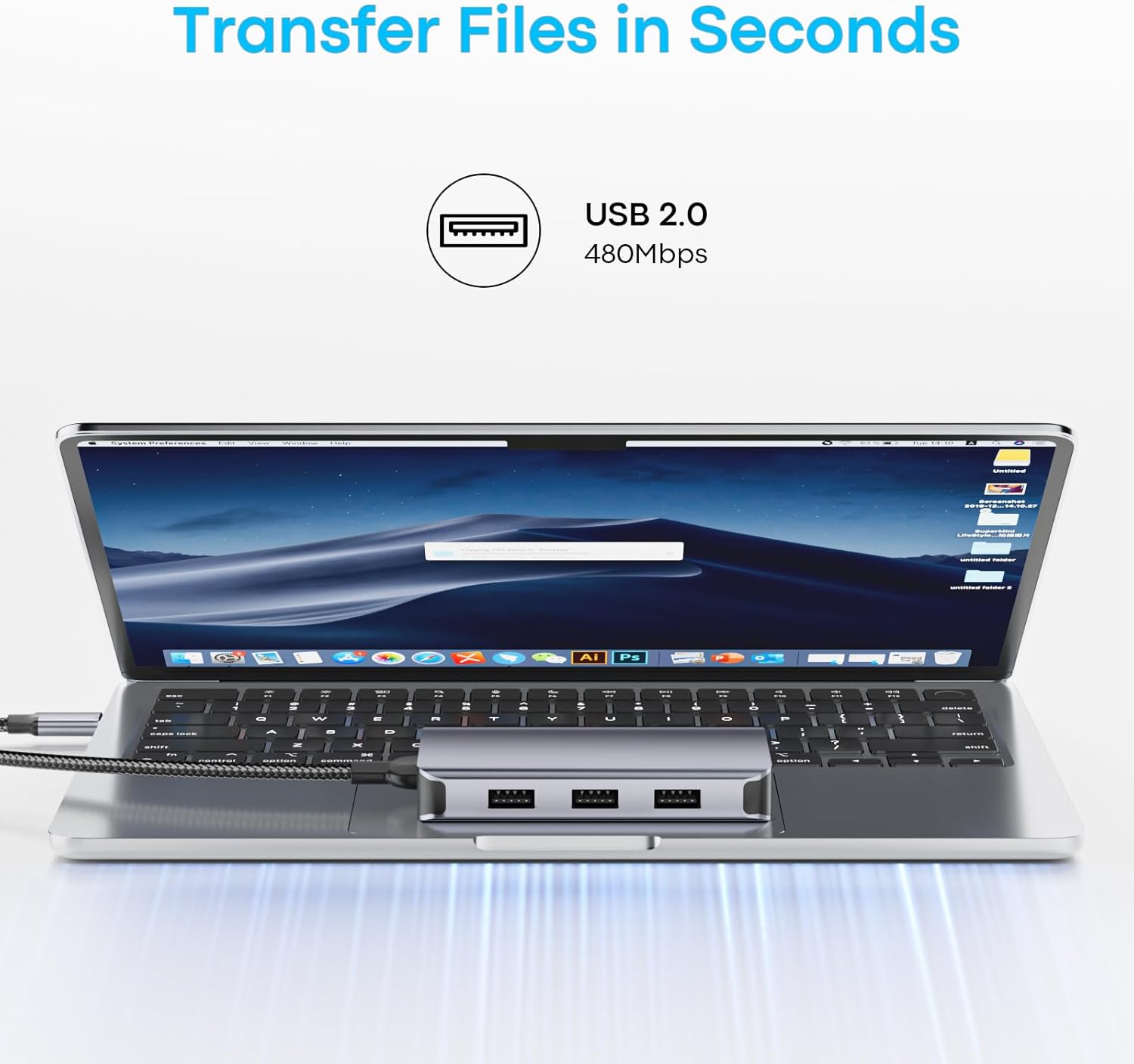
Image 6.2: Illustration of USB 2.0 data transfer capabilities.
6.3 Power Delivery (PD) Charging
Connect your laptop's USB-C power adapter to the USB-C PD port on the hub. This allows your laptop to receive up to 87W of power (100W input minus 13W for hub operation) while using the hub's other functions.

Image 6.3: Visual explanation of pass-through charging with 100W input and 87W output to the laptop.
7. Configuring Display Modes
After connecting your external monitors, you can configure how your desktop is displayed. The options vary slightly between Windows and macOS.

Image 7.1: Visual guide for configuring display modes on Windows and macOS.
7.1 Windows Display Modes
On Windows, press the Windows key + P to open the Project menu. You can switch between the following options:
- PC screen only: Display only on your laptop screen.
- Duplicate: Show the same content on all displays.
- Extend: Extend your desktop across all displays, allowing for a larger workspace.
- Second screen only: Display only on the external monitors.
7.2 macOS Display Modes
For macOS, navigate to System Settings > Displays. You can switch between:
- Mirror Displays: Show the same content on all displays.
- Use as separate display: Extend your desktop.
Important Note for macOS: When using two external monitors with this hub, macOS only supports mirror mode. This means both external monitors will display the same content, which can either mirror your laptop screen or mirror each other. Extended display across two distinct external monitors is not supported by macOS through this adapter.
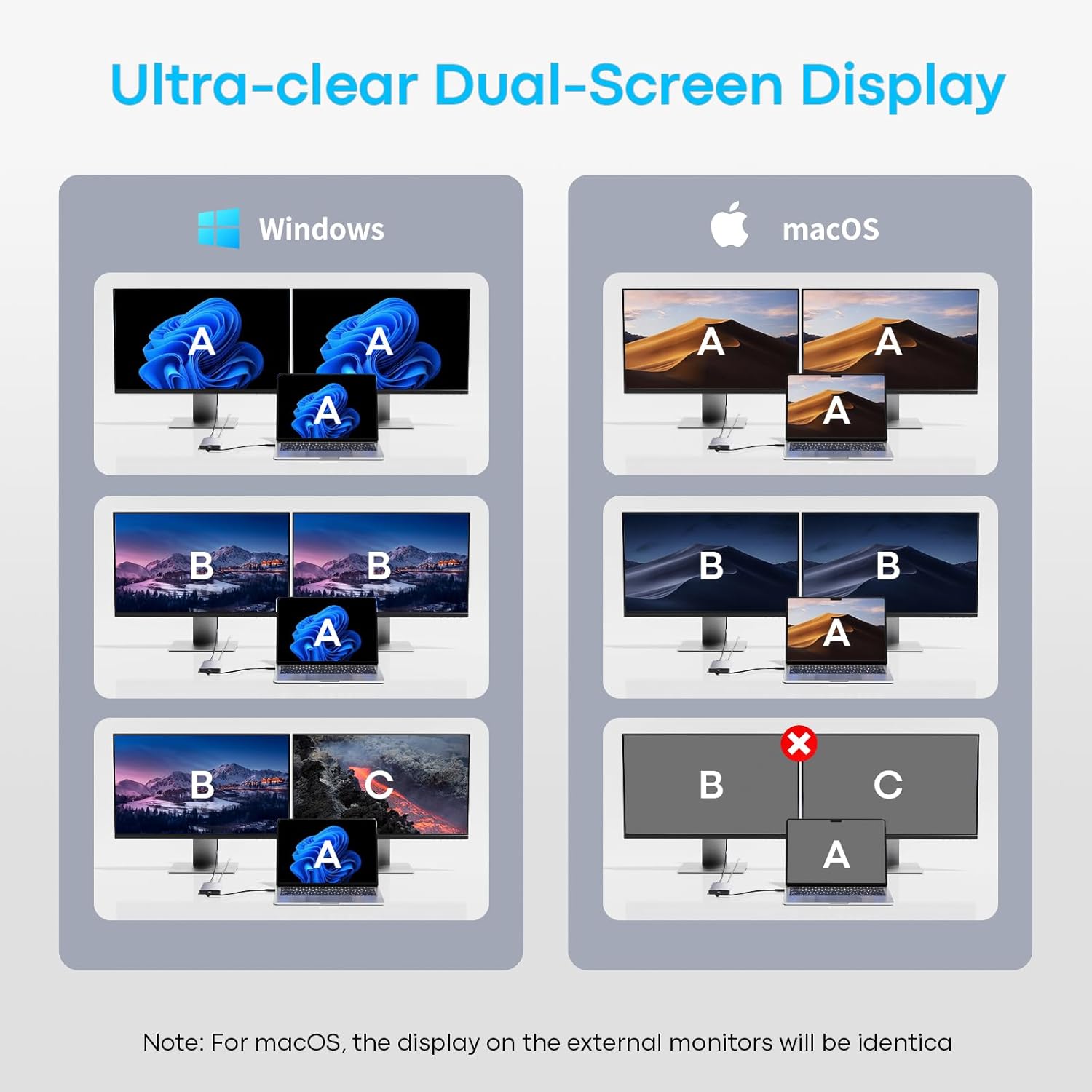
Image 7.2: Comparison of multi-screen display capabilities for Windows (extended) and macOS (mirror only for external monitors).
8. Troubleshooting
- No Display on External Monitor:
- Ensure your laptop's USB-C port supports video output (DisplayPort Alternate Mode). Refer to Section 4.3.
- Check all cable connections (USB-C to laptop, HDMI to monitors).
- Verify monitor input settings are set to the correct HDMI port.
- Try restarting your laptop.
- Test with a single monitor to isolate the issue.
- Monitors Go Dark in Idle Mode:
- This can sometimes occur with certain laptop and monitor combinations when connected via a hub. Try adjusting power management settings on your laptop and monitors to prevent them from entering sleep mode too quickly.
- Ensure your laptop's graphics drivers are up to date.
- Charging Not Working:
- Ensure your laptop's USB-C port supports Power Delivery input.
- Verify your power adapter is connected to the hub's USB-C PD port and is functioning correctly.
- Confirm the power adapter provides sufficient wattage for your laptop and the hub (minimum 65W recommended for most laptops).
- USB Devices Not Recognized:
- Ensure the USB device is properly inserted into the hub's USB-A port.
- Test the USB device by connecting it directly to your laptop.
- Some high-power USB devices may require direct connection or an external power source.
- Mislabeled Ports:
- In rare cases, port labels may be misaligned. Refer to the product images and this manual for correct port identification if you encounter such an issue.
9. Maintenance
- Keep the hub clean by wiping it with a soft, dry cloth.
- Avoid exposing the hub to extreme temperatures, humidity, or direct sunlight.
- Do not attempt to disassemble or repair the device yourself.
- Store the hub in a safe place when not in use to prevent damage.
10. Warranty and Support
UANTIN is committed to providing high-quality products and customer satisfaction. For any inquiries or support needs, please contact UANTIN customer service. We aim to provide a fast response within 24 hours.
Please refer to your purchase documentation for specific warranty terms and conditions.
Ask a question about this manual
Ask about setup, troubleshooting, compatibility, parts, safety, or missing instructions. Manuals+ will review the question and use this page’s manual context to help answer it.