
1. Introduction
Thank you for choosing the VENTION 15-in-1 Laptop Docking Station. This device is designed to expand the connectivity of your laptop, providing a comprehensive solution for multiple peripherals, external displays, network access, and power delivery through a single USB-C connection. Please read this manual carefully to ensure proper installation and operation.
2. Product Overview
The VENTION 15-in-1 Docking Station offers a wide array of ports to enhance your workstation. Its rotatable design allows for flexible placement on your desk.
2.1. Docking Station Features
- 15-in-1 Connectivity: Comprehensive port selection for various devices.
- Dual/Triple Display Output: Supports up to three external monitors via 2 HDMI and 1 DisplayPort.
- Power Delivery (PD 100W): Charges your laptop while connected.
- High-Speed Data Transfer: USB 3.2 Gen 2 ports offer up to 10Gbps.
- Gigabit Ethernet: Provides stable and fast wired network connection.
- Card Reader: Integrated SD/TF card slots for quick data access.
- Audio Jack: 3.5mm TRRS port for headphones or microphones.
- Rotatable Design: Allows for optimal positioning and cable management.
- Durable Construction: Aluminum alloy shell for optimal heat dissipation.
2.2. Port Layout
Familiarize yourself with the ports on the docking station:

Image: Front and back view of the VENTION 15-in-1 Docking Station, showcasing its compact design and port arrangement.

Image: A detailed diagram illustrating all 15 ports on the docking station, including their types and functions.
- Front Ports: SD/TF Card Slot, USB 3.0 (5Gbps), 2x USB 3.2 Gen 2 Type-A (10Gbps), USB 3.2 Gen 2 Type-C (10Gbps), USB 3.2 Gen 1 Type-C (5Gbps), 3.5mm TRRS Audio Jack.
- Rear Ports: PD (Power Delivery 100W Max Input), PC HOST (USB-C connection to laptop), 2x USB 2.0 Type-A (480Mbps), 2x HDMI (4K@60Hz), 1x DisplayPort (4K@60Hz), RJ45 Gigabit Ethernet.
3. Setup Guide
Follow these steps to set up your docking station:
- Unpack the Device: Carefully remove the docking station and included accessories from the packaging.
- Position the Stand: The docking station features a detachable and rotatable U-shaped stand. Attach the stand to the base of the docking station for vertical placement, ensuring stability. The anti-slip pads on the stand provide protection and grip.
- Connect Power (Optional but Recommended): For optimal performance and laptop charging, connect a USB-C power adapter (not included) to the PD (Power Delivery) port on the rear of the docking station. The docking station supports up to 100W power input.
- Connect to Laptop: Use the provided USB-C to USB-C cable to connect your laptop to the PC HOST port on the rear of the docking station. Ensure your laptop's USB-C port is a full-featured port or Thunderbolt 3/4 compatible for full functionality.

Image: Visual guide to identify compatible Thunderbolt or full-featured USB-C ports on your laptop, essential for the docking station's functionality.
Once connected, your laptop should automatically detect the docking station and its connected peripherals. Drivers are typically installed automatically by your operating system.
4. Operating Instructions
4.1. Display Connection
The docking station supports single, dual, or triple external displays. Connect your monitors to the HDMI and DisplayPort outputs on the rear of the docking station.

Image: A laptop connected to a single external 4K monitor through the docking station, demonstrating high-resolution display capabilities.
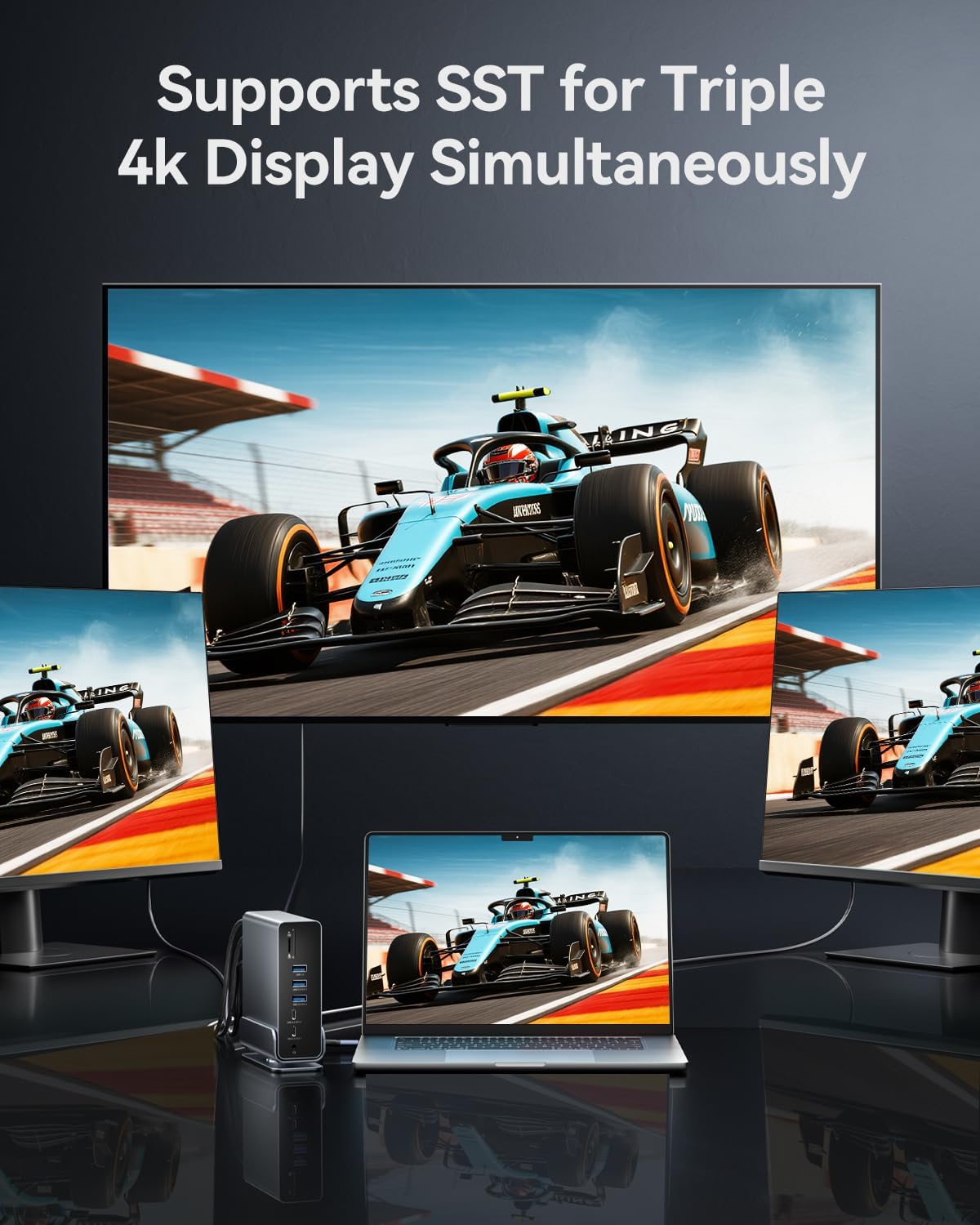
Image: A laptop connected to three external 4K monitors simultaneously, showcasing the triple display support of the docking station.
Display Modes:
- Mirror Mode: Duplicates your laptop's screen on external monitors.
- Extend Mode: Extends your desktop across multiple screens, allowing for increased workspace.
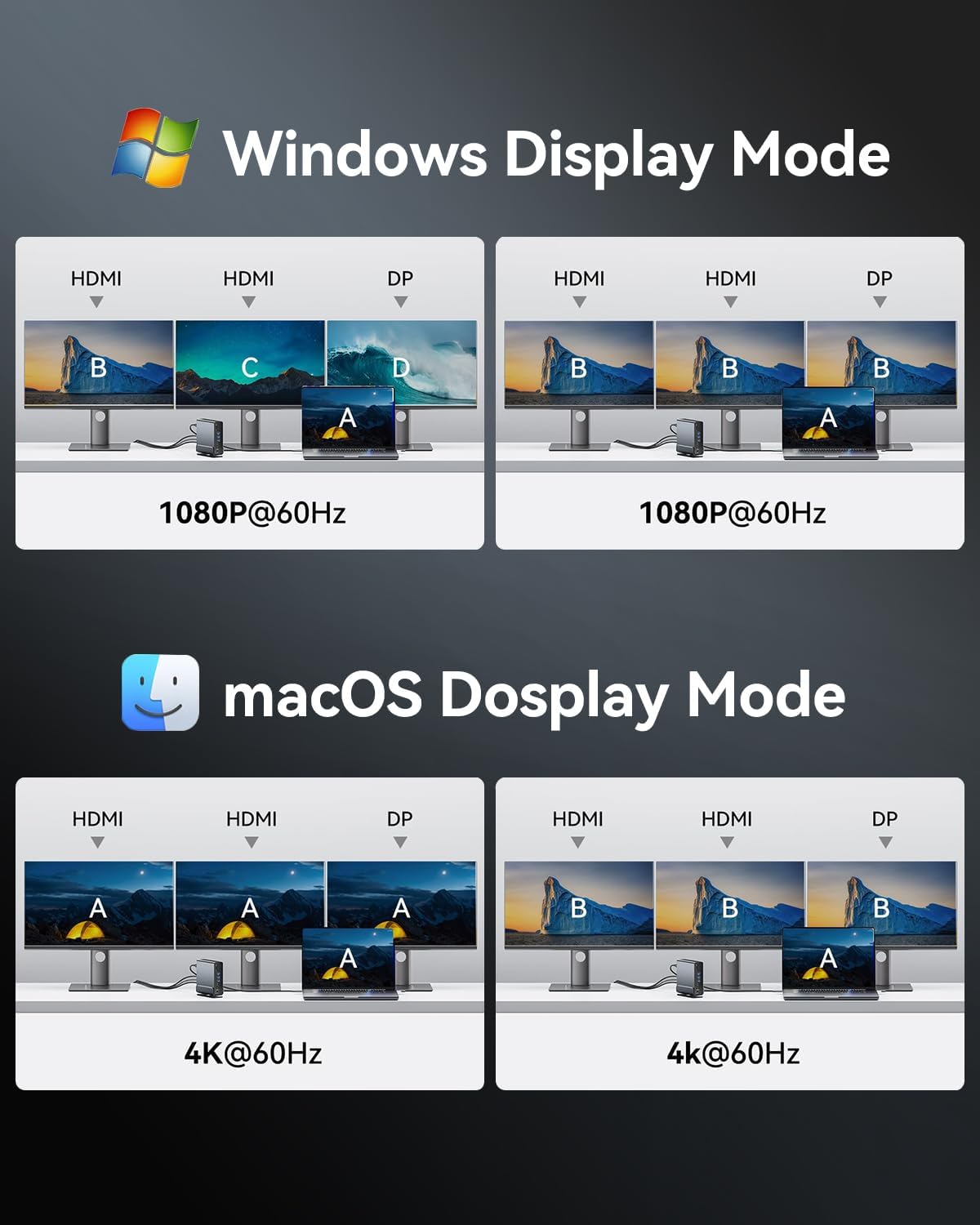
Image: Visual representations of various display configurations for Windows and macOS, including mirror and extend modes across multiple screens.

Image: A table detailing the highest supported resolutions and display modes for single, dual, and triple monitor setups on both Windows and macOS.
4.2. Power Delivery
Connect your laptop's power adapter to the PD port on the docking station to charge your laptop while using the dock. The docking station supports up to 100W power input, delivering up to 85W to your laptop.

Image: A laptop receiving power through the docking station's 100W Power Delivery port, illustrating the charging function.
4.3. Data Transfer
Connect your USB devices (external hard drives, flash drives, keyboards, mice, etc.) to the available USB ports. The docking station features a mix of USB 3.2 Gen 2 (10Gbps), USB 3.0 (5Gbps), and USB 2.0 (480Mbps) ports.

Image: An illustration detailing the data transfer speeds of different USB ports (Type-A and Type-C) and SD/TF card slots on the docking station.
Insert SD or TF cards into the dedicated slots on the front of the docking station for quick access to photos and files. Both slots can be used simultaneously.

Image: A laptop connected to the docking station, demonstrating easy access to SD and TF memory cards for data transfer and backup.
4.4. Network Connection
For a stable and fast internet connection, connect an Ethernet cable from your router or modem to the RJ45 Gigabit Ethernet port on the rear of the docking station.

Image: A laptop connected to the docking station, which is then connected to a network via the Gigabit Ethernet port, ensuring a fast and stable internet connection.
4.5. Audio Connection
Connect your headphones, speakers, or microphone to the 3.5mm TRRS audio jack on the front of the docking station.

Image: A laptop connected to the docking station, with headphones plugged into the 3.5mm audio and microphone jack, facilitating audio input and output.
5. Compatibility
The VENTION 15-in-1 Docking Station is compatible with a wide range of devices and operating systems, provided your laptop has a full-featured USB-C port or Thunderbolt 3/4 interface.
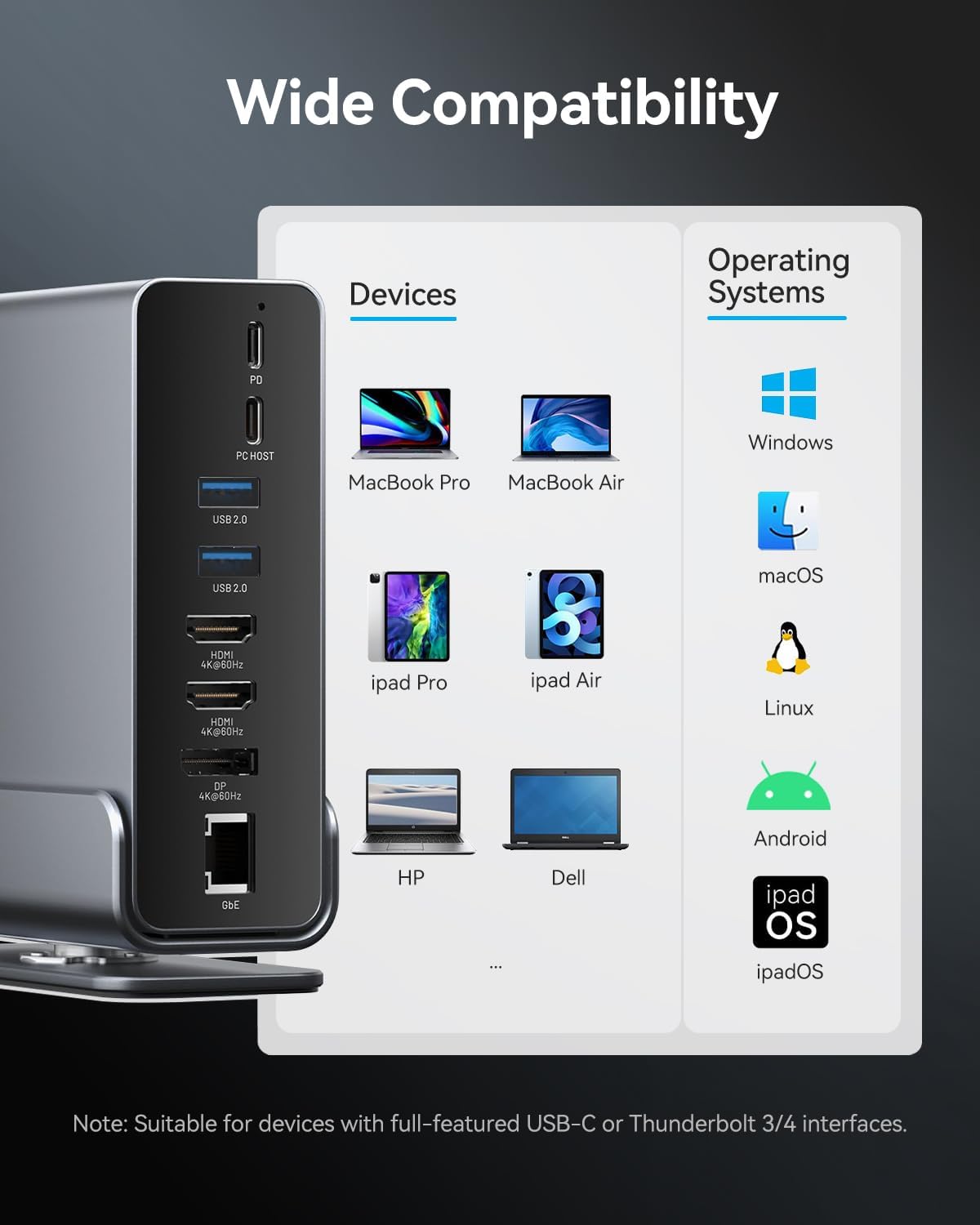
Image: A chart illustrating the wide compatibility of the docking station with various devices such as MacBook Pro/Air, iPad Pro/Air, HP, Dell, Surface, and operating systems including Windows, macOS, Linux, Android, and iPadOS.
Supported Operating Systems:
- Windows
- macOS
- Linux
- Android
- iPadOS
Note: Full functionality, especially for multiple displays and power delivery, requires a USB-C port that supports DisplayPort Alternate Mode (Alt Mode) and Power Delivery. Thunderbolt 3/4 ports are fully compatible.
6. Maintenance
To ensure the longevity and optimal performance of your docking station, follow these maintenance guidelines:
- Cleaning: Use a soft, dry cloth to wipe the exterior of the docking station. Avoid using liquid cleaners or abrasive materials.
- Storage: Store the docking station in a cool, dry place away from direct sunlight and extreme temperatures.
- Handling: Avoid dropping or subjecting the device to strong impacts.
- Ventilation: Ensure the docking station has adequate ventilation to prevent overheating. The aluminum alloy shell is designed for optimal heat dissipation.
7. Troubleshooting
If you encounter issues with your docking station, refer to the following common solutions:
- No Display Output:
- Ensure your laptop's USB-C port supports DisplayPort Alt Mode.
- Check all cable connections (USB-C to laptop, HDMI/DP to monitors).
- Verify monitor input settings are correct.
- Try updating your laptop's graphics drivers.
- Restart your laptop and reconnect the docking station.
- Laptop Not Charging:
- Ensure a compatible USB-C power adapter is connected to the PD port.
- Verify the power adapter provides sufficient wattage (up to 100W recommended).
- Check the connection between the power adapter and the docking station.
- USB Devices Not Recognized:
- Ensure the USB device is properly inserted into the port.
- Try connecting the device to a different USB port on the docking station or directly to your laptop.
- Restart your laptop.
- Intermittent Connections:
- Ensure all cables are securely connected.
- Avoid excessive bending or strain on the USB-C cable connecting to your laptop.
- Ensure the docking station is placed on a stable surface and not subject to movement.
- Ethernet Not Working:
- Check the Ethernet cable connection to both the docking station and your router/modem.
- Verify network settings on your laptop.
- Restart your router/modem.
If the issue persists, please contact VENTION customer support for further assistance.
8. Specifications
| Feature | Specification |
|---|---|
| Model | B0F5PTZTCP |
| Ports | 15 (2x HDMI, 1x DP, 1x RJ45, 1x PD, 1x PC Host, 2x USB 3.2 Gen 2 Type-A, 1x USB 3.0 Type-A, 2x USB 2.0 Type-A, 1x USB 3.2 Gen 2 Type-C, 1x USB 3.2 Gen 1 Type-C, 1x SD, 1x TF, 1x 3.5mm Audio) |
| Video Output | 2x HDMI (4K@60Hz), 1x DisplayPort (4K@60Hz) |
| Power Delivery | PD 100W Input (Max), 85W Output to Host (Max) |
| USB Data Transfer | USB 3.2 Gen 2: 10Gbps, USB 3.0: 5Gbps, USB 2.0: 480Mbps |
| Ethernet | Gigabit Ethernet (10/100/1000Mbps) |
| Card Reader | SD/TF (Read & Write 2 cards simultaneously) |
| Audio | 3.5mm TRRS Audio/Microphone Jack |
| Material | Aluminum Alloy |
| Dimensions | 7.9 x 6.7 x 2.34 inches |
| Weight | 1.76 pounds (0.8 kg) |
9. What's in the Box
The package includes the following items:
- VENTION 15-in-1 Laptop Docking Station
- 1.5ft USB-C to USB-C Cable
- User Manual (this document)

Image: An illustration showing the contents included in the product package: the docking station, a USB-C cable, and the user manual.
10. Warranty and Support
VENTION products are designed for reliability and performance. For warranty information or technical support, please refer to the contact details provided on the product packaging or visit the official VENTION website. Keep your purchase receipt as proof of purchase for warranty claims.


