
ADVANTECH AIMB-286F-00A1E
Contents
AIMB-286F-00A1E Motherboard User Manual
Model: AIMB-286F-00A1E | Brand: ADVANTECH
1. Introduction
This manual provides comprehensive instructions for the installation, operation, maintenance, and troubleshooting of the ADVANTECH AIMB-286F-00A1E Mini-ITX Motherboard. This industrial-grade motherboard is designed for reliable performance in various computing environments, featuring an LGA1151 socket compatible with Celeron, Core i3/i5/i7, and Pentium processors, and supporting up to 32 GB of DDR4 RAM.
Please read this manual thoroughly before beginning installation to ensure proper setup and to prevent damage to the components.
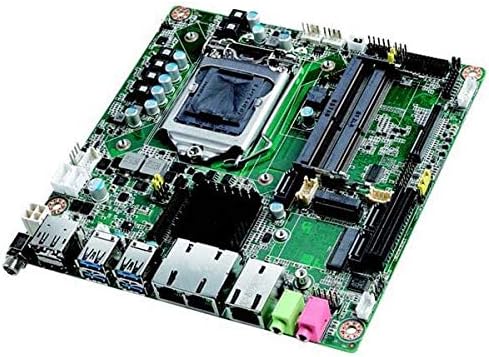
Figure 1: Overview of the ADVANTECH AIMB-286F-00A1E Mini-ITX Motherboard. This image displays the compact green circuit board with various components including the CPU socket, RAM slots, I/O ports (USB, Ethernet, audio), and expansion slots.
2. Setup and Installation
2.1. Safety Precautions
- Always disconnect power from the system before installing or removing any components.
- Wear an anti-static wrist strap or frequently touch a grounded metal object to discharge static electricity, which can damage sensitive electronic components.
- Handle the motherboard by its edges to avoid touching components or circuits.
- Ensure proper ventilation in the system chassis to prevent overheating.
2.2. Required Tools
- Phillips head screwdriver
- Anti-static wrist strap (recommended)
- Thermal paste (for CPU cooler installation)
2.3. Installation Steps
- Unpacking: Carefully remove the motherboard from its packaging. Inspect for any visible damage.
- CPU Installation:
- Locate the LGA1151 CPU socket. Lift the load lever and open the metal retention frame.
- Align the CPU with the socket, ensuring the gold triangle on the CPU matches the triangle on the socket. Gently place the CPU into the socket without forcing it.
- Close the metal retention frame and secure it with the load lever.
- Apply a thin, even layer of thermal paste to the top of the CPU.
- Install the CPU cooler according to its manufacturer's instructions, ensuring it makes firm contact with the CPU.
- RAM Installation:
- Locate the DDR4 DIMM slots. Open the retention clips at both ends of the slot.
- Align the notch on the DDR4 memory module with the key in the DIMM slot.
- Insert the module firmly into the slot until the retention clips snap into place.
- Motherboard Mounting:
- Install the I/O shield into the rear opening of your Mini-ITX case.
- Align the motherboard with the standoffs inside the case.
- Secure the motherboard to the standoffs using screws. Do not overtighten.
- Connecting Power Supply:
- Connect the 24-pin ATX power connector from your power supply unit (PSU) to the corresponding header on the motherboard.
- Connect the 4-pin or 8-pin CPU power connector (EPS12V) to the appropriate header near the CPU socket.
- Connecting Peripherals:
- Connect SATA data cables from your storage devices (HDD/SSD) to the SATA ports on the motherboard.
- Connect front panel headers (Power SW, Reset SW, HDD LED, Power LED, USB, Audio) to their respective pins on the motherboard. Refer to the motherboard's silkscreen labels for correct orientation.
- Install any necessary expansion cards (e.g., PCIe cards) into the available slots and secure them.
- Initial Boot-up:
- Connect a monitor to one of the motherboard's video outputs (DP or HDMI).
- Connect a keyboard and mouse.
- Power on the system. The system should display the BIOS/UEFI screen.
3. Operating Instructions
3.1. BIOS/UEFI Setup
Upon initial boot or by pressing the designated key (usually DEL or F2) during startup, you can access the BIOS/UEFI setup utility. This utility allows you to configure system settings such as boot order, date/time, CPU settings, memory settings, and integrated peripheral options.
- Boot Order: Configure the sequence in which the system attempts to boot from storage devices (e.g., USB drive, SSD, HDD).
- System Information: View details about the installed CPU, memory, and BIOS version.
- Advanced Settings: Adjust CPU virtualization, power management, and other advanced features.
- Save and Exit: Always save changes before exiting the BIOS/UEFI setup.
3.2. Driver Installation
After installing your operating system, it is crucial to install the latest drivers for the motherboard's components to ensure optimal performance and stability. Drivers typically include:
- Chipset drivers
- Graphics drivers (for integrated graphics)
- LAN (Ethernet) drivers
- Audio drivers
- USB drivers
Drivers can usually be found on the ADVANTECH official website under the support section for the AIMB-286F-00A1E model.
4. Maintenance
4.1. Cleaning Procedures
Regular cleaning helps maintain the motherboard's performance and extends its lifespan. Ensure the system is powered off and unplugged before cleaning.
- Use compressed air to remove dust from the CPU cooler, RAM slots, and other components. Hold the can upright to prevent propellant discharge.
- Gently wipe the surface of the motherboard with a soft, lint-free cloth. Avoid using liquid cleaners directly on components.
- Periodically check fan blades for dust buildup and clean as necessary.
4.2. Firmware Updates (BIOS/UEFI)
ADVANTECH may release BIOS/UEFI updates to improve system stability, add new features, or fix bugs. Always follow the manufacturer's instructions carefully when updating firmware, as an improper update can render the motherboard inoperable.
- Download the correct BIOS/UEFI file for your specific motherboard model from the ADVANTECH support website.
- Typically, updates are performed via a USB flash drive or a utility within the BIOS/UEFI itself.
- Do not interrupt the update process (e.g., power loss) as this can permanently damage the BIOS chip.
5. Troubleshooting
This section provides solutions to common issues you might encounter with your motherboard.
| Problem | Possible Cause | Solution |
|---|---|---|
| No Power / System Does Not Turn On | Loose power connections, faulty PSU, incorrect front panel wiring. | Check 24-pin and CPU power connectors. Verify front panel power switch connection. Test PSU with another system if possible. |
| No Display on Monitor | Incorrect video cable connection, faulty RAM, CPU not seated correctly, no integrated graphics driver. | Ensure monitor cable is securely connected. Reseat RAM modules. Reseat CPU. Try a different video output port. |
| System Boots but No POST Beep Codes | Missing or faulty speaker, critical hardware failure (CPU, RAM). | Ensure system speaker is connected. Reseat CPU and RAM. Test with one RAM stick at a time. |
| Operating System Not Loading | Incorrect boot order, corrupted OS, faulty storage drive. | Check BIOS/UEFI boot order. Reinstall OS if necessary. Test storage drive. |
If you encounter issues not listed here or if the suggested solutions do not resolve your problem, please refer to the support section or contact ADVANTECH technical support.
6. Specifications
Detailed technical specifications for the AIMB-286F-00A1E Motherboard:
- Product Category: Industrial Motherboard
- Form Factor: Mini-ITX
- Processor Type: Supports Intel Celeron, Core i3/i5/i7, Pentium (LGA1151 socket)
- Maximum RAM Capacity: 32 GB
- Memory Type: DDR4
- Minimum Operating Temperature: 0°C (32°F)
- Maximum Operating Temperature: +60°C (140°F)
- Video Outputs: DisplayPort (DP), HDMI
- Expansion Slots: PCIe
- Ethernet: 3 Gigabit Ethernet ports
- Item Weight: Approximately 9.99 pounds
- Manufacturer: ADVANTECH
- ASIN: B0F5LVKGM7
- Date First Available: January 15, 2021
7. Warranty and Support
7.1. Warranty Information
Warranty terms and conditions for the ADVANTECH AIMB-286F-00A1E Motherboard are provided by the manufacturer, ADVANTECH. Please refer to the warranty card included with your product or visit the official ADVANTECH website for detailed warranty policy information.
7.2. Technical Support
For technical assistance, troubleshooting beyond this manual, or inquiries regarding product functionality, please contact ADVANTECH technical support. Support contact information can typically be found on the ADVANTECH official website:
Visit ADVANTECH Support Website
When contacting support, please have your product model (AIMB-286F-00A1E) and ASIN (B0F5LVKGM7) ready.
Documents and downloads
Ask a question about this manual
Ask about setup, troubleshooting, compatibility, parts, safety, or missing instructions. Manuals+ will review the question and use this page’s manual context to help answer it.