1. Introduction
Thank you for choosing the Acer 10 Gbps USB C Hub. This 5-in-1 multiport adapter is designed to expand the connectivity of your USB-C enabled devices, offering high-speed data transfer and efficient power delivery. Please read this manual carefully to ensure proper use and optimal performance of your device.
Important Note: This USB C Hub does NOT support video output (HDMI/DP). External monitors and TVs are NOT supported for display extension or mirroring.
2. Product Overview
The Acer 10 Gbps USB C Hub provides essential ports for modern computing needs, all within a compact and durable design.
- Ultra-Fast 10Gbps Data Transfer: Equipped with 4 USB-C 3.2 Gen 2 ports, allowing for high-speed data transfer of 1GB files in approximately 1 second. For full 10Gbps speed, connect to a 10Gbps-capable port and use a high-speed device.
- 100W Power Delivery (PD) Port: Features a 100W PD port for efficient charging of your host device. Ensure your laptop's USB-C port supports PD protocol and use a 65W+ charger for best performance.
- Plug and Play Functionality: No drivers required. Simply connect the hub to your device and begin use immediately. Compatible with Windows, macOS, Linux, iPadOS, iOS, and Android.
- Stylish Aluminum Enclosure: Constructed with a high-quality aluminum alloy casing for excellent heat dissipation and enhanced safety, ensuring stable performance during prolonged use.
- High-Performance Compatibility: Compatible with a wide range of devices including MacBook Pro, MacBook, iPad Pro, iPad Mini, iPhone 16/16 Pro Max, Surface Pro, XPS 15/13, Galaxy S24/23/S22/S21, and other smartphones, laptops, tablets, and PCs.
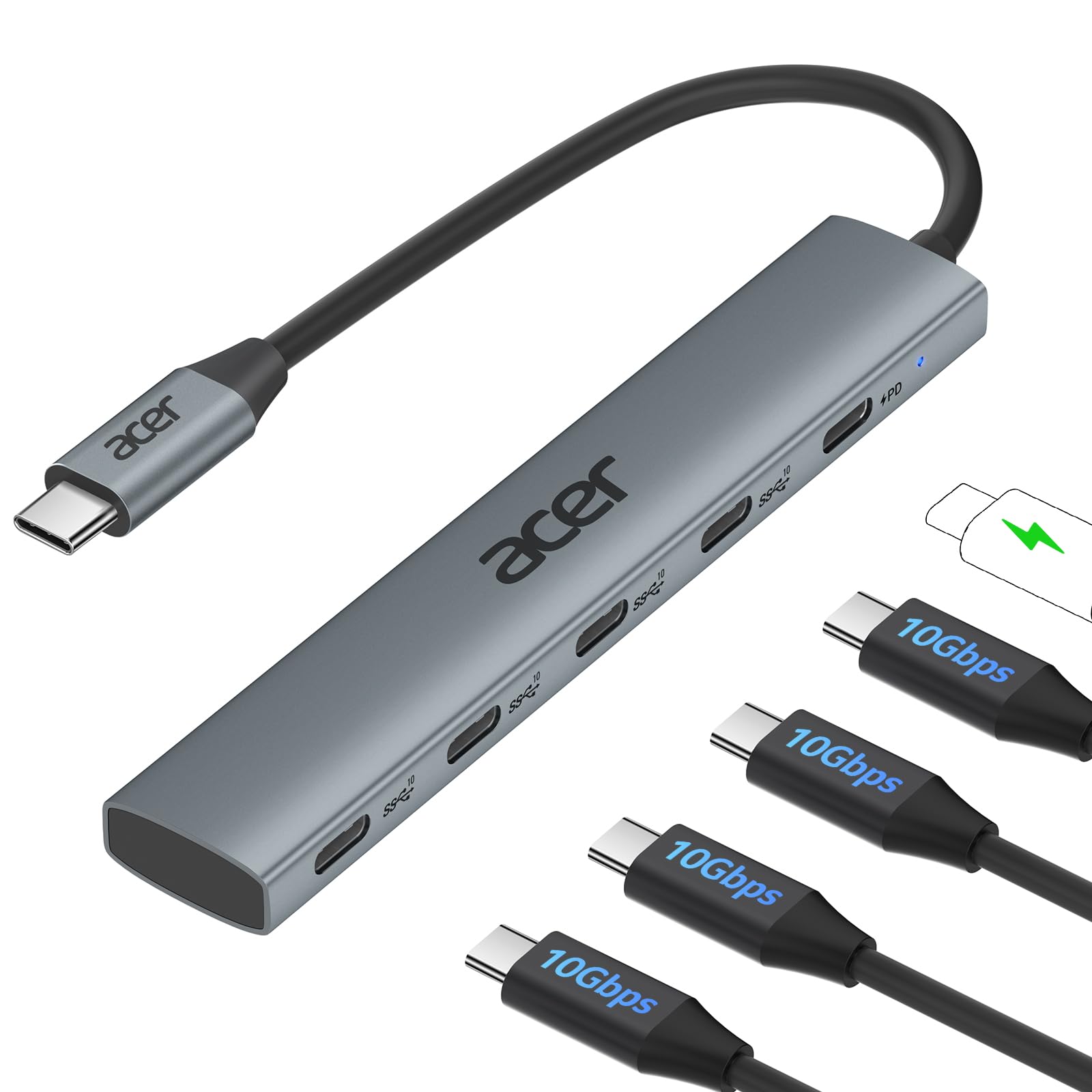
Figure 1: Acer 10 Gbps USB C Hub with its five ports and indicator light.
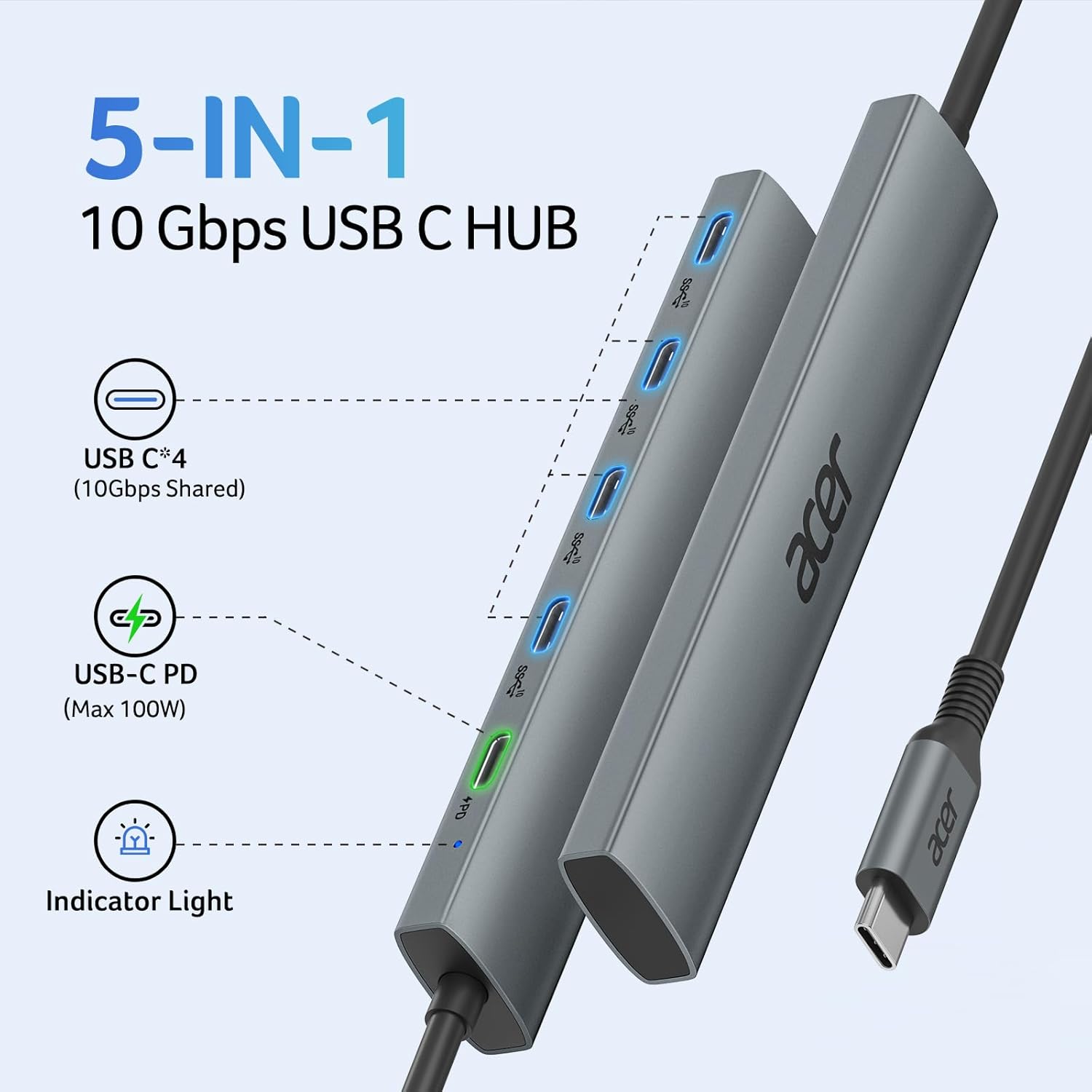
Figure 2: Detailed diagram of the Acer USB C Hub's ports, including 4 USB-C 3.2 Gen 2 data ports and 1 USB-C PD 100W charging port.
3. Setup Instructions
Setting up your Acer USB C Hub is quick and easy due to its plug-and-play design.
- Connect to Host Device: Plug the integrated USB-C cable of the hub into an available USB-C port on your laptop, tablet, or smartphone.
- Power Connection (Optional): If you require charging for your host device, connect a USB-C power adapter (65W or higher recommended) to the 100W PD port on the hub.
- Device Recognition: Your operating system (Windows, macOS, Linux, iPadOS, iOS, Android) should automatically detect and configure the hub. No additional drivers are typically needed.
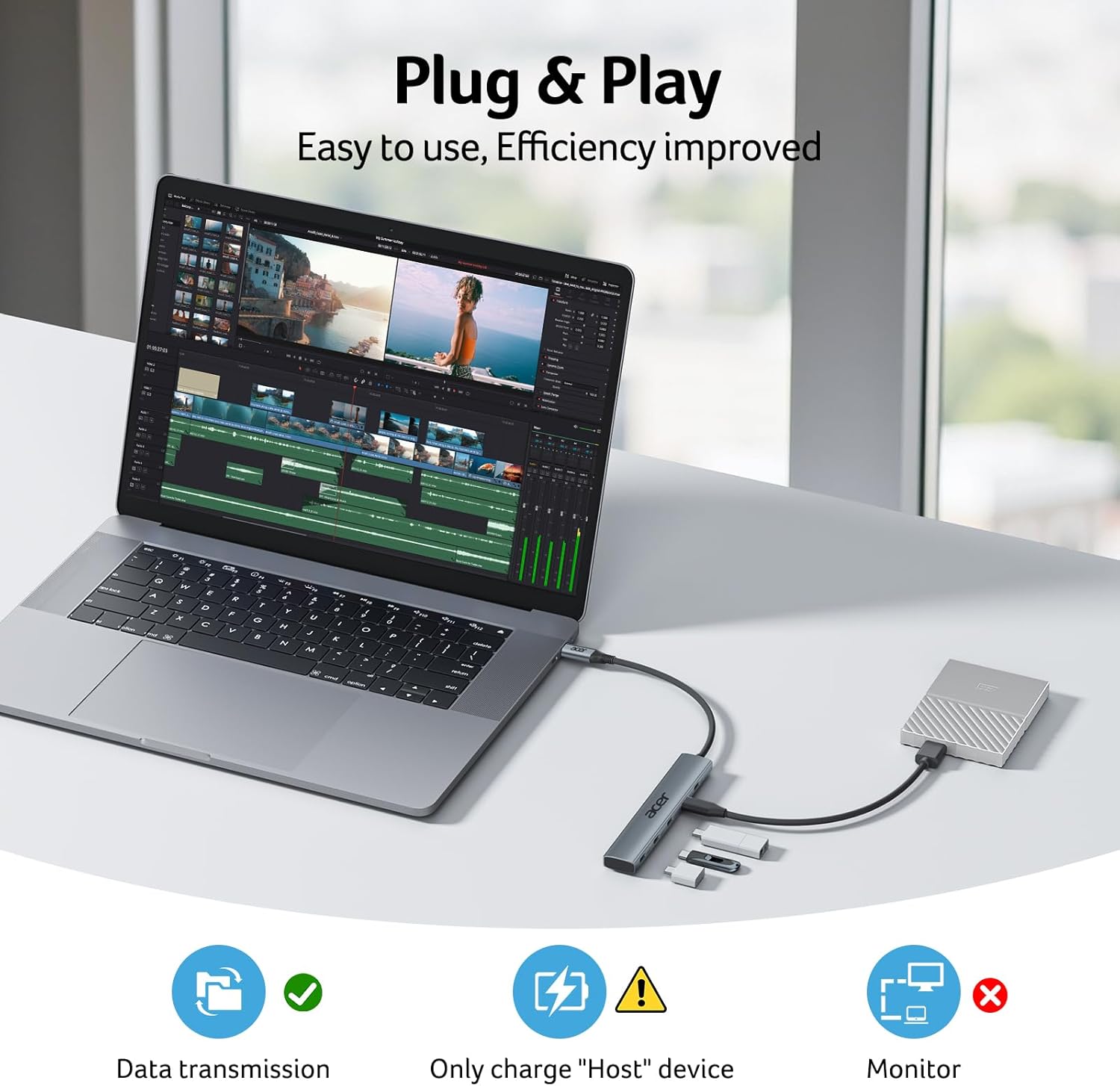
Figure 3: The Acer USB C Hub connected to a laptop, ready for use. Note the data transmission and charging icons.
4. Operating Instructions
Once set up, the Acer USB C Hub allows you to connect multiple USB-C devices simultaneously.
- Data Transfer: Connect your USB-C storage devices (e.g., external SSDs, flash drives) to any of the 4 USB-C 3.2 Gen 2 data ports. Enjoy transfer speeds up to 10Gbps. For optimal speed, connect one or two external USB hard drives or SSD drives at a time.
- Charging Devices: Use the dedicated 100W PD port to charge your host device. This port is for power input only and does not support data transfer.
- Compatibility: The hub is compatible with various USB-C peripherals such as keyboards, mice, and other low-power devices.
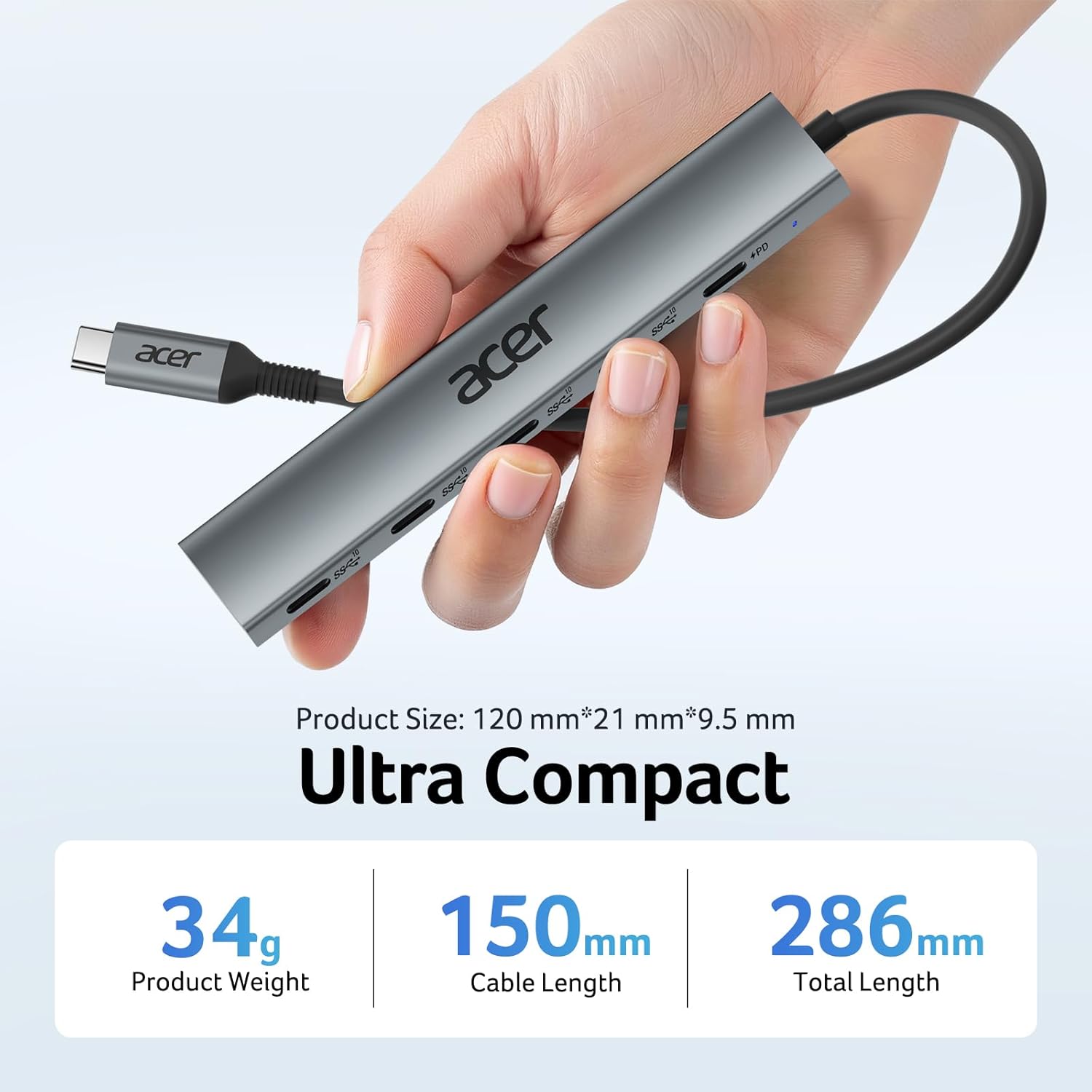
Figure 4: A user connecting an external SSD to one of the USB-C data ports on the hub, demonstrating its use for high-speed storage.

Figure 5: The Acer USB C Hub providing 100W Power Delivery to a connected laptop via a power adapter.
5. Maintenance
To ensure the longevity and optimal performance of your Acer USB C Hub, follow these maintenance guidelines:
- Cleaning: Use a soft, dry cloth to clean the hub. Avoid liquid cleaners or abrasive materials.
- Storage: Store the hub in a cool, dry place away from direct sunlight and extreme temperatures.
- Handling: Avoid dropping the hub or subjecting it to strong impacts. Do not bend the integrated cable excessively.
- Heat Dissipation: The aluminum casing is designed for efficient heat dissipation. Ensure the hub is not covered or placed in an enclosed space during operation to allow for proper airflow.
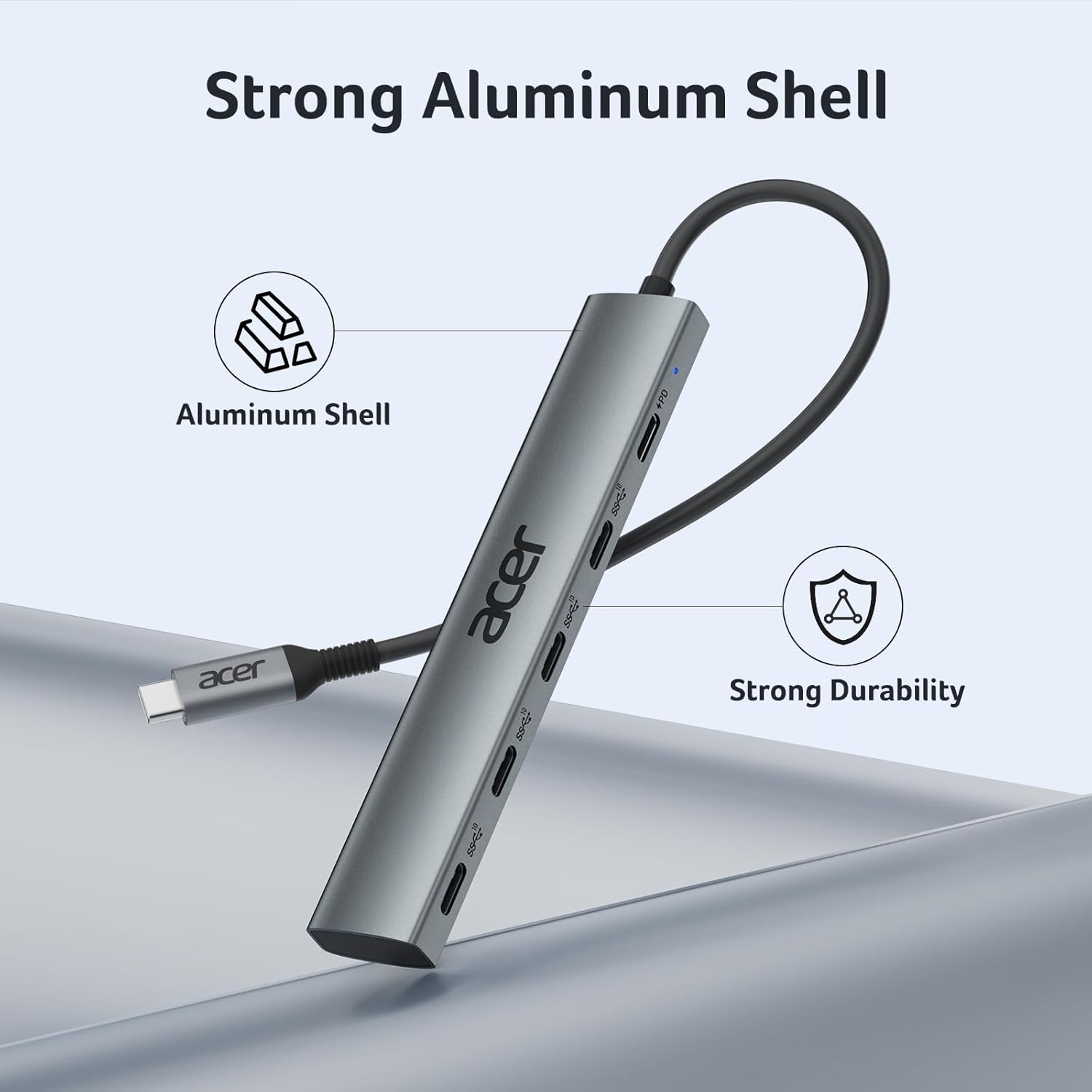
Figure 6: Close-up view of the Acer USB C Hub's durable aluminum shell, designed for effective heat management.
6. Troubleshooting
If you encounter issues with your Acer USB C Hub, please refer to the following common solutions:
- Device Not Recognized: Ensure the hub's USB-C connector is fully inserted into your host device. Try connecting to a different USB-C port on your host device if available. Restart your host device.
- Slow Data Transfer: Verify that both your host device's USB-C port and the connected peripheral support USB 3.2 Gen 2 (10Gbps). Using multiple high-bandwidth devices simultaneously may reduce individual port speeds.
- Charging Issues: Confirm that your power adapter is connected to the hub's PD port and that the power adapter itself is functioning correctly. Ensure your host device's USB-C port supports Power Delivery.
- No Video Output: This hub does NOT support video output. This is a normal function of this specific model. If you require video output, please consider a different hub model.

Figure 7: Visual confirmation that the Acer USB C Hub does not support external monitor connections for video output.
7. Specifications
| Feature | Detail |
|---|---|
| Model Number | ODK4L0 |
| Ports | 4 x USB-C 3.2 Gen 2 (10Gbps Data), 1 x USB-C PD (Max 100W) |
| Data Transfer Speed | Up to 10 Gbps |
| Power Delivery | Up to 100W (Input) |
| Compatibility | Windows, macOS, Linux, iPadOS, iOS, Android |
| Material | Aluminum Alloy |
| Dimensions | 6.06 x 4.65 x 0.47 inches |
| Item Weight | 2.11 ounces |
8. Warranty and Support
For warranty information and technical support, please refer to the documentation included with your product or visit the official Acer support website. Keep your purchase receipt for warranty claims.


