
Introduction
Thank you for choosing the XINDADA H16 Ultra Plus AMOLED Smart Watch. This manual provides essential information for setting up, operating, and maintaining your device. Please read it carefully to ensure optimal performance and longevity of your smartwatch.
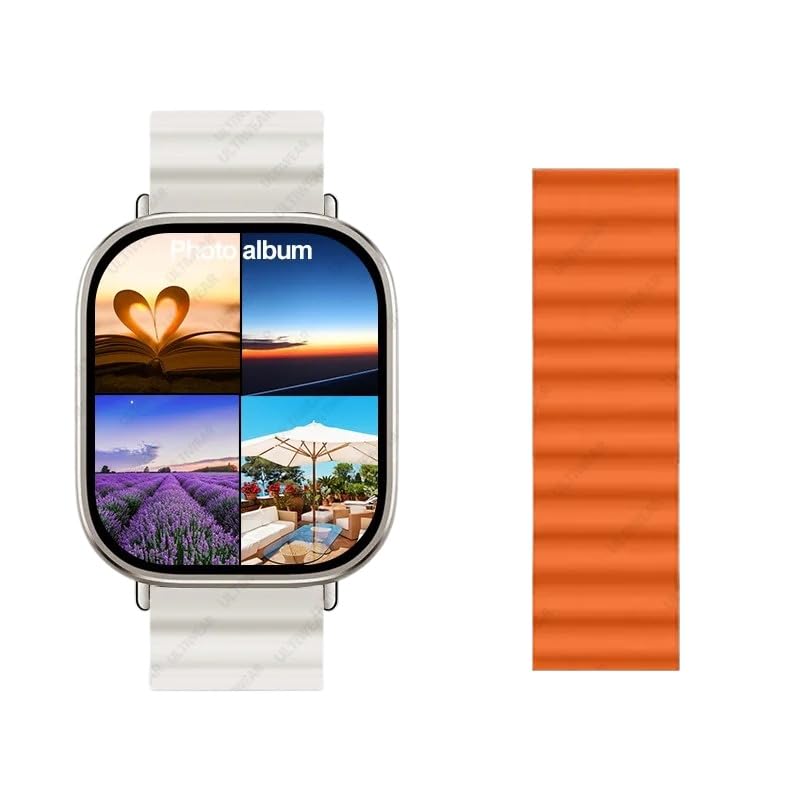
Image: The XINDADA H16 Ultra Plus Smart Watch, displaying its main interface and key features.
Safety Information
- Do not attempt to disassemble, repair, or modify the device.
- Keep the device away from extreme temperatures, direct sunlight, and moisture.
- Use only approved chargers and accessories.
- Consult a medical professional before starting any new exercise regimen, especially if you have pre-existing health conditions.
- Avoid prolonged contact with the skin if irritation occurs.
Package Contents
Please check the package for the following items:
- XINDADA H16 Ultra Plus Smart Watch
- Charging Cable
- User Manual (this document)

Image: The packaging box for the Hello Plum Smart Watch.
Setup
1. Charging the Device
Before first use, fully charge your smartwatch.
- Connect the charging cable to the charging port on the back of the watch.
- Connect the other end of the cable to a USB power adapter (not included) or a computer's USB port.
- The watch display will indicate charging status. A full charge takes approximately 180 minutes.
2. Powering On/Off
- Power On: Press and hold the side button until the screen lights up.
- Power Off: Press and hold the side button, then select "Power Off" on the screen.
3. Pairing with Your Smartphone
To unlock all features, pair your H16 Ultra Plus with your smartphone via the companion app.
- Download the official companion app from your smartphone's app store (search for "Hello Plum" or refer to the QR code on the watch/manual).
- Ensure Bluetooth is enabled on your smartphone.
- Open the app, create an account or log in, and follow the on-screen instructions to add a new device.
- Select "H16 Ultra Plus" from the list of available devices.
- Confirm the pairing request on both your watch and smartphone.
The watch supports multiple languages, including English, Traditional Chinese, French, German, Italian, Spanish, Portuguese, Russian, Turkish, Japanese, Arabic, Thai, Vietnamese, Ukrainian, and Farsi.

Image: The H16 Ultra Plus watch displaying its extensive language support.
Operating Instructions
1. Basic Navigation
- Touchscreen: Swipe left/right, up/down to navigate menus and screens. Tap to select.
- Side Button: Press to return to the home screen or wake the display. Long press for power options.
2. Always-on Display
The H16 Ultra Plus features an AMOLED Always-on Display. This allows the time and essential information to be visible without needing to raise your wrist or press a button. You can configure Always-on Display settings in the watch settings or through the companion app.
3. Local Music Playback
Store and play music directly from your watch.
- Transfer music files to the watch's internal storage via the companion app.
- Access the "Music" application on your watch.
- Connect to TWS (True Wireless Stereo) earbuds or other Bluetooth audio devices for playback.
4. Watch Faces and Themes
Customize your watch's appearance with various watch faces and themes.
- Long-press on the home screen to quickly change watch faces.
- Explore more options and download new themes through the companion app.
5. Sport Modes and Health Monitoring
The watch supports various sport modes to track your activities and provides basic health monitoring features.
- Access the "Workout" or "Sport" app to select your desired activity.
- View your activity data, heart rate, and other metrics in real-time on the watch or in the app.
- GPS functionality is available via smartphone connection.
6. Compass and Stocks
Utilize the built-in compass for navigation and monitor stock market information directly on your wrist.
- Open the "Compass" app for directional guidance.
- Access the "Stocks" app to view real-time stock data (requires internet connection via paired smartphone).
Maintenance
- Cleaning: Wipe the watch and strap with a soft, damp cloth. Avoid harsh chemicals or abrasive materials.
- Water Resistance: The watch is designed for daily use and light splashes. Avoid prolonged immersion in water, hot water, or steam. Do not press buttons underwater.
- Storage: When not in use for extended periods, store the watch in a cool, dry place. Charge it periodically to maintain battery health.
Troubleshooting
- Watch not turning on: Ensure the watch is fully charged. Connect it to the charger and wait a few minutes before attempting to power on again.
- Cannot pair with smartphone:
- Ensure Bluetooth is enabled on your phone and the watch.
- Make sure the watch is within range of your phone.
- Restart both the watch and your phone, then try pairing again.
- Check if the companion app is updated to the latest version.
- Inaccurate data: Ensure the watch is worn snugly on your wrist. For GPS-related data, ensure your smartphone is connected and has a clear GPS signal.
- Short battery life: Reduce screen brightness, limit notifications, and disable features like Always-on Display if not needed.
Specifications
| Feature | Specification |
|---|---|
| Model | H16 |
| Display Type | AMOLED |
| Screen Size | 2.04 Inches |
| Resolution | 368 x 448 |
| Operating System | Proprietary OS |
| Memory Capacity | 1 GB |
| Installed RAM Size | 128 MB |
| Battery Capacity | 450 mAh |
| Charging Time | 180 Minutes |
| Compatible Devices | Smartphone, Laptop, Tablet (iOS and Android compatible) |
| GPS | Via Smartphone |
| Input Interface | Buttons, Touchscreen |
Warranty and Support
For warranty information and technical support, please refer to the documentation provided with your purchase or contact XINDADA customer service through their official website. Keep your proof of purchase for warranty claims.