
1. Introduction
Thank you for choosing the Geevon Wireless Indoor/Outdoor Thermometer. This device provides accurate temperature and humidity readings for up to four different locations simultaneously, helping you maintain a comfortable and healthy environment. Please read this manual carefully before use to ensure proper operation and longevity of your device.
2. Package Contents
- 1 x Main Display Unit
- 3 x Wireless Remote Sensors
- 1 x User Manual
3. Product Overview
3.1 Main Display Unit
The main unit features a large LCD screen displaying indoor temperature and humidity, along with readings from up to three remote sensors. It includes buttons for mode selection, unit switching, and alarm settings.

Image: The main display unit on the left, showing temperature and humidity readings for four channels, alongside three white remote sensors on the right.
3.2 Wireless Remote Sensors
Each remote sensor is designed to measure temperature and humidity in its specific location and transmit data wirelessly to the main unit. They are compact and can be placed indoors or outdoors (avoid direct sunlight and rain).

Image: A detailed view of the main display unit and one remote sensor, illustrating their dimensions and key features such as thermometer, hygrometer, backlight, transmission range, unit switching, comfort symbols, temperature alarm, and Max/Min data records.
4. Setup
4.1 Battery Installation
The main unit requires 2 AA batteries, and each remote sensor requires 2 AAA batteries (not included).
- Open the battery compartment cover on the back of the main unit and each remote sensor.
- Insert batteries according to the polarity indicators (+ and -).
- Close the battery compartment covers securely.
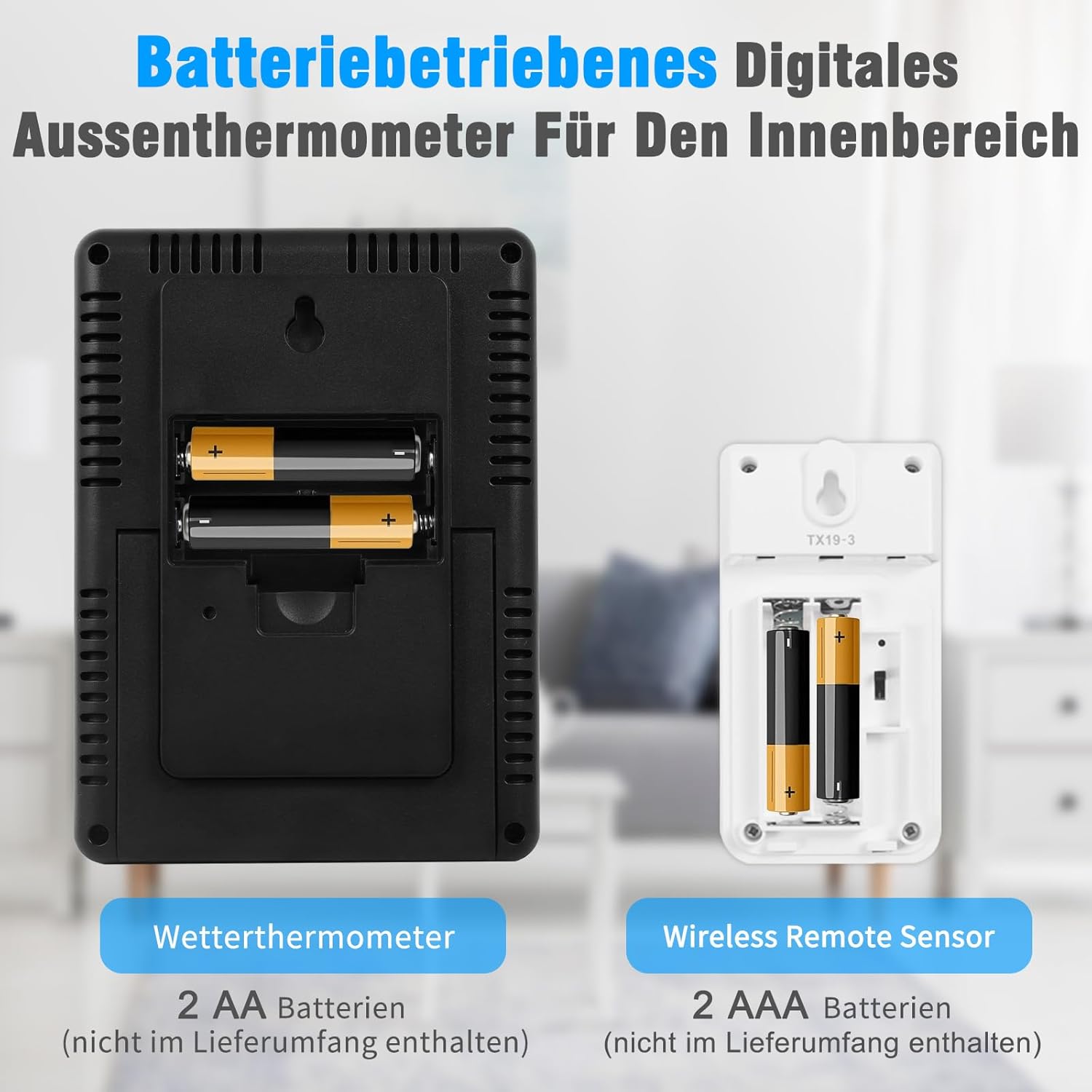
Image: A view of the back of the main weather thermometer unit showing its 2 AA battery slots, and the back of a wireless remote sensor showing its 2 AAA battery slots. Batteries are not included.
4.2 Sensor Pairing
The main unit will automatically connect with the sensors once batteries are installed. If a sensor does not connect:
- Ensure both the main unit and sensors have fresh batteries.
- Press the 'CH/▲' button on the main unit to cycle through channels or initiate a search for sensors.
- Press the 'TX' button inside the battery compartment of the remote sensor to manually send a signal.
5. Operating Instructions
5.1 Display Modes
The large LCD screen displays current indoor temperature and humidity, along with readings from the three remote sensors. It also shows 24-hour Max/Min records and trend arrows for temperature and humidity.

Image: A close-up of the Geevon thermometer's 5-inch large LCD display, highlighting its backlight feature which stays on for 8 seconds when activated.
5.2 Unit Switching (°C/°F)
Press the 'MEM/℃/℉' button on the main unit to switch between Celsius (°C) and Fahrenheit (°F) temperature units.
5.3 Temperature and Humidity Alarm
The device features Hi/Lo temperature and humidity alarm functions. You can manually set maximum and minimum alert values. An audible alarm will sound when the readings reach these predefined points.

Image: An illustration showing the 4-channel Hi/Lo temperature and humidity warning feature, with icons representing conditions like Rhinitis, Asthma, Tracheitis, and Arthritis, suggesting how maintaining optimal conditions can help prevent these issues.
5.4 Max/Min Records
The main unit automatically updates Max/Min temperature and humidity data every 24 hours. Press the 'MEM/℃/℉' button to view the maximum and minimum records for the past 24 hours.
5.5 Comfort Level Indicator
The display includes a comfort level indicator (Dry, Comfort, Wet) based on current humidity levels, helping you quickly assess your living conditions.

Image: A visual representation of the comfort symbol feature, showing icons for 'Dry' (humidity < 40%), 'Comfort' (40% ≤ humidity ≤ 70% & 20°C ≤ temperature ≤ 28°C), and 'Wet' (humidity > 70%).
6. Placement Guidelines
6.1 Main Unit Placement
The main unit can be placed on a desktop using its integrated stand or mounted on a wall using the hanging hole. Choose a central location indoors for optimal reception from remote sensors.
6.2 Remote Sensor Placement
Place remote sensors in desired locations such as bedrooms, wine cellars, basements, gardens, greenhouses, grow tents, or offices. The wireless transmission range is up to 60 meters (200 feet) in open areas. Ensure outdoor sensors are protected from direct sunlight and rain, as they are splash-proof (IPX4) but not fully waterproof.

Image: An illustration demonstrating the ability to monitor four different locations simultaneously (CH1, CH2, CH3, and IN for indoor) with the Geevon thermometer, showcasing its 200ft/60m transmission range.

Image: Two placement options for the Geevon weather thermometer: wall mounting using the integrated hole and tabletop placement using the foldable stand.
7. Maintenance
- Clean the device with a soft, damp cloth. Do not use abrasive cleaners or solvents.
- Do not immerse the main unit or remote sensors in water.
- Remove batteries if the device will not be used for an extended period.
- Avoid exposing the device to extreme temperatures, direct sunlight, or excessive moisture.
8. Troubleshooting
| Problem | Possible Cause | Solution |
|---|---|---|
| No display on main unit. | Batteries are dead or incorrectly installed. | Replace batteries with new ones, ensuring correct polarity. |
| Remote sensor not transmitting data. | Sensor batteries are dead; sensor is out of range; interference. | Replace sensor batteries. Move sensor closer to the main unit. Avoid placing near large metal objects or electronics that may cause interference. Press 'TX' button on sensor. |
| Inaccurate readings. | Sensor exposed to direct sunlight/heat source or moisture. | Relocate sensor to a shaded, well-ventilated area away from direct heat or moisture. Allow time for readings to stabilize. |
| Alarm not sounding. | Alarm settings are incorrect or disabled. | Check and adjust the Hi/Lo alarm settings as per operating instructions. |
9. Specifications
| Feature | Detail |
|---|---|
| Indoor Temperature Range | -10°C to 60°C (14°F to 140°F) |
| Outdoor Temperature Range | -50°C to 70°C (-58°F to 158°F) |
| Temperature Accuracy | ±1°C |
| Humidity Range | 20% to 95% RH |
| Humidity Accuracy | ±5% RH |
| Wireless Transmission Range | Up to 60 meters (200 feet) in open area |
| Frequency | 433 MHz |
| Main Unit Power | 2 x AA batteries (not included) |
| Remote Sensor Power | 2 x AAA batteries (not included) |
| Dimensions (Main Unit) | Approx. 10 x 13 x 1.5 cm (3.9 x 5.3 x 0.6 inches) |
| Weight | 350 Grams |
10. Warranty and Support
Geevon products are designed for reliability and performance. For any questions, troubleshooting assistance, or warranty claims, please refer to the contact information provided with your purchase or visit the official Geevon website. Please retain your proof of purchase for warranty purposes.


