
GMKtec GMKTEC EVO-X2-JP
GMKtec EVO-X2 Mini PC User Manual
Model: GMKTEC EVO-X2-JP
1. Introduction
The GMKtec EVO-X2 is a high-performance mini PC designed for demanding tasks, including AI computing, 4K video editing, 3D modeling, and VR content creation. It features the latest AMD Ryzen AI Max+ 395 processor, integrated Radeon 8060S graphics, and advanced connectivity options, all within a compact and space-saving design.
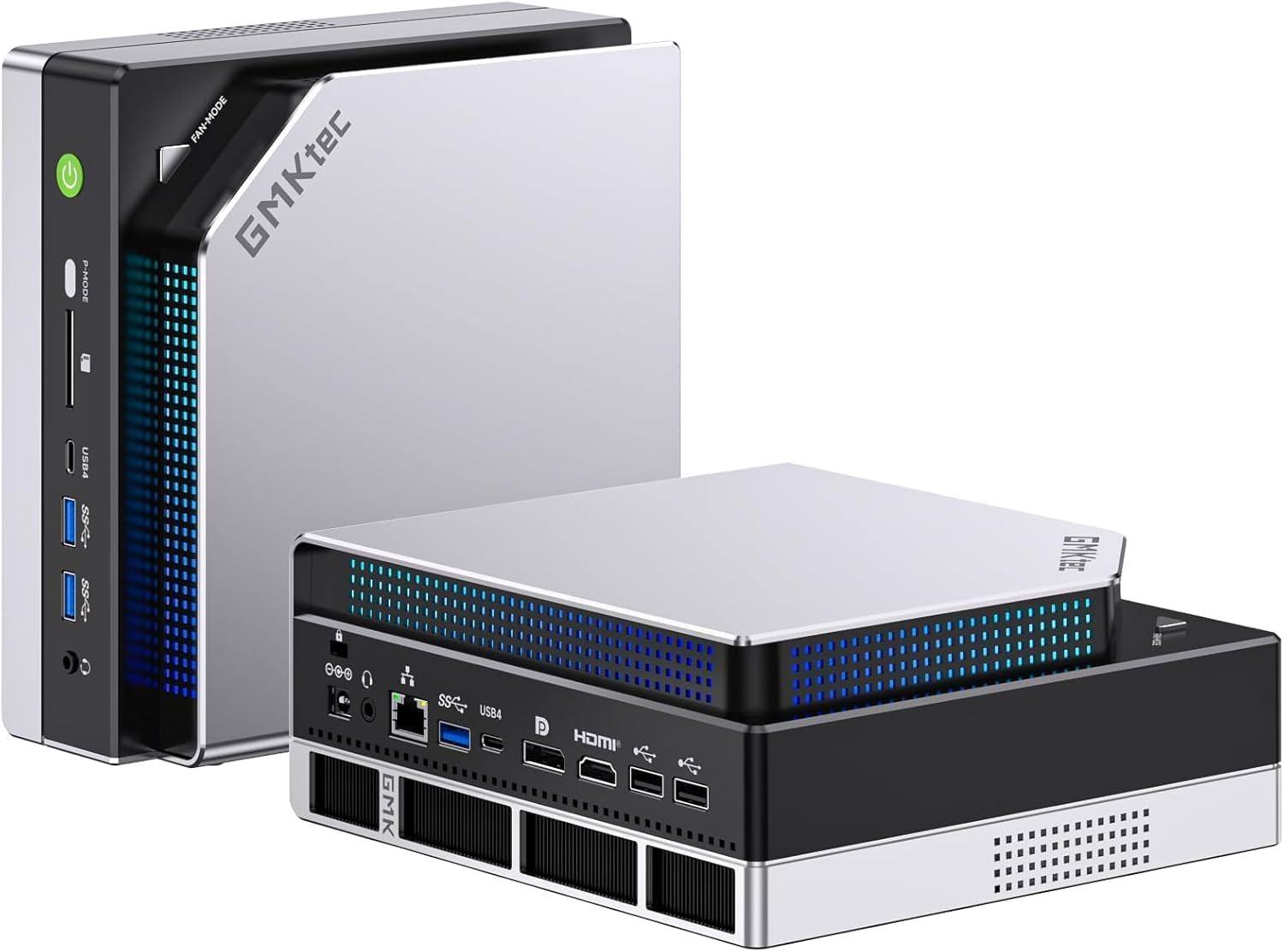
Figure 1: The GMKtec EVO-X2 Mini PC, showcasing its compact form factor and sleek design.
This manual provides essential information to help you set up, operate, and maintain your EVO-X2 Mini PC, ensuring optimal performance and longevity.
2. Setup Guide
2.1 Package Contents
Before you begin, ensure all items are present in the package:
- EVO-X2 Mini PC Unit
- Power Adapter
- HDMI Cable
- User Manual (this document)
2.2 Connecting Peripherals
Follow these steps to connect your display, keyboard, and mouse:
- Connect your monitor(s) to the HDMI 2.1, DP 1.4, or USB4 ports. The device supports up to four simultaneous displays.
- Connect your keyboard and mouse to the available USB 3.2 or USB2.0 ports.
- For wired network access, connect an Ethernet cable to the 2.5Gbps LAN port.
- Connect the power adapter to the DC IN port on the Mini PC, then plug it into a power outlet.

Figure 2: Overview of the Mini PC's front and rear ports, including USB, HDMI, DisplayPort, and LAN connections.
2.3 Initial Power On
Press the power button located on the front of the Mini PC. The system will boot up, and you will be guided through the initial Windows 11 Pro setup process.
3. Operating Instructions
3.1 Processor and AI Performance
The EVO-X2 is equipped with the AMD Ryzen AI Max+ 395 processor, featuring 16 cores and 32 threads, with a boost clock up to 5.1GHz. Its integrated XDNA 2 NPU delivers up to 126 TOPS of AI computing power, making it ideal for local LLM processing, image generation, and deep learning applications.

Figure 3: Detailed view of the AMD Ryzen AI Max+ 395 processor, highlighting its core count, clock speed, and cache.
Figure 4: The innovative XDNA 2 architecture, enabling high-performance AI processing for various applications.
3.2 Graphics Performance
The integrated Radeon 8060S graphics, based on RDNA 3.5 architecture with 40 CUs, provides professional-grade graphics performance. This allows for smooth 4K video editing, 3D rendering, and VR content creation.
3.3 Memory and Storage
The EVO-X2 comes with 64GB of LPDDR5X-8000MHz memory, offering ultra-fast access speeds and superior responsiveness. For storage, it includes a 1TB NVMe SSD and supports expansion up to 8TB via two M.2 PCIe 4.0 NVMe slots, making it suitable for data science, AI development, and large storage needs.

Figure 5: Visual representation of the LPDDR5X 8000MHz memory, highlighting its high-speed capabilities.
3.4 Display Output
With HDMI 2.1, DP 1.4, and two USB4 ports, the Mini PC supports up to 8K/60Hz or 4K/240Hz output. It can simultaneously drive up to four displays, catering to the needs of business professionals and creators requiring multi-monitor setups.
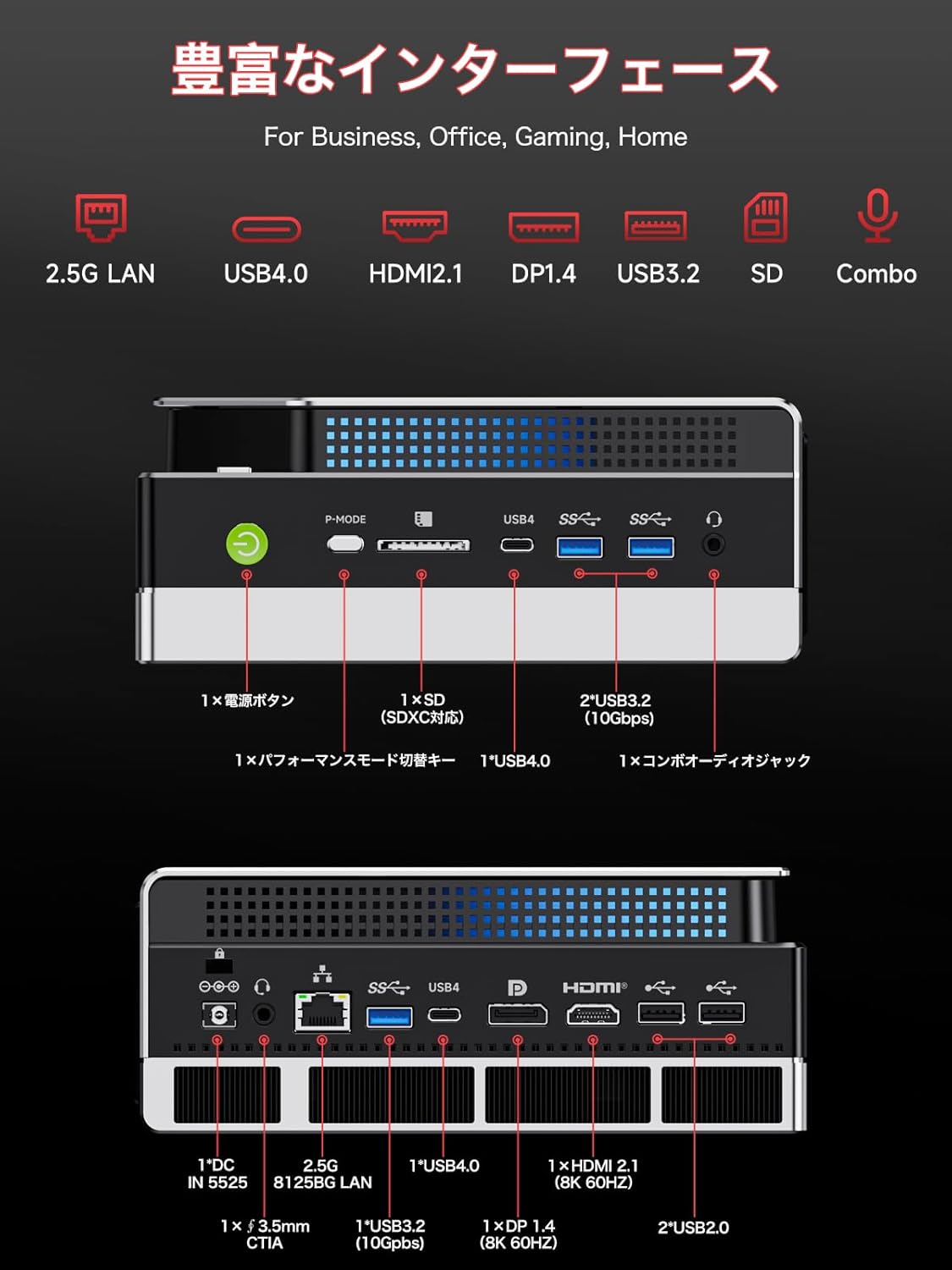
Figure 6: The Mini PC connected to four displays, demonstrating its multi-screen output capability for enhanced productivity.
3.5 Connectivity
The EVO-X2 features the latest Wi-Fi 7 (RZ717 (MT7925)) with 320MHz channel width and speeds up to 2.9Gbps, along with a 2.5Gbps wired LAN port. This ensures a high-speed network environment, ideal for remote work and cloud AI tasks.

Figure 7: Illustrating the high-speed 2.5GBE Ethernet and USB4.0 connectivity options for rapid data transfer.
3.6 Intelligent Cooling and Performance Modes
The device incorporates an intelligent cooling system with 13 fan lighting effects and a physical switch for performance mode selection. This balances quiet operation with stable cooling during high-load tasks, supporting up to 140W TDP for gaming and development.

Figure 8: Diagram of the Mini PC's advanced triple fan cooling system, designed for efficient heat dissipation.
4. Maintenance
Regular maintenance helps ensure the longevity and optimal performance of your Mini PC.
4.1 Cleaning
- Exterior: Use a soft, dry cloth to wipe the exterior of the Mini PC. Avoid abrasive cleaners or solvents.
- Vents: Periodically use compressed air to clear dust from the ventilation openings to ensure proper airflow and cooling.
4.2 Software Updates
Keep your operating system (Windows 11 Pro) and drivers updated to the latest versions. This improves security, stability, and performance. Check for updates regularly through Windows Update and the GMKtec official website for driver updates.
4.3 Storage Management
Regularly manage your storage by deleting unnecessary files, emptying the recycle bin, and uninstalling unused programs. This helps maintain system speed and frees up valuable disk space.
5. Troubleshooting
This section addresses common issues you might encounter with your GMKtec EVO-X2 Mini PC.
5.1 No Display Output
- Check Cables: Ensure all display cables (HDMI, DP, USB4) are securely connected to both the Mini PC and the monitor.
- Power: Verify the Mini PC is powered on and the power adapter is properly connected.
- Monitor Input: Confirm your monitor is set to the correct input source.
- Try Another Port/Cable: Test with a different display port on the Mini PC or a different cable if available.
5.2 No Internet Connection
- Wired Connection: Check if the Ethernet cable is securely plugged into the LAN port and your router. Verify router status.
- Wireless Connection: Ensure Wi-Fi is enabled in Windows settings. Check if the correct Wi-Fi network is selected and the password is entered correctly. Restart your router/modem.
- Driver Issues: Ensure network drivers are installed and up to date.
5.3 System Slowdown or Unresponsiveness
- Close Applications: Close any unnecessary applications running in the background.
- Check Task Manager: Use Task Manager (Ctrl+Shift+Esc) to identify processes consuming high CPU, memory, or disk resources.
- Disk Space: Ensure there is sufficient free space on your SSD.
- Overheating: Check if the Mini PC feels unusually hot. Ensure vents are clear and the cooling fan is operating.
- Malware Scan: Run a full system scan using antivirus software.
5.4 Peripheral Not Detected
- Reconnect: Disconnect and reconnect the peripheral.
- Try Another Port: Test the peripheral in a different USB port.
- Driver Installation: Install the necessary drivers for the peripheral if required.
- Test on Another Device: If possible, test the peripheral on another computer to rule out a device malfunction.
6. Specifications
Detailed technical specifications for the GMKtec EVO-X2 Mini PC.

Figure 9: Comprehensive diagram detailing the internal components and features of the GMKtec EVO-X2.
| Feature | Specification |
|---|---|
| Brand | GMKtec |
| Model Name | GMKTEC EVO-X2-JP |
| Operating System | Windows 11 Pro |
| CPU Brand | AMD |
| CPU Type | AMD A Series (Ryzen AI Max+ 395) |
| CPU Speed | 5.1 GHz (Max Boost) |
| Graphics Coprocessor | Radeon 8060S (Integrated) |
| Memory Type | LPDDR5X |
| Installed RAM Size | 64 GB (LPDDR5X-8000MHz) |
| Max Memory Capacity | 128 GB |
| Hard Disk Type | SSD |
| Hard Disk Capacity | 1 TB (Expandable up to 8TB via 2x M.2 PCIe 4.0 NVMe slots) |
| Resolution | 7680 x 4320 (8K) |
| HDMI Ports | 1 (HDMI 2.1) |
| DisplayPort | 1 (DP 1.4) |
| USB4 Ports | 2 |
| USB 3.0 Ports | 2 |
| USB 2.0 Ports | 2 |
| LAN | 2.5Gbps Ethernet |
| Wireless Connectivity | Wi-Fi 7 (RZ717 (MT7925)), Bluetooth 5.4 |
| Product Dimensions | 38.4 x 25.2 x 9.3 cm |
| Item Weight | 3.3 kg |
7. Warranty and Support
GMKtec provides comprehensive support for your EVO-X2 Mini PC.
7.1 Manufacturer's Warranty
Your GMKtec EVO-X2 Mini PC comes with a 1-year manufacturer's warranty from the date of purchase. This warranty covers defects in materials and workmanship under normal use. Please retain your proof of purchase for warranty claims.
7.2 Customer Support
For any technical assistance, troubleshooting, or warranty inquiries, please contact GMKtec customer support. We offer 24-hour customer support to ensure your issues are resolved promptly.
Please visit the official GMKtec website for contact information and additional support resources.
Ask a question about this manual
Ask about setup, troubleshooting, compatibility, parts, safety, or missing instructions. Manuals+ will review the question and use this page’s manual context to help answer it.