1. Introduction
Thank you for purchasing the AiMike S95 PRO 5K Digital Camera. This manual provides essential information for setting up, operating, and maintaining your camera. Please read it thoroughly before use to ensure optimal performance and longevity of your device.
1.1 Product Overview
The AiMike S95 PRO is a compact digital camera designed for ease of use, featuring 5K video recording, 72MP photo resolution, autofocus, and 16x digital zoom. It includes Wi-Fi connectivity for seamless transfer to smartphones and a 2.8-inch IPS display for clear viewing.
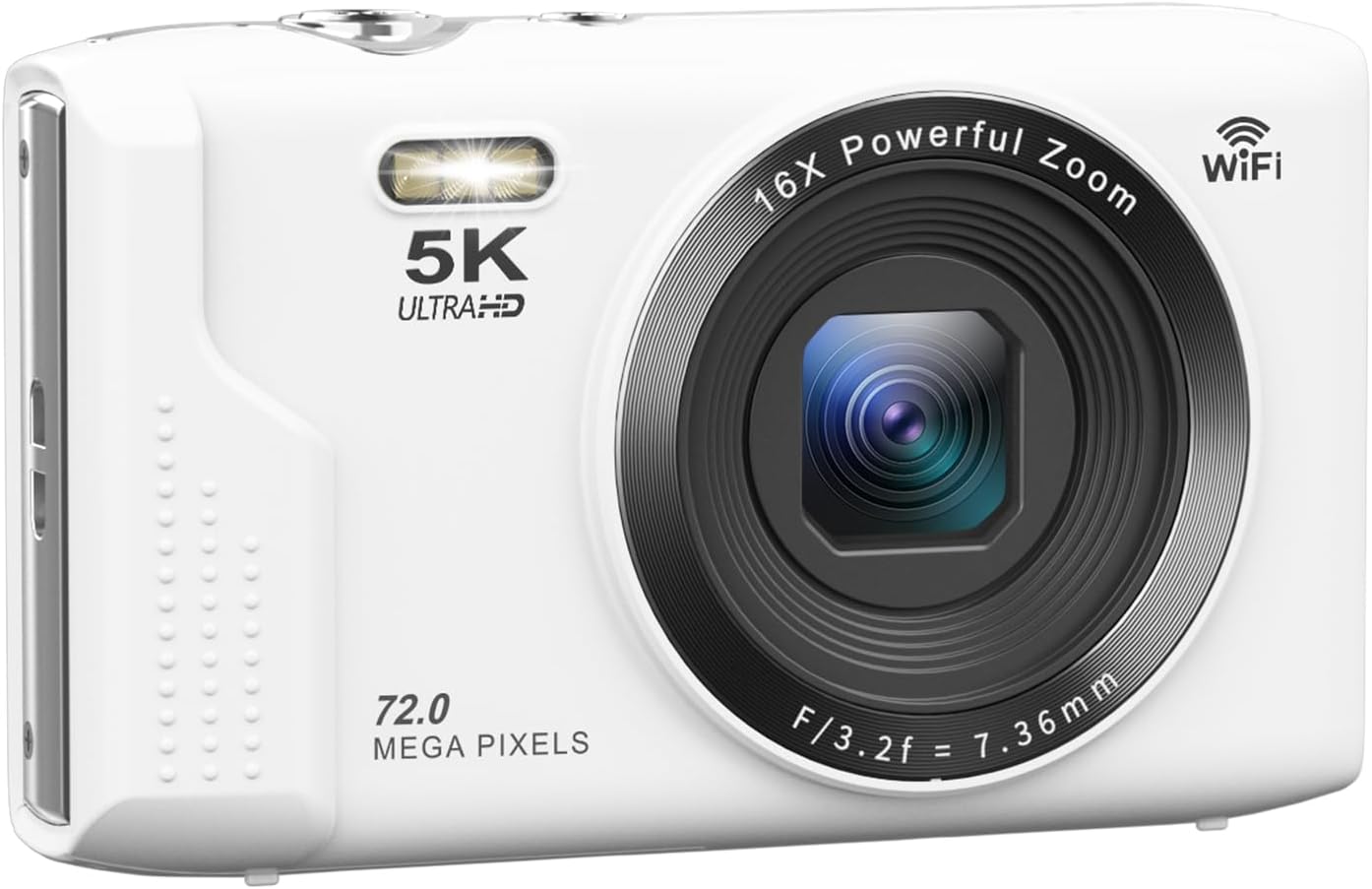
Image: Front view of the AiMike S95 PRO 5K Digital Camera in white.
1.2 Package Contents
Verify that all items listed below are included in your package:
- 1x AiMike S95 PRO Digital Camera
- 1x 64GB MicroSD Card
- 1x USB Cable
- 1x Instruction Manual (Japanese, refer to this document for English)
- 2x 1200mAh Lithium-Ion Batteries
- 1x Camera Strap
- 1x Camera Bag

Image: All items included in the AiMike S95 PRO camera package.
2. Setup
2.1 Battery and MicroSD Card Installation
Follow these steps to install the battery and MicroSD card:
- Locate the battery/card compartment cover on the bottom of the camera. Slide the cover in the direction of the arrow to open it.
- Insert the battery according to the polarity indicators (+/-). Ensure it clicks into place.
- Insert the MicroSD card into the designated slot with the metal contacts facing down. Push until it locks.
- Close the compartment cover by sliding it back until it clicks securely.
Note: The camera supports MicroSD cards up to 256GB. A 64GB MicroSD card is included for immediate use.

Image: Step-by-step guide for battery and MicroSD card installation.
2.2 Initial Charging
Before first use, fully charge the camera battery. Connect the camera to a USB power adapter (not included) or a computer using the provided USB cable. The charging indicator will show the charging status.
3. Operating Instructions
3.1 Camera Controls
Familiarize yourself with the camera's buttons and ports:

Image: Labeled diagram of the camera's buttons and ports.
- Power Button: Turns the camera on/off.
- Shutter Button: Half-press to focus, full-press to capture.
- Zoom Buttons (T/W): Adjust digital zoom.
- Menu Button: Access camera settings and modes.
- OK/M Button: Confirm selections or switch modes.
- Playback Button: View captured photos and videos.
- LED Flashlight Button: Activates the built-in LED light.
3.2 Basic Photography
- Power On: Press the Power button to turn on the camera.
- Select Mode: Use the Menu button and directional pads to select between photo or video mode.
- Focus: In photo mode, half-press the Shutter button. The camera will automatically focus. The focus frame on the screen will change from white to green when focus is achieved.
- Capture: Fully press the Shutter button to take a photo or start/stop video recording.

Image: Instructions for using the autofocus feature.
3.3 Advanced Features
- Wi-Fi Transfer: Connect the camera to your smartphone via Wi-Fi using the dedicated app to transfer photos and videos wirelessly.

Image: Wi-Fi transfer function to smartphone.
- Digital Zoom: Use the T (Telephoto) and W (Wide) buttons to adjust the 16x digital zoom.

Image: Demonstration of 16x digital zoom capability.
- Shooting Modes: The camera offers various modes including continuous shooting, self-timer, slow motion, time-lapse, and loop recording. Access these through the menu.

Image: Overview of various shooting modes and features.
- Webcam Function: Connect the camera to a computer via USB to use it as a webcam for video calls or live streaming.
- LED Light: Activate the built-in LED light for improved visibility in low-light conditions.
- Filters: Apply various creative filters to your photos via the camera's menu.
- Exposure Settings: Adjust ISO, white balance, and exposure compensation for different lighting scenarios.
4. Maintenance
- Cleaning: Use a soft, dry cloth to clean the camera body. For the lens, use a specialized lens cleaning cloth and solution. Avoid harsh chemicals.
- Storage: Store the camera in a cool, dry place away from direct sunlight and extreme temperatures. Remove the battery if storing for extended periods.
- Battery Care: Charge batteries regularly, even if not in use, to maintain their lifespan. The camera can be used while charging.
- Firmware Updates: Check the AiMike official website periodically for any available firmware updates to improve camera performance and features.
5. Troubleshooting
| Problem | Possible Cause | Solution |
|---|---|---|
| Camera does not power on. | Battery is depleted or incorrectly inserted. | Charge the battery. Ensure the battery is inserted with correct polarity. |
| Cannot take photos/videos. | MicroSD card is full, locked, or not inserted. | Delete unnecessary files, unlock the card, or insert it correctly. Format the card if necessary (this will erase all data). |
| Images are blurry. | Autofocus failed, subject too close, or camera shake. | Ensure the subject is at least 20cm away. Half-press the shutter to re-focus. Hold the camera steady. |
| Wi-Fi connection issues. | Incorrect app, Wi-Fi disabled, or interference. | Ensure you are using the correct dedicated app. Check camera Wi-Fi settings. Move away from other Wi-Fi devices. |
| Poor image quality in low light. | Insufficient lighting. | Use the built-in LED light or shoot in better-lit conditions. Adjust ISO settings if available. |
6. Specifications
| Feature | Detail |
|---|---|
| Brand | AiMike |
| Model Name | S95 PRO |
| Effective Pixels | Up to 72MP (Interpolated) |
| Video Resolution | Up to 5K |
| Image Sensor | 13MP CMOS (1/3.06 inch) |
| Screen Size | 2.8 inch IPS LCD |
| Digital Zoom | 16x |
| Autofocus | Yes (Passive method) |
| Lens Aperture | F/3.2 |
| Focal Length | 7.36mm |
| Image Stabilization | Digital |
| Connectivity | Wi-Fi, USB |
| Storage | MicroSD card (up to 256GB, 64GB included) |
| Battery Type | 1200mAh Lithium-Ion (2 included) |
| Product Dimensions | 2.5 x 10 x 6.1 cm |
| Weight | 121g (including battery) |
| File Formats | JPG (photos), MP4 (videos) |
| Special Features | LED Light, Webcam Function, Multiple Filters, Self-timer, Continuous Shooting, Slow Motion, Time-lapse, Loop Recording, Smile Capture |
7. Warranty and Support
For warranty information and customer support, please refer to the contact details provided with your purchase or visit the official AiMike website. Keep your purchase receipt as proof of purchase for warranty claims.
For further assistance, please contact AiMike customer service.
Online Support: AiMike Brand Store on Amazon


