
ODK B01171801003
ODK 48-Inch Gaming Desk User Manual
Model: B01171801003
Brand: ODK
1. Introduction
Thank you for choosing the ODK 48-Inch Gaming Desk. This desk is designed to enhance your gaming or work setup with its integrated LED lighting, convenient power outlet, ample storage, and durable carbon fiber surface. This manual provides detailed instructions for assembly, operation, maintenance, and troubleshooting to ensure you get the most out of your new desk.
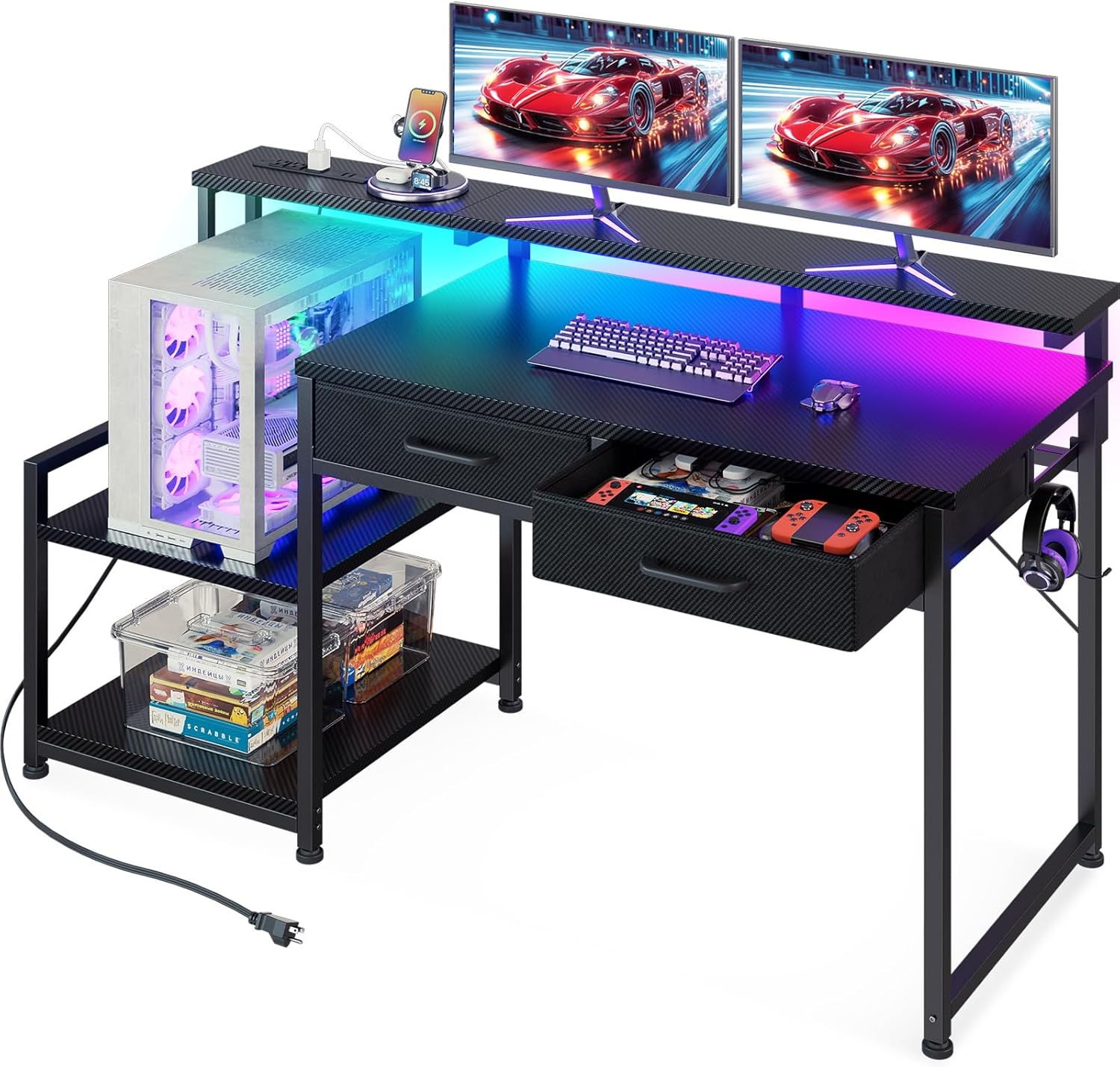
The ODK 48-Inch Gaming Desk, ready for your setup.
2. Safety Information
Please read and understand all safety instructions before assembling and using this product. Failure to follow these instructions may result in injury or damage to the product.
- Keep all small parts and packaging materials away from children and pets.
- Ensure all connections are secure before use. Do not overtighten screws.
- Do not exceed the maximum weight capacity of the desk or shelves.
- Use only in dry indoor environments. Avoid exposure to moisture or extreme temperatures.
- When using the power outlet, ensure that the total power consumption of connected devices does not exceed the rated capacity.
- Do not attempt to modify or disassemble the electrical components.
3. Package Contents
Verify that all components are present before beginning assembly. If any parts are missing or damaged, please contact customer support.
- Desk Frame Components (Metal Legs, Support Bars)
- Main Desktop Panel (Carbon Fiber Surface)
- Monitor Shelf
- Side Storage Shelves (Adjustable)
- 2 Fabric Drawers
- LED Light Strip with Controller
- Built-in Power Outlet (3 AC, 2 USB)
- Headphone Hook
- Assembly Hardware (Screws, Allen Wrench, etc.)
- Instruction Manual
4. Assembly Instructions
Assembly typically requires two people and takes approximately 1.5 hours. All necessary tools are included. Follow the step-by-step diagrams provided in the separate assembly guide for detailed instructions.
- Unpack and Identify Parts: Lay out all components and hardware. Match them with the parts list in the assembly guide.
- Assemble the Main Desk Frame: Connect the metal legs and support bars according to the diagrams. Do not fully tighten screws until all parts are aligned.
- Attach Desktop Panel: Secure the main carbon fiber desktop to the assembled frame.
- Install Side Storage Shelves: The side storage unit can be assembled on either the left or right side of the desk to suit your space. The shelves are adjustable; choose the desired height for your PC tower or other items.
- Attach Monitor Shelf: Secure the monitor shelf to the top of the desk.
- Insert Fabric Drawers: Assemble the fabric drawers and slide them into their designated slots under the main desktop.
- Install LED Light Strip and Power Outlet: Affix the LED light strip under the monitor shelf and install the built-in power outlet into its designated cutout.
- Attach Headphone Hook: Secure the headphone hook to the side of the desk.
- Final Tightening: Once all components are in place and aligned, fully tighten all screws.

Product dimensions and reversible design for flexible setup.
5. Features Overview
5.1. LED Lights
The desk features an integrated RGB LED light strip under the monitor shelf, offering customizable lighting to enhance your environment. It provides 10 static colors and 10 dynamic modes.

Dynamic RGB LED lighting for an immersive experience.
5.2. Built-in Power Outlet
A convenient power outlet is integrated into the monitor shelf, providing easy access to power for your devices. It includes 3 standard AC outlets (125V/12A) and 2 USB ports (5V/2A).

Integrated power outlet for convenient charging.
5.3. Reversible Display Storage Shelf
The large side shelf unit can be installed on either the left or right side of the desk, adapting to your room layout. It also features an adjustable shelf, allowing you to accommodate larger items like a PC tower or display models.

Adjustable and reversible storage shelves for versatile use.
5.4. Durable Fabric Drawers
Two fabric drawers are included, providing discreet storage for small items such as gamepads, CDs, or office supplies, helping to keep your desktop tidy.

Convenient fabric drawers for organized storage.
5.5. Carbon Fiber Surface
The desktop features a carbon fiber textured surface, which is designed to be scratch-resistant, anti-collision, and waterproof, ensuring durability and a sleek aesthetic.
5.6. Headphone Hook
A dedicated hook is provided for convenient storage of your headphones, keeping them within reach and off the desktop.

Headphone hook for easy access and organization.
5.7. Product Video
Watch the official product video for a visual guide to the ODK Gaming Desk's features and design.
Official video showcasing the ODK Gaming Desk with its features, including LED lights and drawers.
6. Operating Instructions
6.1. LED Light Control
The LED light strip is controlled by a wired remote. Refer to the diagram below for button functions:

- Static Color Button (C): Press once to switch to static color mode. Each subsequent press changes the color.
- Dynamic Mode Button (M): Press once to switch to dynamic mode. Each subsequent press changes the dynamic effect. Press and hold for 3 seconds to enter demo mode, which cycles through various dynamic modes automatically.
- Speed & Brightness & Power Button (S/B):
- In static mode, press to adjust brightness levels.
- In dynamic mode, press to adjust dynamic mode speed.
- Press and hold to shut down the strip when it is on. Press briefly to turn it on.
The product has a power-off memory function, retaining the last color, brightness, and mode settings upon next power-on.
6.2. Power Outlet Usage
Simply plug your devices into the available AC outlets or USB ports on the built-in power strip. Ensure devices are compatible with the provided voltage and current specifications.
7. Maintenance
- Cleaning: Wipe the carbon fiber surface with a soft, damp cloth. Avoid abrasive cleaners or harsh chemicals. For the metal frame, use a dry or slightly damp cloth.
- Tightening: Periodically check and tighten all screws to ensure the desk remains stable.
- Electrical Components: Keep the power outlet and LED strip dry. Do not immerse in water.
8. Troubleshooting
| Problem | Possible Cause | Solution |
|---|---|---|
| Desk is wobbly/unstable | Loose screws; uneven floor. | Check and tighten all assembly screws. Adjust the leveling feet at the bottom of the desk legs. |
| LED lights not working | Power connection loose; controller malfunction; power outage. | Ensure the LED strip is securely plugged into the power source. Check the power outlet it's connected to. Try pressing the power button on the controller. |
| Power outlet not providing power | Desk power cord unplugged; circuit breaker tripped; device malfunction. | Ensure the desk's main power cord is fully plugged into a working wall outlet. Check your home's circuit breaker. Test the device on another outlet. |
| Drawers do not slide smoothly | Improper assembly; obstruction. | Ensure the fabric drawers are assembled correctly and nothing is obstructing their path. |
9. Specifications
| Feature | Detail |
|---|---|
| Brand | ODK |
| Model Number | B01171801003 |
| Product Dimensions | 18.9"D x 47.2"W x 35"H |
| Color | Carbon Fiber Black |
| Material | Carbon Fiber (Top), Metal (Base) |
| Special Features | Monitor Stand, Built-in Outlet, Built-in USB Port, Headphone Hook, LED Lights, Fabric Drawers, Reversible Design |
| Power Outlet | 3 AC Outlets (125V/12A), 2 USB Ports (5V/2A) |
| Item Weight | 14.8 Kilograms |
| Assembly Required | Yes (Tools Included) |
10. Warranty and Support
ODK products come with a standard manufacturer's warranty. For specific warranty details, claims, or technical support, please refer to the warranty card included with your product or visit the official ODK website. You can also contact ODK customer service through the retailer where you purchased the product.
For further assistance, please visit the ODK Store on Amazon.
Related documentsB01171801003


Ask a question about this manual
Ask about setup, troubleshooting, compatibility, parts, safety, or missing instructions. Manuals+ will review the question and use this page’s manual context to help answer it.