
Introduction
This manual provides essential information for the safe and efficient operation, maintenance, and troubleshooting of your Tesvor S8 Pro Robot Vacuum Cleaner. The Tesvor S8 Pro is a 3-in-1 robot vacuum cleaner featuring advanced LiDAR navigation, powerful 8000Pa suction, and a wiping function, designed for comprehensive home cleaning.
Key Features:
- 8000Pa Suction Power: Robust suction for thorough cleaning of dust, dirt, and pet hair.
- LiDAR Navigation: Advanced LDS radar technology and SLAM algorithm for precise mapping and efficient cleaning routes.
- 3-in-1 Functionality: Sweeping, vacuuming, and wiping capabilities with an integrated dust box and electronically controlled water tank.
- Long Battery Life: Up to 240 minutes of runtime, with automatic recharging and resume function.
- Intelligent Carpet Cleaning: Automatic carpet detection and suction power increase to 8000Pa.
- Smart Control: Compatible with APP, Amazon Alexa, and Google Home.
Package Contents
Verify that all components are present in the package:
- 1 x Robot Vacuum Cleaner
- 1 x Charging Station
- 1 x Power Adapter
- 1 x Cleaning Tool
- 1 x HEPA Filter
- 4 x Side Brushes
- 1 x Mop
- 1 x Remote Control
- 1 x User Manual (this document)

Image: All included components of the Tesvor S8 Pro Robot Vacuum Cleaner.
Setup
1. Unpacking and Placement
- Remove the robot and all accessories from the packaging.
- Choose a suitable location for the charging station. Ensure it is against a wall, with at least 0.5 meters of clear space on both sides and 1.5 meters in front. Avoid areas with direct sunlight or obstacles that could block the robot's return path.
- Connect the power adapter to the charging station and plug it into a power outlet. Ensure the cable is neatly arranged to prevent entanglement.

Image: The robot vacuum automatically returning to its charging station for recharging.
2. Initial Charging
Place the robot onto the charging station. Ensure the charging contacts on the robot align with those on the station. The robot will begin charging automatically. For first-time use, fully charge the robot (approximately 4-5 hours) before its initial cleaning cycle.
3. App Connection
- Download the Tesvor app from your smartphone's app store (available for iOS and Android).
- Register an account and follow the in-app instructions to add your Tesvor S8 Pro.
- Ensure your mobile phone is close to the robot and connected to a 2.4GHz Wi-Fi network during the pairing process.
Operating Instructions
1. Starting a Cleaning Cycle
- Manual Start: Press the power button on the robot or the remote control once to start a cleaning cycle.
- App Control: Use the Tesvor app to start, pause, or stop cleaning, select cleaning modes, and set schedules.
- Voice Control: Integrate with Amazon Alexa or Google Home for voice commands (e.g., "Alexa, start cleaning").

Image: The Tesvor S8 Pro supports control via Amazon Alexa and Google Home.
2. Cleaning Modes
The Tesvor S8 Pro offers three primary cleaning modes:
- Sweep Only: For dry debris collection.
- Wipe Only: For mopping hard floors (ensure the water tank is filled and mop pad is attached).
- Combination (Sweep, Vacuum, and Wipe): Simultaneous dry and wet cleaning.

Image: The 2-in-1 dust box (250ml) and water tank (350ml) for combined cleaning.
3. LiDAR Navigation and Mapping
The robot uses LDS LiDAR navigation to create an accurate map of your home, allowing it to plan efficient cleaning paths and avoid obstacles. You can view the real-time map in the app and set virtual boundaries or no-go zones.

Image: The robot utilizing LDS LiDAR Navigation for efficient room coverage and shorter cleaning times.
4. Intelligent Carpet Cleaning
The Tesvor S8 Pro automatically detects carpets and increases its suction power to 8000Pa for a deeper clean. It can overcome obstacles up to 20mm in height.

Image: The robot automatically detects carpets and boosts suction for thorough cleaning.
Maintenance
Regular maintenance ensures optimal performance and extends the lifespan of your robot vacuum cleaner.
1. Cleaning the Dustbin and Water Tank
- Press the release button to remove the 2-in-1 dustbin and water tank module.
- Open the dustbin cover and empty the collected debris into a trash can.
- Rinse the dustbin with water. Ensure it is completely dry before reinserting.
- If using the wiping function, empty any remaining water from the tank and rinse it.
- Clean the HEPA filter with the provided cleaning tool or by gently tapping it. Do not wash the HEPA filter with water.
2. Cleaning Brushes and Sensors
- Main Brush: Remove the main brush cover and lift out the brush. Use the cleaning tool to remove tangled hair and debris.
- Side Brushes: Periodically check side brushes for wear or entanglement. Replace if necessary.
- Sensors: Wipe the cliff sensors, wall sensors, and charging contacts with a clean, dry cloth to ensure proper function.
Troubleshooting
Common Issues and Solutions:
- Robot does not start or respond: Ensure the robot is fully charged. Check if the power button is pressed correctly.
- Robot cannot connect to Wi-Fi:
- Ensure your router is broadcasting a 2.4GHz Wi-Fi signal.
- Place your mobile phone close to the robot during the connection process.
- Restart your router and the robot, then try connecting again.
- Robot gets stuck frequently: Clear obstacles from the cleaning path. Ensure there are no loose cables or rugs that could entangle the brushes.
- Robot does not clean black carpets/floors: The robot's cliff sensors may interpret very dark surfaces as cliffs, preventing it from cleaning them. This is a design characteristic to prevent falls.
- Reduced suction power: Check and empty the dustbin. Clean or replace the HEPA filter. Clear any blockages in the main brush or suction inlet.
- Wiping function not working: Ensure the water tank is filled and the mop pad is correctly attached. Check the water volume settings in the app.
If problems persist, refer to the Tesvor app for further assistance or contact customer support.
Specifications
| Brand | Tesvor |
| Model Name | YC-S8 Pro |
| Navigation Type | LiDAR Navigation |
| Max Suction Power | 8000 Pa |
| Battery Life | Up to 240 minutes |
| Battery Type | Lithium Ion |
| Dustbin Capacity | 250 ml (integrated) |
| Water Tank Capacity | 350 ml (integrated) |
| Control Type | App Control, Remote Control, Voice Control (Alexa, Google Home) |
| Obstacle Climbing Ability | Up to 20 mm |
| Recommended Surface | Hard floors, carpets, tiles |
| Product Dimensions (L x W x H) | 46 cm x 36 cm x 15 cm (packaging dimensions, actual robot dimensions may vary slightly) |
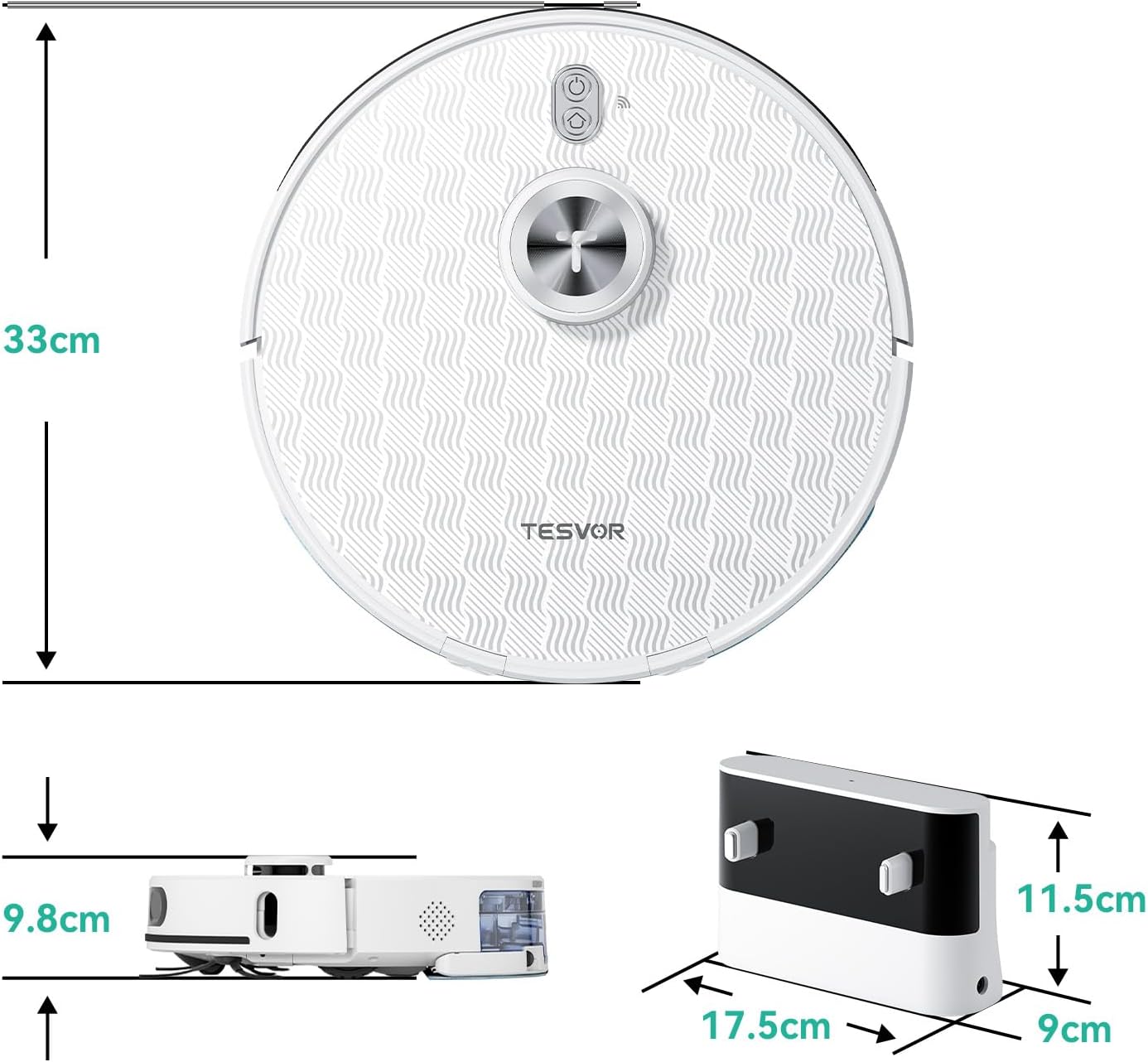
Image: Dimensions of the Tesvor S8 Pro robot vacuum cleaner and its charging station.
Warranty Information
Specific warranty details for the Tesvor S8 Pro Robot Vacuum Cleaner are typically provided with your purchase documentation or on the official Tesvor website. Please refer to these resources for information regarding warranty period, coverage, and claims process.
Customer Support
For technical assistance, troubleshooting not covered in this manual, or spare parts inquiries, please contact Tesvor customer support. Contact information can usually be found on the Tesvor official website or within the Tesvor mobile application.


