
1. Introduction
The VCHICS V520 OBD2 Scanner is a professional diagnostic tool designed to help identify and resolve issues within your vehicle's engine system. It supports various diagnostic functions for cars, light trucks, and SUVs, providing essential information to understand and address vehicle faults. This manual provides detailed instructions for the proper setup, operation, and maintenance of your V520 scanner.

Image 1: VCHICS V520 OBD2 Scanner Overview
2. Product Features
The VCHICS V520 OBD2 Scanner offers a comprehensive set of features for vehicle diagnostics:
- Automotive Engine Fault Diagnosis: Quickly identify issues within the engine system.
- Clearing Engine Fault Indicator Light: Erase diagnostic trouble codes (DTCs) and turn off the Check Engine Light.
- Car Freeze Frame Data: View a snapshot of vehicle operating conditions at the time a fault code was set.
- Real-time Data Stream: Monitor live sensor data from the vehicle's engine.
- Vehicle Information Reading: Access vehicle identification number (VIN), calibration ID, and calibration verification numbers (CVN).
- Car Battery Voltage Reading: Check the current voltage of the vehicle's battery.
- I/M Readiness Status: Determine if the vehicle's emission systems are ready for an inspection/maintenance test.
- Mode 6 and Mode 8 Testing: Advanced diagnostic tests for specific components and systems.
- Oxygen Sensor Testing: Monitor and evaluate the performance of oxygen sensors.
- DTC Code Lookup Library: Built-in library with 35901 fault codes for quick reference.
- Color Display: Clear and easy-to-read interface.

Image 2: Main Menu and Diagnostic Functions
3. Setup
Follow these steps to set up your VCHICS V520 OBD2 Scanner:
- Locate the OBD2 Port: The 16-pin Data Link Connector (DLC) is typically located under the dashboard on the driver's side of the vehicle. Refer to your vehicle's owner's manual if you cannot find it.
- Connect the Scanner: Plug the V520 scanner's OBD2 cable firmly into the vehicle's DLC.
- Turn on Vehicle Ignition: Turn the vehicle's ignition key to the 'ON' position (engine off). The scanner will power on automatically.
- Language Selection (First Use): If prompted, select your preferred language from the system settings.
4. Operating Instructions
Navigate the scanner using the directional buttons (up, down, left, right), 'OK' to confirm, and 'EXIT' to go back. The 'DTC', 'I/M', and 'BAT' buttons provide quick access to specific functions.
4.1. Reading Diagnostic Trouble Codes (DTC)
This function allows you to retrieve current, pending, and permanent diagnostic trouble codes from the vehicle's engine control unit (ECU).
- From the main menu, select 'Read DTC' or press the 'DTC' button.
- The scanner will display any stored fault codes along with their descriptions.
4.2. Clearing Diagnostic Trouble Codes (DTC)
This function clears all diagnostic trouble codes and turns off the Malfunction Indicator Lamp (MIL) or Check Engine Light. Warning: Clearing codes does not fix the underlying problem. Ensure the fault has been addressed before clearing codes, otherwise, the light may reappear.
- From the main menu, select 'Clear DTC'.
- Confirm your action when prompted. The scanner will indicate if the codes have been successfully cleared.
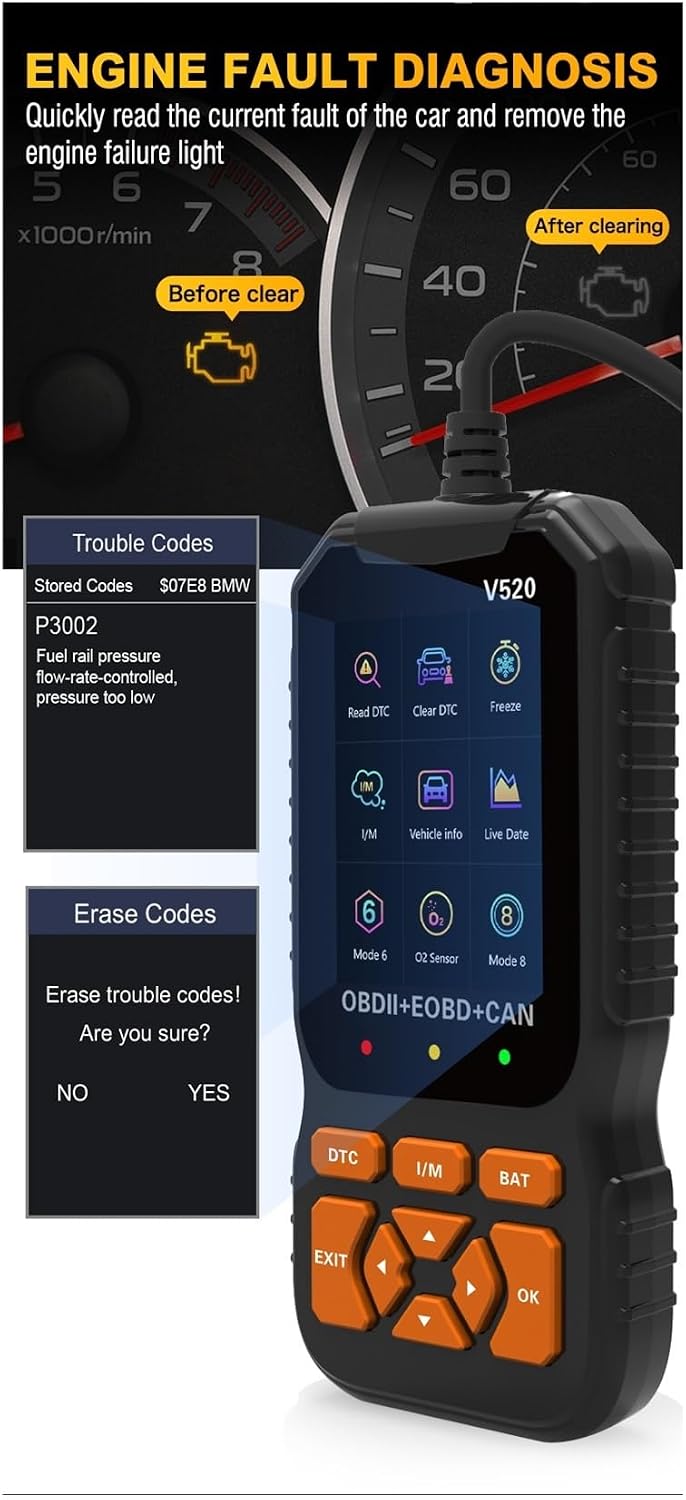
Image 3: Engine Fault Diagnosis and Code Clearing
4.3. I/M Readiness Status
This function checks the readiness of the vehicle's emission-related monitoring systems.
- From the main menu, select 'I/M' or press the 'I/M' button.
- The scanner will display the status of various monitors (e.g., MIL, DTC, MIS, FUE, CCM, CAT, HCAT, EGR, O2S, HRT, EVAP, AIR). A green checkmark indicates completion, while a red 'X' indicates an incomplete test.

Image 4: I/M Readiness and Function List
4.4. Live Data
View real-time operational parameters of the vehicle's engine.
- From the main menu, select 'Live Data'.
- You can scroll through various data parameters such as engine RPM, vehicle speed, coolant temperature, and more.
4.5. Freeze Frame Data
Access a snapshot of sensor readings and vehicle conditions recorded at the exact moment an emission-related fault occurred.
- From the main menu, select 'Freeze'.
- Review the displayed parameters to help diagnose the fault.
4.6. Vehicle Information
Retrieve specific information about the vehicle.
- From the main menu, select 'Vehicle Info'.
- The scanner will display information such as Vehicle ID Number (VIN), Calibration ID, and Calibration Verification Numbers (CVN).

Image 5: Vehicle Information and System Setup
4.7. Battery Test
Quickly check the vehicle's battery voltage.
- From the main menu, select 'BAT' or press the 'BAT' button.
- The current battery voltage will be displayed on the screen.
5. Maintenance
To ensure the longevity and proper functioning of your VCHICS V520 OBD2 Scanner, follow these maintenance guidelines:
- Cleaning: Use a soft, dry cloth to clean the scanner's exterior. Avoid using abrasive cleaners or solvents.
- Storage: Store the device in a clean, dry environment, away from direct sunlight, extreme temperatures, and excessive moisture.
- Cable Care: Do not pull the cable forcefully when disconnecting. Always grasp the connector itself. Avoid bending or kinking the cable sharply.
- Software Updates: Check the manufacturer's website periodically for any available software updates to ensure optimal performance and compatibility with newer vehicles.
6. Troubleshooting
If you encounter issues while using the VCHICS V520 OBD2 Scanner, refer to the following common problems and solutions:
| Problem | Possible Cause | Solution |
|---|---|---|
| Scanner does not power on | Loose connection; Vehicle ignition off; Vehicle battery low. | Ensure the OBD2 cable is securely connected. Turn the vehicle ignition to the 'ON' position. Check vehicle battery voltage. |
| Link error message | Faulty connection; Vehicle not OBD2 compliant; Communication protocol issue. | Verify cable connection. Confirm your vehicle is OBD2 compliant (most vehicles from 1996 onwards). Try on another OBD2 compliant vehicle if possible. |
| Cannot clear DTCs | Ignition not 'ON'; Underlying fault still present; Multiple ECUs. | Ensure ignition is 'ON' (engine off). Address the root cause of the fault before attempting to clear codes. Some vehicles may require specific procedures. |
| Screen is blank or frozen | Software glitch; Power interruption. | Disconnect the scanner from the vehicle, wait a few seconds, then reconnect. If the issue persists, contact support. |
7. Specifications
Technical specifications for the VCHICS V520 OBD2 Scanner:
- Working Voltage: DC 9V~16V
- Working Current: 36mA~54mA
- Standby Current: 40mA
- Operating Environment: -30℃ to 70℃ (-22℉ to 158℉)
- Storage Temperature: -30℃ to 70℃ (-22℉ to 158℉)
- Dimensions (approx.): 2.54 x 2.54 x 2.54 cm (1 x 1 x 1 inch)
- Weight (approx.): 850 g (1.87 lbs)
8. Warranty and Support
For warranty information, technical assistance, or customer support, please refer to the manufacturer's official website or contact your retailer directly. Keep your purchase receipt as proof of purchase for any warranty claims.