
1. Introduction
The ChunHee WT42 Wireless Intercom System provides reliable two-way communication for homes, offices, and businesses. Designed for clear sound and extended range, this system facilitates easy room-to-room communication without the need for Wi-Fi. This manual provides essential instructions for setup, operation, and maintenance to ensure optimal performance of your intercom units.
2. What's in the Box
- Intercom Unit x 2
- USB-C Charging Cable x 2
- Power Adapter x 2
- Belt Clip x 2 (pre-attached)
- Lanyard x 2
3. Product Overview
The ChunHee WT42 intercom units are compact and designed for ease of use. Each unit features an antenna for extended range, a speaker, a microphone, and several control buttons.
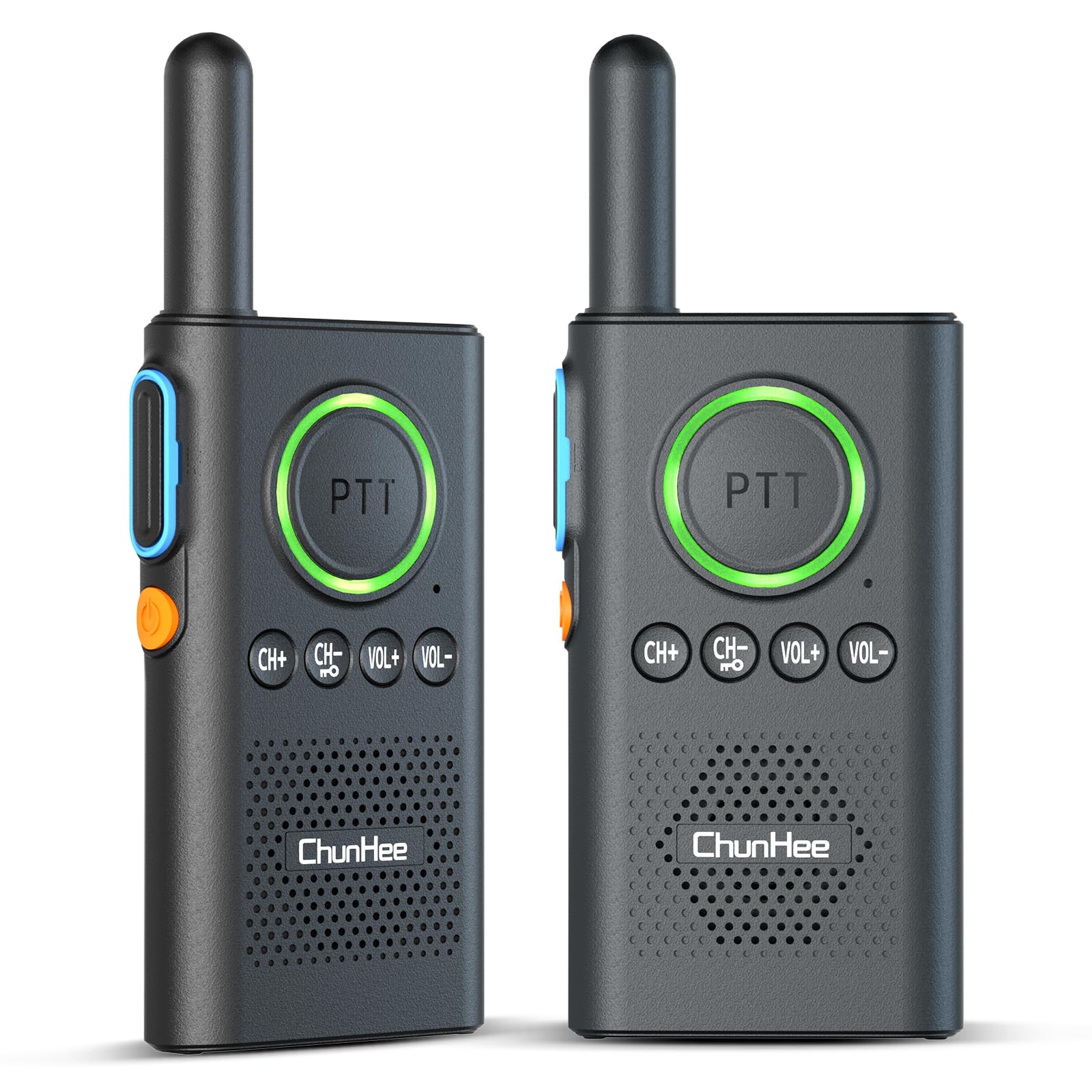
Figure 1: ChunHee WT42 Wireless Intercom Unit
Controls and Indicators
- PTT Button (Push-to-Talk): Large central button for transmitting voice. Lights up red when transmitting, green when receiving.
- Power Button: Orange button on the side. Hold for 3 seconds to power on/off.
- CH+ / CH- Buttons: Adjust communication channels.
- VOL+ / VOL- Buttons: Adjust speaker volume.
- Channel Confirmation Button: Blue button on the side, above the power button. Press to confirm the current channel.
- USB-C Port: Located at the bottom for charging.
- Headphone Jack: Located at the top for private listening.
4. Setup
4.1 Charging the Intercom Units
Before first use, fully charge both intercom units. The units feature a 1000mAh battery, providing 70-80 hours of use and 2-3 hours for a full charge. A voice alert "Please charge" will sound when power is low.
- Connect the provided USB-C charging cable to the charging port at the bottom of each intercom unit.
- Plug the other end of the cable into a power adapter, laptop, or power bank.
- The indicator light will show charging status (e.g., red for charging).
- Once fully charged, disconnect the units.

Figure 2: Battery and Charging Information

Figure 3: Indicator Light Alerts
4.2 Powering On/Off
- To Power On: Hold the orange Power Button on the side for approximately 3 seconds until you hear a voice prompt.
- To Power Off: Hold the orange Power Button on the side for approximately 3 seconds until you hear a voice prompt.
Video 1: Demonstrates how to power on/off the intercom units and adjust volume.
4.3 Pairing Intercoms
For two intercom units to communicate, they must be set to the same channel.
- Ensure both intercom units are powered on.
- Use the CH+ or CH- buttons to select the desired channel for both units. Ensure both units display the same channel number.
- Once both units are on the same channel, they are paired and ready for communication.
Video 2: Instructions on how to pair two intercom units by setting them to the same channel.
5. Operating Instructions
5.1 Adjusting Volume
To adjust the volume, press the VOL+ button to increase or VOL- button to decrease the volume level. A voice prompt will indicate the current volume level.
5.2 Speaking (PTT Function)
To speak, press and hold the large PTT (Push-to-Talk) button. The PTT button will light up red, indicating transmission. Release the button to listen. For clear communication, speak directly into the microphone located below the PTT button.
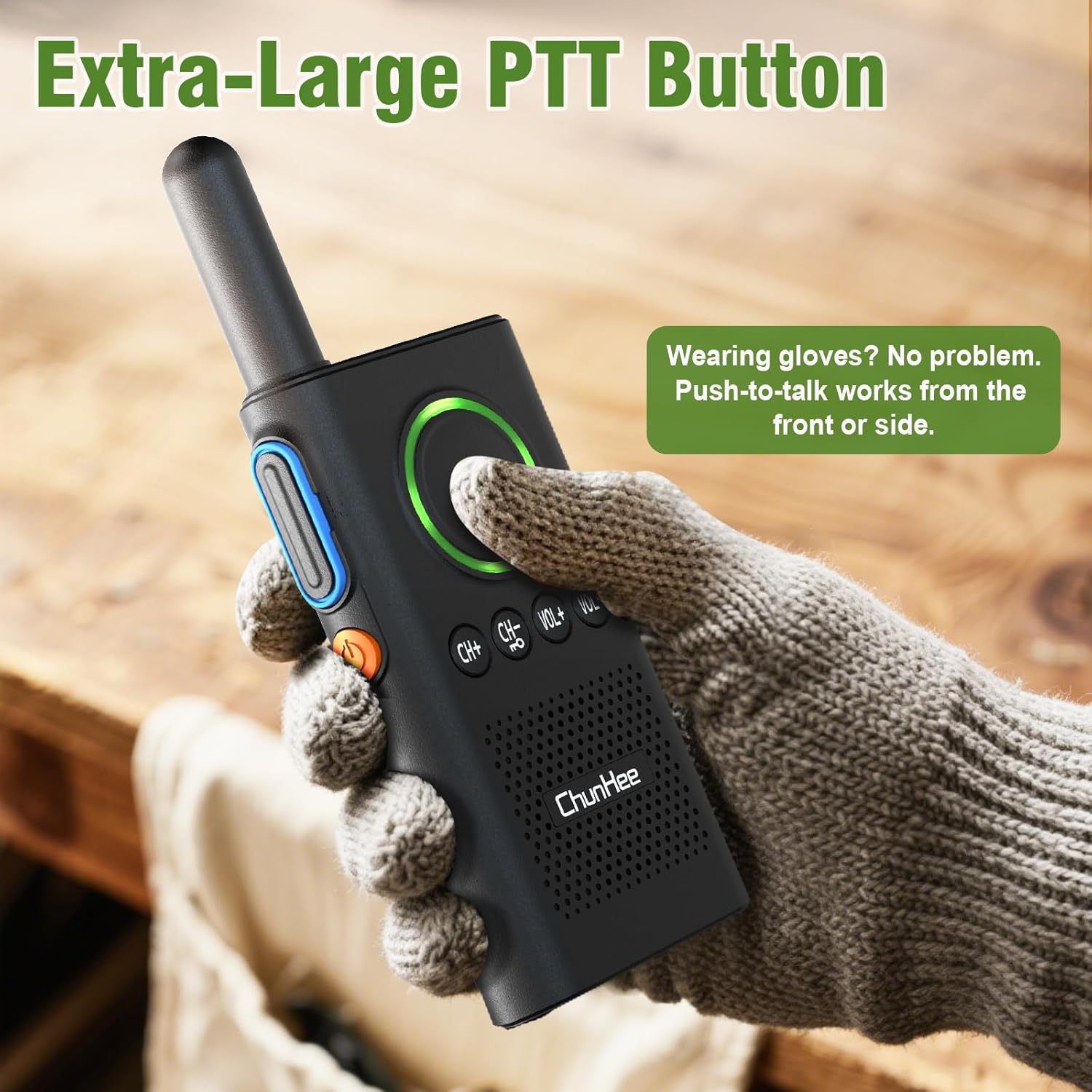
Figure 4: Extra-Large PTT Button for easy use.
5.3 VOX (Voice Operated Exchange) Hands-Free Function
The VOX function allows for hands-free communication, automatically transmitting your voice when you speak, without needing to press the PTT button. This is ideal for multitasking.
- To Enable VOX: With the device powered off, hold the CH+ button and the Power Button simultaneously. Release when you hear a "beep" and see the flashing light, indicating VOX is ON.
- To Disable VOX: With the device powered off, hold the CH+ button and the Power Button simultaneously. Release when you hear a "beep beep" and see the flashing light, indicating VOX is OFF.
Video 3: Detailed guide on how to enable and disable the VOX function.

Figure 5: Hands-Free VOX Function in use.
5.4 Channel Lock
The channel lock feature prevents accidental channel changes and cross-talk, ensuring stable communication.
- To Lock Channel: Hold the CH- button until you hear a "DI" sound. The keyboard is now locked.
- To Unlock Channel: Hold the CH- button again until you hear a "DIDI" sound. The keyboard is now unlocked.
Video 4: Explains how to lock and unlock the intercom keyboard to prevent accidental changes.

Figure 6: Channel Lock ensures stable communication.
6. Maintenance
- Keep the intercom units clean by wiping them with a soft, dry cloth.
- Avoid exposing the units to extreme temperatures, direct sunlight, or moisture.
- Do not attempt to disassemble or repair the units yourself, as this will void the warranty.
- Store the units in a cool, dry place when not in use.
7. Troubleshooting
| Issue | Possible Cause | Solution |
|---|---|---|
| No power | Low battery | Charge the intercom unit fully. |
| Cannot communicate | Units on different channels | Ensure both units are set to the same channel. |
| Poor sound quality | Out of range, obstacles, or low battery | Move closer, reduce obstacles, or charge battery. |
| Accidental button presses | Keyboard not locked | Activate the channel lock function. |
8. Specifications
- Product Dimensions: 1.26 x 6.3 x 9 inches
- Item Weight: 10.8 ounces
- Number of Channels: 16
- Special Feature: Half-duplex with VOX
- Talking Range Maximum: 3300 Feet (in open areas)
- Voltage: 5 Volts
- Battery: 1 Lithium Polymer battery required (included), 1000mAh
- Water Resistance Level: Not Water Resistant
9. Warranty & Support
For warranty information, technical support, or any inquiries regarding your ChunHee WT42 Wireless Intercom System, please contact the manufacturer directly through their official website or the contact information provided with your purchase. Keep your purchase receipt for warranty claims.


