
AOC U27G4R
AOC Gaming U27G4R 27-inch 4K UHD Monitor
User Instruction Manual
Model: U27G4R | Brand: AOC
Introduction
This manual provides detailed instructions for the setup, operation, maintenance, and troubleshooting of your AOC Gaming U27G4R 27-inch 4K UHD Monitor. Please read this manual thoroughly before using the product to ensure proper functionality and to prevent damage.

Figure 1: Front view of the AOC Gaming U27G4R Monitor.
1. Setup
1.1 Unboxing and Package Contents
Carefully remove all components from the packaging. Ensure all items listed below are present:
- AOC Gaming U27G4R Monitor
- Monitor Stand (Base and Neck)
- Power Cable
- HDMI Cable
- DisplayPort Cable
- USB-B to USB-A Cable (for USB Hub functionality)
- Quick Start Guide
- Warranty Card
1.2 Assembling the Stand
- Place the monitor face down on a soft, clean surface to prevent scratches.
- Attach the stand neck to the monitor's VESA mount area. Secure with screws if provided.
- Attach the stand base to the neck. Tighten the thumb screw or screws at the bottom of the base.

Figure 2: Rear view illustrating the stand attachment point.
1.3 Connecting Cables
Connect the necessary cables to the monitor and your computer/device:
- Power Cable: Connect one end to the monitor's power input and the other to a power outlet.
- Video Cable: Connect either an HDMI cable (2x HDMI 2.1 ports available) or a DisplayPort cable (1x DisplayPort 1.4 available) from your computer's graphics card to the corresponding input on the monitor.
- USB Upstream Cable: To enable the monitor's USB hub (4x USB 2.0, 1x USB 3.0), connect the USB-B end of the provided cable to the monitor's USB upstream port and the USB-A end to your computer.
- Audio Output: If using external speakers or headphones, connect them to the 3.5mm headphone out port on the monitor.
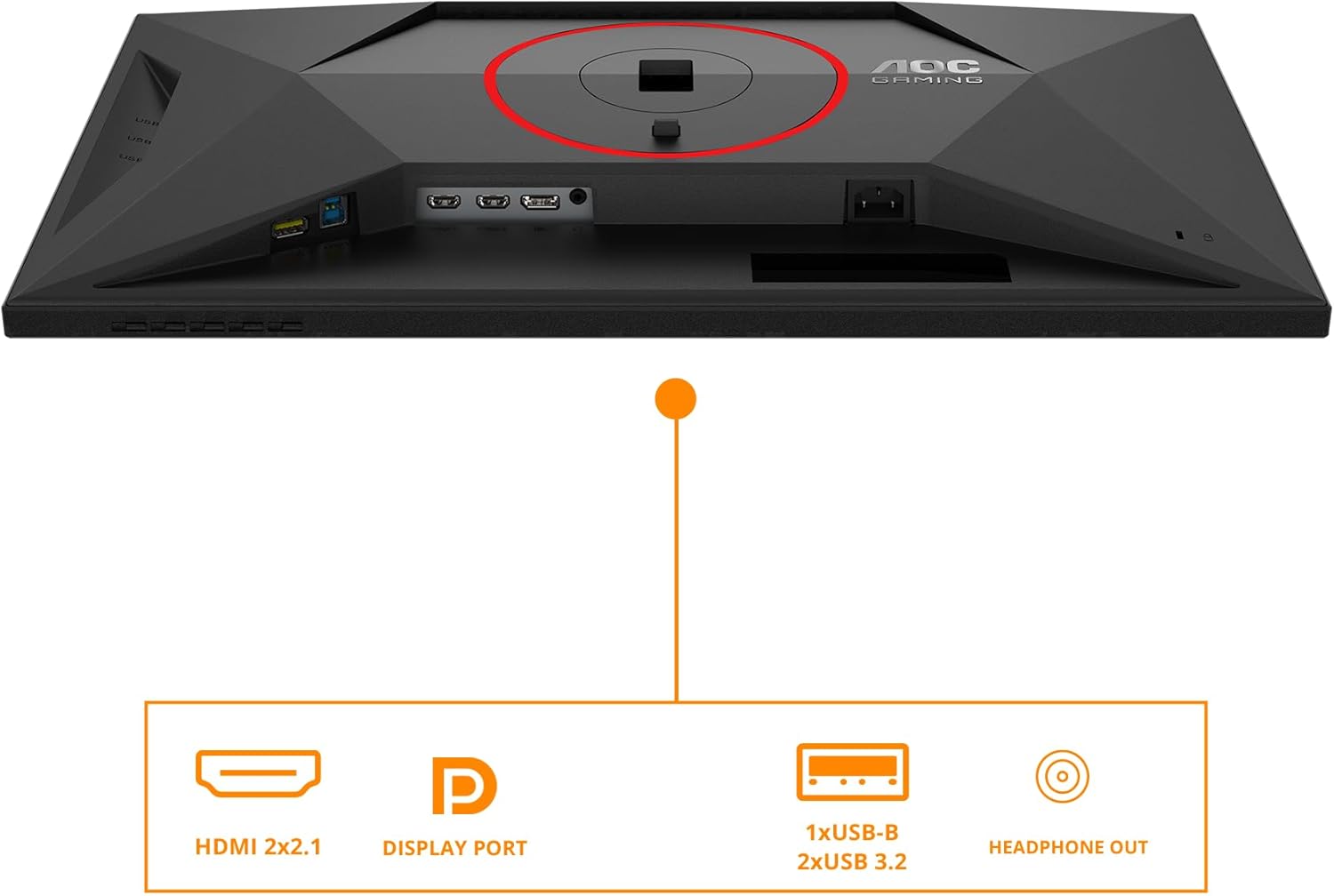
Figure 3: Overview of the monitor's input and output ports, including HDMI, DisplayPort, USB hub, and headphone out.
1.4 Powering On
Press the power button located on the monitor to turn it on. The power indicator light will illuminate.
2. Operating the Monitor
2.1 On-Screen Display (OSD) Menu Navigation
The monitor features an intuitive OSD menu for adjusting various settings. Use the joystick or buttons located on the bottom right of the monitor to navigate.
- Joystick/Buttons: Press to open the OSD menu. Move up/down/left/right to navigate options. Press again to select.
- Power Button: Turns the monitor on/off.
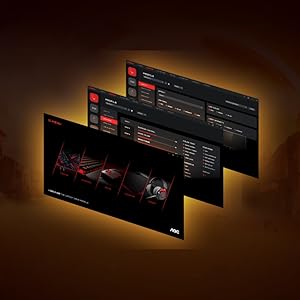
Figure 4: Example of the On-Screen Display (OSD) menu for configuration.
2.2 Display Settings
Adjust picture quality and performance settings through the OSD menu:
- Resolution: The native resolution is 3840x2160 (4K UHD). Ensure your operating system is set to this resolution for optimal clarity.
- Refresh Rate: Supports up to 160Hz for UHD and 320Hz for FHD. Adjust this in your graphics card control panel or display settings for smoother visuals.
- Adaptive Sync: This monitor is G-Sync compatible. Enable Adaptive Sync in the OSD menu and your graphics card settings to synchronize the display's refresh rate with your GPU's frame rate, reducing screen tearing and stuttering.
- HDR400: The monitor supports VESA DisplayHDR 400 for enhanced contrast and color vibrancy. Enable HDR in your operating system's display settings for compatible content.
- Response Time: Features a rapid 1ms (GtG) and 0.5ms (MPRT) response time for crisp images and reduced motion blur, ideal for fast-paced gaming.
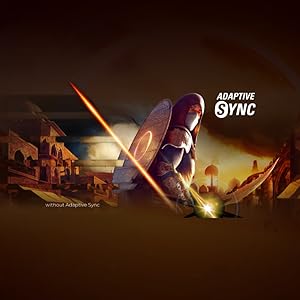
Figure 5: Visual representation of Adaptive Sync technology in action.
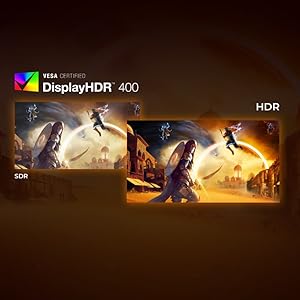
Figure 6: Comparison illustrating the visual difference between HDR and SDR content.
2.3 Ergonomic Adjustments
The monitor stand allows for height adjustment to optimize your viewing comfort.
- Height Adjustment: Gently push or pull the monitor up or down along the stand's vertical axis to find your preferred height. The monitor offers up to 130mm of height adjustment.
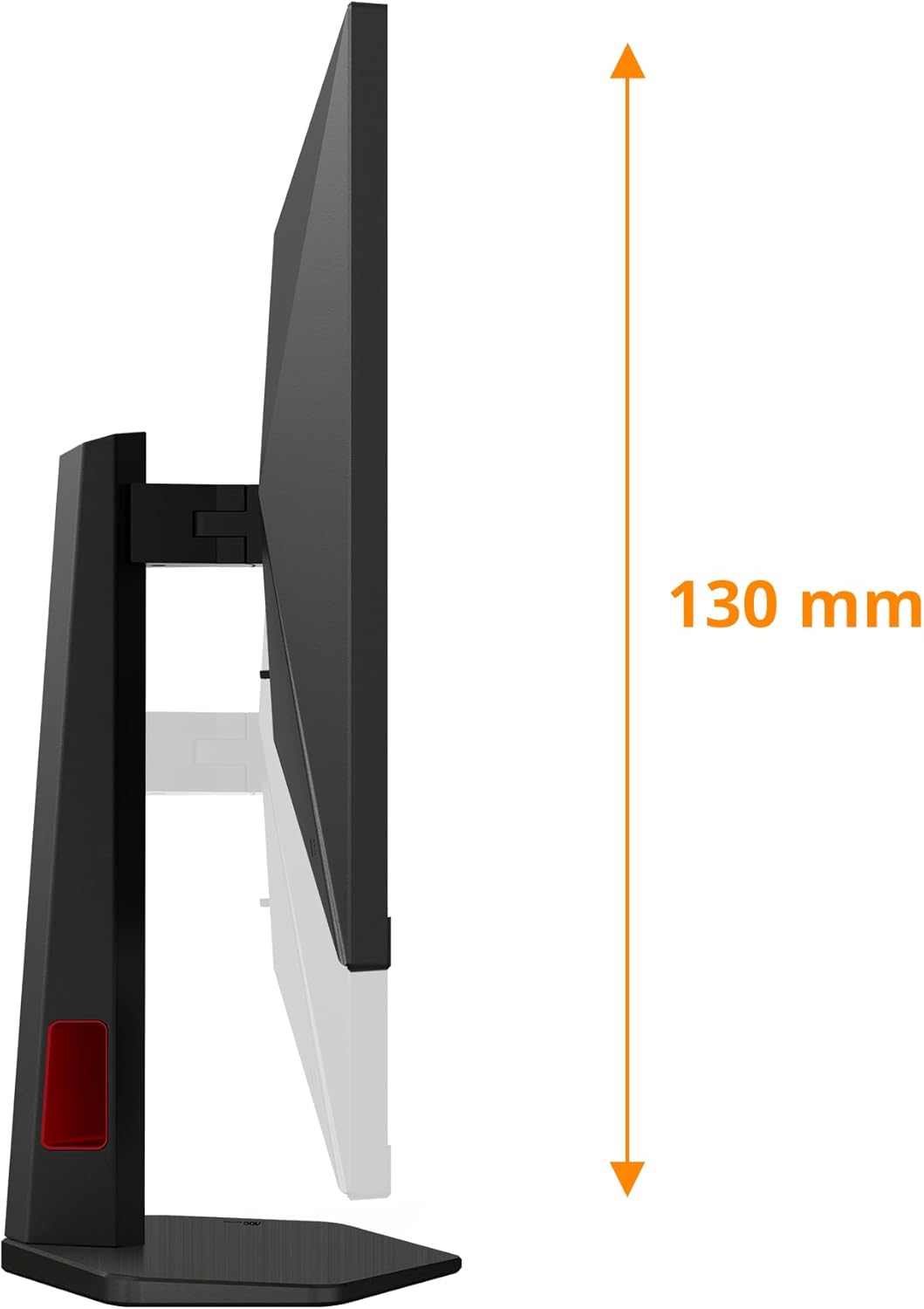
Figure 7: Side view demonstrating the monitor's height adjustment capability.
3. Maintenance
3.1 Cleaning the Monitor
To maintain the monitor's appearance and performance:
- Always unplug the monitor from the power outlet before cleaning.
- Use a soft, lint-free cloth slightly dampened with water or a non-abrasive screen cleaner.
- Do not spray cleaner directly onto the screen.
- Avoid using benzene, thinner, ammonia-based cleaners, or abrasive materials, as these can damage the screen or casing.
3.2 Storage
When storing the monitor for extended periods, ensure it is:
- Stored in a cool, dry place away from direct sunlight and extreme temperatures.
- Protected from dust and moisture.
- Preferably stored in its original packaging to prevent damage.
4. Troubleshooting
If you encounter issues with your monitor, refer to the following common problems and solutions:
| Problem | Possible Cause | Solution |
|---|---|---|
| No image on screen | Power cable disconnected; Video cable disconnected or incorrect input selected. | Ensure power cable is securely connected. Check video cable connection (HDMI/DisplayPort). Press the OSD button to select the correct input source. |
| Image is blurry or distorted | Incorrect resolution or refresh rate settings. | Set display resolution to 3840x2160 and refresh rate to 160Hz (or lower compatible rates) in your computer's display settings. |
| Screen flickering | Adaptive Sync not enabled or compatibility issue; Cable issue. | Ensure Adaptive Sync is enabled on both the monitor and your graphics card. Try a different video cable. |
| No audio from headphone out | Audio settings incorrect; External device issue. | Check audio output settings on your computer (select AOC monitor as output). Ensure headphones/speakers are working correctly. |
| USB ports not working | USB upstream cable not connected. | Connect the USB-B to USB-A upstream cable from the monitor to your computer. |
If the problem persists after trying these solutions, please contact AOC customer support.
5. Specifications
| Feature | Detail |
|---|---|
| Brand | AOC |
| Model Number | U27G4R |
| Screen Size | 27 Inches |
| Resolution | 3840 x 2160 (4K UHD) |
| Refresh Rate | 160Hz (UHD), 320Hz (FHD) |
| Response Time | 0.5ms (MPRT) / 1ms (GtG) |
| Panel Type | IPS |
| HDR Support | VESA DisplayHDR 400 |
| Adaptive Sync | G-Sync Compatible |
| Video Inputs | 2x HDMI 2.1, 1x DisplayPort 1.4 |
| USB Hub | 4x USB 2.0, 1x USB 3.0 (with upstream port) |
| Audio Output | 1x Headphone Out (3.5mm) |
| Ergonomics | Height Adjustable (up to 130mm) |
| Dimensions (with stand) | 22.76 x 61.39 x 51.6 cm |
| Weight (with stand) | 8.2 kg |
6. Warranty and Support
6.1 Warranty Information
Your AOC Gaming U27G4R Monitor comes with a manufacturer's warranty. Please refer to the warranty card included in your product packaging for specific terms, conditions, and duration of the warranty. Keep your proof of purchase for warranty claims.
6.2 Customer Support
For technical assistance, product inquiries, or warranty service, please visit the official AOC support website or contact their customer service department. Contact details can typically be found on the AOC website or in your product documentation.
Online Support: www.aoc.com
Related documentsU27G4R


Ask a question about this manual
Ask about setup, troubleshooting, compatibility, parts, safety, or missing instructions. Manuals+ will review the question and use this page’s manual context to help answer it.