
1. Setup
This section guides you through the initial setup of your DUNHOO 15.6 Inch 2-in-1 Touchscreen Convertible Laptop.
1.1 Unboxing and Component Identification
Carefully remove all components from the packaging. Ensure the following items are present:
- DUNHOO 15.6 Inch Laptop
- AC Adapter
- Instruction Manual (this document)
- Warranty Card
Familiarize yourself with the laptop's layout and ports.

Figure 1.1: Front view of the DUNHOO 15.6 Inch 2-in-1 Touchscreen Convertible Laptop.
1.2 Initial Power-On
- Connect the AC adapter to the laptop's power port and then to a power outlet.
- Open the laptop lid.
- Press the power button located on the side of the laptop.
- Follow the on-screen instructions to complete the initial Windows 11 Pro setup, including language selection, network connection, and user account creation.
1.3 Port Overview
The laptop features various ports for connectivity:
- Left Side: Power hole, Full-function Type-C port, HDMI port, USB 3.0 port.
- Right Side: Power button, 2x USB 2.0 ports, RJ45 Ethernet port, 3.5mm standard headphone jack.
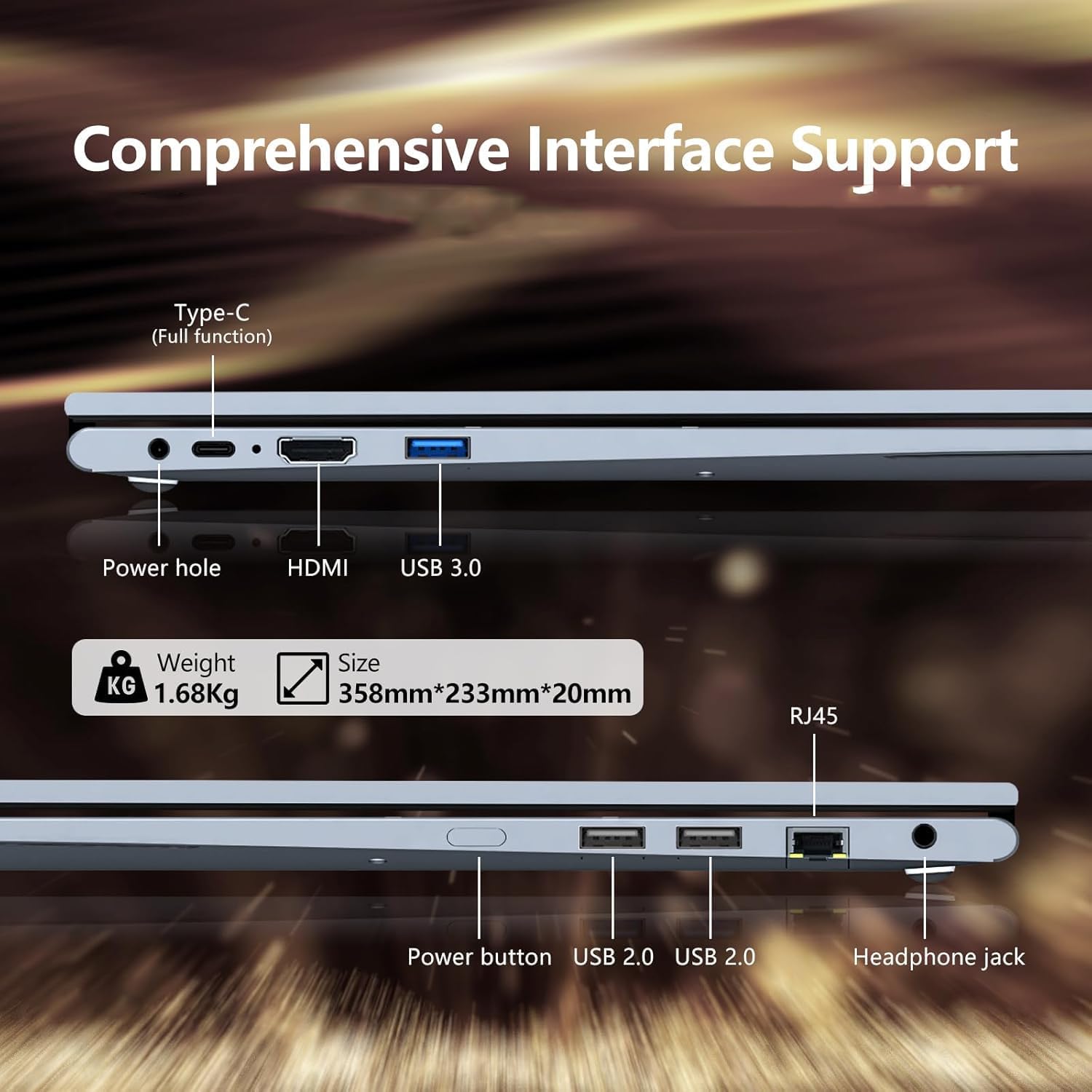
Figure 1.2: Overview of laptop ports for external device connections.
1.4 Visual Overview of the Laptop
Video 1.1: A visual demonstration of the DUNHOO 15.6 Inch 2-in-1 Touchscreen Laptop, highlighting its design and convertible features.
2. Operating Instructions
This section details the various ways to operate your DUNHOO 2-in-1 laptop.
2.1 Keyboard and Touchpad Usage
The laptop features a full-size keyboard with a numeric keypad and a backlit function for low-light conditions. The integrated touchpad supports multi-touch gestures for navigation.
Figure 2.1: The laptop's keyboard and touchpad layout.
2.2 360° Rotating Touchscreen Functionality
The laptop's display can rotate 360 degrees, allowing it to be used in various modes:
- Laptop Mode: Traditional laptop use for typing and productivity.
- Stand Mode: Fold the keyboard back to use the screen for presentations or media viewing.
- Tent Mode: Position the laptop in an inverted 'V' shape for stable viewing on uneven surfaces.
- Tablet Mode: Fold the screen completely back against the base for a full touchscreen tablet experience.
The 15.6-inch Full HD IPS touchscreen supports touch and handwriting input, adapting to your chosen mode.

Figure 2.2: Demonstrates the 360-degree rotation and various usage modes of the convertible laptop.
2.3 Wireless Connectivity
The laptop supports Wi-Fi 5 for high-speed internet access and Bluetooth 5.1 for connecting wireless peripherals such as mice, keyboards, and audio devices.

Figure 2.3: Icons indicating Wi-Fi 5 and Bluetooth 5.1 support.
3. Maintenance
Proper maintenance ensures the longevity and optimal performance of your laptop.
3.1 Battery Care
The laptop is equipped with a 5000mAh lithium polymer battery. To maximize battery life:
- Avoid fully discharging the battery frequently.
- Store the laptop in a cool, dry place when not in use for extended periods.
- Periodically calibrate the battery by fully charging and then fully discharging it.

Figure 3.1: Visual representation of the laptop's 5000mAh battery capacity.
3.2 Cleaning Instructions
Use a soft, lint-free cloth to clean the screen and exterior surfaces. For stubborn smudges, dampen the cloth slightly with water or a screen-safe cleaning solution. Avoid harsh chemicals or abrasive materials.
3.3 Software Updates
Regularly check for and install Windows updates to ensure system stability, security, and optimal performance.
4. Troubleshooting
This section provides solutions to common issues you might encounter.
4.1 Power Issues
- Laptop does not turn on: Ensure the AC adapter is securely connected to both the laptop and a working power outlet. Check if the power outlet is functional. If the battery is completely drained, allow it to charge for at least 30 minutes before attempting to power on.
- Battery not charging: Verify the AC adapter is not damaged. Try a different power outlet.
4.2 Display Issues
- Screen is blank: Ensure the laptop is powered on. Press the brightness keys (usually Fn + F5/F6) to adjust screen brightness. Connect an external monitor via HDMI to check if the display issue is with the laptop screen itself.
- Touchscreen unresponsive: Restart the laptop. Ensure no foreign objects are on the screen. Check for driver updates in Device Manager.
4.3 Connectivity Issues
- Wi-Fi not connecting: Ensure Wi-Fi is enabled in Windows settings. Restart your router and modem. Check for updated Wi-Fi drivers.
- Bluetooth device not pairing: Ensure Bluetooth is enabled on both the laptop and the device. Place devices close to each other. Remove and re-add the device in Bluetooth settings.
5. Specifications
Key technical specifications for the DUNHOO 15.6 Inch 2-in-1 Touchscreen Convertible Laptop, Model G3.
| Feature | Specification |
|---|---|
| Brand | DUNHOO |
| Model Name | G3 |
| Screen Size | 15.6 Inches |
| Display Resolution | 1920x1080 Pixels (Full HD IPS) |
| CPU Model | Ryzen 3 3200U (up to 3.5GHz) |
| RAM Memory | 16 GB DDR4 |
| Hard Disk Size | 512 GB SSD |
| Operating System | Windows 11 Pro |
| Graphics Coprocessor | Radeon Graphics (Integrated) |
| Special Features | 360-Degree Opening, Backlit Keyboard, HD Audio, Numeric Keypad, Touchscreen, Support Stylus |
| Wireless Connectivity | Wi-Fi 5, Bluetooth 5.1 |
| Ports | 1x Full-function Type-C, 1x RJ45, 2x USB 2.0, 1x USB 3.0, 1x HDMI, 1x 3.5mm Headphone Jack |
| Battery Life (Average) | 4 Hours (usage), 30 Hours (standby) |
| Item Weight | 3 Pounds |
| Dimensions (L x W x Th) | 14"L x 9"W x 0.8"Th |
6. Warranty and Support
Your DUNHOO laptop comes with a comprehensive warranty and dedicated customer support.
6.1 Warranty Information
This product is covered by a 2-Year Manufacturer's Warranty. This warranty covers defects in materials and workmanship under normal use. Please refer to the included Warranty Card for full terms and conditions.
6.2 Customer Support
For any product-related inquiries, technical assistance, or warranty claims, please contact our professional service team:
- Email: weservice02@outlook.com
- Phone (US): +1 888-695-1196 (Work Hours: 5:00 AM - 9:00 PM UTC)
- Service Time: 24 hours
To contact the seller through Amazon, navigate to "Your Orders," find the relevant order, and click "Contact seller."