
1. Introduction
This manual provides essential instructions for the safe and efficient operation of your DAJA Mr.Carve M4 Dual Laser Engraving Machine. Please read this manual thoroughly before using the device to ensure proper setup, operation, and maintenance. Retain this manual for future reference.

Image 1.1: The Mr.Carve M4 Dual Laser Engraving Machine with included safety glasses.
2. Safety Information
Laser engraving machines utilize high-power lasers that can cause serious injury if not handled correctly. Adhere to all safety precautions.
- Eye Protection: Always wear the provided laser safety glasses when the machine is in operation. Never look directly into the laser beam.
- Ventilation: Operate the machine in a well-ventilated area to dissipate fumes and smoke produced during engraving.
- Material Compatibility: Ensure the material being engraved is safe for laser processing. Avoid highly reflective, flammable, or toxic materials.
- Supervision: Never leave the machine unattended during operation.
- Emergency Stop: Familiarize yourself with the location of the power button for immediate shutdown in case of an emergency.
- Children and Pets: Keep children and pets away from the operating area.
3. Package Contents
Verify that all items are present in the package:
- Mr.Carve M4 Laser Engraving Machine Unit
- Laser Safety Glasses
- Power Adapter
- USB Cable
- USB Flash Drive (containing software and manual)
- Sample Materials for Testing
- User Manual (this document)
4. Setup
4.1 Unpacking and Placement
- Carefully remove all components from the packaging.
- Place the machine on a stable, level, and non-flammable surface. Ensure adequate space around the machine for ventilation and operation.
4.2 Software Installation
The necessary software is provided on the included USB flash drive. The software is compatible with Windows and virtual Windows systems on Mac.
- Insert the USB flash drive into your computer.
- Locate and decompress the ZIP file containing the software.
- Follow the on-screen instructions to install the software.
4.3 Connecting the Machine
- Connect the power adapter to the machine and then to a power outlet.
- Connect the machine to your computer using the provided USB cable.
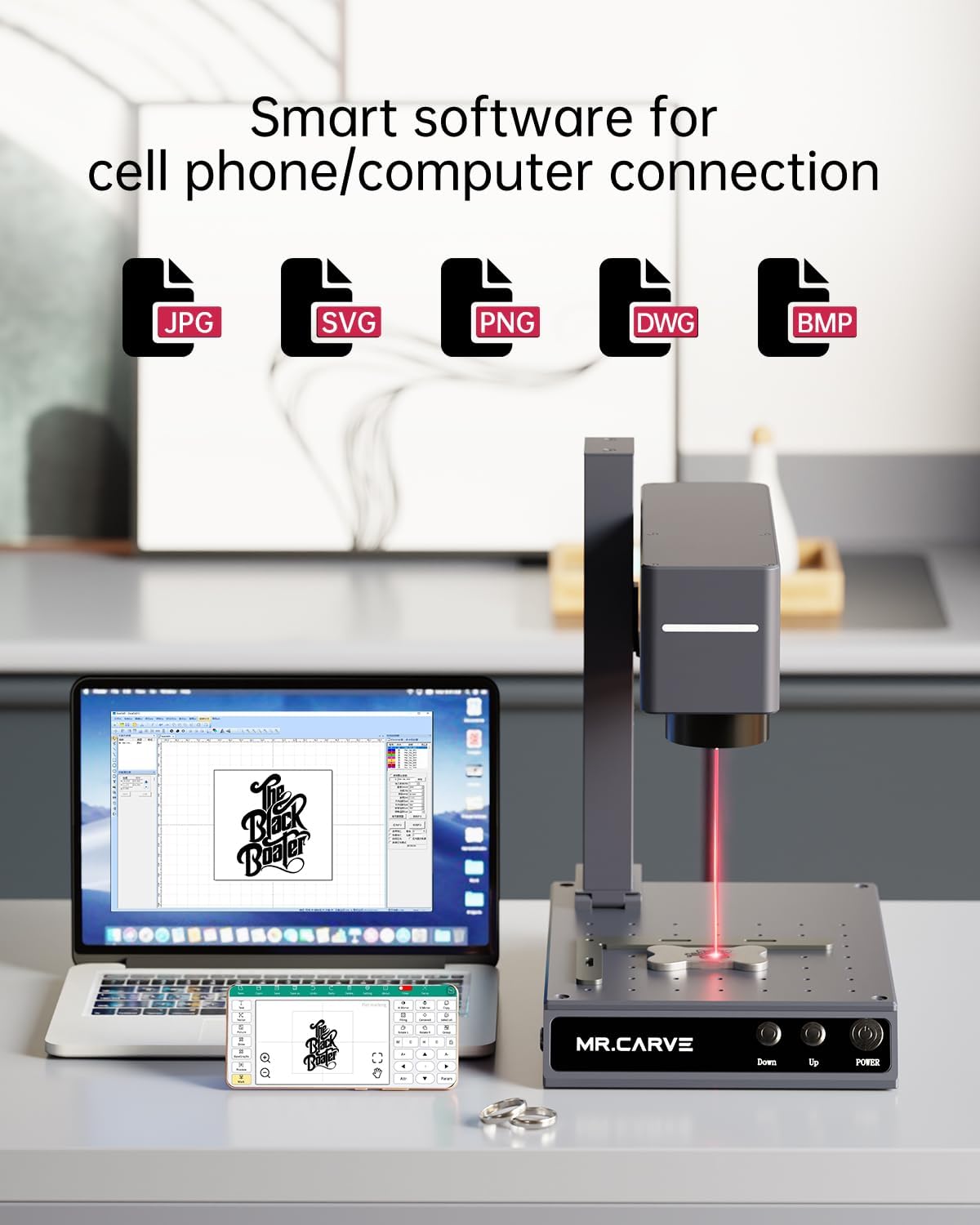
Image 4.1: The Mr.Carve M4 machine connected to a computer and smartphone, illustrating software connectivity.
5. Operating Instructions
5.1 Powering On/Off
- To power on, press the 'POWER' button on the front of the machine.
- To power off, press and hold the 'POWER' button until the machine shuts down.
5.2 Material Preparation
- Place the material to be engraved on the working platform.
- Adjust the laser head height using the 'Up' and 'Down' buttons to achieve optimal focus. The distance between the laser head and the material should be set according to the material and desired engraving depth.
5.3 Understanding Dual Laser Sources
The Mr.Carve M4 features a dual light source design, combining a 455nm blue laser and a 1064nm infrared fiber laser for versatility across various materials.

Image 5.1: Illustration of the dual light source technology, featuring a 1064nm fiber laser and a 455nm blue laser.
- 1064nm Fiber Laser: Ideal for engraving a wide range of metal materials with high precision (marking accuracy <0.001mm).
- 455nm Blue Laser: Suitable for engraving various non-metallic materials, offering 0.01mm motion accuracy.

Image 5.2: Examples of engraving capabilities on metal (left, 1064nm) and non-metal (right, 455nm) materials.
5.4 Engraving Process
- Software Interface: Open the Mr.Carve software on your computer or smartphone.
- Import Design: Import your design file (supports JPG, SVG, PNG, DWG, BMP).
- Parameter Settings: Adjust engraving parameters such as laser power, speed, and passes based on the material and desired effect.
- Preview Mode: Utilize the preview modes to accurately position your design. The machine offers a red light preview for detecting the engraved area and a graphic outline preview for real-time simulation of the graphic's size and location.

Image 5.3: The machine demonstrating Red Light Preview Mode and Graphic Outline Preview Mode for precise positioning.
- Start Engraving: Once satisfied with the preview, initiate the engraving process from the software.
- Monitoring: Monitor the engraving process and ensure proper ventilation.
5.5 Rotation Carving for Irregular Surfaces
The Mr.Carve M4 supports rotation carving with optional accessories, allowing engraving on conical, spherical, cylindrical, and annular inner or outer walls with diameters ranging from 3mm to 200mm.

Image 5.4: Examples of rotary attachments used for engraving on various irregular objects like cups, balls, and rings.
6. Maintenance
6.1 Cleaning
- Ensure the machine is powered off and unplugged before cleaning.
- Regularly clean the lens of the laser head with a soft, lint-free cloth and lens cleaning solution to maintain engraving quality.
- Wipe down the machine's exterior with a dry or slightly damp cloth. Avoid using harsh chemicals.
- Remove any debris or dust from the working platform and ventilation areas.
6.2 Storage
Store the machine in a dry, dust-free environment away from direct sunlight and extreme temperatures.
7. Troubleshooting
Refer to the following common issues and solutions. For further technical assistance, contact customer support.
- Machine not powering on: Check power connections and ensure the power adapter is securely plugged in.
- Software not detecting machine: Ensure the USB cable is properly connected and the software drivers are installed correctly. Try restarting both the machine and the computer.
- USB flash drive content missing: The content is in a ZIP format and needs to be decompressed. If issues persist, check the technical card in the box or contact support.
- Poor engraving quality: Verify laser focus, adjust power and speed settings, and ensure the material is clean and properly positioned. Clean the laser lens if necessary.
- Laser not firing: Check safety interlocks (if any), ensure the machine is in operation mode, and verify laser power settings in the software.
8. Specifications
| Feature | Specification |
|---|---|
| Brand | DAJA |
| Model Number | M4APP |
| Laser Power | 5,000mW (455nm Blue Laser) / 2,000mW (1064nm Fiber Laser) |
| Laser Type | 455nm / 1064nm |
| Laser Class | Level One |
| Marking Accuracy (1064nm) | <0.001mm |
| Motion Accuracy (455nm) | 0.01mm |
| Operation Mode | Semi-Automatic |
| Item Weight | 8 Kilograms (17.6 pounds) |
| Product Dimensions | 17.72 x 7.87 x 16.54 inches |
| UPC | 797387257362 |
9. Warranty and Support
9.1 Warranty Information
The Mr.Carve M4 Dual Laser Engraving Machine comes with a one-year warranty from the date of purchase. Please retain your proof of purchase for warranty claims.
9.2 Customer Support
For technical issues, after-sales support, or any questions regarding your Mr.Carve M4 machine, please refer to the official after-sales card included in your package. You may also contact customer support via the official mailbox, providing your order information for timely assistance.