
1. Introduction
The Tzone TempU04 is a reusable USB temperature data logger designed for reliable and accurate temperature monitoring. It is ideal for applications requiring precise temperature tracking, such as cold chain logistics, laboratory environments, refrigeration, and storage of temperature-sensitive goods. This device automatically generates PDF and CSV reports, eliminating the need for specialized software for basic data retrieval. For advanced configuration and detailed analysis, dedicated software is available.

Image: Overview of the Tzone TempU04 Temperature Data Logger highlighting its key features including LCD, USB port, and data storage capacity.
2. Safety Information
- Do not expose the device to extreme temperatures outside its operating range (-30°C to 60°C / -22°F to 140°F).
- Avoid dropping or subjecting the device to severe impact.
- Keep the device away from strong magnetic fields.
- Do not attempt to disassemble or modify the device, as this will void the warranty and may cause damage.
- Ensure the USB port is clean and dry before connecting to a computer.
- Dispose of batteries according to local regulations.
3. Product Overview
3.1 Device Components
The TempU04 data logger features a compact design with an integrated USB port for direct connection to a computer. It includes an LCD screen for real-time data display and two buttons for operation.

Image: Detailed view of the TempU04 data logger, showing the LCD screen, status indicator light, OK/ALARM indicators, Start/Scroll/Mark button, Stop button, and USB port.
- LCD Screen: Displays current temperature, MAX/MIN values, battery life, temperature unit (°C/°F), and recording status.
- Status Indicator Light: Provides visual feedback on device status (OK/ALARM).
- Start/Scroll/Mark Button (Play icon): Used to start recording, scroll through display modes, and mark events during recording.
- Stop Button (Square icon): Used to stop recording.
- USB Port: Integrated USB 2.0 interface for data download and device configuration.
3.2 Dimensions

Image: The TempU04 data logger with its dimensions (84mm length, 36mm width) and a hanging design feature.
3.3 Package Contents
- Temperature data logger (TempU04) x 1
- User manual x 1
4. Setup
4.1 Battery Installation
The TempU04 uses one CR2032 button cell battery, which is typically pre-installed. If replacement is needed, carefully open the battery compartment on the back of the device and insert a new CR2032 battery with the positive (+) side facing up.
4.2 Software Download and Installation
While the TempU04 can generate basic PDF/CSV reports without software, advanced configuration and detailed data analysis require the Tzone management software. This software is compatible with Windows operating systems only.
- Connect the TempU04 to a Windows PC via its USB port.
- The device will appear as a removable drive. Look for a file or link to download the software. Alternatively, visit the official Tzone website for the latest software version.
- Install the software by following the on-screen instructions. Administrator privileges may be required.

Image: Flowchart illustrating the process of downloading and using the free software to set parameters for the data logger.
4.3 Initial Configuration (Setting Parameters)
Before starting a new recording, you can customize various parameters using the Tzone software:
- Temperature Unit: Switch between Celsius (°C) and Fahrenheit (°F).
- Logging Interval: Set how frequently the device records temperature data (e.g., every 10 minutes).
- Alarm Range: Define upper and lower temperature thresholds for alarms.
- Startup Mode: Choose between manual start or delayed start.
- Password Protection: Enable password protection for generated reports.
- Calibration: Perform temperature calibration if necessary.
After setting parameters, the data logger will be initialized, and any previous data will be cleared.
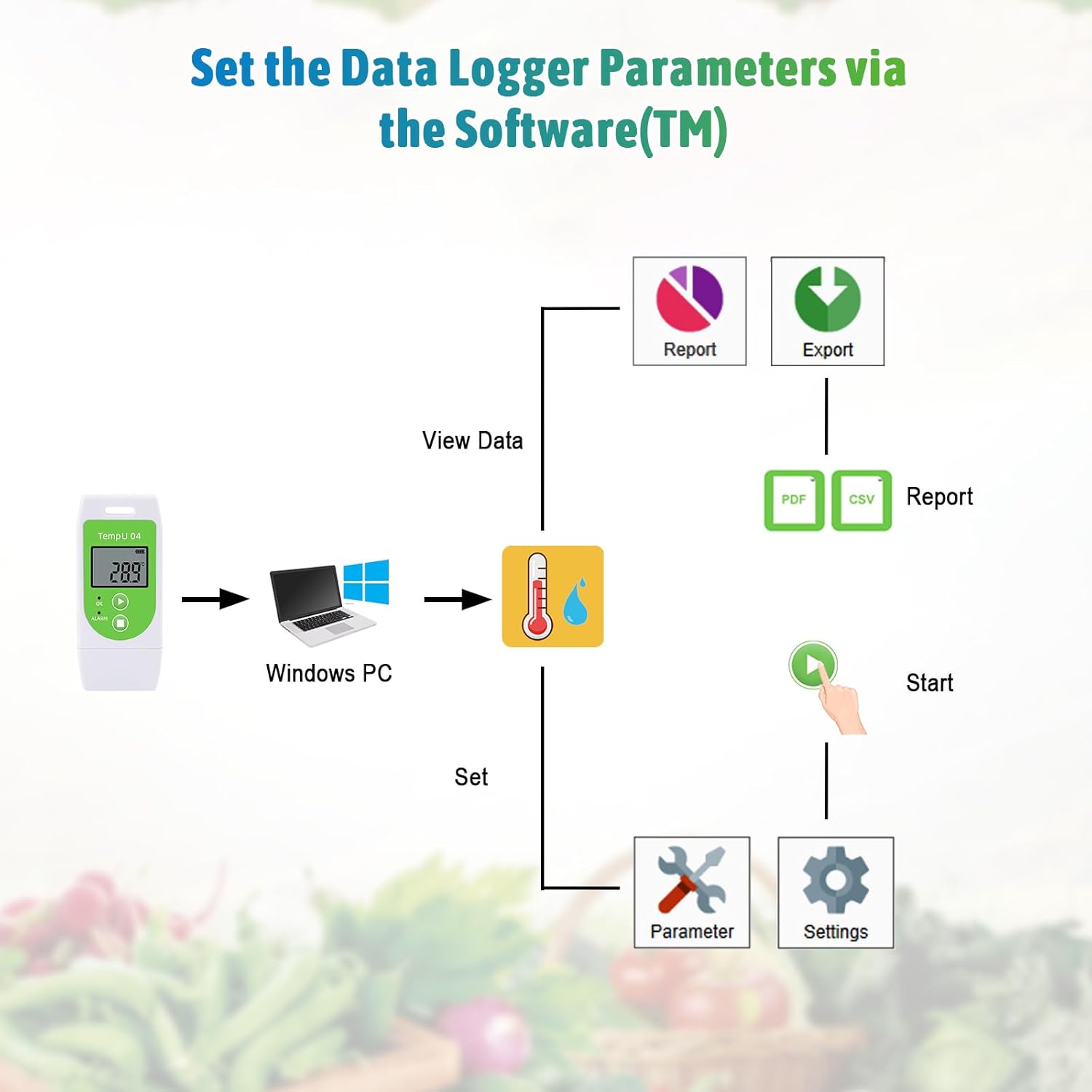
Image: Diagram showing the process of setting data logger parameters via the software on a Windows PC, including options for viewing data, setting parameters, and generating reports.
5. Operation
5.1 Starting a Recording
Press and hold the Start/Scroll/Mark button (play icon) for approximately 3 seconds until the 'OK' indicator lights up, indicating that recording has begun.
5.2 Stopping a Recording
Press and hold the Stop button (square icon) for approximately 3 seconds until the 'ALARM' indicator lights up, indicating that recording has stopped. Data can now be downloaded.
5.3 Viewing Data on LCD
During recording, short press the Start/Scroll/Mark button to cycle through different display modes on the LCD, including real-time temperature, maximum temperature (MAX), minimum temperature (MIN), and current recording points.
5.4 Marking Events
To mark a specific event during recording, press and hold the Start/Scroll/Mark button for more than 3 seconds while on the "MARK" interface. This will insert a marker in the data report, useful for noting significant occurrences. Note: Only one mark can be added per recording interval.

Image: Visual representation of the alarm function (red indicator light flashing when temperature range is exceeded) and the event marking function on the TempU04 data logger.
5.5 Data Download and Report Generation
Once recording is stopped, connect the TempU04 to any computer's USB port. The device will automatically generate PDF and CSV reports containing the recorded temperature data. No special software is required for this step.

Image: The TempU04 data logger connected to a laptop via USB, illustrating its plug-and-play functionality and the automatic generation of PDF and CSV reports.

Image: Banner highlighting the automatic generation of PDF and CSV reports from the TempU04 data logger, showing examples of the report formats.
5.6 Data Analysis with Software
For more in-depth analysis, use the Tzone management software. It allows you to view detailed data charts, compare data from multiple devices, and export data in various formats for further processing.

Image: Illustration showing how the Tzone software can compare data charts from multiple TempU04 data loggers simultaneously, aiding in comprehensive analysis.
6. Applications
The Tzone TempU04 is suitable for a wide range of temperature monitoring applications, including but not limited to:
- Cold Chain Transportation (food, pharmaceuticals, chemicals)
- Refrigerators and Freezers (commercial and industrial)
- Laboratories and Research Facilities
- Medical Storage (vaccines, blood products)
- Food Storage and Processing
- Wine Cellars and Agricultural Storage

Image: The TempU04 data logger depicted in the context of cold chain transportation, showing its role in monitoring temperature during transit of goods.

Image: The TempU04 data logger being used in a medical setting, emphasizing its importance for temperature-sensitive medical supplies.

Image: A collage showcasing diverse applications of the TempU04, including food storage, medical research, cold chain transportation, wine cellars, and medical refrigerators.
7. Maintenance
7.1 Battery Replacement
The TempU04 uses a CR2032 button cell battery. When the battery indicator on the LCD shows low power, replace the battery promptly to ensure continuous operation and data integrity. Refer to section 4.1 for battery installation instructions.
7.2 Cleaning
Clean the device with a soft, dry cloth. Do not use abrasive cleaners or solvents, as they may damage the casing or electronic components. Ensure the USB port is free of dust and debris.
7.3 Storage
When not in use for extended periods, store the data logger in a cool, dry place, away from direct sunlight and extreme temperatures. If storing for a very long time, consider removing the battery to prevent leakage.
8. Troubleshooting
- Device not starting: Ensure the battery is correctly installed and has sufficient charge. Press and hold the Start button firmly for 3 seconds.
- No PDF/CSV report generated: Ensure the recording has been stopped correctly (press and hold Stop button). Connect the device to a different USB port or computer.
- Inaccurate readings: Verify the device is placed in an environment where air can circulate freely around the sensor. If consistently inaccurate, consider recalibrating using the software or contacting support.
- Software not recognizing device: Ensure the device is properly connected to the USB port. Try a different USB port. Reinstall the software. Ensure you are using a Windows operating system.
- Alarm indicator flashing: This indicates that the recorded temperature has exceeded the set alarm thresholds. Check the generated report for details on when and for how long the temperature was out of range.
9. Specifications
| Parameter | Value |
|---|---|
| Model Number | TempU04 |
| Measurement Range | -30°C to 60°C (-22°F to 140°F) |
| Accuracy | ±0.5°C (-20°C to 40°C), ±1.0°C (other range) |
| Data Capacity | 32000 Points |
| Logging Interval | Configurable via software |
| Report Format | PDF & CSV (auto-generated) |
| Interface | USB 2.0 |
| Battery | 1 x CR2032 (replaceable) |
| Waterproof Rating | IP65 |
| Dimensions | Approx. 84 x 36 x 18 mm (3.3 x 1.4 x 0.7 inches) |
| Weight | Approx. 23g (0.81 ounces) |

Image: A table comparing the TempU04 with another model (U05), highlighting the advantages of the TempU04 such as larger data storage, LCD screen, multiple use, software parameter setting, PDF & CSV file format, and support for battery replacement.
10. Quality Certifications
The Tzone TempU04 data logger complies with international quality and safety standards, ensuring reliable performance and adherence to industry regulations.
- FDA CFR Part 21
- ISO9001
- ROHS
- CE
- EN12830

Image: A display of various quality certifications obtained by Tzone products, including CE, ROHS, FDA, and EN12830.
11. Warranty and Support
Tzone provides a standard warranty for the TempU04 data logger against defects in materials and workmanship. For specific warranty terms, technical support, or service inquiries, please contact Tzone customer support through their official website or the contact information provided with your purchase.
For software downloads and additional resources, please visit the official Tzone website.


